
The Short Answer
Yes — OLED laptops are worth it for photo editing if your work involves high-contrast images, deep blacks, or color-critical review on the go. The one condition: you need to handle brightness carefully and accept that OLED panels can carry a small, measurable color accuracy risk out of the box, which means a proper calibration pass is non-negotiable for paid work. If you edit mostly bright, low-contrast outdoor photos and calibrate religiously anyway, an OLED is a genuinely worthwhile upgrade. If you mostly batch-edit under studio lighting and never review final images on the laptop screen itself, you can save your money.
What You Actually Get
OLED stands for organic light-emitting diode, and the practical difference from an LCD laptop screen comes down to how pixels produce light. On an LCD, a backlight shines through the entire panel constantly, which is why “black” areas on most laptops look grayish and glow. On an OLED, every individual pixel emits its own light and can switch completely off. That means true black, effectively infinite contrast ratios (manufacturers often quote figures like 1,000,000:1), and no blooming or haloing around bright objects against dark backgrounds.
As an Amazon Associate we earn from qualifying purchases at no extra cost to you.

For photo editing specifically, this translates into three concrete benefits. First, shadow detail: when you’re lifting shadows in a night portrait or a dim interior shot, you can actually see the difference between the dark tones you’re adjusting instead of guessing against a milky gray floor. Second, color: most quality OLED laptop panels cover 100% of the DCI-P3 gamut, and many handle close to full Adobe RGB coverage — wider than the sRGB-only panels that dominate budget and midrange laptops. Third, response and viewing: OLED pixels switch nearly instantly, and colors hold up at wide viewing angles, which matters when a client is looking over your shoulder.
The trade-offs are real, though. OLED panels in laptops typically max out around 400 nits of full-screen brightness (higher, often 500–600+ nits, only on small HDR highlight windows), which can feel dim in a bright room or outdoors. Static images held on screen for hours can theoretically cause burn-in, though modern panels with pixel-shift and refresh features have made this largely a long-term concern rather than a first-year one. And OLED panels can ship with factory calibration that’s close but not perfect — which is why calibration matters.
Pros
- True blacks and effectively infinite contrast — shadow work in Lightroom or Capture One becomes far more accurate because dark tones are rendered on genuinely dark ground, not a backlit gray.
- Wide color gamut coverage — typically 100% DCI-P3 and strong Adobe RGB numbers, so you can soft-proof and edit for print and professional output without an external monitor.
- No blooming or haloing — bright highlights against dark areas stay clean, which matters for astrophotography, night street work, and dramatic studio edits.
- Excellent viewing angles — colors and contrast barely shift when the screen is viewed off-center, useful for client reviews and collaborative sessions.
- Sharper perceived motion — near-instant pixel response makes image-to-image culling feel smoother and reduces smearing when zooming and panning.
Cons
- Lower full-screen brightness than good IPS panels — many OLED laptops sit around 400 nits full-field, making outdoor or bright-café editing harder than on a bright IPS display.
- Burn-in risk over years — static Lightroom panels and toolbars held for hours daily can, over long timeframes, leave faint image retention. Mitigations exist, but it’s a consideration for an all-day editing machine.
- Factory color accuracy varies — some units arrive well under ΔE targets for critical work; plan on a colorimeter calibration (a decent colorimeter runs roughly $150–$300) as part of the real cost.
- Price premium — expect to pay roughly $150–$400 more than a comparable LCD laptop with the same processor and RAM.
- Occasionally dimmer subpixel layouts — some OLED panels use non-standard subpixel arrangements that can render very fine text slightly less crisply, which affects UI sharpness more than photo rendering.
Who Should Buy It
Buy an OLED laptop for photo editing if you work in the field and review or deliver images directly from the laptop; if you edit high-contrast material — night, astro, stage, moody interiors; or if you’re upgrading from a budget sRGB panel and want display-quality color in a machine you already carry. A well-equipped example like the ASUS Zenbook 14 OLED, with a 14-inch FHD+ touchscreen, a Ryzen AI 9 processor, 16GB of DDR5 RAM, and configurable storage from 256GB to 2TB, comes in around $1,200 and covers the editing workflow capably while weighing in at roughly 2.8 pounds — light enough that a color-accurate screen doesn’t cost you portability.
Who Should Skip It
Skip it if you do almost all final color-critical work on a calibrated desktop monitor and only use the laptop for culling, organization, and rough edits. Skip it if you regularly edit outdoors in direct sunlight, where 400 nits will frustrate you. And skip it if your budget is tight and every dollar spent on the panel is a dollar not spent on RAM, storage, or a better external display — in some workflows, a midrange IPS laptop plus a calibrated external monitor outperforms an OLED laptop alone.
Cheaper Alternatives
| Option | Cost | Trade-off |
|---|---|---|
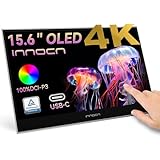
| Calibrated portable OLED monitor, e.g. INNOCN 15.6″ 4K OLED touch with 100% DCI-P3 | ~$280 | Adds a second bag item (roughly 1.6 pounds plus a stand or folio) and needs a USB-C port with enough wattage; you get OLED color without buying a new laptop. |
| Midrange IPS laptop plus calibration | $700–$1,000 | Good brightness and no burn-in worry, but limited contrast (typically 1,000–1,500:1) and often only ~100% sRGB coverage — fine for web delivery, weaker for print. |
| Refurbished or last-generation OLED laptop | $850–$1,100 | Same panel technology at a discount, but check battery cycle count and confirm the warranty terms before buying. |
That portable-monitor route deserves a note: if you already own a capable laptop, a $280 4K OLED second screen with 100% DCI-P3 coverage and a 1,000,000:1 contrast ratio delivers the OLED editing experience for a fraction of a laptop upgrade. If you’re due for a new machine anyway, the built-in OLED is the cleaner choice.
FAQ
Do OLED laptops cause color shifts over time?
OLED panels can drift slightly in brightness and color balance over years of heavy use, but the changes are gradual. An annual calibration keeps things accurate. Burn-in — permanent image retention from static UI elements — is the more discussed risk; modern laptop OLEDs include pixel-refresh routines, and most editors won’t notice an issue within a typical three-to-four-year ownership window if they vary their workflow and don’t leave a static screen at full brightness for days.
Is a 2.8K or 4K OLED worth it over FHD+ for photo editing?
For a 13- to 14-inch screen, resolution affects sharpness and screen real estate more than color accuracy. A FHD+ panel on a 14-inch display is adequate, but a higher-resolution OLED lets you fit more editing panels on screen and gives finer detail when zooming. Note that higher resolutions draw more power and reduce battery life; the difference is typically 1–2 hours of runtime.
Can I trust an OLED laptop screen for print work?
Yes, with calibration. Confirm the panel covers Adobe RGB (most quality laptop OLEDs cover a high percentage), calibrate to your print lab’s recommended target (typically D50 or D65 white point at 100–120 nits), and soft-proof in Lightroom or Photoshop. For final sign-off on high-value print jobs, a spot check against a physical proof is still good practice.
How much RAM and storage do I need for photo editing on an OLED laptop?
16GB of RAM is the practical minimum for comfortable Lightroom Classic and Photoshop work; 32GB if you shoot high-megapixel files or run heavy AI denoise. For storage, budget roughly 100–150GB per year of RAW shooting as a working set, plus room for exports — most editors are happiest with 1TB internal plus an external fast SSD for archives. On machines where storage is configurable, like the Zenbook 14 OLED above, sizing the SSD at purchase is usually cheaper than upgrading later.
Related guides
- Alienware 16 Aurora RTX 5070 Review: Display, Portability and Configuration Gaps
- Lenovo Legion Pro 7i Gen 10 Review: 64GB RAM and Dual-SSD Configuration
- MSI Katana 15.6-inch RTX 5050 Review: Configuration Strengths and Upgrade Unknowns
- ASUS ROG Strix SCAR 16 G635LX-XS97 Review: Display Ambition, Upgrade Questions


