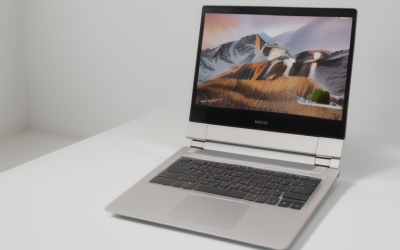
For drawing, the screen and pen matter more than the processor. The specs that decide how a laptop feels to sketch on are a pen-enabled touchscreen with at least 4,096 pressure levels and low latency, a display with near-full sRGB coverage (wider if you print), and 16GB of RAM so large canvases with many layers stay smooth.
This guide is for illustrators, comic artists, concept artists, and students who want to draw on the same machine they use for everything else. In 2026, pen laptops come in two broad shapes: convertibles that fold or rotate the display flat, and traditional clamshells paired with a separate tablet. The sections below explain how to compare pen specs, display quality, and canvas performance so you buy a machine that suits your style.
Pen Input Is the Core Decision
A drawing laptop is only as good as its pen experience. Pressure sensitivity controls line weight and opacity, tilt support lets shading tools respond to the angle of the pen, and latency determines whether the line follows your hand or lags behind it. A display with a thick glass layer or a wide gap between the glass and the panel creates parallax, where the cursor appears offset from the tip, which is frustrating for precise work.
Pen technologies vary. Some use an electromagnetic design with a battery-free pen, while others use an active pen powered by a battery or a charging dock. Compatibility with your preferred pen brand and the availability of replacement tips are practical matters. Also check whether the pen is included or sold separately, and whether it attaches magnetically to the laptop.
Specs That Shape the Drawing Experience
Pressure Levels, Tilt, and Latency
Look for at least 4,096 levels of pressure sensitivity, and 8,192 for more refined control. Tilt recognition is important for shading with brush tools that mimic pencils or markers. Low latency, ideally in the range of tens of milliseconds, makes lines feel immediate. A higher screen refresh rate, such as 120Hz, further reduces perceived lag.
Display Size, Resolution, and Color
A 13- to 16-inch screen gives a usable canvas. Resolution at 2560×1600 or higher produces sharp lines, while full HD works on a budget. Color matters for illustration: aim for coverage of near 100 percent of sRGB, and look for wider gamut coverage if you print or work in a professional pipeline. A matte or paper-like finish adds friction for a pencil feel, but may slightly reduce clarity.
Memory and Processor
Drawing apps use RAM for layers, brushes, and undo history. Sixteen gigabytes handles most illustrations, while 32GB helps with very large canvases, animation, and multitasking with reference images. A modern six- or eight-core processor keeps brushes responsive and speeds exports.
Graphics and Storage
Integrated graphics suffice for 2D painting and sketching. A dedicated GPU helps if you also use 3D tools, large filters, or video editing. A 512GB NVMe drive is a workable floor, while 1TB is better if you store many high-resolution files. External storage offers backup for finished work.
Form Factor and Ports
Convertible laptops let you draw flat or at an angle, while detachable designs weigh less in tablet mode but may be less stable on the lap. Check the hinge strength, because a hinge that wobbles under pen pressure is annoying. Ports for external displays, drives, and a tablet connection add flexibility.
Spec Targets by Budget Tier
| Spec | Budget | Mid-range | Premium |
|---|---|---|---|
| Pen pressure | 2,048 to 4,096 levels | 4,096 levels, tilt | 8,192 levels, tilt, low latency |
| Display | 13 to 14-inch touch, 1080p | 14 to 16-inch, 1200p or higher, 100% sRGB | High-resolution, wide gamut, 120Hz |
| RAM | 8 to 16GB | 16GB | 32GB |
| Processor | 4 to 6 cores | 6 to 8 cores | 8 or more cores |
| Storage | 256 to 512GB | 512GB to 1TB | 1 to 2TB |
| Graphics | Integrated | Integrated or entry dedicated | Dedicated GPU for 3D and effects |
Budget convertibles suit beginners and casual sketching. Mid-range covers most hobbyists and students. Premium is for professionals who need accurate color, low latency, and extra headroom.
Laptop or Drawing Tablet
You do not have to draw directly on a laptop screen. A pen tablet or pen display connected to a standard laptop can give a larger canvas and a better pen at lower cost than a convertible, and it keeps cooling and performance of a traditional clamshell. Pen displays offer direct drawing with high-quality screens, while pen tablets keep your eyes on the monitor and train hand-eye coordination.
The trade-off is portability and setup. A convertible is one device that works at a cafe or in a classroom, while a laptop plus tablet requires more space and cables. Weigh how often you draw on the move. If your studio is fixed, the external route may offer better value, and you can pair it with a powerful clamshell laptop.
Software compatibility also deserves a look. Check that your drawing, painting, or animation application supports the laptop’s pen and operating system. Some programs work best on specific platforms, and pen drivers vary in quality. Verify that pressure and tilt are recognized, and that palm rejection is reliable so resting your hand does not leave marks.
Software, Brushes, and Performance Tips
Drawing programs differ in demands. Raster painting apps with large brush engines use RAM and processor time, while vector illustration tools lean more on single-core speed. Digital painting at print resolution can create canvases with hundreds of millions of pixels, so memory matters more than raw clock speed. Check your app’s recommended specifications and pick the heaviest brush workflow you expect.
Which Setup Fits Which Artist
The Beginner or Hobbyist
A budget or mid-range convertible with a 4,096-level pen, 16GB of RAM, and a 512GB drive is plenty. Prioritize pen quality over processor speed and check that the pen is included.
The Illustration Student
Choose a mid-range convertible with a color-accurate screen, tilt support, and 16GB of RAM. Battery life and weight matter for carrying to classes, and a sturdy hinge extends the machine’s life.
The Concept Artist or Professional Illustrator
Large canvases and many layers call for 32GB of RAM, a high-resolution display with wide color gamut, and a capable processor. A premium convertible or a powerful clamshell with a pen display fits well.
The Comic and Animation Artist
Long sessions and many pages favor a comfortable screen angle, strong cooling, and extra storage. Consider a larger display, 32GB of RAM, and an external drive for backups, plus a keyboard layout that supports shortcuts.
Color Accuracy, Screen Finish, and Eye Comfort
Illustrators spend hours looking at one screen, so panel quality has a direct effect on both the work and the eyes. Color accuracy is the first concern. A display that reproduces most of the sRGB range will look correct for web and social media work, while a wider gamut helps if you print or deliver to clients with calibrated monitors. Some premium panels ship with factory calibration reports, which is a helpful sign.
The surface finish changes the pen feel. A glossy screen offers vivid color but reflects lights and feels slippery. A matte or etched surface adds grip and cuts glare, at the cost of slightly softer detail. Screen protectors that mimic paper can change the feel further, but they may reduce clarity and wear down pen tips, so check how they affect the pen.
Brightness and contrast matter for working in different spaces. A screen near 400 nits works in most rooms, and higher brightness helps by a window. High-refresh panels at 120Hz make pen strokes feel more fluid, though they use more battery. Flicker-free backlighting reduces eye fatigue during long sessions.
Ergonomics deserve attention. Drawing flat on a desk strains the neck, so look for a stand or a hinge that holds the screen at a shallow angle. Taking breaks, using a screen at arm’s length, and enabling a night mode in the evening help you draw for longer. If you share files with printers or publishers, soft-proofing tools and the ability to calibrate the display with a colorimeter are valuable features to check.
Common Mistakes
- Choosing a laptop with a touchscreen but no pen support, then discovering that fingers are not enough for drawing.
- Ignoring parallax and latency and ending up with a screen that feels disconnected from the pen tip.
- Overlooking color coverage and getting prints that look different from the screen.
- Buying 8GB of memory and running out when canvases grow.
- Forgetting to check pen compatibility and replacement tip availability.
Before You Buy
- Confirm the pen is included and check pressure levels, tilt, and latency.
- Look at color gamut coverage and brightness for the display.
- Check the hinge design and weight for tablet use.
- Verify that RAM and storage meet the needs of large canvases.
- Test compatibility with your drawing software and operating system.
- Compare the cost of a laptop plus pen display against a convertible.
Related guides
- Gaming Laptop Battery Draining While Plugged In Fix
- Graphics Cards For Low Wattage Power Supplies
- How To Stop Laptop Thermal Throttling In Software
Frequently Asked Questions
Do I need a touchscreen to draw on a laptop?
You need a pen-enabled touchscreen to draw directly on the display. Otherwise, a separate pen tablet connected to any laptop works well and often costs less.
How much RAM is enough for digital art?
Sixteen gigabytes covers most illustration work. Large canvases with many layers or animation benefit from 32GB.
Are convertible laptops good for drawing?
Yes, they let you fold the display flat and draw directly. Check hinge strength, pen quality, and screen finish, because these determine the drawing feel.
Is a dedicated GPU necessary?
Not for most 2D painting and sketching. It helps with 3D tools, heavy filters, and video work.