
A docking station update is one of those purchases that either eliminates a daily bottleneck or creates a new one. The core problem is straightforward: a laptop has too few ports for the way most people actually work — two or three external displays, a keyboard, a mouse, an external drive, maybe a headset — and every one of those needs its own cable when there is no dock. The good ones collapse that tangle into a single USB-C connection while delivering stable video, sufficient power passthrough, and enough data bandwidth to keep everything responsive. The bad ones introduce display flicker, throttle charging speeds, or drop peripherals randomly, which defeats the entire purpose of consolidating your desk.
That is why comparing published specs and reading owner reports matters more than brand loyalty in this category. We lined up eight options spanning roughly $29 to $270, from single-cable dual-monitor hubs to multi-display workhorses with gigabit-class USB ports, and broke down who each one actually serves for a 2026 docking station update.
As an Amazon Associate we earn from qualifying purchases at no extra cost to you.




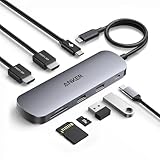


Top 3 picks at a glance
Quick Picks
| Product | Best for | Price |
|---|---|---|
| Anker 8-in-1 Dual Monitor Hub | Travelers needing one external 4K display | $39.99 |
| Dell Pro WD25 | Corporate single-display workstation users | $152.49 |
| UGREEN 7-in-1 Aluminum Dock | Tightest budgets with dual-monitor needs | $28.98 |
| Acer 13-in-1 Triple Display Dock | Windows users needing three external screens | $149.99 |
| Anker Nano Dual Monitor Hub | Windows users wanting a compact single-cable setup | $35.99 |
| Anker Prime 14-in-1 Dock | Creatives with many simultaneous connections | $269.99 |
| Plugable Triple Display Dock | Cross-platform users wanting three monitors | $159.95 |
| Anker Nano 13-in-1 with Detachable Hub | Desk-and-travel flexibility in one purchase | $111.99 |
How We Picked
We narrowed these eight from a wider field by weighing four criteria: display flexibility (how many external monitors the dock supports and at what resolution), power passthrough ceiling (whether it can fully charge your specific laptop class), port breadth and speed (USB-A count, USB-C data rate, card readers, Ethernet), and cross-platform reliability drawn from owner-reported experience. Price was the tiebreaker, not the driver — a $29 dock that cannot reliably drive two monitors is worse than a $150 dock that does exactly that.
The 8 Best Docking Station Update in 2026
Anker Laptop Docking Station Dual Monitor, 8-in-1 USB C Hub with 4K HDMI
Anker’s 8-in-1 dual-monitor hub is the easiest way to add a second display and a handful of peripherals without a bulky dock. At $39.99, it delivers 4K HDMI output alongside USB-A ports, SD card slots, and a USB-C data port in a compact chassis. Owners consistently praise its plug-and-play reliability on Windows machines and its small footprint for travel.
- Pro: 4K HDMI output in a pocketable hub form factor.
- Pro: Well-balanced port mix for a single external display plus peripherals.
- Con: Only one external display port, so true dual-monitor setups depend on your laptop’s own screen.
Skip it if you need two external monitors or rely on your dock for heavy power delivery to a workstation-class laptop.
Dell Pro Laptop Docking Station WD25, USB-C, 100W, DisplayPort, HDMI
The Dell WD25 is a professional-grade dock built for users who value DisplayPort output and rock-solid power passthrough at 100 watts. Priced at $152.49, it sits in a sweet spot for people connecting one external monitor while drawing laptop power from the same cable. Dell’s driver ecosystem gives it an edge on corporate Windows deployments where IT-managed configurations matter.
- Pro: DisplayPort output alongside HDMI, useful for monitors that lack HDMI inputs.
- Pro: Full 100W power passthrough keeps high-draw laptops charging without a separate adapter.
- Con: Single-display output limits anyone running a multi-monitor workflow.
Skip it if you need dual or triple external monitors or prefer a compact, travel-friendly form factor.
UGREEN USB C Docking Station Dual Monitor, 7-in-1 Aluminum Dock with 2xHDMI
UGREEN’s 7-in-1 aluminum dock is the cheapest dual-monitor option here at $28.98, and it punches well above that price for basic tasks. Two HDMI ports drive dual displays, the aluminum shell manages heat passively, and the port mix includes USB-A for legacy peripherals. Owners appreciate the no-nonsense build quality and the fact that it works without a separate power adapter for modest setups.
- Pro: Dual HDMI output at the lowest price on this list.
- Pro: Aluminum enclosure dissipates heat better than plastic alternatives in the same tier.
- Con: USB ports lack high-speed bandwidth, creating bottlenecks with fast external drives or multiple data-heavy devices.
Skip it if your peripherals demand sustained high-throughput USB or if you regularly plug in power-hungry laptops needing aggressive charging.
Acer 13-in-1 Laptop Docking Station, USB-C 3 Display Docking (2 HDMI+1 DP)
Acer’s 13-in-1 dock targets users who need three simultaneous external displays without jumping to the premium tier. At $149.99, it provides two HDMI ports plus a DisplayPort output, making it one of the most display-flexible options in this roundup. The port array also covers USB-A, USB-C, SD/microSD, Ethernet, and audio in a single unit.
- Pro: Three external display outputs (2 HDMI + 1 DisplayPort) at a mid-range price.
- Pro: Ethernet and card readers included, reducing the need for additional adapters.
- Con: Owners report driver friction on macOS and a relatively large desk footprint.
Skip it if you primarily use a Mac or if desk space is limited and a compact hub covers your dual-monitor needs.
Anker Nano Laptop Docking Station Dual Monitor, 8-in-1 USB C Hub for Windows
The Anker Nano dual-monitor hub is a sibling to the first Anker entry, optimized for Windows users with a slightly different port arrangement and a lower price at $35.99. It delivers 4K HDMI output, USB-A ports for peripherals, and USB-C data in a palm-sized shell. Owners note it runs cooler than plastic alternatives and connects reliably to recent Intel and AMD laptops.
- Pro: Lowest price among Anker’s dual-monitor options, with 4K HDMI and a compact build.
- Pro: Reliable plug-and-play behavior on modern Windows hardware with minimal driver issues.
- Con: Single external display port means your laptop screen must serve as the second monitor.
Skip it if you need two external monitors without using the laptop display, or if you want higher power passthrough for a workstation machine.
Anker Prime Docking Station, 14-in-1 Laptop Docking Station Dual Monitor
Anker’s Prime dock is the premium flagship of this list at $269.99, earning that price with a 14-in-1 port layout, dual-monitor support, and robust power delivery that keeps even hungry laptops topped up through a single cable. The build quality is noticeably higher than budget hubs — heavier, better-ventilated, with a cable that feels built to last. Owners frequently highlight SD and microSD card speeds as standout features for photographers and videographers transferring large files daily.
- Pro: Fourteen ports cover virtually every connection need simultaneously, including fast card readers.
- Pro: Top-tier power passthrough that handles high-draw laptops without supplemental adapters.
- Con: Roughly nine times the price of the UGREEN, which is only justifiable if you genuinely use most ports at once.
Skip it if your daily workflow only touches four or five connections — the cheaper Anker options cover that ground adequately.
Plugable USB C Triple Display Docking Station
Plugable’s triple-display dock is the clear choice for multi-monitor users who also want macOS and ChromeOS compatibility alongside Windows. At $159.95, it pushes three HDMI outputs (one 4K at 30Hz, two at 1080p 60Hz) plus six USB 5Gbps ports and 100W power passthrough. Owners consistently call out its cross-platform reliability as a key differentiator — it works on Mac without the driver headaches that plague competitors.
- Pro: Three external displays with 100W passthrough at a mid-range price.
- Pro: Genuine Windows, macOS, and ChromeOS compatibility without additional software.
- Con: Only one display reaches 4K; the other two are locked to 1080p, limiting high-resolution triple-screen setups.
Skip it if all three of your monitors are 4K panels or if a dual-display arrangement at lower cost covers your workflow.
Anker Nano Laptop Docking Station, 13in1 Dock with Detachable 6in1 USBC Hub
Anker’s 13-in-1 with a detachable 6-in-1 hub at $111.99 offers a clever hybrid design: the full dock for your desk and a smaller portable hub that separates for travel. Owners highlight this flexibility as the main reason they chose it over fixed docks. The port selection covers dual HDMI output, USB-A, USB-C, SD card, Ethernet, and audio — enough for most multi-monitor setups.
- Pro: Detachable 6-in-1 hub adds travel portability without a second purchase.
- Pro: Dual HDMI plus Ethernet and card readers make the desk unit genuinely comprehensive.
- Con: Neither half matches the power passthrough or build solidity of a dedicated single-unit dock at the same price.
Skip it if you want one uncompromising desk unit and never need a portable hub for a second location.
Buying Guide
Display count and resolution ceiling
The single most important spec in any docking station update is how many external monitors it supports and at what resolution. A dual-HDMI hub that only drives 1080p is useless if your panels are 4K. Check whether the dock supports 4K at 60Hz or only 30Hz — the latter looks blurry during text-heavy work. Triple-display docks almost always compromise: one 4K stream plus lower-resolution secondary outputs is typical in this price range. Match the dock’s output to your actual panels, not just the number of ports.
Power passthrough wattage
If your laptop draws more than 65W under load, a dock with limited passthrough will either slow-charge or fail to charge entirely. The Dell WD25 and Plugable both offer 100W, which covers most 15-inch and 16-inch machines. Budget hubs often cap passthrough lower, so verify your laptop’s charger rating before buying. A dock that cannot charge your laptop means you are back to two cables, negating the entire convenience argument.
USB speed and peripheral load
Not all USB-A ports on a dock run at the same speed. A hub advertising six USB ports may split them across a single low-bandwidth controller, meaning your external SSD and your 4K webcam fight for the same lane. The Plugable explicitly advertises 5Gbps across its USB ports, which is a meaningful distinction. If you connect fast storage or multiple video-input devices simultaneously, prioritize docks that specify USB bandwidth per port rather than total port count.
Our Verdict
Our top pick is the Anker Prime 14-in-1 — it is the most complete desk solution if you genuinely use more than five connections daily and your budget allows $269.99. For the best value, the UGREEN 7-in-1 at $28.98 is nearly impossible to beat for dual-monitor work with modest peripherals. However, the Plugable Triple Display wins outright if you run a Mac alongside Windows machines or need three external monitors without spending Anker Prime money.
FAQ
Do I need a full dock or will a USB-C hub work?
A hub works if you only need one external display and a few USB-A ports. A full docking station update makes sense when you want multiple displays, Ethernet, card readers, and high-wattage passthrough from one cable. The difference becomes obvious the moment you plug in three or more devices daily.
Will a cheap dock slow down my external SSD?
Often yes. Budget hubs frequently route multiple USB-A ports through a single low-bandwidth controller, creating a bottleneck that caps transfer speeds well below what the drive itself supports. If you regularly move large files, prioritize docks that specify USB 5Gbps or higher per port.
Can I use a Windows-focused dock on a Mac?
Some work fine, others do not. Docks like the Plugable explicitly support macOS, while options such as the Acer triple-display model have reported driver friction on Mac. Check owner forums for your specific macOS version before buying a dock marketed primarily for Windows.
Is dual 4K possible without spending over $150?
It is difficult. Most sub-$100 hubs that advertise dual 4K actually deliver 4K at 30Hz on one output and 1080p on the other, or limit 4K to a single stream. True dual 4K at 60Hz generally requires a higher-tier dock with a dedicated graphics output path, which pushes prices toward the $150-and-up range.
Related guides
- Alienware 16 Aurora RTX 5070 Review: Display, Portability and Configuration Gaps
- Lenovo Legion Pro 7i Gen 10 Review: 64GB RAM and Dual-SSD Configuration
- MSI Katana 15.6-inch RTX 5050 Review: Configuration Strengths and Upgrade Unknowns
- ASUS ROG Strix SCAR 16 G635LX-XS97 Review: Display Ambition, Upgrade Questions


