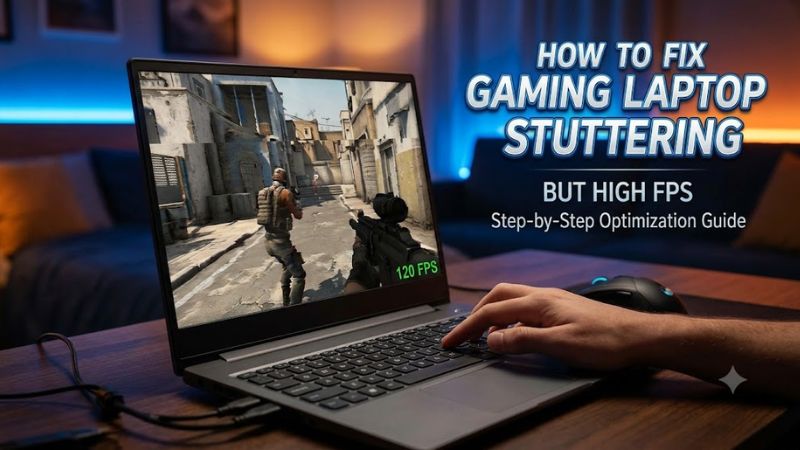
How to fix gaming laptop stuttering but high FPS starts with identifying inconsistent frame delivery rather than chasing a higher FPS counter. Your laptop may render plenty of frames yet still feel jerky because of shader compilation, CPU bottlenecks, background activity, or display synchronization. This guide explains how to isolate the cause and apply targeted fixes without risky system tweaks.
Why Gaming Laptop Stuttering Happens Despite High FPS
When a game reports high FPS but visibly freezes or skips, the problem often involves frame-time consistency rather than average rendering speed. Start by noting whether the stutter occurs during camera movement, combat, loading, or after several minutes of play. These patterns help distinguish software behavior from power, thermal, and hardware limitations.
1. Unstable Frame Times Can Make High FPS Feel Choppy
FPS measures how many frames a game produces per second, while frame time measures how long each frame takes to render. At 120 FPS, a frame takes approximately 8.3 milliseconds on average. If occasional frames take much longer, the game can hitch even though the counter remains high.
Use the game’s frame-time graph if available, or a reputable monitoring utility such as MSI Afterburner with its on-screen display. Look for sudden spikes that coincide with visible stutters. A stable frame-time line is more useful for this diagnosis than a high average FPS number alone.
2. Shader Compilation and Background Tasks Can Interrupt Gameplay
Some games compile shaders when new effects, areas, or characters appear. This work can briefly compete with normal gameplay, particularly after a game update or graphics driver installation. NVIDIA’s documentation explains that shader compilation can contribute to stuttering and that cached shaders can reduce repeated compilation work.
Background applications can also interrupt a game by consuming CPU time, memory, or storage bandwidth. Browser tabs, recording software, launchers, and update processes are worth checking when the hitch happens irregularly. If the problem appears only in one game or one newly visited area, investigate shader behavior before changing global Windows settings.
3. Power, Heat, and CPU Limits Can Cause Intermittent Hitches
A gaming laptop may initially run smoothly and then stutter as temperatures rise or power limits change. The GPU can still report high FPS between interruptions, so averages alone may hide the pattern. Performance can also fluctuate when the laptop runs on battery or uses a quiet manufacturer performance profile.
Check whether the stutter begins after several minutes, during demanding scenes, or when the charger is disconnected. Monitor CPU and GPU temperatures, clock speeds, utilization, and power behavior with a trusted utility. Do not assume a temperature is unsafe based on one reading; compare it with the laptop manufacturer’s specifications and look for sustained throttling.
What Doesn’t Help
Randomly installing FPS boosters, running registry scripts, or disabling Windows telemetry is not a reliable way to correct frame-time spikes. These actions do not identify the underlying cause and may introduce new problems. Likewise, clearing every cache or reinstalling Windows immediately can waste time when a single game setting, background process, or power profile is responsible.
Start with repeatable observations and make one change at a time. If a fix improves performance, repeat the same in-game scene to confirm the improvement before moving on to another adjustment.
How to Fix Gaming Laptop Stuttering: Step by Step
Work through these checks in order, beginning with free diagnostics and reversible settings. After each change, replay the same scene and watch both frame times and system utilization. This approach helps you identify which adjustment matters instead of stacking unrelated tweaks that make the original cause harder to find.
| Step | Where | How to Verify | Cost |
| 1. Check background processes | Windows Task Manager | CPU, memory, and disk activity during a hitch | Free |
| 2. Check power and GPU selection | Windows Settings and laptop control app | Compare behavior while plugged in with the correct GPU selected | Free |
| 3. Adjust game and display settings | In-game graphics menu and Windows Graphics settings | Repeat the same scene and inspect frame-time consistency | Free |
| 4. Investigate drivers and shaders | Official GPU driver tools and game launcher | Check whether the issue follows an update or affects one game | Free |
| 5. Inspect cooling and hardware | Manufacturer diagnostics or qualified repair service | Look for sustained throttling, errors, or abnormal temperatures | Free to service-dependent |
1. Identify Resource Spikes Before Changing Settings
Press Ctrl + Shift + Esc to open Task Manager. Under Processes, check whether another application is consuming substantial CPU, memory, or disk resources when the stutter occurs. Close only unnecessary applications, then repeat the same gameplay sequence. Avoid ending unfamiliar Windows processes because doing so may interrupt system functions.
For more detail, use an overlay to monitor frame time, CPU utilization, GPU utilization, temperatures, and clock speeds. If CPU activity spikes while GPU utilization drops, investigate CPU-heavy tasks or a game-specific CPU bottleneck. If GPU utilization remains high, graphics workload may be limiting consistency. Neither pattern alone establishes a cause, so correlate readings with the exact hitch.
2. Check the Laptop’s Power Mode and GPU Assignment
Connect the original or manufacturer-approved power adapter, then open Windows Settings and navigate to System > Power & battery. Under Power mode, select Best performance if available. Microsoft notes that this mode can increase energy use and heat, so restore Balanced when the extra performance is unnecessary.
If the laptop has integrated and dedicated graphics, open Settings > System > Display > Graphics. Select the game, choose Options, and select High performance when you want to prioritize the dedicated GPU. Save the setting and restart the game. If stuttering persists, restore the previous choice to compare results rather than assuming GPU assignment was responsible.
3. Adjust Frame Limits and Display Synchronization
Open the game’s video settings and look for its frame-rate limit, V-Sync, and display mode options. If the frame rate fluctuates widely, try a stable cap that your laptop can sustain in demanding scenes instead of allowing the counter to swing between very high and much lower values. A cap may improve consistency, although the appropriate value depends on the game and display.
Change only one option at a time. V-Sync can reduce tearing but may add latency or change how frame delivery feels; disabling it can introduce tearing. If you use a variable-refresh-rate display, check the game’s and driver’s synchronization settings together. Restore the original configuration if motion becomes less consistent or visual artifacts appear.
4. Check Drivers, Game Files, and Shader Behavior
If the problem began after a graphics driver or game update, check the relevant release notes and official support guidance. Install a compatible driver from your laptop manufacturer or GPU vendor when an update addresses your issue. If stuttering began immediately after an update, investigate whether a supported rollback is available before reinstalling drivers. Avoid firmware updates unless the manufacturer identifies a relevant fix and you can follow its recovery precautions.
If only one game stutters when new effects or locations appear, shader compilation may be involved. Allow the game to finish any built-in shader preparation and repeat the same area. NVIDIA documents that damaged shader caches can affect performance, but clearing a cache is a targeted troubleshooting step, not a universal fix. Rebuilding shaders can temporarily increase stuttering while the game recreates them.
Advanced Checks for Persistent Stuttering
If the basic steps do not resolve the problem, look for patterns that distinguish a software issue from a thermal, storage, or hardware fault. Avoid making multiple advanced changes together. A repeatable symptom, a matching diagnostic reading, and a clear before-and-after comparison are more useful than a long list of generic optimization settings.
1. Check for Thermal Throttling
Monitor CPU and GPU temperatures alongside their clock speeds during a demanding game. If stuttering appears as clocks fall and temperatures rise, thermal or power limits may be contributing. Compare the readings with the specifications for your exact laptop and processor or GPU; there is no single temperature threshold that applies to every gaming laptop.
Place the laptop on a hard, flat surface and ensure its air intakes and exhausts are unobstructed. If the fans sound abnormal, airflow remains poor, or throttling persists despite clear vents, consult the manufacturer’s maintenance guidance or a qualified repair service. Avoid opening the chassis if that conflicts with your warranty or you lack the required experience.
2. Check Memory and Storage Pressure
Open Task Manager and inspect the Performance tab for memory and disk activity while the game is running. When memory pressure is high, Windows may move data between RAM and storage, creating pauses even if the FPS counter looks healthy. Close unnecessary applications and browsers first, then repeat the same gameplay section to see whether the hitch changes.
If disk usage spikes during stutters, check whether the game is loading assets or another application is accessing the drive. Verify that the game drive has adequate free space and use Windows’ built-in drive error tools if you suspect a storage problem. Do not delete unfamiliar system files or disable the page file as a shortcut; either action can create additional instability.
3. Check Windows Display and Overlay Conflicts
On Windows 11, navigate to Settings > System > Display > Graphics and look for Optimizations for windowed games. Microsoft says this feature applies to supported DirectX 10 and DirectX 11 games running in windowed or borderless modes. Enable it where appropriate, restart the game, and compare results; if the problem worsens, turn it off for that game.
Temporarily disable nonessential overlays or background recording if they coincide with stutters. Examples include game-launcher overlays, chat overlays, and capture utilities. Change one at a time, because these features may be useful and their effect varies by configuration. If disabling an overlay makes no measurable difference, re-enable it instead of leaving features off without a reason.
4. Decide When Repair Is Necessary
If stuttering occurs across several games and persists after reversible software checks, examine the laptop for recurring errors, abnormal fan behavior, unexpected shutdowns, or graphics artifacts. Windows Event Viewer can help identify system errors around the time of a hitch, although an event near the same timestamp does not automatically prove that it caused the problem.
Seek professional help if the laptop repeatedly crashes, displays persistent visual corruption, overheats abnormally, or reports hardware errors. Provide the repair technician with the game names, when the stutters occur, temperature and clock readings, and any recent updates or hardware changes. This evidence is more useful than requesting a general FPS optimization.
FAQ
Why does my gaming laptop stutter when FPS is high?
A gaming laptop can stutter at high FPS because individual frames take inconsistent amounts of time to render or display. Shader compilation, CPU bottlenecks, background tasks, power limits, and synchronization issues are possible causes. Check frame-time spikes and system activity during the actual hitch to narrow the diagnosis.
Can limiting FPS fix gaming laptop stuttering?
Yes, an FPS cap can improve consistency when a game produces highly variable frame times or repeatedly reaches demanding performance limits. Start with a limit the laptop can maintain in demanding scenes, then compare the same gameplay section. If the cap does not help, restore the original setting and investigate other causes.
Should I reinstall my graphics driver to fix stuttering?
Reinstalling a graphics driver is reasonable when there is evidence of a driver problem, but it should not be the first step for every stutter. Check whether the issue began after a driver update and review official release notes first. Use the manufacturer’s supported installation or rollback procedure and avoid unnecessary third-party cleanup utilities.
When should I upgrade or repair my gaming laptop?
Consider repair when diagnostics reveal persistent thermal throttling, hardware errors, abnormal cooling behavior, or repeated crashes. Consider an upgrade only after confirming that insufficient memory, storage, or processing capability is the actual limitation. High FPS alone does not establish that any component needs replacement.
Final Thoughts
Fixing how to fix gaming laptop stuttering but high FPS begins with frame-time consistency, not chasing a larger FPS number. Check background activity, power mode, GPU selection, display settings, and shader behavior before investigating cooling or hardware faults. Change one setting at a time, compare the same scene, and seek repair when diagnostics point to a persistent hardware problem.