
A common home-office mistake is buying a “laptop dock” without first deciding what kind of dock is actually needed. Some products are simple vertical stands: they hold a closed laptop upright to free desk space, but add no ports, charging, or monitor support. Others are true docking stations, connecting displays, storage, Ethernet, keyboards, and power through one cable. A few combine both functions.
The wrong choice can create more clutter rather than less. A stand that does not fit a laptop’s thickness can pinch the lid or wobble. A feature-packed USB-C dock may still fail to run two external monitors at the desired resolution if the laptop does not support the necessary video output. And a low-wattage dock can slowly drain a power-hungry laptop during video calls or design work.
As an Amazon Associate we earn from qualifying purchases at no extra cost to you.


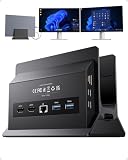
The best laptop dock for a home office is the one that matches your laptop, monitor plan, desk size, and daily workflow—not necessarily the one with the most ports.
Top 3 picks at a glance
Decide These 3 Things First
- Do you need a stand, a docking station, or both? A vertical stand such as the Vaydeer or Psitek styles is primarily an organizer, typically costing about $10 to $25. A full docking station generally costs $50 to $250 or more and adds connectivity. A combined dock-and-stand can be useful in a compact office, but confirm that its ports and power delivery are sufficient.
- How many screens will you use? For one external monitor, a dock with one HDMI or DisplayPort output may be enough. For two monitors, confirm support for dual displays at your intended resolution and refresh rate—for example, two 4K displays at 60Hz versus two 4K displays limited to 30Hz. These are very different experiences for scrolling, video calls, and detailed work.
- Will the dock replace your laptop charger? Check both the dock’s power-delivery rating and your laptop’s charging requirement. A 45W dock may suit a compact ultrabook, while many 14- to 16-inch laptops work best with 65W, 90W, or 100W input. Some higher-performance machines need 140W or more and may still require their original charger for full-speed charging.
Size and Laptop Compatibility
Start with the laptop itself. For a vertical stand, measure the closed laptop at its thickest point, including feet or protective cases. Adjustable slots usually cover a range such as 12mm to 42mm, which fits many thin laptops and some lightly cased models. A laptop that is 16mm thick should not be forced into a 15mm fixed slot. Leave roughly 1mm to 3mm of clearance so the device slides in without scraping.
For a stand, base dimensions matter as much as slot width. A compact stand may have a footprint around 5 by 3 inches, while a more stable dual-slot model may be 8 to 10 inches wide. Wider, heavier bases are especially worthwhile for 15- to 17.3-inch laptops. Look for non-slip silicone pads on both the slot and bottom surface.
For a connectivity dock, verify the laptop’s port type—not just its shape. USB-C connectors can carry different capabilities. A USB-C port may support charging and data but not video; Thunderbolt or USB4 ports generally offer broader display and bandwidth options. Check the laptop manufacturer’s specifications for external-display limits before buying a dual-monitor dock.
Ports, Displays, and Charging Performance
This is the decisive category for a true laptop docking station. Count the devices you use now, then add one or two open ports for future needs. A practical home-office setup often needs two USB-A ports for a keyboard and mouse, one or two USB-C ports, Ethernet, an audio jack, an SD or microSD reader, and at least one display output.
For data ports, USB 3.0, USB 3.1, USB 3.2, and USB 3.2 Gen 2 labeling can be confusing. Focus on the stated transfer speed: 5Gbps is adequate for everyday peripherals and many external drives, while 10Gbps is preferable for frequent large-file transfers. Avoid treating USB-C as a speed guarantee; the connector alone does not tell you whether a port supports 5Gbps, 10Gbps, charging, or video.
For monitors, 4K at 60Hz is a strong target for a primary office display. Text and cursor movement will feel smoother than at 30Hz. If you need two 4K screens, read the fine print on both the dock and laptop. Some docks can physically connect two displays but only support mirrored screens on certain systems, or reduce output to 4K at 30Hz when both are active.
Power delivery should be stated clearly in watts. Budget docks commonly provide 60W to 65W, midrange models often reach 85W to 100W, and premium options may offer 100W to 140W. Remember that a dock’s own electronics use some incoming power. If a product says it accepts 100W input but delivers 85W to the laptop, plan around the 85W figure.
Material and Construction
For vertical laptop stands, aluminum is usually the most sensible material. It is rigid, relatively light, and gives a desk a cleaner finish than glossy plastic. A well-made aluminum stand commonly weighs 8 to 20 ounces; enough weight helps prevent sliding when removing a laptop one-handed. Plastic stands can still be perfectly serviceable for a lightweight 13-inch laptop, particularly at the $10 to $15 end of the market, but inspect the base width and padding carefully.
Look for silicone or rubber contact strips that are securely fitted, not thin adhesive dots likely to peel. The slot should have soft lining along both sides and preferably on the bottom. Bare metal edges can mark an anodized laptop finish over time.
For docking stations, favor a metal or sturdy flame-retardant plastic housing with ventilation openings where appropriate. A dock does not need to be heavy, but a unit weighing at least 6 to 12 ounces is less likely to move every time you plug in a USB drive. Attached host cables should have strain relief where the cable meets the housing; this is one of the most frequently handled parts of a dock.
Desk Comfort and Everyday Performance
A dock should make arriving at your desk easier. Ideally, one host cable connects the laptop to charging, displays, Ethernet, and accessories. Position the dock within 18 to 30 inches of the laptop so the cable reaches naturally without being stretched across the work surface.
If you use a laptop closed in a vertical stand, make sure your external monitor is at a comfortable height. For many adults, the top third of the display should sit near eye level. A monitor riser or adjustable arm is often more important for ergonomics than the dock itself. Keep the keyboard at a height that lets elbows rest close to a 90- to 100-degree angle.
Heat management matters, too. A vertical stand leaves the laptop’s sides exposed, but it should not cover cooling vents. Check where your laptop exhausts air before placing it in a tight holder. For long video calls, photo editing, or other sustained work, leave at least 2 inches of open space around major vents and avoid placing the dock directly against the laptop’s exhaust path.
Price Tiers and What You Actually Get
Budget: $10 to $45. This range is best for vertical stands, basic USB-C hubs, and simple single-monitor setups. Expect adjustable holders, a few USB ports, HDMI, and perhaps 45W to 65W pass-through charging. It is a sensible choice for a compact laptop, one 1080p or 4K monitor, and basic accessories.
Midrange: $50 to $130. This is the practical sweet spot for many home offices. Look for 65W to 100W charging, Gigabit Ethernet, 8 to 12 useful ports, and verified dual-monitor support. A 19-in-1 dock such as the TobenONE-style configuration can make sense only if you will use its extra USB, display, card-reader, or Ethernet connections.
Premium: $140 to $300+. Premium docks are worth considering for demanding multi-display work, high-speed storage, stronger charging, more reliable cable management, and longer warranties. Do not pay extra simply for a high port count. Pay for a specific capability: dual 4K at 60Hz, 2.5Gb Ethernet, 100W-plus charging, Thunderbolt or USB4 support, or a cleaner single-cable desk setup.
Warranty, Support, and Return Terms
A vertical stand has few failure points, so a 30-day return window and a 1-year warranty are generally adequate. Inspect it immediately for uneven padding, sharp edges, or a base that rocks on a flat surface.
For a powered docking station, aim for at least a 1-year warranty; 18- to 24-month coverage is better. Support matters because compatibility questions can be system-specific. Before purchase, confirm that the seller states supported operating systems, display modes, maximum charging wattage, and whether a power adapter is included.
Keep the packaging until you have tested your full setup. Within the return period, connect every monitor, USB device, Ethernet cable, charger, webcam, and external drive you plan to use. A dock that works with one monitor but fails when your second screen and external SSD are connected is not the right dock for your desk.
Delivery, Assembly, and Setup
Most vertical stands require no assembly beyond adjusting the slot width with a screw, knob, or sliding mechanism. Set the width while the laptop is out of the stand, then test the fit gently. The laptop should stand vertically without rattling or requiring force.
Most docking stations are also plug-and-play, but setup can take 15 to 45 minutes when multiple displays are involved. Place the dock where ports are accessible: rear-facing ports are tidier for permanent monitor and Ethernet connections, while front or side USB ports are more convenient for flash drives and charging cables.
Plan cable lengths before ordering. A 3-foot HDMI cable may be enough for a dock beside the monitor, but a monitor arm or under-desk cable route may require 6 feet. Avoid tightly bending USB-C host cables and display cables. If the dock includes an external power brick, allow a clear spot for it rather than leaving it suspended behind the desk.
Spec Checklist
| Spec | Budget | Mid | Premium |
|---|---|---|---|
| Typical price | $10-$45 | $50-$130 | $140-$300+ |
| Best use | Vertical storage or one-monitor basics | Full home-office setup with two displays | Demanding multi-display and high-speed workflows |
| Laptop charging | 45W-65W | 65W-100W | 100W-140W |
| Display support to seek | One 4K at 60Hz or 1080p | Two displays; verify 4K at 60Hz capability | Dual 4K at 60Hz or higher, subject to laptop support |
| USB data speed | Up to 5Gbps | 5Gbps-10Gbps | 10Gbps and higher-bandwidth USB4/Thunderbolt options |
| Vertical stand slot | Fixed or adjustable 12mm-25mm | Adjustable about 12mm-42mm | Adjustable, padded, weighted base or integrated dock |
| Warranty target | 30 days to 1 year | 1 year | 2 years preferred |
Red Flags
- “Dual monitor” claims without stating resolutions, refresh rates, and operating-system limitations.
- A charging claim that says only “100W input” but does not state laptop power output.
- USB-C ports listed with no indication of data speed, charging capability, or video support.
- A vertical stand with no stated slot-width range or no protective interior padding.
- A very light stand intended for a 16- or 17-inch laptop, especially one with a narrow base.
- Product photos showing numerous ports but no rear-panel labels or detailed specifications.
- No information on included power adapter, host cable length, warranty, or return policy.
- A dock that requires proprietary drivers without clearly explaining why and which systems are supported.
FAQ
Can a vertical laptop stand replace a docking station?
No. A vertical stand organizes a laptop and saves desk space, but it does not add display outputs, USB ports, Ethernet, or charging. It can be paired with a separate dock if you want both a clean desk and expanded connectivity.
How much wattage do I need for a home-office laptop dock?
For many 13-inch laptops, 65W is enough. For 14- to 16-inch models, 90W to 100W is a safer target. Check your laptop’s recommended charger wattage; choosing a dock at or above that figure helps prevent battery drain during heavier work.
Will any USB-C dock run two monitors?
No. The laptop’s USB-C port must support the necessary video output, and the dock must support your desired display configuration. Confirm the maximum resolution and refresh rate for two displays, plus whether the screens can extend rather than only mirror.
Is aluminum better than plastic for a laptop stand?
Usually, yes, because aluminum stands tend to be more rigid and stable. However, a well-designed plastic stand with a broad base, secure silicone padding, and an adjustable 12mm to 42mm slot can be a good low-cost option for a lighter laptop. In 2026, the best value is still a stand that fits securely and protects the laptop finish, regardless of material.
Related guides
- Alienware 16 Aurora RTX 5070 Review: Display, Portability and Configuration Gaps
- Lenovo Legion Pro 7i Gen 10 Review: 64GB RAM and Dual-SSD Configuration
- MSI Katana 15.6-inch RTX 5050 Review: Configuration Strengths and Upgrade Unknowns
- ASUS ROG Strix SCAR 16 G635LX-XS97 Review: Display Ambition, Upgrade Questions


