
Shopping for a DaVinci Resolve laptop is easy to get wrong because the headline specs can be misleading. A slim machine with a fast processor may still feel slow if it has only 16GB of memory, a weak graphics card, limited cooling, or a small internal drive. On the other hand, not every editor needs the heaviest 18-inch workstation. The right laptop depends on the codecs, resolution, effects, and turnaround times in your actual projects.
DaVinci Resolve relies heavily on the GPU, especially for color grading, noise reduction, Fusion compositions, and many effects. It also benefits from a capable CPU, plenty of RAM, fast storage, and a color-accurate display. The goal is not simply to buy the most expensive model; it is to avoid creating one obvious bottleneck that holds back the rest of the system.
As an Amazon Associate we earn from qualifying purchases at no extra cost to you.



For most buyers in 2026, a well-balanced 15- or 16-inch laptop with a dedicated GPU, 32GB of RAM, and at least 1TB of SSD storage is the practical sweet spot for serious 4K work. Here is how to narrow it down.
Top 3 picks at a glance
Decide These 3 Things First
- What resolution and codecs will you edit? Simple 1080p projects with H.264 footage are far less demanding than 4K 10-bit camera files, multicam timelines, RAW footage, or 6K and 8K projects. If your footage is highly compressed, hardware media engines and proxy workflows matter as much as raw processor speed.
- How much grading, effects, and Fusion work will you do? Basic cuts, titles, and color corrections can run well on a midrange GPU. Temporal noise reduction, Magic Mask, optical flow, advanced OFX plug-ins, and Fusion compositions need substantially more graphics memory and sustained cooling.
- Will this be a desk-based replacement or a travel laptop? A 16-inch performance laptop weighing 5 to 6.5 pounds is excellent at a desk but less pleasant in a backpack. A 14-inch model around 3 to 4 pounds travels better, though it may have a smaller screen, fewer ports, and lower sustained power limits.
Screen Size and Workspace
For Resolve, screen size affects editing speed more than many buyers expect. You need room for the viewer, timeline, media pool, inspector, nodes, scopes, and effects controls. A small screen is usable, but it forces frequent panel rearranging.
14-inch laptops are the portable choice. Look for a 16:10 display with at least 2,560 × 1,600 resolution. At this size, the laptop is best for editing on location, assembling rough cuts, managing footage, and working with an external monitor at home or in the studio. Typical weight is 3 to 4.5 pounds.
15- and 16-inch laptops are the best all-around option. A 16-inch, 16:10 display gives noticeably more timeline width and vertical room for scopes than a 14-inch panel. Aim for 2,560 × 1,600 or 3,200 × 2,000 resolution. These machines typically weigh 4.5 to 6.5 pounds.
17- and 18-inch laptops suit editors replacing a desktop. Their larger chassis can support higher-wattage GPUs, bigger cooling systems, and more ports. Expect weights around 6 to 8 pounds, plus a 240- to 330-watt power adapter on some models. They are powerful but not convenient for daily commuting.
Do not judge a display only by resolution. For color work, prioritize a screen that covers 100% of the sRGB color space at minimum. Better models offer close to 100% DCI-P3 coverage, 400 nits or more of brightness, and a factory calibration claim. A 60Hz panel is sufficient for editing; spending extra for a 240Hz or 360Hz display rarely improves Resolve performance.
Processor, GPU, and Memory Performance
The GPU is usually the most decisive component for DaVinci Resolve. A dedicated GPU with sufficient VRAM makes a larger difference than chasing the highest possible CPU tier. Resolve uses GPU acceleration for color processing, OpenFX, noise reduction, scaling, and many AI-assisted features.
For straightforward 1080p editing, look for a modern processor with at least 8 performance-oriented CPU cores or an equivalent high-efficiency chip, paired with integrated graphics or an entry-level dedicated GPU. For sustained 4K editing, a dedicated GPU with 8GB of VRAM is a sensible starting point. For demanding 4K work involving noise reduction, Fusion, multicam edits, or heavy color grades, target 12GB of VRAM. For 6K, 8K, RAW, or complex VFX work, 16GB of VRAM provides more breathing room.
Memory is the next essential spec. 16GB RAM is the minimum for light 1080p editing, but it is increasingly restrictive once you run Resolve alongside a browser, audio tools, cloud storage, and a few other applications. 32GB RAM is the recommended baseline for regular 4K editing. 64GB RAM is worthwhile for Fusion, high-resolution timelines, large multicam edits, or professional projects with several applications open at once.
Check whether memory is upgradeable before buying. Many thin laptops have soldered RAM, meaning 16GB is permanent. If you expect to keep the laptop for four or five years, buying 32GB at the outset is safer than assuming you can add memory later.
Storage, Ports, and Expandability
Resolve projects consume storage quickly. A 1TB SSD can fill fast once you add source footage, optimized media, cache files, proxies, stills, audio, project backups, and exports. A 4K project can generate hundreds of gigabytes of working files even when the final deliverable is much smaller.
Buy 1TB of internal SSD storage as a minimum for serious editing. A 2TB internal SSD is more comfortable if the laptop has only one drive slot or if you travel often. Look for an NVMe SSD, preferably with at least 1,000GB capacity; smaller 512GB drives are manageable only when paired with disciplined external storage habits.
A second internal M.2 SSD slot is valuable. It lets you separate the operating system and applications from active media and cache files. If there is only one internal slot, plan on a fast external SSD. For active 4K editing, use an external SSD capable of roughly 1,000 MB/s real-world transfer rates rather than a basic USB flash drive or portable hard disk.
Port selection matters because editing setups grow quickly. A useful minimum includes:
- At least two USB-C or USB4/Thunderbolt-class ports
- At least two USB-A ports for older drives, card readers, keyboards, and control panels
- HDMI for a client display or external monitor
- An SD or microSD card reader if you ingest camera media regularly
- A headphone jack for quick audio monitoring
Do not assume every USB-C port supports display output, charging, or high-speed external drives. Check the individual port specifications. If you use a dock, external monitor, fast SSD, and power delivery simultaneously, full-featured USB4 or Thunderbolt-class connectivity is especially useful.
Chassis, Cooling, and Construction
Thin construction is attractive, but video editing creates sustained heat that can reduce performance during long exports or effects-heavy playback. A laptop that performs well for a 30-second benchmark may slow down after 20 to 40 minutes of rendering if its cooling system cannot keep up.
For a dedicated-GPU Resolve laptop, favor a chassis at least 0.75 inch thick when performance is the priority. Models under 0.65 inch can still be capable, but they often use lower GPU wattage limits or become louder under load. Larger 16-inch and 18-inch laptops generally have more room for dual fans, wider heat pipes, and larger air intakes.
Metal lids and keyboard decks tend to feel sturdier than all-plastic shells, but construction quality matters more than material alone. Check for a firm hinge, minimal deck flex, and ventilation that is not blocked when the laptop sits flat on a desk. Avoid editing on a bed, couch, or blanket; blocked intake vents can raise temperatures and throttle performance.
Look for a realistic power adapter size as well. Laptops with 100- to 140-watt adapters are easier to travel with. High-power systems may need 240 watts or more to sustain full GPU performance. They can still be worthwhile, but their charger may weigh 1.5 to 2.5 pounds by itself.
Keyboard, Trackpad, and Editing Comfort
Resolve editing involves repeated trimming, marking, blade cuts, clip navigation, and node adjustments. A good keyboard will not make the computer faster, but it can make everyday work less tiring. Choose a keyboard with full-size arrow keys, a clear layout, and at least 1.2 mm of key travel if possible. A dedicated number pad can be useful for metadata entry, though it often shifts the trackpad off-center.
A large, responsive trackpad is helpful for travel, but most editors work faster with a mouse. Budget for one with a comfortable scroll wheel and two programmable side buttons. A basic wired or wireless mouse in the $25 to $80 range is enough for many users.
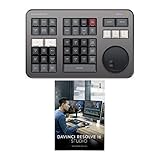
Resolve-specific accessories can improve speed after the laptop itself is properly specified. A keyboard shortcut cover, often around $20 to $30, can help beginners learn commands. Dedicated control hardware is more specialized: a Speed Editor bundle may cost roughly $400 to $500, while compact color panels can approach $900 to $1,000. These tools are useful additions, not substitutes for adequate GPU power, memory, storage, and display quality.
Price Tiers and Value
Budget: $900 to $1,400. Expect a 14- or 15-inch laptop with 16GB to 32GB RAM, a 512GB or 1TB SSD, and either strong integrated graphics or an entry-level dedicated GPU. This tier is best for 1080p, proxies, simple 4K edits, social video, and lighter grades. Be cautious of models with only 8GB RAM or 4GB VRAM.
Midrange: $1,500 to $2,400. This is the best value tier for most Resolve users. Look for a 15- or 16-inch laptop with 32GB RAM, 1TB SSD, an 8GB dedicated GPU, and a bright, wide-gamut display. It should handle standard 4K work comfortably, especially when using optimized media or proxies for difficult codecs.
Premium: $2,500 to $4,000+. Here, prioritize 64GB RAM, 2TB storage or an extra SSD slot, a 12GB to 16GB GPU, strong cooling, and a calibrated 16- to 18-inch display. This tier is for regular professional delivery work, demanding 4K grades, RAW formats, Fusion, noise reduction, and higher-resolution timelines.
Warranty, Support, and Setup
A one-year limited warranty is standard, but editing laptops work hard. If the computer will generate income, consider a two- or three-year plan with accidental-damage coverage, particularly for a travel machine. Typical extended coverage costs range from $150 to $400 depending on the laptop price and term.
Check repair logistics before buying. A premium warranty is more useful when it includes mail-in shipping, local service, or next-business-day parts availability. Also confirm that replacement SSDs and batteries are available. Batteries are consumable components, and high-heat workloads can shorten their useful life over several years.
There is no assembly required beyond setup, but set aside time to update the operating system, GPU drivers, Resolve, and firmware before starting an important project. Configure automatic project backups, assign cache and media locations, and keep at least 15% to 20% of each SSD free for stable performance.
Spec Checklist
| Spec | Budget | Mid | Premium |
|---|---|---|---|
| Best workload | 1080p and light 4K | Regular 4K editing and grading | Heavy 4K, 6K/8K, Fusion, RAW |
| RAM | 16GB minimum; 32GB preferred | 32GB | 64GB or more |
| GPU VRAM | Integrated graphics or 6GB | 8GB | 12GB to 16GB |
| Internal SSD | 512GB to 1TB | 1TB minimum | 2TB minimum or dual SSD slots |
| Display | 14-15 inch, 100% sRGB | 15-16 inch, 400 nits, wide gamut | 16-18 inch, wide gamut, calibrated |
| Ports | USB-C, USB-A, HDMI | USB4/Thunderbolt-class plus HDMI | Multiple high-speed USB-C ports, HDMI, card reader |
Red Flags
- 8GB of RAM: It may run Resolve, but it leaves little room for real projects and background tasks.
- Only 256GB or 512GB of storage: Small internal drives fill quickly with cache and media files.
- A 4GB dedicated GPU for advanced work: It can be limiting for 4K grading, effects, and GPU-heavy tools.
- “Gaming” branding without full specifications: Confirm GPU model, VRAM amount, RAM capacity, storage configuration, and display coverage.
- Beautiful OLED or high-refresh display with weak internals: Display quality cannot compensate for insufficient GPU memory or RAM.
- No information on upgradeability: If RAM is soldered and storage has one slot, buy enough capacity from day one.
- Expecting battery editing at full speed: Many performance laptops reduce CPU and GPU power on battery. Plan to plug in for color work and exports.
FAQ
Is 16GB of RAM enough for DaVinci Resolve?
It is enough for basic 1080p projects and occasional light 4K editing, especially with proxies. For a new laptop intended for regular Resolve use, 32GB is the safer choice. It improves multitasking and reduces slowdowns on larger timelines.
Do I need a dedicated GPU for DaVinci Resolve?
Not for every project, but it is strongly recommended for consistent 4K editing, color grading, effects, and Fusion. Integrated graphics can work for light editing, while an 8GB dedicated GPU is a better baseline for serious 4K workflows.
Is a 14-inch laptop too small for video editing?
No, but it is best for editors who prioritize portability or use an external monitor at their main workspace. A 16-inch screen is more comfortable for regular timeline, node, and scope work without additional displays.
How much storage should a Resolve laptop have?
Buy at least 1TB internally. Choose 2TB if you travel, keep several projects active, or cannot easily add a second internal drive. Regardless of capacity, maintain 15% to 20% free space and use fast external SSDs for archived or overflow media.
Related guides
- Alienware 16 Aurora RTX 5070 Review: Display, Portability and Configuration Gaps
- Lenovo Legion Pro 7i Gen 10 Review: 64GB RAM and Dual-SSD Configuration
- MSI Katana 15.6-inch RTX 5050 Review: Configuration Strengths and Upgrade Unknowns
- ASUS ROG Strix SCAR 16 G635LX-XS97 Review: Display Ambition, Upgrade Questions


