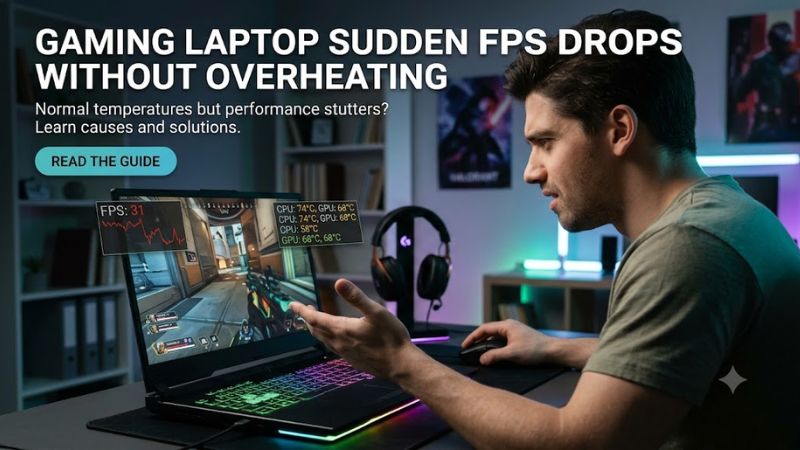
Gaming laptop sudden FPS drops without overheating can result from power limits, GPU selection, background processes, driver issues, or CPU bottlenecks. Normal temperatures do not rule out performance throttling. This guide explains how to identify the cause, apply safe fixes, and verify whether performance improves without replacing hardware unnecessarily.
Why FPS Drops Happen Even When Temperatures Are Normal
A sudden frame-rate decline does not automatically indicate a cooling problem. A laptop may reduce CPU or GPU performance because of power delivery, battery-saving settings, a driver fault, or another application consuming resources. Start by observing what changes when the FPS falls instead of adjusting several settings at once.
1. Power limits can reduce CPU or GPU performance
Gaming laptops share limited electrical and thermal budgets across their processors and graphics chips. Even when temperatures appear normal, firmware may restrict power because of the selected performance profile, battery conditions, or adapter limitations. A low-wattage or incompatible charger can also prevent some laptops from sustaining their intended gaming performance.
Check whether the problem occurs only on battery power, after unplugging the adapter, or when the manufacturer’s control software switches profiles. If performance returns when using the correct supplied adapter and performance mode, investigate power delivery before changing graphics settings. Do not assume that a cooler laptop always has more available GPU power.
2. Background processes and memory pressure interrupt gameplay
A browser with numerous tabs, a game launcher, cloud synchronization, antivirus scanning, or recording software can compete with the game for CPU time, memory, and storage access. These interruptions may produce brief FPS drops even when the GPU temperature remains stable. Limited available RAM can also force Windows to move data between memory and the storage drive.
Open Task Manager with Ctrl + Shift + Esc while the problem occurs. Inspect the Processes and Performance tabs for unusually high CPU, memory, or disk usage. Note which process becomes active during a frame-rate drop, and close only applications you recognize and do not need. Avoid ending Windows system processes simply because their names are unfamiliar.
3. Drivers, GPU switching, and game-specific problems
Many laptops combine integrated graphics with a dedicated NVIDIA GeForce or AMD Radeon GPU. If a game uses the integrated processor unexpectedly, or a driver update introduces a compatibility issue, performance may fluctuate independently of temperature. Shader compilation, asset streaming, and a game-specific bug can also cause temporary stuttering.
Compare the problem across different games and locations within the same game. If only one title suffers, check its updates, graphics settings, and known issues before modifying system-wide settings. If multiple games experience the same sudden decline, inspect GPU utilization, clock speeds, driver history, and power profiles to narrow the cause.
What Doesn’t Help
Installing RAM-cleaning utilities, running registry boost scripts, or disabling Windows telemetry is not a reliable way to resolve sudden FPS drops. These actions do not identify whether the CPU, GPU, power system, memory, or game engine is responsible. Randomly changing several settings also makes it harder to determine which change affected performance.
Avoid immediately reinstalling Windows, flashing the BIOS, or using third-party driver-removal utilities. Those steps introduce unnecessary risk before basic evidence is collected. A focused diagnosis using Task Manager, the laptop manufacturer’s performance controls, and appropriate driver tools is a safer starting point.
How to Fix Sudden FPS Drops: Step by Step
Work through these checks in order, starting with power and resource usage before changing drivers or advanced settings. The table summarizes the likely cause, where to investigate, and the risk of each action. Apply one change at a time, then replay the same game scene to determine whether frame pacing and average FPS improve.
| Setting or Step | Where | Effect | Risk |
| Check power delivery | Charger and manufacturer control app | Identifies power restrictions | Low |
| Inspect resource usage | Windows Task Manager | Finds CPU, memory, or disk contention | Low |
| Select the dedicated GPU | Windows Settings > System > Display > Graphics | Directs the game to the high-performance GPU | Low |
| Adjust power mode | Windows Settings > System > Power & battery | Reduces battery-saving restrictions when plugged in | Higher power use and heat |
| Review drivers | Laptop manufacturer’s support page | Addresses driver-related instability | Compatibility risk if the wrong driver is installed |
Step 1: Check the charger and laptop performance profile
Connect the laptop to its intended power adapter and confirm that Windows recognizes charging. Open the manufacturer’s utility, such as Lenovo Vantage, Armoury Crate, OMEN Gaming Hub, or MSI Center, depending on your model. Check whether the current profile is Quiet, Silent, Balanced, or Performance; names and available modes vary by manufacturer.
If changing to a performance-oriented profile restores normal gameplay, compare the results using the same scene and graphics settings. Keep in mind that performance modes can increase fan noise, power consumption, and temperatures. If the laptop still drops frames while plugged in, inspect resource usage before assuming the adapter or battery is defective.
Step 2: Identify the resource that spikes during a drop
Press Ctrl + Shift + Esc to open Task Manager. On the Processes tab, inspect CPU, Memory, Disk, and GPU columns while reproducing the problem. If one application suddenly consumes substantial resources, close it normally and repeat the same scene. A high percentage alone does not establish causation; look for changes that coincide with the FPS decline.
For deeper monitoring, a tool such as HWiNFO can record CPU and GPU clock speeds, utilization, temperatures, and available power-related sensor readings. Sensor availability depends on the laptop. If clock speeds or GPU power fall at the same time as FPS, record the readings and compare them with the manufacturer’s expected behavior rather than assuming a particular temperature or wattage is universally correct.
Step 3: Assign the game to the high-performance GPU
On Windows 11, open Settings > System > Display > Graphics. Find the game in the app list or add its executable if necessary, select it, choose Options, and select High performance when that option identifies the dedicated GPU. Save the change and restart the game. This is particularly relevant to laptops that have both integrated and discrete graphics.
If the game already uses the dedicated GPU, changing this setting may not improve anything. Revert to Let Windows decide if the change creates a compatibility issue or makes no difference. For NVIDIA systems, also check the laptop’s supported graphics controls; hybrid-graphics behavior and available options vary by model, driver, and display connection.
Step 4: Adjust Windows power mode and verify drivers
With the laptop connected to power, open Settings > System > Power & battery and choose Best performance under Power mode if available. This can reduce power-saving restrictions, but it also increases energy consumption and may make the laptop warmer. If the setting is unavailable, the manufacturer’s power plan or system configuration may control the available choices.
Next, check Windows Update and your laptop manufacturer’s support page for applicable chipset, graphics, and system drivers. Prioritize a driver update when the issue began after a game patch, Windows update, or graphics-driver change. Laptop vendors may customize drivers for their hardware, so use the model-specific package when recommended. If the problem began immediately after an update, consider the supported rollback option instead of installing random driver versions.
How to Confirm the Cause Without Replacing Hardware
Once the basic fixes are complete, compare the laptop’s behavior under repeatable conditions. The goal is to distinguish a system-wide performance problem from a game-specific stutter, CPU limitation, memory pressure, or power restriction. A single FPS reading is not enough: changes in the game scene, background activity, and graphics settings can all affect the result.
Compare the same game scene before and after changes
Choose a repeatable section, such as a training area, replay, or saved benchmark sequence. Keep resolution, graphics preset, upscaling, frame generation, and the frame-rate cap unchanged. Record the average FPS if available, but also note the timing and severity of dips. A stable average can conceal brief but noticeable interruptions.
If the drops disappear after changing one setting, repeat the comparison to see whether the result persists. If the issue remains, restore unnecessary changes and investigate another variable. Avoid comparing different games or unrelated benchmark results as if they were direct measurements of the same hardware behavior.
Distinguish CPU limitations from GPU limitations
A GPU that remains near full utilization while FPS declines may be limited by graphics workload, available power, or a changing game scene. Conversely, low GPU utilization during a drop can indicate a CPU bottleneck, a background task, an engine limitation, or a delay elsewhere in the system. Neither observation proves a specific fault on its own.
Look at CPU and GPU clocks, utilization, and power behavior together. Total CPU utilization can be misleading because a game may depend heavily on a small number of threads even when overall CPU usage looks moderate. Lowering resolution temporarily can help: if FPS barely changes, investigate CPU-side limits and background processes rather than immediately replacing the GPU.
Check for memory, storage, and game-specific stutter
When RAM usage is high and disk activity rises during a frame-time spike, memory pressure or asset loading may contribute. Close unnecessary applications and check available memory before buying an upgrade. If the game is installed on a drive with very little free space or shows storage-related errors, investigate that drive’s health and capacity rather than deleting unfamiliar system files.
If the issue appears only in one game, review its graphics settings, shader-compilation behavior, recent patches, and known issues. Some games stutter during shader compilation or when loading new assets even on otherwise healthy systems. Reducing texture quality can help when video memory is insufficient, while adjusting CPU-heavy settings may help a processor-limited game. Change one setting at a time and restore it if the result worsens.
Know when the issue needs professional diagnosis
If several games continue to suffer large drops after basic troubleshooting, check whether the laptop reports power-adapter warnings, unexpected shutdowns, graphics-driver timeouts, or hardware errors. Windows Event Viewer can provide supporting evidence, although an error logged near a frame-rate drop does not necessarily mean it caused the problem.
Seek manufacturer support if the laptop repeatedly loses power, reports battery or adapter faults, shows graphical artifacts, or performs far below its normal level despite appropriate settings. Persistent clock-speed reductions, abnormal power behavior, or hardware errors may require service. Do not flash the BIOS, open the laptop, or replace components solely because FPS drops while temperatures look normal.
FAQ
Why does my gaming laptop lose FPS even at low temperatures?
A gaming laptop can lose FPS at low temperatures because power limits, CPU bottlenecks, background applications, driver issues, or game-engine behavior can restrict performance without overheating. Check power mode, GPU utilization, clock speeds, and resource usage during the drop before choosing a fix.
Can a laptop charger cause sudden FPS drops?
Yes, an unsuitable, underpowered, faulty, or unrecognized charger can limit performance on some gaming laptops. Use the correct adapter specified for your model and check the manufacturer’s power utility for adapter warnings. Do not assume every FPS drop indicates a charger fault.
Should I reinstall my graphics driver to fix FPS drops?
Reinstalling a graphics driver is worth considering when evidence points to a driver problem, but it should not be the first step for every performance issue. Check the laptop manufacturer’s recommended package, especially if the problem began after an update. Avoid third-party driver-removal tools unless ordinary troubleshooting fails and you understand the recovery process.
When should I upgrade RAM or replace my laptop?
Upgrade RAM only when measurements show that memory capacity is a meaningful limitation and the laptop supports an appropriate upgrade. Consider professional repair when power faults, hardware errors, or persistent abnormal clock behavior remain after software checks. Replace the laptop only when its performance limits or repair costs justify that decision.
Final Thoughts
Gaming laptop sudden FPS drops without overheating usually call for diagnosis rather than an immediate hardware upgrade. Check power delivery, monitor resource usage, confirm the correct GPU, and review drivers before changing advanced settings. If the problem persists across games, document sensor readings and error messages so manufacturer support can identify the underlying cause.