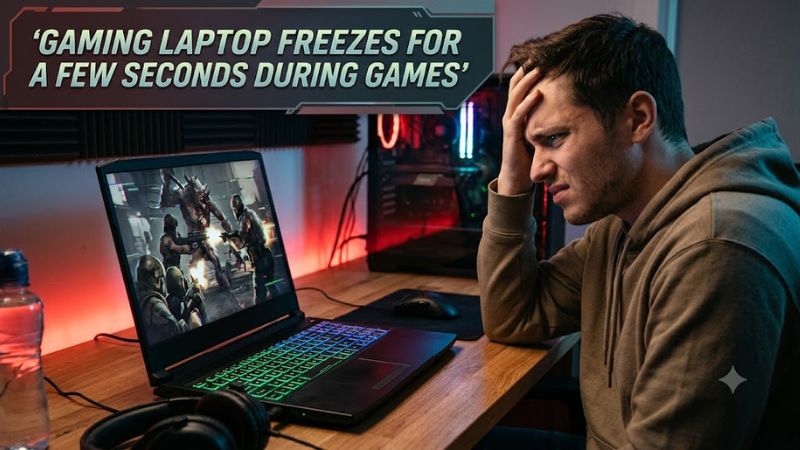
A gaming laptop freezes for a few seconds during games when the game, graphics driver, storage, or another system component temporarily stops responding. The right fix depends on whether the entire laptop stalls or only the game. This guide explains how to identify the cause and troubleshoot it safely.
Why Gaming Laptops Freeze for a Few Seconds During Games
Brief freezes can come from graphics driver interruptions, background tasks, memory pressure, asset loading, or unstable hardware. Start by identifying what remains responsive during a freeze, then check whether the problem affects one game or several. This distinction helps narrow the cause before you change drivers, Windows settings, or hardware.
1. Graphics driver interruptions
A graphics driver can stop responding temporarily and recover, making the display appear frozen before gameplay resumes. Microsoft documents this behavior as Timeout Detection and Recovery (TDR). If the screen briefly goes black, flickers, or returns with a driver notification, investigate the graphics driver before assuming the GPU is overheating.
If the freezes began after a graphics driver update, consider rolling back to the previous version through Device Manager, provided the Roll Back Driver option is available. Otherwise, obtain a compatible driver from your laptop manufacturer’s support page or the appropriate GPU vendor. Restart Windows and check whether the same symptom returns.
2. Memory pressure and asset loading
A game may pause while loading textures, maps, shaders, or other assets. Limited available RAM can make the problem worse when browsers, recording software, launchers, and other applications compete for memory. Storage activity may also spike while the game loads data, particularly when the drive is busy or nearly full.
Open Task Manager with Ctrl + Shift + Esc and check the Performance tab while reproducing the problem. Watch Memory, Disk, CPU, and GPU activity. A memory graph approaching capacity or sustained disk activity during a freeze is a useful clue, but neither proves the cause on its own. Compare the readings with the exact time of the stutter.
3. Background software or unstable hardware
Game overlays, capture tools, monitoring utilities, security software, and other background processes can conflict with a game or compete for system resources. If the entire laptop becomes unresponsive, the cause may extend beyond the game itself. Windows logs and the behavior of other applications can help distinguish software conflicts from a wider system problem.
Power delivery and thermal limits also deserve attention, even when the laptop does not feel unusually hot. A laptop running on battery may use a different power profile, while blocked vents or a failing component can cause instability. Do not assume every short freeze is thermal throttling; look for repeatable patterns and supporting diagnostic evidence.
What Doesn’t Help
Randomly changing multiple settings makes diagnosis harder. Avoid registry tweaks that extend GPU timeout periods, third-party RAM cleaners, automated driver-updater utilities, and blanket disabling of Windows services. These approaches can mask symptoms, introduce new problems, or make it harder to identify the actual fault.
Likewise, do not flash the BIOS, reinstall Windows, or replace RAM and storage as an opening step. Begin with reversible checks and a record of when the freeze occurs. Escalate to firmware or hardware work only when the evidence and the laptop manufacturer’s guidance support it.
How to Fix Gaming Laptop Freezes: Step by Step
The safest approach is to change one variable at a time, starting with power, background activity, and game files before moving to graphics drivers or hardware diagnostics. The table below connects each action to the symptom it addresses and the evidence you should look for, so you can avoid unnecessary reinstalls or repairs.
| Step | Where | How to Verify | Cost |
| 1. Check power and performance | Windows power settings and laptop manufacturer’s control app | Confirm the correct adapter is connected and the laptop stays responsive during gameplay | Free |
| 2. Monitor resource usage | Task Manager → Performance | Compare CPU, Memory, Disk, and GPU activity at the time of a freeze | Free |
| 3. Check game files and overlays | Game launcher settings; overlay applications | Repair files if supported and retest with optional overlays disabled | Free |
| 4. Update or roll back the GPU driver | Device Manager or official manufacturer driver package | Check whether freezes stop after a controlled driver change | Free |
| 5. Inspect logs and hardware | Event Viewer; manufacturer diagnostics | Match errors to freeze timestamps and look for recurring hardware warnings | Free initially |
1. Check the power adapter and laptop performance mode
Connect the original or manufacturer-approved power adapter and confirm that Windows recognizes the laptop as plugged in. Some gaming laptops limit available CPU and GPU power when running on battery, and an incorrect or unstable power connection can affect performance. Use the manufacturer’s recommended gaming profile rather than assuming every high-performance setting is necessary.
In Windows 11, open Settings → System → Power & battery → Power mode, then select an available performance-oriented option if appropriate. Menu availability depends on the device and power configuration. Retest the same game and scene. If the freezes persist, restore your preferred power mode and continue to the next check instead of assuming power settings are responsible.
2. Identify resource spikes during the freeze
Open Task Manager with Ctrl + Shift + Esc, select Performance, and leave it available while reproducing the problem. Observe CPU utilization, memory usage, disk activity, and GPU activity. If the game freezes as disk activity rises sharply, investigate storage and asset loading. If memory usage is consistently high, close unnecessary applications before considering an upgrade.
For more detail, use HWiNFO or another reputable hardware monitor to record temperatures, clock speeds, and utilization. A sudden clock-speed drop alongside high temperatures may support a thermal explanation, while normal temperatures do not rule out driver, storage, or memory problems. Avoid interpreting a single sensor reading as definitive proof; look for repeatable changes that coincide with the freeze.
3. Repair the game and isolate background conflicts
If only one game freezes, check whether the issue began after a game update. Use the launcher’s built-in file verification or repair function when available, and install relevant game patches. Temporarily disable optional overlays and recording features, such as performance displays or capture utilities, then repeat the same gameplay sequence. Re-enable each feature individually after the comparison.
If the problem continues across several games, a Windows clean boot can help determine whether a background application or service is involved. Microsoft recommends using System Configuration to hide Microsoft services before disabling other services, then disabling startup apps for the diagnostic restart. Record the original settings, and restore Normal Startup and the disabled startup items afterward. A clean boot temporarily limits functionality and should be used carefully on managed work or school devices.
4. Update or roll back graphics drivers
If the freezes began after a driver change, open Device Manager → Display adapters, right-click the relevant GPU, and select Properties → Driver. Use Roll Back Driver if the option is available and the timing supports that choice. Otherwise, check the laptop manufacturer’s support page for a compatible graphics package or obtain the appropriate driver from the GPU vendor. Restart Windows before retesting.
Gaming laptops may use both integrated and discrete graphics, so avoid removing every display driver indiscriminately. Follow the laptop manufacturer’s instructions for driver installation, particularly if the system relies on a customized graphics or power-management package. If the screen briefly turns black or flickers during a freeze, note whether Windows records a display-driver recovery event. Repeated GPU timeout errors warrant further diagnosis rather than repeated driver changes.
5. Check Windows logs and investigate persistent faults
Right-click Start and open Event Viewer. Expand Windows Logs and select System or Application. Look at entries recorded around the time of the freeze, particularly recurring display-driver errors, application failures, or unexpected shutdowns. An error close to the incident is a clue, not automatic proof that the named component caused it.
If freezes affect multiple games after software troubleshooting, run the laptop manufacturer’s built-in diagnostics and check storage health using an appropriate monitoring utility. Back up important files before any repair that could affect storage or Windows. Do not update the BIOS merely because a game pauses; use a firmware update only when the manufacturer documents a relevant fix or support recommends it, and follow the model-specific procedure.
FAQ
Why does my gaming laptop freeze for a few seconds but then recover?
A gaming laptop can freeze briefly and recover when a driver stalls, the game waits for assets, or a system resource becomes temporarily unavailable. Check whether the display flickers, audio continues, or the entire operating system stops responding to narrow down the cause.
Can a graphics driver cause temporary game freezes?
Yes, a graphics driver problem can cause temporary freezes, display interruptions, and recovery events. If the issue started after a driver update, consider a compatible rollback or reinstall, then check whether the symptom and related Windows errors disappear.
Can low RAM or an SSD problem cause gaming freezes?
Yes, memory pressure or storage delays can contribute to brief freezes when a game loads assets or Windows moves data between memory and storage. Check Task Manager during the event and investigate persistent memory pressure or unusual disk activity before buying replacement hardware.
When should I take my gaming laptop for repair?
Seek professional service if freezes persist across games after software checks, or if the laptop repeatedly crashes, shows hardware diagnostic failures, shuts down unexpectedly, or develops unusual fan or power behavior. Back up important files first, and contact the manufacturer if the device is under warranty.
Final Thoughts
When a gaming laptop freezes for a few seconds during games, start with power, resource monitoring, game-file repair, and driver history before considering hardware changes. Record when each freeze happens and change one thing at a time. If the same issue persists across games, use Windows logs and manufacturer diagnostics to guide the next repair decision.