How to use NVIDIA Reflex on a gaming laptop starts with checking whether your game supports the feature, then enabling it in the game’s graphics settings. Reflex helps reduce system latency between your input and the image appearing on screen. This guide covers compatibility, On versus On + Boost, verification, and troubleshooting without unnecessary system changes.
What NVIDIA Reflex on a Gaming Laptop Really Comes Down To
NVIDIA Reflex is a game-integrated technology that coordinates CPU and GPU work to reduce system latency. It is particularly useful in competitive shooters, where mouse responsiveness matters. The feature is enabled inside supported games, not through a universal switch in Windows or the NVIDIA Control Panel.
1. Understand what Reflex actually does
System latency is the delay between an input, such as a mouse click, and the resulting visual response. It includes processing inside the game, rendering by the GPU, and presentation on the display. Network ping is different: Reflex does not directly reduce the time required for data to travel between your laptop and a game server.
Reflex Low Latency Mode coordinates CPU and GPU rendering work to reduce unnecessary queuing. This can make aiming and camera movement feel more responsive, particularly when the GPU is heavily loaded. The improvement depends on the game, hardware, frame rate, and workload, so enabling Reflex does not guarantee a specific latency reduction.
2. Check whether your laptop and game are compatible
Reflex support depends primarily on the game’s implementation and your graphics hardware. NVIDIA lists support for GeForce GTX 900-series and newer GPUs in its Fortnite guidance, but compatibility should be checked for the specific title rather than assumed across every game.
Open NVIDIA’s official Reflex-compatible games list and locate the game you want to play. Then check its current in-game settings. A laptop with a compatible NVIDIA GPU cannot enable Reflex in a title that does not implement the feature. If the option is missing, verify the game first instead of changing unrelated driver settings.
3. Know the difference between On and On + Boost
The standard On setting enables Reflex Low Latency Mode. For most supported games, this is the sensible starting point because it reduces rendering latency without deliberately overriding GPU power-saving behavior. NVIDIA recommends enabling Reflex when a game offers the option.
On + Boost adds a different power-management behavior intended to help maintain GPU performance in certain situations. On a gaming laptop, that may increase power consumption, heat, and fan activity. Its benefit varies with the laptop’s power limits and workload, so treat it as an optional setting to compare rather than a mandatory upgrade.
What Doesn’t Help
Installing a separate Reflex application is unnecessary; the feature is integrated into supported games. Likewise, forcing every game to use maximum GPU power in the NVIDIA Control Panel is not the same as enabling Reflex. Windows GPU preferences and NVIDIA driver settings control different aspects of graphics behavior.
Do not assume that a higher FPS counter always means lower input latency. Frame rate, rendering queues, display refresh rate, and network conditions influence different parts of the gaming experience. Start with the in-game Reflex setting and change other options only when a specific bottleneck or problem justifies doing so.
How to Use NVIDIA Reflex on a Gaming Laptop: Step by Step
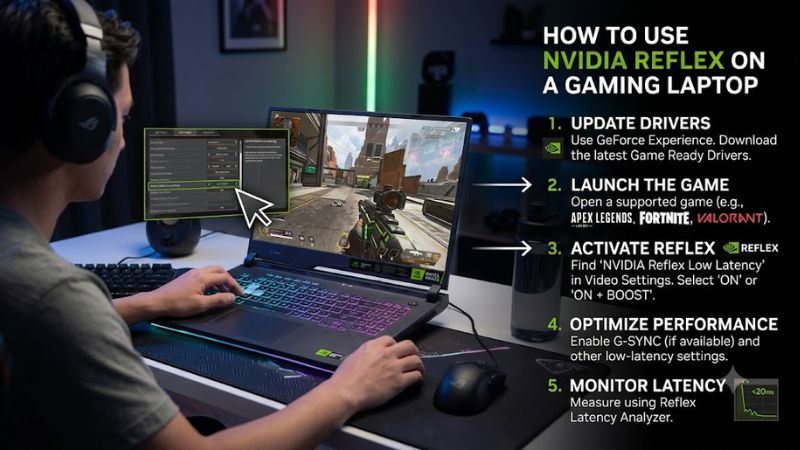
The quickest approach is to enable Reflex in the supported game’s settings, start with On, and compare responsiveness under similar conditions. Menu names differ by title, and some games provide additional latency indicators. These four steps help you configure the feature, account for laptop power behavior, and identify whether it is working as expected.
Step 1: Update and launch the game
Check that your game is updated and that your NVIDIA graphics driver is functioning correctly. If you already have a stable driver and the Reflex option appears, you generally do not need to reinstall the driver just to enable the feature. Avoid unnecessary driver changes that introduce additional troubleshooting variables.
Launch the game and open its Settings menu. Look under Video, Graphics, Display, or Advanced Graphics for an NVIDIA Reflex or NVIDIA Reflex Low Latency option. The exact location depends on the title, so consult the game’s current documentation if you cannot find it.
Step 2: Enable NVIDIA Reflex Low Latency
Select On from the Reflex menu and apply the change. Some games apply it immediately, while others may require you to return to gameplay or restart the title. For example, NVIDIA’s Fortnite guidance places the option under Video Settings and identifies it as NVIDIA Reflex Low Latency.
Start with On rather than On + Boost. Play a short session and assess mouse response, aiming consistency, and frame pacing. Keep your resolution, graphics preset, frame-rate limit, and power mode consistent if you plan to compare the two Reflex settings afterward. Otherwise, changes in other settings can make the result difficult to interpret.
Step 3: Choose the right setting for your laptop
Use the following table as a practical starting point. The expected effect describes the setting’s purpose, not a guaranteed result for every game or laptop.
| Setting or Step | Where | Effect | Risk |
| Reflex: On | Supported game’s graphics settings | Reduces rendering latency through game integration | May provide limited benefit in some workloads |
| Reflex: On + Boost | Same in-game Reflex menu | Adds GPU power-management behavior to help sustain performance in certain situations | More power use, heat, or fan noise |
| Windows GPU preference | Settings → System → Display → Graphics | Selects a graphics-performance preference for a specific app | May increase power use; does not enable Reflex |
| Latency indicators | Supported game’s display or interface settings | Helps observe available latency metrics | Availability and measurement detail vary by game |
For Windows 11, the Graphics page lets you choose a GPU preference for individual applications on systems with multiple graphics processors. Select the game, open Options, choose High performance if appropriate, and save. Restart the game to apply the preference. This is optional and separate from Reflex.
Step 4: Verify the result and compare settings
If your game offers latency statistics or supported latency markers, enable them according to the game’s instructions. Record the available readings with Reflex Off, On, and, if appropriate, On + Boost. Repeat the same scene or practice routine under similar conditions. Avoid comparing measurements taken with different graphics settings or workloads.
Not every game exposes numerical latency data, and ordinary FPS overlays do not necessarily measure end-to-end system latency. If the game offers no suitable measurement, use consistent gameplay conditions to compare responsiveness, while recognizing that subjective impressions are less precise than supported measurements. Return to On if Boost adds heat or noise without a noticeable benefit.
FAQ
1. Does NVIDIA Reflex work on every gaming laptop?
No, NVIDIA Reflex does not work in every game or on every graphics configuration. Check the game’s supported features and the laptop’s GPU compatibility. Having an NVIDIA GPU alone does not mean every game will include a Reflex option.
2. Should I use On or On + Boost?
Start with On for most supported games. Try On + Boost if you want to compare GPU behavior and responsiveness under load, particularly when playing while plugged into power. Keep the setting that offers a useful improvement without unacceptable heat, noise, or battery consumption.
3. Does NVIDIA Reflex increase FPS?
NVIDIA Reflex primarily targets system latency rather than increasing average FPS. Frame-rate results vary by game and hardware, and a lower-latency experience does not necessarily produce a higher FPS counter. Measure frame rate and latency separately when comparing settings.
4. Why can’t I find NVIDIA Reflex in my game?
The game may not support Reflex, or its menu may place the setting under a different graphics subsection. Check the official supported-games list and the game’s current documentation. If the option remains unavailable, do not assume that changing NVIDIA Control Panel settings will add Reflex support.
Final Thoughts
Learning how to use NVIDIA Reflex on a gaming laptop is straightforward: confirm game support, enable On, and compare responsiveness under consistent conditions. Use On + Boost only when its additional power behavior is worthwhile for your laptop. Start with the in-game setting, then investigate other latency sources if responsiveness remains poor.