Mesh WiFi is a home network made of a main router plus one or more satellite nodes that work together under a single network name, so your devices roam between them and coverage reaches rooms a single router cannot. For a gaming PC, the best result still comes from a wired Ethernet connection to the router or to a node; mesh helps most when the PC must use wireless and sits far from the main router.
As an Amazon Associate we earn from qualifying purchases at no extra cost to you.

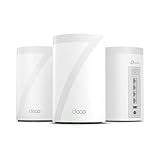
Our Top Picks


What Mesh WiFi Is
A traditional setup uses one router to cover the whole home, and range extenders to fill gaps. A mesh system replaces this with a set of matched units. One node connects to your modem or internet gateway and acts as the main router. The other nodes sit in other parts of the home and relay traffic to it. All nodes share one network name and password, and the system manages which node each device connects to.
Common mesh families include TP-Link Deco, ASUS ZenWiFi and AiMesh, Eero, Netgear Orbi and Google Nest Wifi, along with others. Many current models support WiFi 6, WiFi 6E or WiFi 7, depending on the product. Check the maker’s specification page for the standard and bands the model supports.
How It Works
Nodes and backhaul
The link between nodes is called the backhaul. It can be wireless, using a radio band to carry traffic between nodes, or wired, using Ethernet cable between nodes. Wired backhaul usually gives the most consistent speed and lowest latency, because the wireless radios are then free to serve your devices only. Some tri-band systems dedicate a separate radio band to wireless backhaul, which reduces the penalty for a wireless link between nodes.
Roaming
When you move from one room to another, your phone or laptop can hop to a closer node. Many mesh systems support standards such as 802.11k, 802.11v and 802.11r to guide devices to a better node and speed up handoffs. Devices ultimately decide when to switch, so some stay attached to a distant node longer than ideal.
Management
Most systems are configured with a phone app that handles setup, firmware updates, guest networks, parental controls and, on some models, quality of service settings. Features and app requirements vary by maker.
Why It Matters for Gaming PCs
Online games care about latency, jitter and packet loss more than raw speed. Wireless links can add variable delay, especially when the signal is weak or the airwaves are crowded. A mesh system can improve a poor signal by placing a node closer to the PC. That said, wireless backhaul adds a hop, and each hop can add some latency and reduce throughput. For competitive play, a wired connection from the PC remains the most stable option.
The simplest gaming-friendly mesh arrangement is to place a node near the gaming PC and connect the PC to the node with an Ethernet cable. Many nodes include Ethernet ports for this purpose. If the node connects to the main router wirelessly, you still gain the wired link between the PC and the node, and avoid the PC’s own WiFi adapter issues.
Quick Reference Table
| Setup | Strength | Weakness | Good for |
|---|---|---|---|
| Single router | Simple, low cost, fewer hops | Weak coverage in far rooms | Small homes and apartments |
| Range extender | Cheap fix for a dead spot | Often halves throughput and adds latency, separate network name on some models | Occasional use in a single weak area |
| Mesh with wireless backhaul | Easy placement, whole-home coverage | Extra hop can raise latency and reduce speed | Medium and large homes without Ethernet wiring |
| Mesh with wired backhaul | Consistent speed, low latency, best coverage | Requires Ethernet cabling between nodes | Gaming, large homes, many devices |
| PC on Ethernet to router or node | Lowest latency and jitter | Requires a cable run | Competitive and streaming gamers |
How to Check and Improve Your Own Setup
- Check how your PC connects. In Windows, open Settings, then Network and internet, and look at whether the active connection is Ethernet or WiFi. Under the WiFi properties you can see the band, the standard and the link speed.
- Check which node you are attached to. Use the mesh system’s app, which typically lists connected devices and the node each is using.
- Look at the PC’s WiFi adapter. The adapter in Device Manager shows its name. A WiFi 6, 6E or 7 adapter can use newer bands; an older adapter limits what a new mesh system can deliver.
- Place nodes with care. Put nodes within reasonable range of each other, rather than at the edge of coverage, and away from large metal objects and thick walls. The maker’s setup guide gives distance guidance for the model.
- Use a wired connection where possible. Plug the gaming PC into the nearest node or router with Ethernet. If you can run Ethernet between nodes, set up wired backhaul in the app.
- Update firmware. Mesh apps normally offer one-tap updates. Updates can improve stability and security.
- Test with a ping check. Open Command Prompt and run a ping to a stable address while playing or idling, and watch for spikes. Compare results with wired and wireless connections.
Common Misconceptions
- Mesh makes the internet faster. It extends coverage, but it cannot exceed the speed of your internet plan.
- More nodes are always better. Too many nodes in a small space can create interference and unnecessary hops. Match the number of nodes to the layout.
- Mesh removes the need for Ethernet. Ethernet remains the most reliable connection for gaming.
- Any WiFi 7 mesh will deliver gigabit speeds everywhere. Real speeds depend on distance, walls, your device’s adapter and the band in use.
- A range extender is the same as a mesh node. Extenders typically repeat the signal and often reduce throughput. Mesh nodes are designed to work as a coordinated system.
When to Care and When to Ignore It
Care about mesh if your home has coverage gaps, if multiple floors cause dropouts, or if you have many devices and the single router struggles. Care about backhaul type if your gaming PC or console relies on WiFi. Ignore mesh if your home is small and one good router covers it, if your gaming PC is wired directly to the router, or if your problem is your internet plan or your provider, since mesh cannot fix upstream issues.
If you already have a capable router, many ISP-supplied or third-party routers offer a mesh add-on that lets you add a compatible node later. Check the router maker’s compatibility list before buying a node.
Frequently Asked Questions
Is mesh WiFi good for gaming?
It can be, especially if it brings a strong signal to a room that had a weak one. For the lowest latency, plug your gaming PC into a node or router with Ethernet. Wireless backhaul between nodes can add latency, so wired backhaul is preferable if you can run cable.
Does mesh WiFi reduce ping?
Not directly. If your signal was weak and causing retransmissions, a closer node can lower and stabilize ping. If your connection was already strong, mesh will not lower your ping below what your internet provider’s route allows.
Do I need WiFi 7 for a gaming PC?
No. WiFi 6 and 6E are sufficient for most online gaming, and a wired connection is better than any of them. WiFi 7 adds features such as wider channels and multi-link operation, but benefits depend on both the router and the PC’s adapter supporting it.
Can I mix different mesh brands?
Usually not. Mesh nodes are designed to work with units from the same family. Some makers offer cross-model compatibility within their own lines, such as ASUS AiMesh. Check the maker’s list of compatible models.
How many nodes do I need?
It depends on the home’s size, layout and wall materials. Makers list approximate coverage for their kits, but those are best-case figures. Start with fewer nodes and add more if there are still dead spots.
Should the gaming PC connect to the main router or a satellite node?
Connect it to whichever is closer with a wired link, as long as the node has a strong backhaul to the main router. If the satellite uses a weak wireless backhaul, a wired connection to the main router is better.


