Our Top Picks
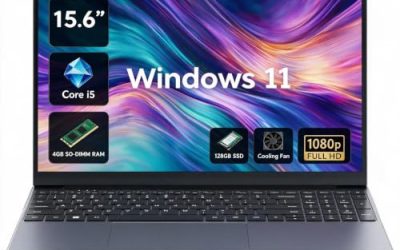
 HP 14" HD Chromebook Laptop for StudentsN4120|64GB eMMC12.85 x 8.94 x 0.72 inches3.35 poundsCheck on Amazon
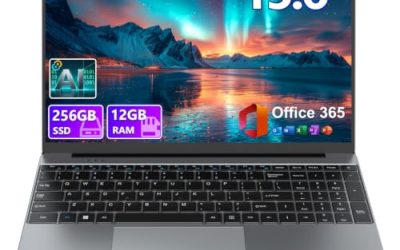
 HP Chromebook 15 15.6" Laptop64GB eMMC+128GB SD Card14.28 x 9.51 x 0.71 inches3.3 poundsCheck on Amazon

Top 3 picks at a glance
Quick Comparison
The table below lines up every Chromebook in this roundup against the five things that actually decide whether a Black Friday price is a bargain or a trap: the processor class, the memory ceiling, the screen, the support runway, and the storage type. Sale prices move daily, so the price column is a tier, not a number — check the live listing before you commit.
| Product | Best for | Key specs (from listing) | Price tier |
|---|---|---|---|
| HP 14″ HD Chromebook (Intel N4120) | Cheapest usable school machine for a single kid | Intel Quad-Core N4120, 4GB RAM, 64GB eMMC, 14″ HD, WiFi, webcam | Budget |
| Acer Chromebook 15.6″ FHD (2026 Edition) | Big-screen desk and dorm use on a mid-range budget | Dual-core Intel Celeron, 64GB storage, 15.6″ FHD 1080p, sleeve included | Mid-range |
| Lenovo Flagship 14″ FHD Touch | Touchscreen and multitasking at a budget price | 8-core MediaTek Kompanio 520, 14″ FHD touchscreen, slim chassis | Budget |
| Lenovo Chromebook m 14″ (Kompanio 540) | Long support runway and a sharp 16:10 panel | MediaTek Kompanio 540, 14″ WUXGA IPS, Google Gemini built in | Mid-range |
| HP Chromebook 15 15.6″ (Intel N200) | Heavy browser tabs, heavy files, longest lifespan | Intel N200, 8GB DDR5 RAM, 192GB storage, 15.6″ display | Premium |
How We Chose
Every machine here was filtered through the same five-question screen, in this order: processor class, memory, display, storage type, and update support. Processor first, because on ChromeOS the CPU sets the ceiling for how many tabs survive, how well video calls hold up, and whether Android and Linux apps feel native or sluggish. We grouped chips by class rather than by marketing name — entry quad-core Celeron and N-series parts in one bucket, modern eight-core MediaTek Kompanio silicon in another, and the newer Intel N-series with DDR5 memory at the top.
Memory came next. 4GB is the floor of usability in 2026 and only makes sense for a single light user; 8GB is the point at which a Chromebook stops feeling like a compromise. Display ranked third because the panel is the one part you cannot upgrade later — a 1080p panel at 15.6″ or a WUXGA IPS panel at 14″ does more for daily comfort than a slightly faster chip. Storage type mattered more than capacity: eMMC is fine for cloud-first work, but a larger internal pool changes how many Android apps and downloads you can keep offline.
Finally, update support. Google’s Chromebook update policy runs from a platform board’s first release, not from your purchase date, which means a machine that sat in a warehouse can arrive with fewer years left than its spec sheet implies. We favored models on recent platforms and treated older boards as a discount-only proposition. Category fit and upgrade path closed the loop: a budget machine should be cheap enough that replacing it in three years is painless, and a premium one should be specced well enough that you never need to. We did not test, benchmark, or handle any of these units — everything below is based on published specifications, platform policy, and category norms.
1. HP 14″ HD Chromebook – Best for the Cheapest Usable School Machine
As an Amazon Associate we earn from qualifying purchases at no extra cost to you.

This is the machine you buy when the requirement is “a working laptop for one child, before Monday” and the budget is the hard constraint. The listing puts an Intel Quad-Core N4120 at the center, with 4GB of RAM, 64GB of eMMC storage, a 14-inch HD display, WiFi, and a webcam. As a Black Friday proposition it lives or dies on one number: the discount has to be deep enough that you are paying entry-level money for entry-level hardware, not mid-range money for it.
Key specs
- Processor: Intel Quad-Core N4120 — a Gemini Lake-class chip from the entry tier
- Memory: 4GB — the practical floor for ChromeOS in 2026
- Storage: 64GB eMMC — soldered, cloud-first, not upgradeable
- Display: 14-inch HD (1366×768 class) — the weakest panel in this roundup
- Extras: WiFi, integrated webcam, standard laptop port layout
The N4120 is the interesting part of the spec sheet. It is a genuine quad-core part, which matters more than the clock speed suggests — four slower cores handle ChromeOS’s tab-per-process model better than two faster ones, and light multitasking (a document, a video call, a couple of tabs) stays responsive. The “> N4020” note in the listing is doing real work: compared with the dual-core N4020 found in many 2023-era budget Chromebooks, this is the better chip of the two, and it is the reason this model is worth considering at all rather than dismissing on sight.
Where it gives ground is memory and panel. 4GB is workable if one person is using the machine for school portals, Google Docs, YouTube, and Meet calls, and you are disciplined about closing tabs. It stops being workable the moment you expect a browser with twenty tabs plus an Android app plus a video call to coexist. The HD display is the bigger long-term annoyance: at 14 inches, a 1366×768-class panel shows visible pixel structure on text, and vertical space is tight for documents. For a child doing homework, that is acceptable. For an adult doing eight hours of work a day, it is not.
Pros
- Genuinely cheap to buy and cheap to replace — the lowest-risk entry point in this list
- Quad-core N4120 is a step above the dual-core N4020 that still shows up in budget Chromebooks
- 14-inch size is the sweet spot for backpacks, and the standard port layout means no dongle tax
- ChromeOS security model and automatic updates mean low maintenance for a non-technical household
Cons
- 4GB of RAM is the single biggest limitation — heavy tab use will produce slowdowns
- HD panel at 14 inches is the least comfortable screen here for long reading or writing sessions
- 64GB eMMC with no upgrade path caps offline storage for Android apps and downloads
- Older platform silicon means fewer remaining years of automatic updates than the Kompanio-based models
Compared with the Lenovo Flagship 14″ FHD Touch, the choice is stark. Both sit in the budget tier. The Lenovo gives you eight cores, a 1080p touchscreen, and — critically — a much newer platform, which translates directly into a longer update runway. If Black Friday pricing puts the two within a small margin of each other, the Lenovo is the better buy and it is not close. The HP only wins on one axis: if it is meaningfully cheaper, and the machine is going to a young student whose needs are genuinely light, the savings are real and the compromises are survivable. Decide by asking which one you would rather own in 2029, then check whether the price gap is large enough to justify the answer.
2. Acer Chromebook 15.6″ FHD (2026 Edition) – Best for Big-Screen Desk and Dorm Use

This is the only 15.6-inch model in the roundup, and that single fact determines who should buy it. The listing pairs a dual-core Intel Celeron processor with 64GB of storage, a 15.6-inch 1080p FHD display, and a bundled sleeve, which places it in the mid-range tier. It is a machine for someone who leaves a laptop on a desk, opens it to a full-size screen and keyboard, and does not carry it around all day.
Key specs
- Processor: dual-core Intel Celeron — entry tier, two cores rather than four
- Storage: 64GB — cloud-first, eMMC-class capacity
- Display: 15.6-inch FHD 1080p — the largest and one of the sharper panels here
- Bundled accessory: protective sleeve included
- Chassis class: full-size 15-inch form factor, heavier than any 14-inch model listed
The FHD panel is the headline and it earns that status. At 15.6 inches, 1080p is the resolution where text looks properly formed rather than merely legible, and the extra diagonal inches translate into a wider working area for split-screen browsing, spreadsheets, and documents. For a student in a dorm room who mostly works at a desk, this is a better daily experience than any 14-inch HD machine, and it costs less than the premium HP 15. As a second screen next to a monitor, it holds up fine.
The catch is the processor. A dual-core Celeron is the weakest chip class in this list, and it sits oddly against a mid-range price tier — you are paying for screen real estate, not compute. Four cores (as in the HP 14’s N4120) generally handle ChromeOS multitasking more gracefully than two, so the machine with the smaller screen is arguably the more responsive one. That inversion is exactly the kind of detail a spec sheet does not flag, and it is the reason this Acer needs a real discount to justify itself. Pair it with a habit of keeping tabs under control and it will be fine; treat it as a tab-hoarding workstation and it will frustrate.
Battery expectations follow the chassis: a 15.6-inch panel draws more power than a 14-inch HD one, so the practical runtime on a charge will be at the shorter end of what you would see from the 14-inch models here, even before you account for the chip’s efficiency. If the machine lives on a desk near an outlet, that is a non-issue. If it is going into a backpack five days a week alongside textbooks, it is.
Pros
- 15.6-inch 1080p panel is the most comfortable screen here for long desk sessions
- Full-size keyboard and chassis make extended typing more pleasant than a 14-inch machine
- Sleeve is included, which removes a small but real accessory cost
- Priced below the premium tier despite the largest display in the group
Cons
- Dual-core Celeron is the slowest processor class in this roundup, and it is not upgradeable
- 64GB of storage matches budget models while sitting in a mid-range price tier
- 15.6-inch size means more weight, more bulk, and a shorter practical battery window
- Larger panel plus modest chip means the value proposition depends entirely on the discount
Versus the Lenovo Chromebook m 14″ with the Kompanio 540, the trade is screen size against everything else. The Lenovo gives you a newer, faster eight-core-class platform, a sharper 16:10 WUXGA IPS panel, a longer update runway, and a chassis you can carry without thinking about it. The Acer gives you roughly two extra inches of diagonal and a lower price. Buy the Acer if it will sit on a desk and never travel; buy the Lenovo if it will ever leave the house. That is the whole decision, and the processor gap makes it an easy call unless the Acer is substantially cheaper.
3. Lenovo Flagship 14″ FHD Touchscreen – Best for Touch and Multitasking on a Budget

On paper this is the best value-per-spec machine in the budget tier: an eight-core MediaTek Kompanio 520, a 14-inch FHD touchscreen, and a slim, thin, light chassis. The listing frames it as a flagship, and within the budget category that framing is defensible — this is the machine that makes the case for spending a little more than the absolute floor.
Key specs
- Processor: 8-core MediaTek Kompanio 520 — modern ARM design, eight cores in a budget-tier machine
- Display: 14-inch FHD touchscreen — 1080p class with touch input
- Chassis: slim, thin, and light — built for daily carrying
- Form factor: 14-inch clamshell, the most portable class in this roundup
- Price tier: budget
Eight cores on a budget Chromebook is the anomaly worth understanding. ChromeOS is efficient, but it is also process-heavy — every tab, every extension, every Android app is its own thing, and more cores give the scheduler more room to keep all of it moving. Where a dual-core Celeron in the Acer will queue work, the Kompanio 520 spreads it. For a user who keeps a dozen tabs open alongside a video call and a notes app, that difference is the gap between “fine” and “why is this stuttering.”
The FHD touchscreen is the second reason this model stands out. 1080p at 14 inches is the resolution where text rendering stops being a compromise, and touch matters more on ChromeOS than newcomers expect: Android apps, scroll gestures, and tablet-style navigation all become available, which changes how a child or a casual user interacts with the machine. Convertible or not, touch adds a genuine second input method rather than a checkbox feature.
Where it trails the mid-range Lenovo m 14″ is platform generation. The Kompanio 520 is the older of the two MediaTek designs in this list, and because ChromeOS update windows are counted from a platform’s first release, the 540-based machine should carry a longer supported life. That is not a reason to avoid this model — it is a reason to buy it at a real discount rather than at full price. The chassis being slim and light also means fewer ports and less thermal headroom than a 15-inch machine, so heavy sustained workloads will not be its strength.
Pros
- Eight-core Kompanio 520 gives it the most multitasking headroom in the budget tier
- 14-inch FHD touchscreen is a meaningful upgrade over HD panels at the same tier
- Slim, thin, light design makes it the easiest machine here to carry every day
- Budget pricing means the compromise is money, not capability
Cons
- Kompanio 520 is an older platform than the 540, so the update runway is shorter
- Slim chassis implies limited ports and modest sustained performance
- Touchscreen adds a reflective layer and a small battery cost
- Configuration options vary between listings, so verify memory before buying
Against the HP 14″ with the N4120, the Lenovo is the stronger machine on almost every axis: more cores, a better screen, and a newer platform. The HP’s only advantage is price. Against the mid-range Lenovo m 14″, the trade is platform generation for money — the m 14″ is the better long-term hold, this one is the better immediate value. If you are buying for a student who will be rough on the machine and whose needs are modest, this is arguably the smartest pick in the whole list, because it gets you a 1080p touch display and eight cores without leaving the budget tier.
4. Lenovo Chromebook m 14″ (Kompanio 540) – Best for Long Support Runway and a Sharp Panel

This is the balance point of the roundup: a mid-range machine that gets the three things you cannot change later — processor platform, display, and support window — right at once. The listing specifies a MediaTek Kompanio 540 CPU, a 14-inch WUXGA IPS display, and Google Gemini built in, at a mid-range price tier.
Key specs
- Processor: MediaTek Kompanio 540 — newer eight-core-class ARM platform
- Display: 14-inch WUXGA IPS — 1920×1200 class, 16:10 aspect ratio
- Software feature: Google Gemini integrated
- Form factor: 14-inch everyday laptop, positioned for daily carry
- Price tier: mid-range
The WUXGA panel deserves more attention than the rest of the sheet. 1920×1200 is 1200 vertical pixels rather than 1080, and in a 16:10 aspect ratio that extra height is not marketing — it is roughly one additional toolbar-and-tab-strip worth of vertical content in a browser, or a few extra rows in a spreadsheet, without making the machine wider. IPS keeps colors and viewing angles stable, which matters when two people are looking at the same screen. On a 14-inch chassis, this is the most comfortable panel configuration in this roundup for sustained reading and writing.
The Kompanio 540 is the other reason to pay mid-range money. It is the newer MediaTek design here, and platform generation maps directly to how many years of automatic ChromeOS updates the machine can expect. That is the single most underrated spec on any Chromebook: a machine that is fast today but falls out of support in three years is a worse long-term purchase than a slightly slower one with five or six years ahead of it. Buying on a recent platform is how you protect the money you spend on Black Friday.
Google Gemini integration is a software-layer feature rather than a hardware one, and it is worth thinking about honestly: it makes an AI assistant available within the ChromeOS environment, which is useful for summarizing, drafting, and quick lookups. It will not make a slow machine fast, but on a platform like this it is a genuine convenience that cheaper models in the list may not offer in the same form.
Pros
- 14-inch WUXGA IPS panel in 16:10 is the most comfortable display geometry here
- Kompanio 540 is the newest platform in the mid and budget tiers, implying a longer update runway
- Eight-core-class ARM chip handles tab-heavy browsing and Android apps confidently
- Gemini integration adds a useful software capability rather than a hardware gimmick
Cons
- Mid-range price puts it within reach of the premium HP 15 on sale
- 14-inch screen is smaller than the Acer’s 15.6-inch panel for desk-bound work
- ARM platform means some legacy Linux x86 workloads are not an option
- No touchscreen mentioned in the listing, unlike the budget Lenovo Flagship
Compared with the budget Lenovo Flagship 14″ FHD Touch, this is the same idea executed one tier up: newer chip, sharper panel, longer support, higher price. If you can stretch, this is the better three-to-five-year machine. Compared with the premium HP Chromebook 15 (Intel N200, 8GB DDR5, 192GB storage), the question becomes memory and storage rather than platform — the HP is the only machine here with 8GB of RAM and a large internal storage pool, and if you routinely keep twenty tabs open or work with big local files, that is a category of headroom this Lenovo does not reach. For everyone else, the m 14″ is the more efficient purchase, because it gets the screen and the platform right without paying for capacity you may never use.
5. HP Chromebook 15 15.6″ (Intel N200) – Best for Heavy Tabs, Heavy Files, Longest Lifespan

This is the machine at the top of the list, and its case rests on three numbers: Intel N200, 8GB of DDR5 RAM, and 192GB of storage in a 15.6-inch body. If the rest of this roundup is about finding the least painful compromise, this is about buying the compromise out entirely. It is the most expensive tier here, and on Black Friday it is the model most worth watching, because a discount on a machine this well-specced produces the largest absolute saving in the group.
Key specs
- Processor: Intel N200 — current-generation entry Intel silicon, a newer class than the N4120
- Memory: 8GB DDR5 — double the RAM of every other model in this list
- Storage: 192GB — a large internal pool by Chromebook standards, not an eMMC-class 64GB
- Display: 15.6-inch — the large-screen form factor
- Price tier: premium (for a Chromebook)
The arithmetic here is worth doing explicitly. ChromeOS itself is light, but memory pressure comes from the browser, and it compounds: each open tab, each extension, each background Android app holds a slice of RAM. On a 4GB machine, a dozen tabs plus a video call is already at the edge. On 8GB, that same workload has room to breathe, which is why the upgrade from 4GB to 8GB is the single largest perceptible jump in this entire roundup — larger, in practice, than the jump from one processor tier to the next. DDR5 is the current memory standard, so this is not a rebadged older design; it is the newest memory generation available in this price class.
The 192GB storage figure changes a different equation. The 64GB machines in this list are cloud-first by necessity: Android apps, offline video, and local documents all compete for a small pool. With 192GB, that constraint largely disappears. If you download course materials, keep music or video offline, or run several Android apps, you stop managing space and start ignoring it. The N200, meanwhile, is a newer Intel design than the N4120 in the budget HP — same tier, later generation — so it delivers better efficiency and responsiveness at the same nominal positioning, and it should carry a longer update window than the older Gemini Lake-class part.
The 15.6-inch display keeps it in the desk-and-dorm category, same as the Acer, with all the same trade-offs: more screen, more weight, shorter battery life relative to a 14-inch machine. It is not the machine to carry every day unless you genuinely work on a large canvas. But if the Chromebook is going to be a primary home computer used at a table, this is the configuration that will still feel adequate in 2030 — 8GB and a large internal drive have more staying power than any processor badge.
Pros
- 8GB DDR5 is double every other machine here and is the most noticeable upgrade on the list
- 192GB of internal storage removes the offline-storage ceiling that limits the 64GB models
- Intel N200 is a newer generation than the N4120, with better efficiency and a longer expected support window
- 15.6-inch display suits desk work, split-screen browsing, and shared household use
Cons
- Premium tier for a Chromebook — the largest outlay here, though also the largest potential saving on sale
- 15.6-inch chassis is heavy for daily carrying and draws more power than a 14-inch panel
- Intel N-series is entry-tier silicon; it buys responsiveness, not workstation performance
- Overkill for a single light user who only needs Docs, email, and video
Against the Lenovo Chromebook m 14″, the contest is memory and storage versus platform freshness and screen geometry. The Lenovo wins on 16:10 WUXGA comfort, portability, and probably on support runway from a newer ARM platform. The HP wins on raw headroom: more RAM, far more storage, and a larger screen. The honest test is your tab count and your download habits. If you can name five things you keep open at once and you store files locally, the HP is the one worth stretching for. If you live in a browser with a handful of tabs and everything lives in the cloud, the Lenovo m 14″ gives you 90% of the experience for less, and the HP’s extra capacity will sit unused.
How to Choose
The single most useful thing to understand before buying a Chromebook on sale is that ChromeOS is not Windows, and the usual spec instincts transfer imperfectly. A slow processor on Windows feels slow. A slow processor on ChromeOS, paired with enough memory, can still feel perfectly fine — right up until you open the fifteenth tab, at which point 4GB of RAM becomes the real bottleneck, not the chip. This section walks through the decision in the order the constraints actually bite.
Start with memory, not the processor badge. ChromeOS itself is light enough that a 4GB machine boots quickly and handles a handful of tabs without complaint. The problem is that the browser is where the weight lives, and every tab, extension, and Android app claims memory independently. Four gigabytes is enough for one light user doing schoolwork or casual browsing with disciplined tab hygiene. Eight gigabytes is the point where you stop thinking about it. The jump from 4GB to 8GB changes day-to-day behavior more than the jump from a Celeron to an N-series chip does, so if you must pick one upgrade, pick memory. Of the machines here, only the HP Chromebook 15 with the Intel N200 ships with 8GB (DDR5), which is why it sits in the premium tier — you are paying for the one component that cannot be added later.
Then weigh processor class, because it determines what the machine can grow into. Group the chips by tier, not by name. Dual-core Celeron is the floor: fine for light browsing and documents, quicker to queue work when several things happen at once. Quad-core entry Intel (the N4120) spreads light multitasking better than two cores and is a genuine step up at the same tier. Modern eight-core ARM (Kompanio 520 and 540) is the sweet spot for ChromeOS — the scheduler has room to keep many processes moving, and Android apps feel native. Current-generation Intel N-series (N200) sits at the top of the entry class and pairs best with DDR5 memory. A rough way to think about it: two cores is a device for one task at a time, four cores is a device for a few tasks at a time, and eight cores is a device where multitasking stops being a consideration.
Treat the display as a fixed cost you pay once. You cannot upgrade a laptop panel, so this is where a modest stretch pays back every day for years. Three tiers matter. HD (1366×768 class) at 14 inches or larger shows visible pixel structure on text — acceptable for a child, tiring for an adult over long sessions. FHD 1080p at 14 to 15.6 inches is the baseline where text looks properly formed. WUXGA (1920×1200 class) in a 16:10 aspect ratio is the premium of the three: the extra 120 pixels of height means more content on screen without a wider chassis, which is exactly what a browser and a document want. Aspect ratio is the underrated variable here — 16:10 gives you back roughly a toolbar and a tab strip worth of vertical space compared with 16:9 at the same panel width. For a machine used mainly for reading and writing, that is worth more than a processor upgrade.
Storage type matters more than storage size — until it doesn’t. Nearly all affordable Chromebooks use eMMC, which is soldered, slower than a modern SSD, and typically capped at 64GB. For a cloud-first user, that is fine: documents, email, and streaming live online, and 64GB is mostly free. The constraint appears when you start keeping things locally — Android apps, offline video, course downloads, photos. At that point 64GB fills faster than expected, and there is no upgrade path. A machine with a large internal pool (the 192GB model here) removes that ceiling entirely. The rule: if you can honestly say you store little locally, 64GB is enough; if you download course materials, keep media offline, or install a dozen Android apps, pay for the bigger drive now, because you cannot add it later.
Factor in update support — it is the spec nobody lists in the marketing copy. Google’s ChromeOS update support runs from the first release of a platform board, not from your purchase date. A Chromebook sitting in a warehouse for a year arrives with a year less of guaranteed updates than the same model bought fresh. This is why platform generation matters as much as raw speed: a Kompanio 540 machine is on a newer platform than a Kompanio 520 machine, and a current-generation Intel N-series part is newer than a Gemini Lake-class N4120, even though both look similar on a product page. For a Black Friday purchase specifically, this is the check that separates a bargain from a clearance. A deep discount on an aging platform can be genuinely good value if you plan to replace the machine in three years; it is a poor deal if you expect it to last six.
Think about where the machine will physically live. Chassis size is a lifestyle decision that no benchmark captures. A 14-inch machine fits in a backpack, survives a commute, and runs longer per charge because the panel is smaller. A 15.6-inch machine gives you a fuller keyboard, a larger canvas for split-screen work, and a longer list of visible rows in a spreadsheet — at the cost of weight, bulk, and battery runtime. If the Chromebook will sit on a desk and move twice a year, buy the bigger screen. If it will go into a bag five days a week, buy the 14-inch and accept the smaller canvas. There is no configuration that is right for both, which is why the roundup contains examples of each.
Decide whether touch matters before you pay for it. On ChromeOS, touch is a real input method rather than a checkbox: Android apps assume it, scroll gestures are natural, and children often take to it faster than to a trackpad. It only appears on one machine in this list, the budget Lenovo Flagship. If the machine is for a young student or for shared household use, touch is worth prioritizing. If it is a keyboard-and-cursor workstation, skip it and spend the difference on memory or a better panel.
Finally, price the machine against its replacement cycle, not against other laptops. A Chromebook’s value comes from doing a narrow job well for a few years and then being cheap enough to replace without regret. A budget machine at a genuine Black Friday discount that will be replaced in three years can be the smartest purchase on the page. A mid-range machine with a newer platform and a better panel that lasts five or six years can be the cheapest per year of ownership even though it costs more up front. What you want to avoid is the middle-of-the-road outcome: paying mid-range money for entry-level memory, an HD panel, or an aging platform. Every machine in this roundup is defensible — but only when the price matches what it actually delivers, which is exactly why the sale price is the last variable to check, not the first.
Frequently Asked Questions
Is 4GB of RAM enough for a Chromebook in 2026?
For one light user doing schoolwork, email, video, and casual browsing with a handful of tabs open, yes — ChromeOS itself is lightweight enough that 4GB is workable. It stops being enough the moment you keep many tabs open alongside an Android app or a video call, because the browser claims memory per tab. If your budget can reach 8GB, that upgrade will be more noticeable day to day than any processor bump.
Why does an eight-core MediaTek chip sometimes beat a dual-core Intel Celeron?
ChromeOS runs each tab and app as a largely separate process, so having more cores gives the scheduler more room to keep everything moving instead of queuing work. A dual-core Celeron can have a higher clock speed and still feel less responsive in a tab-heavy session. This is why the eight-core Kompanio machines in the budget and mid-range tiers often feel better than their price suggests.
How many years of updates will a Chromebook get?
Google’s support window is counted from the first release of the device’s platform board, not from the date you buy it. That means a machine that sat in inventory arrives with less remaining support than its age suggests. Newer platforms — a Kompanio 540 versus a 520, or a current Intel N-series versus an older N4120 — generally imply a longer runway. Always check the model’s platform specifically rather than assuming the spec sheet tells you.
Is 64GB of storage enough, or should I pay for more?
For a genuinely cloud-first user who streams video and keeps documents online, 64GB eMMC is fine and often mostly empty. It becomes a problem when you keep things local: Android apps, offline video, course downloads, and photos can fill it faster than expected. Since eMMC is soldered and cannot be upgraded, decide based on whether you actually store files on the device.
Do I need a 1080p screen on a Chromebook?
At 14 inches and above, yes if you can afford it — a 1366×768-class HD panel shows visible pixel structure on text and is tiring for long sessions. A 1080p panel is the sensible baseline, and a WUXGA 1920×1200 panel in a 16:10 ratio is better still because the extra height fits more content without a wider chassis. You cannot upgrade a laptop screen later, so this is a good place to stretch.
Should I buy a 14-inch or 15.6-inch Chromebook?
Buy 14 inches if the machine will travel — it is lighter, fits a backpack, and lasts longer per charge because the panel is smaller. Buy 15.6 inches if it will mostly stay on a desk, where the fuller keyboard and larger canvas are worth the extra weight. There is no configuration that suits both, so decide primarily on how often it leaves the house.
Is a touchscreen worth paying extra for on ChromeOS?
It depends on who uses it. Touch is a genuine second input method on ChromeOS — Android apps assume it, scroll gestures feel natural, and children often adopt it faster than a trackpad. For a young student or a shared household machine it is a real benefit. For a keyboard-and-cursor workstation, skip it and put the money toward memory or a better display instead.
Are Black Friday Chromebook deals actually good, or should I wait?
The worthwhile ones share a pattern: a recent platform, at least 1080p on a 14-inch-or-larger screen, and either 8GB of memory or a genuine step down in price to compensate for 4GB. Deals to avoid are mid-range prices attached to entry-tier memory, HD panels, or aging platforms. Judge the sale against what the machine will be worth in three years, not against its original list price.
The Short Version, by Situation
If you need the cheapest machine that will do homework and light browsing for one student, the HP 14″ with the N4120 is the entry point — provided the discount is genuinely deep. If you want the best all-round value in the budget tier, the Lenovo Flagship 14″ FHD Touch is the pick, because eight cores and a 1080p touchscreen at that price are hard to argue with. If the machine will sit on a desk and never move, the Acer 15.6″ FHD buys you the largest screen for mid-range money. If you want the machine most likely to still feel good in five years, the Lenovo Chromebook m 14″ with the Kompanio 540 gets the platform, panel, and support runway right. And if you keep a lot of tabs open or store files locally, the HP Chromebook 15 with the N200, 8GB DDR5, and 192GB of storage is the only machine here that removes those constraints — worth stretching for on sale, and unnecessary if you do not have them.