The best Chromebooks in 2026 are the ones whose processor, memory, display, battery, update support, and ports match your workload: an Intel N100 or MediaTek model is enough for school, while frequent multitasking, coding, or Android development calls for a Chromebook Plus system with 8–16GB of RAM and a Core i3, Core i5, or equivalent processor.
As an Amazon Associate we earn from qualifying purchases at no extra cost to you.


Our Top Picks


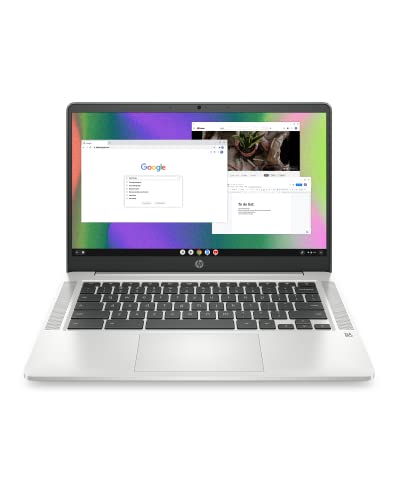
Top 3 picks at a glance
Best Chromebook choices by use case
| Use case | Recommended specification | Good examples or product class | Typical price range |
|---|---|---|---|
| Schoolwork and homework | 4–8GB RAM, 64–128GB storage, 11–14-inch 1080p screen | Acer Chromebook 315, Lenovo IdeaPad 3 Chromebook, basic Acer or Lenovo Chromebook | Usually $200–$400 |
| General work and many browser tabs | 8GB RAM, 128GB storage, Intel N-series or Core i3-class processor | Chromebook Plus models such as the Acer Chromebook Plus 515 | Usually $350–$600 |
| Premium work and coding | 8–16GB RAM, 128–256GB storage, Core i3/i5-class processor, 300-nit or brighter display | Acer Chromebook Spin 714 or a similar premium Chromebook Plus convertible | Usually $600–$900 |
| Travel and tablet use | Lightweight chassis, 10–13-inch touchscreen, 8GB RAM, USB-C charging | Lenovo Chromebook Duet 5 or a comparable detachable Chromebook | Usually $300–$600 |
| Long-term ownership | 8GB RAM, 128GB storage, recent processor, long remaining AUE date | New Chromebook Plus models rather than old bargain stock | Usually $400–$800 |
Best Chromebook for school
For essays, Google Docs, classroom websites, video calls, and light streaming, prioritize a comfortable keyboard, a 1080p display, and dependable battery life over a powerful processor. An Intel N100, Intel N200, MediaTek Kompanio, or similar entry-level chip is sufficient for ordinary schoolwork. Choose 8GB of RAM if the budget allows: it leaves more room for a video call, a document, research tabs, and a music tab at the same time.
Budget Chromebooks with 4GB of RAM can still work, but they become restrictive sooner. ChromeOS may discard inactive tabs when memory is full, forcing pages to reload. That is an annoyance during research and a real problem when an online form loses unsaved work.
Acer Chromebook 315-class laptops are useful when a large screen and full-size keyboard matter. For younger students or people who carry a laptop daily, a 12- or 13-inch model is easier to handle. Look for a spill-resistant keyboard, a 720p or better webcam, and at least two USB ports.
Best Chromebook for work and multitasking
Work users should start at 8GB of RAM and 128GB of storage. A Chromebook Plus model with an Intel Core i3-class processor, Intel N305, or comparable Ryzen or ARM chip is a better fit for spreadsheets, browser-based business tools, Slack, video meetings, and remote desktop sessions.
The processor affects how quickly a Chromebook opens heavy web applications and handles video calls, but RAM often determines how pleasant multitasking feels. For example, a 20-tab session might include several ordinary pages, two large web applications, a video meeting, and a document. The browser may use several gigabytes before ChromeOS and background processes are counted. With 4GB total memory, there is little headroom; with 8GB, the system has substantially more room for active work.
Choose 16GB if you regularly use Linux development containers, Android Studio alternatives, large spreadsheets, or many persistent tabs. Otherwise, spending extra on screen quality, keyboard comfort, or a larger battery can provide more daily benefit than moving from one midrange processor to another.
A practical memory decision
- 4GB: Email, documents, school portals, and a modest number of tabs.
- 8GB: The sensible default for work, video meetings, and Chromebook Plus systems.
- 16GB: Coding, Linux applications, large spreadsheets, and heavy multitasking.
Best Chromebook for travel
Travel changes the priorities. A compact Chromebook with a 10- to 13-inch screen is easier to use on a tray table, but a 14-inch display is usually more comfortable for split-screen work. A detachable such as the Lenovo Chromebook Duet 5 is attractive when tablet use, reading, and low weight matter more than a rigid laptop keyboard.
Check the charger before buying. USB-C Power Delivery is the most convenient option because the same charger can often power a phone, tablet, and Chromebook. Confirm that the Chromebook accepts charging through the port you plan to use; some models have USB-C data ports but limited charging arrangements.
Battery capacity is measured in watt-hours, while battery life depends on brightness, processor load, wireless signal, and video calls. A rough calculation illustrates the difference: a 50Wh battery powering a system that averages 6 watts would provide about 8.3 hours in ideal conditions:
50Wh ÷ 6W = 8.3 hours
After accounting for conversion losses and the fact that manufacturers do not always expose the entire battery capacity, real mixed-use time may be lower. Video meetings can consume considerably more power than reading a document, so frequent travelers should favor a larger battery and a screen that is usable at moderate brightness rather than chasing the thinnest chassis.
Processor guide: what you actually need
- Entry-level Intel N-series and MediaTek Kompanio: Suitable for documents, streaming, school portals, and ordinary browsing. They are efficient but less comfortable with demanding web applications and Linux workloads.
- Intel Core i3-class and equivalent Ryzen or ARM processors: The best balance for most Chromebook Plus buyers. They handle multitasking and video conferencing with more margin.
- Intel Core i5-class processors: Worth considering for coding, frequent Linux use, demanding web applications, and longer ownership. They may cost more and can reduce battery life if the design uses a small battery.
- Older Celeron and low-end ARM chips: Acceptable only when the price is low and the workload is light. Check RAM carefully, because a fast-enough processor cannot compensate for severe memory limits.
Do not judge a Chromebook by the processor name alone. The same chip can feel different depending on cooling, storage, memory, screen resolution, and ChromeOS updates. A fanless model may be quieter and more efficient, while a larger actively cooled laptop can sustain demanding work for longer.
Screen quality: the specification most buyers notice daily
Avoid making 1366×768 the default choice unless the Chromebook is strictly for basic schoolwork. A 1920×1080 display provides sharper text and more useful workspace. A 16:10 1920×1200 panel is even better for documents because it shows more vertical content.
- Brightness: Around 250 nits is workable indoors; 300 nits or more is preferable near windows or outdoors.
- Panel type: IPS-style viewing angles are better for shared work than narrow-angle TN panels.
- Touch: Useful for Android apps, drawing, and tablet-style use, but not essential for a conventional laptop.
- Refresh rate: 60Hz is adequate for productivity. A higher rate can make scrolling look smoother but generally uses more power.
- Glossy finishes: Common on touchscreens and often more reflective in bright rooms.
Ports and wireless connectivity
For school and office use, aim for two USB ports, including at least one USB-C port that supports charging and display output. A USB-A port remains useful for older flash drives, mice, and classroom equipment. A microSD or full-size SD slot is helpful for photographers and students moving large media files.
Travelers should also check for a headphone jack, Wi-Fi 6 or newer, and Bluetooth support for earbuds. If you use an external monitor, verify whether USB-C supports DisplayPort output; a port that only handles charging and USB data may require an adapter with different capabilities.
ChromeOS update support: check before buying
Every Chromebook has an Auto Update Expiration, or AUE, date. ChromeOS devices receive updates only until that date, so an older discounted model may offer poor long-term value even if its hardware looks attractive.
Before purchasing, identify the exact model number and check its AUE date on Google’s official Chromebook support page. Do not rely only on a family name such as “Chromebook 315,” because different generations can have different support periods. A newer, slightly more expensive Chromebook with many years remaining is usually a better choice than an older model with a large discount and limited support.
Which Chromebook should you buy?
- Choose a basic 14- or 15-inch Chromebook with 8GB RAM if your priority is schoolwork and a large keyboard.
- Choose a Chromebook Plus model with 8GB RAM and 128GB storage for work, multitasking, and longer-term flexibility.
- Choose a premium convertible such as the Acer Chromebook Spin 714 if you need a sharper, brighter display, a better keyboard, and sustained performance.
- Choose a Lenovo Chromebook Duet 5-class detachable if low weight and tablet use matter more than maximum typing comfort.
- Choose 16GB RAM and a Core i5-class processor only when your Linux, coding, spreadsheet, or multitasking workload can use them.
- Before paying, verify the exact AUE date, screen resolution, brightness, USB-C charging support, and included keyboard or stylus.
The safest all-around target for 2026 is an 8GB Chromebook Plus laptop with 128GB storage, a recent efficient processor, a 1080p-or-better display, USB-C charging, and a long remaining update period. Spend beyond that baseline for a clear reason—more RAM for development, a brighter screen for travel, or a convertible design for tablet use—not simply because the model has a higher processor label.