Upgrading memory starts with confirming that your laptop supports the change. A gaming laptop RAM upgrade compatibility checklist helps you verify whether RAM is replaceable, which DDR generation and module type you need, how much memory the system supports, and whether an existing module can remain installed. Check the exact laptop model before purchasing anything.
What Gaming Laptop RAM Compatibility Really Comes Down To
The right upgrade depends on the laptop’s motherboard design, installed memory, and manufacturer-supported configuration. A RAM module that physically fits is not necessarily compatible. Start with the official specifications and service manual, then check capacity, available slots, and supported speed before choosing an upgrade.
1. Confirm That Your Laptop RAM Is Upgradeable
Not every gaming laptop has removable memory. Some models use socketed SO-DIMMs, some combine soldered memory with an accessible slot, and others have memory soldered entirely to the motherboard. If the memory is soldered, you cannot replace it with a conventional RAM module.
Find your laptop’s complete model number and configuration, then open the manufacturer’s specifications or service manual. Check the memory section for socketed versus soldered memory, the number of slots, and the approved upgrade configurations. Do not assume two laptops in the same product family have identical memory layouts.
2. Match DDR Generation and Physical Form Factor
DDR4 and DDR5 are different memory standards and are not interchangeable. Laptop memory commonly uses the smaller SO-DIMM form factor, although some newer designs use other arrangements, including soldered LPDDR memory. Desktop DIMMs are physically different from laptop SO-DIMMs and are not suitable for a conventional SO-DIMM slot.
Use the exact model documentation to identify the required generation and module format. A DDR5 module cannot substitute for DDR4 simply because its capacity is higher. Likewise, do not assume that a laptop supporting LPDDR memory accepts removable modules; verify the physical design before shopping.
3. Check Maximum Capacity and Available Slots
Maximum supported RAM depends on the particular laptop configuration, motherboard, processor, and firmware. Check the manufacturer’s specifications for the total capacity and supported module sizes. A processor’s theoretical memory capability does not automatically establish the laptop’s supported upgrade limit.
In Windows, press Ctrl + Shift + Esc, open Task Manager, and select Performance > Memory. Review installed capacity and the reported slot usage. Treat the slot count as a preliminary clue, not definitive proof: firmware reporting can be incomplete, and the service manual takes priority when confirming upgradeability.
4. Understand Memory Speed and Existing Configuration
A memory module’s advertised speed is not necessarily the speed it will run at in your laptop. The processor, motherboard, firmware, and existing memory configuration determine the supported operating speed. A faster-rated module may run at a lower supported speed, so paying extra for a higher rating may not provide a practical benefit.
Record the installed capacity, speed, and module configuration before selecting a replacement. If you plan to keep an existing module, check whether the manufacturer supports the proposed combination. Matching modules are generally the simpler choice for a two-module setup, but matching alone does not override the laptop’s capacity or compatibility limits.
How to Check Gaming Laptop RAM Compatibility: Step by Step
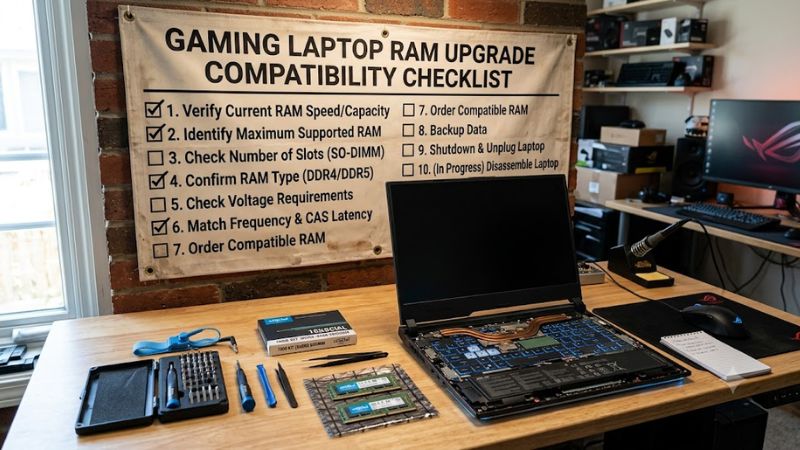
Use this gaming laptop RAM upgrade compatibility checklist before ordering a module. Confirm the exact model, supported memory specifications, and upgrade limits through manufacturer documentation. Then compare the proposed RAM with your current configuration. These checks help prevent buying memory that cannot be installed, exceeds the supported capacity, or operates below your expectations.
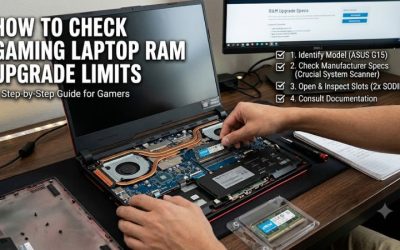
1. Identify Your Exact Laptop Model
Start by checking the model name and full model number on the laptop’s label, original packaging, purchase record, or manufacturer support utility. If several configurations share a product name, use the specific model identifier to locate the correct specifications and service manual.
Open the manufacturer’s support page and find the memory section. For example, MSI publishes model-specific memory information, while Lenovo provides product specifications and parts lookup resources. Use these official records rather than assuming that specifications from a similar laptop apply to yours.
2. Compare Your Current RAM With the Supported Specifications
In Windows, open Task Manager > Performance > Memory to check installed capacity, memory speed, and reported slot usage. These details provide a useful starting point, but they may not identify the precise module part number or confirm every supported configuration.
Compare the information with the manufacturer’s documentation. Record the DDR generation, supported transfer rate, maximum capacity, number of slots, and whether any memory is soldered. If documentation is unclear, contact manufacturer support before buying. A compatibility tool from a memory manufacturer can provide a second check, but it should not override conflicting official specifications.
3. Select the Correct Capacity and Module Combination
Decide whether you need to add memory to an available slot or replace an existing module. For instance, a laptop with one occupied slot and one free slot may allow an additional module, while a laptop with both slots occupied may require replacing one or both modules. Soldered memory changes these options.
Choose a configuration within the laptop’s documented limits. If two modules are appropriate, a matched kit with the same capacity and specifications is a straightforward choice. Mixing modules can work, but the system may adjust operating speed or timings, and some combinations may not be supported.
4. Verify the Configuration Before Opening the Laptop
Use this comparison table to identify which details must match before installation. The exact manufacturer’s specification is the deciding reference; the examples below describe compatibility rules, not universal specifications for every gaming laptop.
| Setting or step | Where to check | Effect | Risk |
| DDR generation | Official specifications or service manual | Confirms DDR4 versus DDR5 compatibility | Wrong generation will not work |
| Form factor | Service manual and memory specifications | Confirms SO-DIMM or another supported design | Incorrect physical module |
| Maximum capacity | Official model specifications | Establishes supported total memory | Unsupported capacity or module size |
| Available slots | Task Manager and service manual | Determines whether to add or replace RAM | Assuming a reported slot is physically accessible |
| Memory speed | Official specifications and installed configuration | Establishes supported operating speed | Paying extra for speed the laptop cannot use |
| Module arrangement | Service manual and current configuration | Helps preserve supported channel operation | Incompatible combinations or reduced bandwidth |
Once the details agree, verify the module’s specifications with the seller or manufacturer. Keep the product packaging and receipt until the laptop recognizes the memory and operates normally.
Install and Verify Your RAM Upgrade Safely
After completing the gaming laptop RAM upgrade compatibility checklist, follow the manufacturer’s installation instructions for your specific model. Laptop interiors differ, and battery connections, cover fasteners, memory clips, and access requirements are not universal. If the manual does not explain safe access or the memory is soldered, seek qualified repair assistance.
1. Prepare the Laptop Before Installation
Back up important files and save your work. Shut down Windows completely, disconnect the charger and peripherals, and follow the manufacturer’s electrical safety instructions. If the service manual requires disconnecting the internal battery, follow its procedure before touching memory components.
Work on a clean, stable surface and use appropriate electrostatic-discharge precautions. Do not force the bottom cover, battery connector, or memory module. Check warranty terms and local service options before opening the chassis, particularly if you are unfamiliar with laptop repairs.
2. Install or Replace the Memory Module
Follow the exact service manual to locate the memory slots and identify the correct installation procedure. For a conventional SO-DIMM, the notch must align with the slot, and the module is normally inserted at an angle before being pressed down into its retaining clips. Follow the model-specific instructions rather than relying on this general description alone.
Do not press a module into place if the notch does not align or the retaining mechanism resists. Confirm that the module is seated correctly before reconnecting the battery and closing the chassis. If the laptop uses soldered memory or an unfamiliar design, do not attempt to remove components that are not intended to be user-replaceable.
3. Confirm That Windows Recognizes the Upgrade
Restart the laptop and open Task Manager > Performance > Memory. Check that the installed capacity matches the intended configuration and that the system reports a plausible operating speed. The operating system may show slightly less usable memory than the installed total because some memory is reserved for hardware.
If the laptop fails to boot, shuts down unexpectedly, or reports less memory than expected, power it off and follow the service manual’s troubleshooting instructions. Recheck module seating and compatibility. If the problem persists, try the manufacturer’s recommended diagnostic procedure or contact support rather than immediately updating the BIOS.
4. Check Stability and Real-World Performance
Once the system recognizes the memory, use the laptop normally and run a reputable memory diagnostic if you suspect instability. Windows Memory Diagnostic is one built-in option: search for it from the Start menu, select the diagnostic, and follow the restart prompts. Save your work first because the check requires a restart.
A successful upgrade does not automatically mean higher frame rates in every game. Additional capacity is most useful when the previous configuration was limiting the game, background applications, or multitasking. If performance does not improve, check memory usage during gameplay and investigate other possible bottlenecks, including CPU or GPU limitations.
FAQ
Can I upgrade RAM in every gaming laptop?
No, some gaming laptops have entirely soldered memory that cannot be replaced with conventional RAM modules. Check the exact model’s specifications and service manual before purchasing memory.
Can I mix different RAM brands or capacities?
Yes, some laptops support mixed modules, but compatibility and operating behavior depend on the system. Check the supported configuration, DDR generation, capacity, and speed before combining modules.
Will upgrading RAM increase gaming FPS?
It can improve performance when insufficient memory is a limiting factor, but the result varies by game and system configuration. More RAM does not automatically increase frame rates when the CPU or GPU is the primary bottleneck.
How do I know if my new RAM is compatible?
Compare the module against the manufacturer’s specifications for memory type, form factor, speed, supported capacity, and slot configuration. After installation, verify the recognized capacity and check system stability.
Final Thoughts
A reliable gaming laptop RAM upgrade compatibility checklist starts with the exact model number and official specifications, not a guess based on the laptop’s product name. Confirm replaceability, DDR generation, capacity, speed, and slot availability before buying. If any detail remains uncertain, ask the manufacturer to confirm compatibility before opening the laptop.