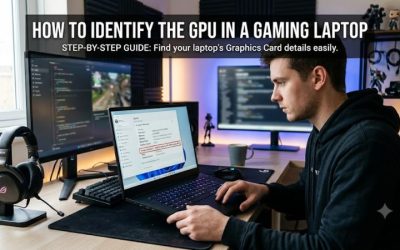
How to check laptop GPU wattage in Windows depends on whether you want to measure current power consumption or find your graphics card’s maximum rated power. Windows Task Manager is useful for monitoring GPU activity, while hardware-monitoring software and manufacturer specifications help you investigate wattage, TGP, and power limits.
What Laptop GPU Wattage Really Comes Down To
Laptop GPU wattage is not a single fixed number. The power a graphics processor draws changes with workload, temperature, laptop power mode, and manufacturer limits. To understand your gaming laptop’s capabilities, distinguish real-time power consumption from its configured maximum graphics power and avoid treating utilization percentages as watts.
Current GPU power versus maximum graphics power
Current GPU power describes how much electrical power the graphics processor is drawing at a particular moment. It can rise when a game loads a demanding scene and fall when the game reaches a menu, becomes CPU-limited, or runs at a frame-rate cap.
Maximum graphics power is a specification describing the laptop GPU’s permitted power ceiling under defined conditions. NVIDIA laptop specifications may include Dynamic Boost, which can shift additional power toward the GPU when system conditions permit. The advertised maximum is not a promise that the GPU will draw that amount continuously.
What TGP means on a gaming laptop
TGP, or Total Graphics Power, is a term commonly used to describe a GPU power budget. However, manufacturers and software interfaces do not always present power limits in identical ways. Check the exact laptop configuration and the manufacturer’s definition before comparing advertised figures across models.
Two laptops equipped with the same GPU model can have different power limits because of their cooling systems, firmware, and chassis design. Consequently, the GPU name alone cannot establish its wattage. Confirm the complete laptop model and GPU configuration before drawing conclusions about performance.
Why wattage changes during a game
GPU power depends on the workload and the laptop’s operating conditions. A demanding game at a high resolution can draw more power than a lightweight game, but utilization, CPU limits, frame caps, and graphics settings also influence consumption. Low wattage by itself does not establish a fault.
Power can also vary with the selected performance profile, whether the AC adapter is connected, and thermal or firmware restrictions. Compare readings under consistent conditions before deciding that your laptop is underperforming. A brief peak and a sustained reading represent different aspects of GPU behavior.
What Doesn’t Help
GPU utilization is not a wattage measurement. A reading of 90% utilization means the GPU is busy, not that it is consuming 90 watts or 90% of its rated power. Likewise, dedicated video memory usage describes memory allocation, not electrical consumption.
Windows Task Manager and basic graphics identification tools may not expose every hardware power sensor. If no wattage figure appears, do not infer it from GPU temperature, clock speed, or FPS. Use a compatible monitoring utility or consult the manufacturer’s published specifications instead.
How to Check Laptop GPU Wattage in Windows: Step by Step
The most reliable approach is to use a monitoring tool that exposes GPU power sensors, then compare its readings with the manufacturer’s specifications. The steps below separate live power draw from the maximum configured power limit, helping you check whether your laptop is behaving as expected without changing risky system settings.
Step 1: Check real-time GPU power with HWiNFO
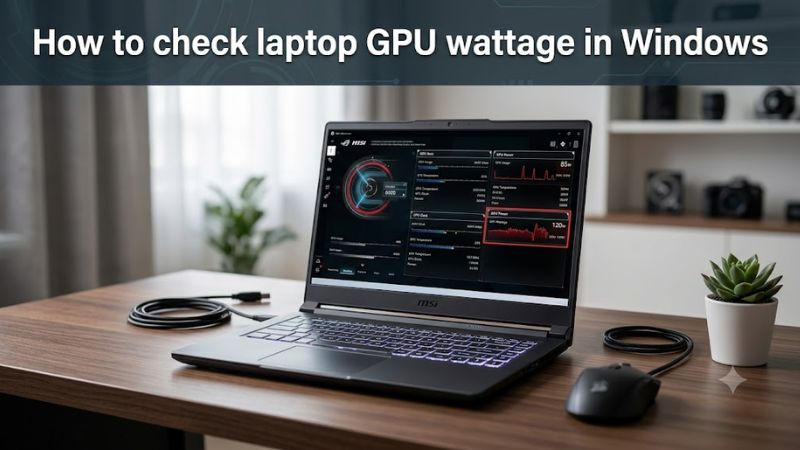
HWiNFO can report supported hardware sensors, including GPU power and power limits on compatible systems. Download the utility from its official website, launch it, and select the sensor-only option if offered. Find the GPU section and look for a sensor labeled GPU Power, Total GPU Power, or a similar name.
Sensor labels vary by hardware, driver, and software version. If a wattage sensor is missing, your laptop may not expose that measurement through the monitoring interface. Do not substitute GPU utilization or a temperature reading for watts. You can still establish the configured limit using manufacturer documentation or another supported interface.
Step 2: Find the GPU’s maximum power limit
For a laptop with NVIDIA graphics, open NVIDIA Control Panel and select Help > System Information. Review the information available for your graphics hardware. Depending on the GPU, driver, and laptop, the displayed details may not include a maximum graphics power figure.
If the wattage limit is not listed, check the exact laptop model’s official specification page or support documentation. Look for Maximum Graphics Power, GPU power, or TGP, and check whether the published figure includes Dynamic Boost. A specification for the same GPU in another laptop is not sufficient evidence for your machine’s limit.
Step 3: Compare the readings under a gaming workload
Connect the laptop to its original or manufacturer-approved AC adapter, select your usual performance profile, and launch a game. Use a repeatable scene or built-in benchmark while monitoring GPU power. Allow the workload to stabilize, then observe both the changing reading and the sustained power draw.
Record the game, graphics settings, power mode, and whether the laptop is plugged in. A short peak may differ from the average during a longer session. If power remains below the published maximum, that alone does not indicate a problem; the game may not need the full power budget, or another system limit may be active.
Step 4: Interpret the result before changing settings
Compare the live sensor reading with the exact model’s documented power limit. A reading close to that limit during a demanding workload can be normal, while a much lower reading may reflect the workload, power profile, temperature, CPU demand, or a platform restriction. You need additional evidence before identifying a fault.
If the result seems unusual, check whether the game is using the discrete GPU, whether the laptop is connected to AC power, and whether its manufacturer utility offers a performance mode. Avoid raising power limits, modifying firmware, or changing voltage settings simply to force a higher number. Restore the normal profile if an optional performance setting causes instability or excessive heat.
| Setting or Step | Where | Effect | Risk |
| Read live GPU power | HWiNFO sensor window | Shows reported power draw when the sensor is supported | Low; readings may be unavailable or sensor-dependent |
| Check maximum graphics power | Manufacturer specifications or supported GPU information | Identifies the documented power limit | Low; verify the exact laptop configuration |
| Run a consistent game workload | Your game or its built-in benchmark | Shows how power changes under load | Normal workload heat and fan noise |
| Check performance mode | Laptop manufacturer’s control utility or Windows power settings | May affect the system’s performance behavior | Higher power consumption, heat, or fan noise |
Common GPU Wattage Problems and How to Interpret Them
A wattage reading is useful only when you understand what it measures. Windows may show GPU activity without showing electrical power, and monitoring utilities can expose different sensors on different laptops. Use the following checks to distinguish missing telemetry from normal power management or a potential performance issue.
Why Task Manager does not show GPU watts
Windows Task Manager provides GPU utilization and other graphics information, but its standard GPU performance view is not a universal wattmeter. Open it with Ctrl + Shift + Esc, select Performance, and choose the relevant GPU to view the available metrics.
If you see utilization percentages but no power figure, that is not evidence of a hardware fault. Use a sensor utility that supports your GPU or consult the laptop manufacturer’s published specifications. Task Manager remains useful for checking GPU activity and determining whether the game is using the expected graphics processor.
Why the GPU draws less power than advertised
A GPU does not need to draw its maximum rated power in every game. Lower graphics settings, frame-rate limits, CPU bottlenecks, lightweight scenes, battery operation, and temperature or power management can all affect the reading. The published maximum describes a limit, not a constant operating target.
Repeat the measurement with the laptop plugged in and a consistent workload. Check the manufacturer’s performance profile and confirm that the game uses the discrete GPU. If the laptop remains slower than expected, investigate clock speeds, temperatures, CPU utilization, and frame rates before concluding that the power limit is responsible.
How Dynamic Boost affects NVIDIA laptop GPUs
NVIDIA Dynamic Boost can redistribute available power between the CPU and GPU when supported by the laptop and workload. The extra GPU power is conditional, so a specification that includes Dynamic Boost should not be interpreted as the GPU’s guaranteed sustained draw.
Support and controls vary by GPU generation and laptop implementation. NVIDIA’s documentation notes that the older Max-Q Dynamic Boost control is not available for GeForce RTX 30-series notebook GPUs and later. Do not search for that exact toggle as a universal requirement; check the relevant laptop and driver documentation instead.
What to do when the wattage sensor is missing
First, confirm the GPU model in Windows or the graphics control panel. Then check for monitoring-software updates and consult the laptop manufacturer’s support page for your specific model. If the software still does not expose GPU power, use the official power specification rather than estimating watts from utilization, clock speed, or temperature.
Avoid installing multiple low-level monitoring utilities at once when troubleshooting, because overlapping sensor access can complicate readings on some systems. You do not need to update the BIOS or modify the registry just to discover a GPU power rating. Escalate to manufacturer support if the laptop also has unexplained performance loss, crashes, or abnormal thermal behavior.
FAQ
1. Can I check laptop GPU wattage without installing software?
You can check the advertised power limit using your laptop manufacturer’s official specifications, but Windows does not universally display real-time GPU wattage. Task Manager is useful for activity monitoring; a supported hardware sensor is usually needed for live power readings.
2. Is GPU wattage the same as TGP?
Not necessarily. TGP describes a graphics power budget, while a monitoring sensor reports power according to its particular measurement definition. Check the manufacturer’s terminology and whether Dynamic Boost is included before comparing a live reading with a published maximum.
3. Why does my laptop GPU never reach its maximum wattage?
The GPU may not need its maximum power under the current workload, or the CPU, frame-rate limit, temperature, power profile, or laptop firmware may constrain operation. Compare performance under a consistent demanding workload before investigating further.
4. Does higher GPU wattage always mean better gaming performance?
No. Higher available GPU power can help when the GPU is power-limited, but performance also depends on the GPU architecture, cooling, clock behavior, CPU, and game settings. Compare equivalent laptop configurations and independent benchmarks rather than judging performance by wattage alone.
Final Thoughts
Learning how to check laptop GPU wattage in Windows means separating live power draw from the maximum graphics power specified for your exact laptop. Start with a supported sensor, compare the result with official specifications, and repeat the measurement under a consistent gaming workload before changing any performance settings.