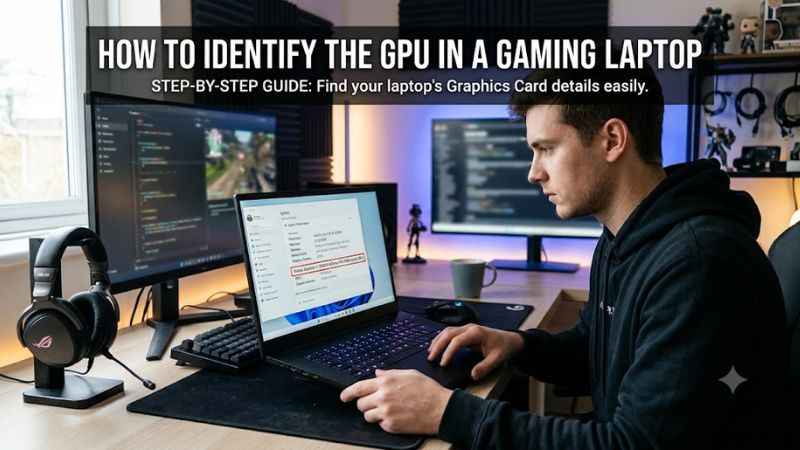
If you need to identify the GPU in a gaming laptop, Windows provides several ways to find the graphics processor without opening the chassis. This guide explains how to check the GPU name, distinguish integrated from dedicated graphics, verify laptop-specific details, and confirm the hardware before updating drivers or comparing gaming performance.
What Identifying Your Laptop GPU Really Comes Down To
The simplest way to identify your laptop’s graphics processor is through Windows Task Manager or Device Manager. However, finding a GPU name is only the first step: some laptops have both integrated and dedicated graphics, and the same GPU model can perform differently across laptop configurations. Verify the exact hardware before making driver or upgrade decisions.
1. Understand Integrated and Dedicated Graphics
An integrated GPU is built into a processor or system-on-chip, while a dedicated GPU is a separate graphics processor intended to provide additional graphics capabilities. Many gaming laptops contain both, such as Intel integrated graphics paired with an NVIDIA GeForce RTX laptop GPU.
Integrated graphics commonly handle desktop applications, video playback, and lighter workloads. The dedicated GPU can take over for demanding games and creative applications. Some laptops switch between the two automatically, so seeing an integrated GPU in a basic system overview does not necessarily mean the dedicated GPU is missing.
2. Identify the Exact GPU Model
When learning how to identify the GPU in a gaming laptop, look for the complete model name rather than a broad label such as NVIDIA GeForce or AMD Radeon. A name such as GeForce RTX 4060 Laptop GPU identifies a different product from a desktop GeForce RTX 4060, even though the names are similar.
The distinction matters because laptop and desktop GPUs can have different power limits, operating characteristics, and performance. Record the complete model name shown by Windows, including the word Laptop GPU when displayed. Do not assume that a desktop graphics card’s specifications apply to a laptop with a similarly named GPU.
3. Know Which Details the GPU Name Cannot Tell You
A GPU model name alone does not establish its available video memory, maximum graphics power, cooling capacity, or performance in a particular laptop. Manufacturers can configure laptops with different power limits and thermal designs, even when the graphics processor belongs to the same product family.
For accurate comparisons, combine the reported GPU name with the laptop’s full model number and manufacturer specifications. Check dedicated video memory, graphics power information, and the exact configuration where available. These details help explain why two gaming laptops with the same GPU name may produce different results in demanding games.
What Doesn’t Help
You do not need to open the laptop, remove its bottom cover, or install a third-party utility just to find the GPU’s name. Those actions add unnecessary complexity when Windows already provides hardware information.
Likewise, do not identify a GPU solely from a laptop’s product branding, a sticker, or the name of a game launcher. A manufacturer’s product family can contain multiple graphics configurations. Use the operating system to identify the installed device, then compare the result against official specifications for your exact laptop model.
How to Identify the GPU in a Gaming Laptop: Step by Step
Use Windows’ built-in tools to confirm the graphics hardware installed in your laptop. Start with Task Manager for a quick overview, then use Device Manager or DirectX Diagnostic Tool if the name is missing or unclear. These checks work without opening the laptop and help distinguish an identification issue from a possible driver problem.
Step 1: Check Task Manager
- Press Ctrl + Shift + Esc to open Task Manager.
- Select Performance.
- Select each GPU entry in the left panel.
- Read the graphics processor name displayed in the upper-right area.
If two GPU entries appear, record both names. One may be integrated graphics, while the other is a dedicated gaming GPU. Task Manager also displays graphics memory and live utilization information for supported devices, making it useful for checking which processor is active during a game.
Step 2: Check Device Manager
- Right-click the Start button.
- Select Device Manager.
- Expand Display adapters.
- Record every listed graphics device.
This is a useful alternative when Task Manager does not provide enough detail. If the list contains Microsoft Basic Display Adapter instead of a recognizable NVIDIA or AMD model, Windows may be using a generic driver rather than the manufacturer’s graphics driver. Check the laptop manufacturer’s support page before installing a replacement driver.
Step 3: Use DirectX Diagnostic Tool
- Press Windows + R.
- Enter dxdiag and press Enter.
- Open the Display tabs.
- Review the Device section and note the reported graphics name.
Some systems show multiple display-related tabs, such as Display and Render, depending on their hardware and driver configuration. Check each relevant tab if you suspect a second GPU. This tool also reports driver information that can help you investigate an unrecognized graphics device.
Step 4: Verify the Model Using Official Specifications
Once you have identified the GPU, find the laptop’s complete model or product number. Check the manufacturer’s official specifications or support documentation and compare the listed graphics configuration with the name reported by Windows.
The following table summarizes which method to use for each task.
| Setting or Step | Where | Effect | Risk |
| Check GPU names | Task Manager > Performance > GPU | Quickly identifies recognized GPUs and shows utilization | Low; viewing information only |
| Confirm installed devices | Device Manager > Display adapters | Lists recognized graphics devices and can reveal generic drivers | Low; avoid uninstalling devices unnecessarily |
| Inspect display details | Run dxdiag > Display or Render tabs | Shows graphics and driver information | Low; diagnostic viewing only |
| Confirm the exact configuration | Laptop manufacturer’s official specifications | Helps distinguish GPU variants and laptop configurations | Low; ensure the documentation matches your model |
How to Interpret the Results
If Windows identifies both integrated and dedicated graphics, that is generally normal for a gaming laptop. The presence of two entries does not mean that the laptop has two dedicated gaming GPUs, nor does it indicate a fault.
If you see only one device, verify the result using another Windows tool and the manufacturer’s specifications. Hybrid graphics configurations, missing drivers, disabled devices, and differences in system reporting can affect what appears. Do not conclude that a GPU has failed based on one screen alone.
If the GPU name is missing or generic, check for driver issues before attempting firmware changes or hardware repairs. If the device remains unidentified after checking official documentation and installing the appropriate manufacturer-supported driver, contact the laptop manufacturer for model-specific assistance.
FAQ
1. How do I identify the GPU in a gaming laptop without installing software?
You can identify it through Windows Task Manager, Device Manager, or DirectX Diagnostic Tool. Task Manager is usually the quickest option, while Device Manager helps you inspect recognized display devices and identify generic driver entries.
2. Why does my gaming laptop show two GPUs?
Many gaming laptops use integrated graphics for lighter tasks and a dedicated GPU for demanding games. Windows can list both devices even when only one is actively rendering a particular application.
3. How can I tell how much VRAM my laptop GPU has?
Open Task Manager, select Performance, and choose the relevant GPU. Review Dedicated GPU memory and its total capacity. You can also check the manufacturer’s specifications, because shared system memory and dedicated video memory are different resources.
4. What should I do if my dedicated GPU does not appear?
Check Device Manager, inspect the relevant dxdiag tabs, and compare the results with your laptop’s official specifications. If Windows reports Microsoft Basic Display Adapter, investigate the graphics driver. If the dedicated GPU remains missing, contact the manufacturer before attempting BIOS changes or repairs.
Final Thoughts
Learning how to identify the GPU in a gaming laptop takes only a few minutes with Windows’ built-in tools. Confirm the device name in Task Manager, cross-check it in Device Manager, and verify the full laptop configuration against official specifications. Keep those details together before comparing gaming performance, checking compatibility, or downloading a graphics driver.