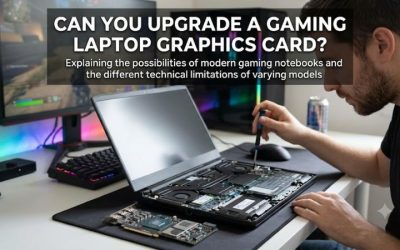
A gaming laptop GPU upgrade options explained guide starts with one key fact: most gaming laptops cannot have their internal graphics chip replaced like a desktop graphics card. Your realistic choices depend on whether the GPU is soldered, the laptop supports an external GPU, or its design uses a rare replaceable graphics module. This guide explains how to identify your options before spending money.
What Gaming Laptop GPU Upgrades Really Come Down To
Upgrading a laptop GPU is primarily a compatibility question, not simply a matter of choosing a faster graphics processor. Most modern gaming laptops use GPUs integrated into the motherboard, while some older systems use specialized removable modules. External graphics enclosures offer another route, but only when the laptop supports a suitable connection and the additional hardware makes financial sense.
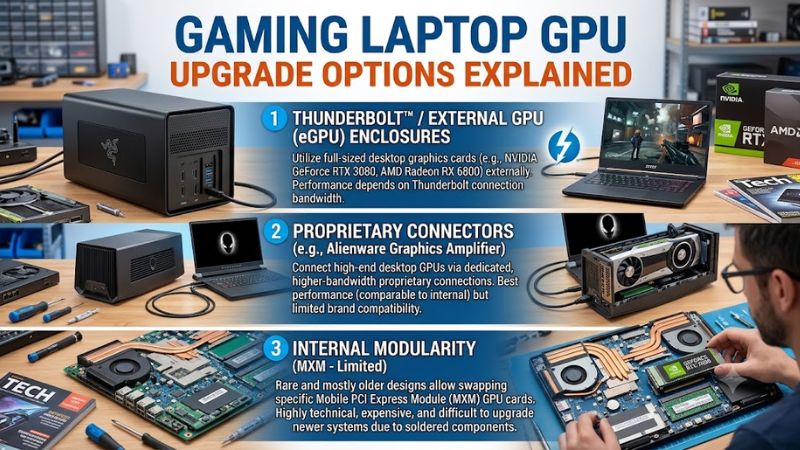
1. Identify Whether Your Internal GPU Is Replaceable
Most modern gaming laptops use a discrete GPU soldered directly to the motherboard. In these systems, removing the graphics processor requires specialized board-level equipment and expertise. It is not a conventional upgrade, and replacing the entire motherboard may be the only practical internal replacement route.
Before considering any hardware purchase, find your laptop’s complete model number and motherboard configuration. Check the manufacturer’s service manual and parts catalog for a separately replaceable graphics module. A removable cooling assembly or accessible motherboard does not mean the GPU itself can be upgraded.
2. Understand External GPU Enclosures
An external GPU, commonly called an eGPU, places a desktop graphics card inside an enclosure connected to a laptop. The enclosure typically supplies power and provides a PCIe connection through a supported high-bandwidth interface. This approach can add substantial graphics capability without replacing the laptop’s internal GPU.
However, a compatible-looking USB-C port is not sufficient. The laptop must support an appropriate PCIe tunneling connection, such as Thunderbolt or USB4 with the necessary PCIe tunneling capability, or another explicitly supported eGPU interface. Performance also depends on bandwidth, the graphics card, the CPU, and the display connection.
3. Compare the Upgrade With Replacing the Laptop
An eGPU setup can require a graphics card, enclosure, suitable cable, and sometimes an external monitor. Those costs can add up quickly, particularly when the laptop is older or lacks a modern high-bandwidth connection. A desktop PC may deliver better value if portability is not essential.
A laptop replacement offers a different benefit: the GPU, cooling system, power delivery, and processor are designed to operate together. It may be the more practical route when your existing machine lacks eGPU support and has a soldered GPU. Compare total cost, expected performance, warranty coverage, and portability before deciding.
How to Choose the Right Gaming Laptop GPU Upgrade
The right upgrade depends on your laptop’s ports, internal design, graphics workload, and budget. Before buying an enclosure or paying for a repair, verify the exact model and the manufacturer’s compatibility documentation. The following checks help distinguish a realistic external upgrade from an expensive modification that your system cannot support.
Step 1: Check Your Laptop’s Exact Model
Open Windows Settings and select System > About to identify your device, then find the full model or product number on the manufacturer’s support page. Consult the specifications and service manual for motherboard details, supported ports, and any proprietary graphics expansion interface.
Do not rely on the USB-C symbol or port shape alone. A USB-C connector can support different capabilities depending on the laptop. Confirm that the manufacturer documents external GPU support or that the specific Thunderbolt or USB4 implementation supports the required PCIe connection.
Step 2: Confirm the External Connection
For a conventional eGPU, check the laptop manufacturer’s specifications for Thunderbolt support or USB4 with PCIe tunneling. Then confirm that the enclosure supports the same connection and your operating system. A port that supports charging, data transfer, or display output does not automatically support an external graphics card.
Consider the cable, enclosure interface, and monitor connection as one system. An external monitor connected directly to the eGPU can avoid sending rendered frames back through the laptop connection, which may improve performance in some configurations. Results vary with the hardware, application, and connection bandwidth.
Step 3: Compare the Total Cost
Calculate the complete cost before choosing an external GPU. Include the graphics card, enclosure, required cable, possible monitor, and any necessary adapters. Check the enclosure’s supported card dimensions, power connectors, and power capacity rather than assuming every desktop GPU will fit.
Compare that total with the cost of a replacement gaming laptop or desktop PC that meets your performance needs. An eGPU is most attractive when you already own a compatible laptop, want to keep it for everyday portable use, and can use the external graphics setup at a desk.
Step 4: Set Up and Verify the eGPU
Read the enclosure manufacturer’s installation instructions before connecting the hardware. Install required system updates and graphics drivers, place the enclosure on a stable surface with adequate airflow, and connect the components in the recommended order. Follow any Thunderbolt authorization or security prompts required by your system.
After installation, verify that Windows detects the external graphics device in Device Manager under Display adapters. Select the appropriate GPU for your game or application when supported, then confirm that the application actually uses it. If detection fails, consult the enclosure’s troubleshooting instructions before changing BIOS settings or removing drivers.
| Setting or Step | Where | Effect | Risk |
| Verify laptop model | Manufacturer support page and service manual | Confirms internal upgrade limitations and port capabilities | Low; incorrect model identification can lead to incompatible purchases |
| Check PCIe-capable connection | Laptop specifications and port documentation | Establishes whether an eGPU connection is supported | Low; USB-C alone is not proof of compatibility |
| Check enclosure requirements | Enclosure manual and GPU specifications | Confirms card size, power, connectors, and interface | Medium; incompatible hardware may not fit or operate correctly |
| Connect and configure eGPU | Manufacturer’s setup guide and Windows Device Manager | Adds an external graphics device when supported | Low to moderate; incorrect handling or driver conflicts can interrupt operation |
| Verify GPU selection | Windows Settings > System > Display > Graphics, where available | Helps direct supported applications to the intended GPU | Low; settings may vary by Windows version and application |
Other Practical Gaming Laptop GPU Upgrade Options
An external GPU is not the only possible route, although the alternatives do not all replace the internal graphics processor. Depending on your laptop, you may be able to use a proprietary graphics expansion device, repair a failing GPU, or improve the performance of your existing hardware. Understanding these distinctions prevents spending money on upgrades that cannot solve the actual limitation.
Proprietary External Graphics Modules
Some laptop families have supported proprietary external graphics accessories. ASUS, for example, has offered ROG XG Mobile graphics devices for selected compatible ROG systems. These are model-specific solutions, not universal accessories that work with every gaming laptop from the same manufacturer.
Check the exact laptop generation, supported connector, and accessory compatibility before considering this route. Do not assume a newer external module works with an older machine or that two devices from the same product family use interchangeable interfaces. The manufacturer’s compatibility list is the deciding evidence.
Older MXM Graphics Modules
Some older gaming laptops and mobile workstations used MXM, a removable graphics module format. In a compatible system, this can provide an internal replacement path, but the presence of an MXM module does not guarantee that a faster card will work. BIOS support, cooling, power delivery, module dimensions, and firmware compatibility can all restrict the available options.
Treat an MXM upgrade as a specialist project rather than a standard laptop repair. Confirm the precise module specification and documented compatibility with the laptop before buying a used card. Also consider whether the cost and reliability risks make a newer system more sensible.
Repairing or Replacing a Failed GPU
If your graphics performance has suddenly deteriorated, determine whether the GPU is actually failing before planning an upgrade. Driver problems, excessive heat, power limitations, and game-specific issues can resemble hardware failure. Check temperatures, GPU utilization, driver status, and whether the problem occurs across multiple applications.
A repair shop may be able to diagnose a faulty motherboard or graphics subsystem. Replacing a soldered GPU chip requires specialized equipment and is not equivalent to installing a faster desktop graphics card. A motherboard replacement may restore operation, but the replacement board’s GPU and performance depend on its exact configuration.
Improving Performance Without Replacing the GPU
If an internal GPU upgrade is unavailable, start with reversible changes. Use the laptop on a hard, unobstructed surface, select an appropriate manufacturer performance profile, update compatible graphics drivers, and adjust demanding game settings such as ray tracing, texture quality, and resolution when necessary.
These steps cannot transform one GPU into a higher-tier model, but they may address thermal or configuration bottlenecks. RAM or SSD upgrades can also help with specific memory-capacity or loading problems when supported by the laptop. Neither upgrade directly increases the graphics processor’s computational capability or VRAM capacity.
FAQ
Can you upgrade the GPU inside a gaming laptop?
Usually, no, because most modern gaming laptop GPUs are soldered to the motherboard. Check the service manual for your exact model before considering an internal replacement. An eGPU or supported proprietary graphics accessory may provide an alternative without replacing the laptop.
Does an external GPU work with every gaming laptop?
No, an eGPU requires a compatible connection and supported hardware and software. Check the laptop’s specifications, the enclosure documentation, and the graphics card’s requirements before purchasing. A USB-C port by itself does not establish eGPU compatibility.
Will an eGPU deliver the same performance as a desktop GPU?
Not necessarily, because the external connection, CPU, cooling, and workload can limit performance. An external monitor connected directly to the eGPU may help in some configurations, but actual results depend on the complete system. Do not assume a desktop graphics card will perform identically in an enclosure and a desktop PC.
Is an eGPU worth buying instead of a new gaming laptop?
An eGPU can make sense if your existing laptop supports it and you mainly play at a desk. Compare the complete setup cost with a replacement laptop or desktop, including expected performance, portability, and future upgrade flexibility. If your laptop lacks a compatible connection, replacement is usually the more practical option.
Final Thoughts
Gaming laptop GPU upgrade options explained simply: verify your exact model, check for supported external graphics connections, and calculate the full cost before committing. Internal GPU replacement is rarely practical on modern laptops. If an eGPU is incompatible or poor value, compare a replacement system before spending money on specialized hardware.