If you’re wondering whether can you upgrade a gaming laptop graphics card is a realistic option, the answer is usually no for internal upgrades. Most modern gaming laptops have GPUs soldered to the motherboard. However, compatible external GPUs, rare modular designs, and other performance improvements offer alternatives. This guide explains how to check your options before spending money.
What a Gaming Laptop GPU Upgrade Really Comes Down To
For most gaming laptops, you cannot remove the original graphics chip and install a faster one as you would with a desktop PC. The GPU is typically soldered to the motherboard, with its power delivery and cooling designed around a specific configuration. Understanding your laptop’s hardware is the first step toward finding a practical alternative.
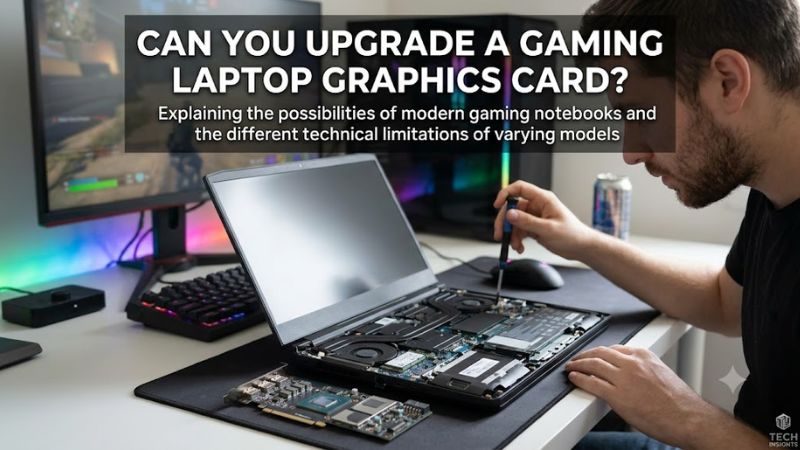
1. Why Most Internal Laptop GPU Upgrades Are Impossible
Desktop graphics cards plug into standardized PCIe expansion slots, making them relatively straightforward to replace. Most laptop GPUs instead use soldered packages attached directly to the motherboard. They lack the removable graphics card and standardized upgrade path found in desktop systems.
The GPU also depends on the laptop’s voltage regulators, cooling assembly, firmware, and physical layout. Even if a technician could replace the chip, a different GPU might not work with those components. Replacing the entire motherboard with another configuration may be possible on some models, but it is a costly repair or system-level replacement rather than a simple graphics upgrade.
2. Integrated Graphics vs. Dedicated Laptop GPUs
Integrated graphics are built into the processor or associated processor package and typically use system RAM. They are not a removable graphics card. If your laptop relies on integrated graphics, adding a conventional desktop GPU inside the chassis is not a practical option.
Dedicated laptop GPUs provide separate graphics processing hardware and usually have their own VRAM. However, dedicated does not mean removable. Most NVIDIA GeForce RTX and AMD Radeon graphics configurations in modern gaming laptops are soldered to the motherboard, so identifying the GPU brand or model does not establish whether it can be upgraded.
3. The Rare Exceptions: MXM and Modular Designs
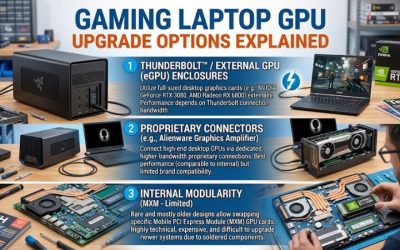
Some older gaming laptops and mobile workstations used MXM graphics modules, a removable form factor designed for certain mobile GPUs. An MXM-equipped machine may permit an internal graphics replacement, but compatibility depends on the exact module, motherboard, BIOS, cooling system, power limits, and available firmware support.
A small number of newer modular laptops also offer replaceable graphics hardware designed for specific models. These are exceptions, not a universal standard. Before purchasing a replacement module, check the manufacturer’s supported configurations and service documentation. Physical fit alone does not establish electrical or firmware compatibility.
4. What Doesn’t Help
Updating NVIDIA or AMD drivers can address software problems and improve performance in supported situations, but it cannot turn a soldered GPU into a removable component. Increasing RAM or replacing an SSD can help with memory pressure, loading times, and some performance bottlenecks, but neither upgrade directly replaces the graphics processor.
Likewise, opening the laptop to search for a desktop-style PCIe graphics slot is unlikely to help. Avoid attempting chip-level soldering or buying a supposedly universal internal laptop GPU. Such work requires specialized equipment and model-specific expertise, and an incompatible modification can permanently damage the motherboard.
How to Upgrade Gaming Laptop Graphics: Step by Step
If an internal GPU replacement is unavailable, an external GPU (eGPU) is the main alternative worth investigating. It connects a separate graphics card to a compatible laptop through a high-bandwidth interface. Before buying hardware, verify your laptop’s exact port capabilities, operating-system requirements, enclosure compatibility, and total cost.
1. Identify Your Exact Laptop Model
In Windows, press Windows + R, enter msinfo32, and press Enter. Record the System Model and, where available, System SKU. Then find the manufacturer’s specifications and service manual for that precise configuration rather than relying on the laptop’s marketing name alone.
Check the listed ports and supported operating systems. Look for explicit Thunderbolt or USB4 support, and confirm that the particular model supports external graphics. A USB-C connector or DisplayPort output alone does not establish eGPU compatibility.
2. Check Whether an External GPU Is Supported
An eGPU enclosure houses a graphics card and provides the appropriate interface and power delivery. Many setups use Thunderbolt, while compatible USB4 implementations can also support external GPUs. Compatibility depends on the laptop, controller, firmware, enclosure, operating system, and drivers.
Do not assume that every Thunderbolt or USB4 device combination will work without restrictions. Check the laptop manufacturer’s documentation and the enclosure manufacturer’s requirements. If external graphics support is undocumented, contact the manufacturer before purchasing expensive equipment.
3. Connect the eGPU and Verify Operation
Once compatibility is confirmed, install the desktop graphics card in the enclosure according to its instructions, connect the required power cables, and attach the enclosure to the laptop using the specified cable and port. Follow the manufacturer’s connection sequence and driver instructions.
In Windows, open Device Manager and expand Display adapters to check whether the external GPU appears without an error. You can then select the preferred GPU for a supported game through Settings > System > Display > Graphics, when that option is available. Test performance in your actual games and compare results at consistent settings.
4. Compare the Total Cost Before Committing
An external graphics setup may require an enclosure, a desktop GPU, a suitable cable, and sometimes a separate monitor. The enclosure’s own power supply and supported GPU dimensions also matter. The laptop continues to provide the CPU, memory, and operating environment, so it can still limit performance.
Compare the combined cost with a replacement gaming laptop or desktop PC. If your current laptop has an aging CPU, insufficient RAM, poor cooling, or limited connectivity, an eGPU may not solve every performance problem. Buying a system with a faster internal GPU may offer better overall value.
| Setting or Step | Where | Effect | Risk |
| Identify laptop model | Windows System Information (msinfo32) | Establishes the exact configuration to check | Low; record the model accurately |
| Verify eGPU support | Manufacturer specifications and support documentation | Determines whether an external graphics connection is supported | Buying without confirmation can waste money |
| Check enclosure compatibility | Enclosure documentation and supported GPU list | Confirms interface, card dimensions, power, and software requirements | An incompatible combination may not operate |
| Connect and verify | Supported port, enclosure instructions, Windows Device Manager | Makes the external GPU available to supported applications | Incorrect cabling or unsupported hardware can cause connection or detection problems |
Which Alternative Makes the Most Sense?
An external GPU is not the only way to improve gaming performance. Depending on your laptop’s limitations, upgrading memory or storage, correcting a cooling problem, or moving to a newer system may be more practical. The right choice depends on whether the GPU is genuinely the bottleneck and how much you are willing to spend.
1. Use an External GPU for a Compatible Laptop
An eGPU is worth considering if your laptop supports the required interface, its processor remains capable, and you mainly play games at a desk. The enclosure lets you use a compatible desktop graphics card without replacing the internal GPU, while leaving the laptop’s portability available when you travel.
However, performance will depend on connection bandwidth, the desktop GPU, the laptop processor, and the game. An external monitor connected directly to the eGPU may help avoid sending rendered frames back through the connection to the laptop display. The actual benefit varies by setup, so avoid assuming desktop-level performance.
2. Upgrade RAM or Storage When Appropriate
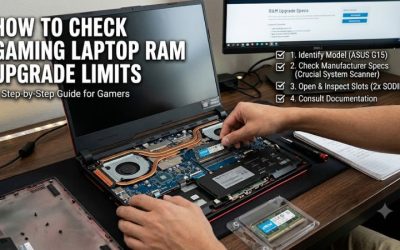
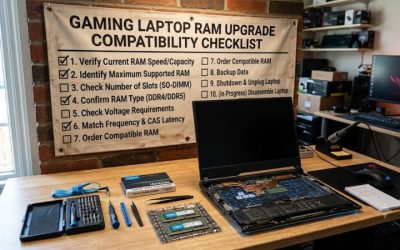
RAM and SSD upgrades are more accessible on many gaming laptops, although soldered memory and limited storage slots can restrict your options. Check the exact model’s service manual for supported memory types, maximum capacity, and available drive slots before purchasing components.
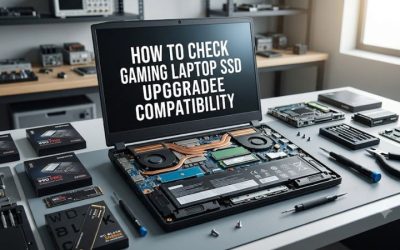
More RAM can help when games compete with background applications for memory. An SSD upgrade can improve loading and file-transfer times, especially if you are replacing a slower drive. Neither automatically increases graphics processing power, so these changes should match a demonstrated limitation rather than serve as a substitute for a faster GPU.
3. Improve Performance Without Replacing Hardware
Before investing in graphics hardware, check whether your laptop is delivering the performance its existing components should provide. Install appropriate manufacturer-supported graphics drivers, use a suitable power mode while plugged in, keep cooling vents unobstructed, and check whether overheating or power limits are reducing clock speeds.
You can also lower demanding graphics settings, reduce resolution, or use a game’s supported upscaling feature. These changes may improve frame rates at the cost of image quality. If performance remains poor, monitor CPU and GPU utilization and temperatures using an appropriate diagnostic tool to distinguish a graphics limitation from CPU, thermal, or memory constraints.
4. Know When Replacing the Laptop Is Better
If your laptop has a soldered GPU, lacks compatible external graphics connectivity, and cannot meet your performance needs, replacing it may be the most sensible long-term choice. A newer laptop with a stronger internal GPU avoids the extra enclosure and cabling required by an eGPU setup.
Compare complete system costs rather than graphics specifications alone. Consider the CPU, GPU model and laptop power configuration, VRAM, cooling, display, memory, warranty, and the games you play. A graphics upgrade is worthwhile only when the complete solution addresses your needs at a reasonable cost.
FAQ
Can you upgrade a gaming laptop graphics card without an eGPU?
Usually, no. Most modern gaming laptops have soldered GPUs rather than removable graphics cards. Internal replacement is feasible only on certain model-specific modular designs or older machines with compatible removable graphics modules. Check the exact laptop’s service documentation before attempting an internal upgrade.
Does a USB-C port mean my gaming laptop supports an eGPU?
No. USB-C describes the connector, not all the capabilities behind it. Check whether your exact laptop supports a suitable Thunderbolt or USB4 connection and external graphics. Verify the enclosure’s compatibility requirements as well, because port appearance alone cannot confirm that an eGPU will work.
Will an external GPU make my gaming laptop as fast as a desktop PC?
Not necessarily. An eGPU can improve graphics performance, but the connection, laptop CPU, GPU model, game settings, and display arrangement affect the result. Its performance may differ from the same graphics card installed directly in a desktop motherboard. Check independent results for a comparable configuration before spending money.
Is upgrading a laptop GPU worth the cost?
It depends on compatibility, your performance target, and the total expense. An eGPU may make sense if you already own a capable laptop and need better graphics at a desk. If the enclosure, graphics card, and accessories approach the cost of a more capable replacement system, compare both options before deciding.
Final Thoughts
The answer to can you upgrade a gaming laptop graphics card is usually no for an internal replacement, but compatible eGPUs and rare modular designs provide exceptions. Start by identifying your exact laptop model, checking its official specifications, and comparing the full upgrade cost. If neither option is practical, consider a newer system with the graphics performance you need.