Before buying memory, how to check gaming laptop RAM upgrade limits comes down to identifying your exact laptop configuration, confirming whether its memory is removable, and checking the manufacturer’s maximum supported capacity. This guide shows you how to use Windows, official specifications, and service manuals to determine whether an upgrade is possible and which RAM to choose.
What Gaming Laptop RAM Upgrade Limits Really Come Down To
Your laptop’s upgrade limit depends on its motherboard, processor memory support, physical memory slots, and manufacturer specifications. Windows can show the installed capacity and some slot information, but it cannot establish every hardware limitation. Use the exact model’s official documentation to confirm the maximum before purchasing memory.
1. Identify your exact gaming laptop model
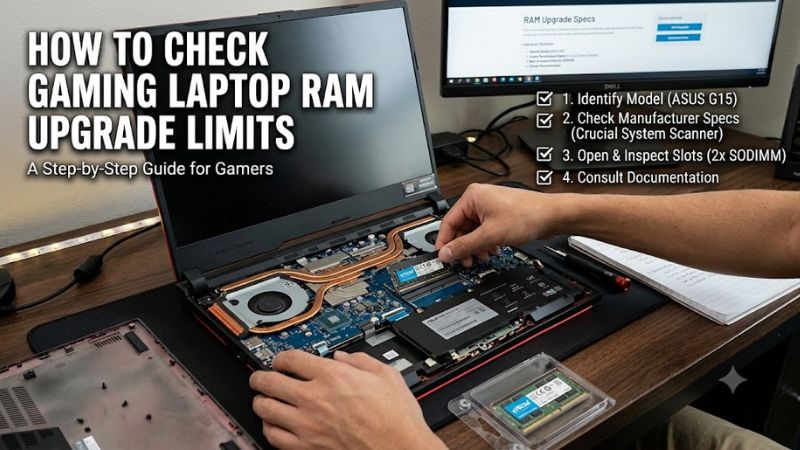
Start by recording the full model number, product number, or machine type. A family name such as ASUS TUF Gaming, Acer Nitro, Lenovo Legion, or MSI Katana is not specific enough because different generations and configurations can use different motherboards and memory layouts.
In Windows, press Win + R, enter msinfo32, and press Enter. Check System Manufacturer, System Model, and System SKU, when available. Compare these details with the label on the laptop’s underside or your original purchase documentation. Keep the full identifier for the manufacturer’s support search.
2. Check installed RAM in Windows
Press Ctrl + Shift + Esc to open Task Manager. Select Performance > Memory. Depending on the laptop and Windows version, this screen can show total installed memory, memory speed, slots used, and the form factor.
Record the capacity and slot information, but treat it as a starting point rather than a final compatibility decision. A reading of 16 GB with two slots used does not tell you whether the laptop supports 32 GB, 64 GB, or another maximum. Firmware reporting can also be incomplete or inconsistent, so confirm the results against the service documentation.
3. Understand soldered and removable memory
Gaming laptops may use removable SO-DIMM modules, soldered memory, or a combination of soldered memory and an upgradeable slot. If all memory is soldered to the motherboard, a conventional RAM upgrade is not available. If a removable slot exists, the laptop may allow you to add a module or replace an existing one.
Do not rely on the laptop’s thickness, price, or gaming branding to determine upgradeability. Even within one product family, internal layouts can differ. Look for terms such as soldered, onboard, SO-DIMM, memory slots, and maximum memory in the exact model’s official specifications and service manual.
4. Distinguish installed capacity from maximum capacity
Installed RAM is the amount currently recognized by the system; maximum supported RAM is the amount the specific configuration can accommodate under its documented hardware and firmware limits. Available slots, module density, memory generation, and processor support can all affect the practical upgrade path.
For example, a laptop with 16 GB installed and two occupied slots might require replacing both modules to reach a higher capacity. Another laptop with 16 GB split between soldered memory and one removable module may permit only a partial upgrade. Never assume that an empty slot automatically means every available module capacity is supported.
How to Check Gaming Laptop RAM Upgrade Limits: Step by Step
Use the following checks in order: inspect Windows memory information, find the manufacturer’s specification page, and read the service manual before choosing a module. This process distinguishes what is currently installed from what the laptop can actually support. The table summarizes what each source can confirm and where further verification is necessary.
Step 1. Find the official maximum memory specification
Search the manufacturer’s support website using the complete model identifier. Open the specification sheet or user manual and find the Memory section. For example, ASUS provides model-specific instructions for checking memory capacity, while Lenovo provides guidance for locating supported memory information and compatible parts.
Look for the maximum capacity, memory generation, number of slots, supported configurations, and memory speed. If the page lists only the factory configuration, do not interpret that as the maximum. Find the service manual or contact manufacturer support if the upgrade limit remains unclear.
Step 2. Check the available slots and upgrade path
Compare the Windows slot count with the official hardware documentation. If Task Manager reports one of two slots in use, that suggests an available slot, but it does not independently prove that the laptop accepts every capacity of module. Firmware information can be inaccurate on some systems.
Determine whether you should add memory to an empty slot or replace an existing module. If memory is soldered, check whether a separate removable slot is available. When the documentation is inconclusive, use the service manual’s memory installation instructions rather than opening the laptop based on a Windows reading alone.
Step 3. Match the memory generation, form factor, and speed
The new module must match the memory technology and physical form factor supported by your laptop. DDR4 and DDR5 are not interchangeable, and laptop SO-DIMM modules are physically different from standard desktop DIMMs. The correct capacity alone does not make a module compatible.
Check the supported data rate in the official specification. A faster-rated module does not automatically make the laptop run memory at that speed; the system may operate it at a lower supported rate. Also verify module capacity and configuration restrictions, especially if the laptop combines soldered memory with a removable module.
Step 4. Confirm the upgrade and verify the result
Before installation, save important files and follow the exact model’s service manual. Shut down the laptop, disconnect its charger, and follow the manufacturer’s battery-disconnection and electrostatic-discharge precautions. Do not force the bottom cover or memory module; if internal access is unfamiliar or difficult, use a qualified technician.
After installation, start Windows and reopen Task Manager > Performance > Memory. Check the total recognized capacity and compare it with the expected configuration. If the reading is wrong or the laptop fails to start, shut it down and follow the manufacturer’s troubleshooting instructions rather than repeatedly forcing restarts.
| Setting or Step | Where | Effect | Risk |
| Installed RAM and slots | Task Manager > Performance > Memory | Shows current capacity and reported slot usage | Slot information may be incomplete or inaccurate |
| Maximum supported capacity | Official specification page | Establishes the documented memory limit | Generic family pages may describe another configuration |
| Memory type and speed | Official specifications and service manual | Identifies compatible memory technology and supported rate | Wrong DDR generation or module type may not work |
| Physical upgrade path | Service manual, memory parts list | Confirms whether modules are replaceable | Opening the laptop incorrectly may damage components |
| Post-upgrade verification | Task Manager > Performance > Memory | Confirms the recognized installed capacity | A failed boot or lower reading needs further diagnosis |
What Doesn’t Help
Do not use a generic RAM compatibility scanner as the only authority for your laptop’s upgrade limit. Such tools can help identify candidate modules, but their results should be checked against the exact model’s documentation. Likewise, do not assume that a BIOS update will increase the supported capacity; firmware changes should only be considered when the manufacturer documents a relevant compatibility improvement.
More installed RAM also does not automatically increase gaming performance. An upgrade is most useful when your current memory capacity limits the game or other applications you run. If your games already have sufficient memory available, a RAM upgrade alone may make little difference to average frame rates.
FAQ
How do I check gaming laptop RAM upgrade limits without opening the laptop?
You can check gaming laptop RAM upgrade limits using Windows and the manufacturer’s official documentation without removing the bottom cover. Open Task Manager to view installed memory and reported slot usage, then search the exact model on the manufacturer’s support website. Confirm the maximum capacity and whether memory is soldered or replaceable in the service manual.
Can I upgrade my gaming laptop from 16 GB to 32 GB or 64 GB?
Yes, if your laptop supports the target capacity and has a compatible upgrade path. Check the documented maximum, slot count, supported module capacities, and existing memory layout first. Some laptops require replacing both installed modules, while models with soldered memory may offer only limited upgrade options or no conventional RAM upgrade at all.
Does adding more RAM increase gaming FPS?
Adding RAM can improve gaming performance when insufficient system memory causes stuttering, slowdowns, or excessive paging to storage, but it does not guarantee higher FPS. The result depends on the game, current memory usage, CPU, GPU, and memory configuration. Check actual usage during your usual gaming workload before deciding whether additional capacity is worthwhile.
Can I install DDR5 RAM in a gaming laptop that uses DDR4?
No, DDR5 modules cannot replace DDR4 modules in a laptop designed for DDR4 memory, and the reverse is also true. Check the exact model’s specifications for the supported generation, form factor, capacity, and speed. Never purchase a module based only on its advertised capacity or the fact that it is labeled as gaming RAM.
Final Thoughts
Learning how to check gaming laptop RAM upgrade limits before purchasing memory helps prevent compatibility mistakes and unnecessary spending. Start with the exact model number, confirm the maximum capacity and removable slots in the manufacturer’s documentation, and match the supported memory specifications. If any detail conflicts, get confirmation from the manufacturer before buying or installing RAM.