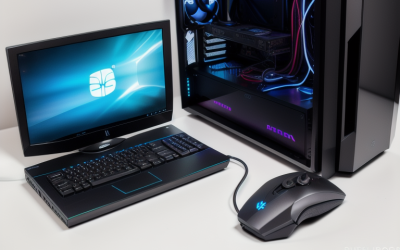
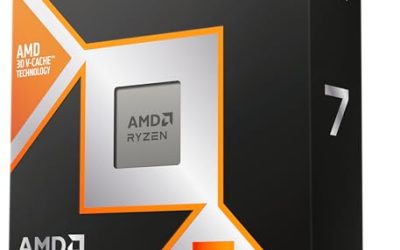
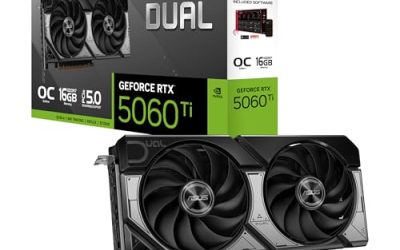
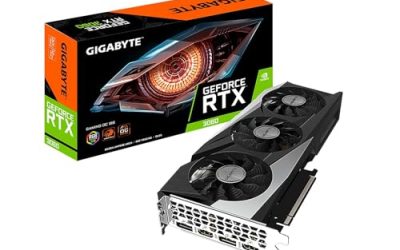
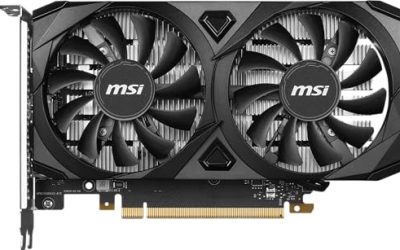
For HDR gaming, the display matters more than the PC: look for a monitor or TV with a genuine HDR certification such as VESA DisplayHDR 600 or higher, a graphics card with a HDMI 2.1 or DisplayPort output that can carry the signal at your resolution and refresh rate, and Windows set up for HDR with its calibration tool. A PC with a recent GeForce RTX or Radeon RX card can output HDR, so the main purchase decision is the screen.
As an Amazon Associate we earn from qualifying purchases at no extra cost to you.



Top 3 picks at a glance
What HDR means for a gaming PC
High dynamic range lets a screen show brighter highlights and darker shadows in the same picture. In games, that means sunlight, explosions and neon lights stand out without washing out the dark areas. A PC can only deliver this if every link in the chain supports it: the game, the graphics card and driver, the cable, the operating system and the display. The weakest link sets the result.
At a glance: what to check
| Item | What to look for | Why it matters | Limit |
|---|---|---|---|
| Display HDR tier | VESA DisplayHDR 600, 1000 or higher, or DisplayHDR True Black | Brightness and local dimming decide how real the effect looks | “HDR supported” without a tier can mean very little |
| Local dimming | Zone-based backlight, or an OLED panel | Contrast needs dark areas to stay dark | Edge-lit panels with few zones can bloom |
| Graphics card output | HDMI 2.1 or DisplayPort 1.4 or newer | Carries 10-bit HDR at high refresh rates | Older ports may force lower refresh or colour compromises |
| Cable | Certified Ultra High Speed HDMI or DisplayPort cable | Poor cables drop the signal or HDR mode | Long cables add problems |
| Windows settings | HDR switch on, Windows HDR Calibration app run | Sets the black level and peak brightness for games | Desktop SDR content can look dull in HDR mode |
| Game support | Native HDR option in the game’s settings | Best results come from native support | Some games have weak HDR implementation |
The display is the main purchase
VESA’s DisplayHDR programme certifies monitors against published performance criteria. The tiers cover peak brightness levels of 400, 500, 600, 1000 and 1400 cd/m2. The organization states that local dimming becomes a requirement as you go up: 1D local dimming or better at the 500 and 600 levels, and 2D local dimming or better at 1000 and above. A separate DisplayHDR True Black track keeps the same brightness levels but demands much stricter black levels, reaching 0.0005 cd/m2 at the highest tier, and requires 2D backlights; this track is aimed at OLED-style panels.
The practical reading is that DisplayHDR 400 gives a modest improvement at best, DisplayHDR 600 begins to look noticeably different with local dimming, and DisplayHDR 1000 or a True Black tier is where the effect becomes dramatic. Reviewers often point out that a monitor labelled HDR10 only means it accepts the signal, not that it can display it well.
OLED, mini-LED or standard LCD?
| Panel type | HDR strength | Trade-off |
|---|---|---|
| OLED | Perfect black levels per pixel, strong contrast | Lower full-screen brightness; burn-in care is advised by makers |
| Mini-LED with many zones | High peak brightness, good contrast | Some blooming around bright objects |
| Standard LCD without local dimming | Limited | HDR mode may look washed out |
Each type suits a different buyer, and reviewers compare specific models in detail, so read published reviews that measure the monitor you are considering.
Graphics card and ports
Any recent GeForce RTX or Radeon RX card can output HDR. The details that matter are the port version and the resolution and refresh rate you want. HDMI 2.1 and recent DisplayPort versions carry 4K at high refresh rates with 10-bit colour; older ports might only do it at lower refresh rates or with reduced colour data. Match the card’s outputs to the monitor’s inputs, and use a certified cable. If HDR drops out or the picture flickers, the cable or port is a common first thing to swap.
If you are shopping for a gaming PC, the card also needs enough performance for the resolution of an HDR display. HDR monitors are often 1440p or 4K, so entry-level graphics can be a bottleneck.
Windows setup
- Open Windows display settings and turn on the HDR option for the display. Menu wording can differ between Windows versions.
- Install the Windows HDR Calibration app from the Microsoft Store and run it to set the minimum and maximum luminance for your screen.
- Set a comfortable brightness for SDR content, since the desktop can look flat in HDR mode.
- Turn on the HDR option inside each game, and run its own calibration screens if it has them.
- Update the graphics driver and the monitor’s firmware if the maker provides updates.
If something looks wrong, consult the monitor and graphics card makers’ support pages for the correct settings.
Pick this if
| You want | Look for |
|---|---|
| A noticeable HDR step up on a budget | DisplayHDR 600 monitor with local dimming |
| Cinematic single-player games in a dark room | OLED or DisplayHDR True Black display |
| Bright room and long sessions | High-brightness mini-LED, DisplayHDR 1000 class |
| Competitive gaming first | High refresh rate; HDR is secondary and can be left off |
| Living room play on a TV | HDMI 2.1 TV and card output, and a Ultra High Speed cable |
Alternatives
- HDR-capable TV. Many TVs offer strong HDR at large sizes and with HDMI 2.1, but they are large for a desk and may have limits with text sharpness.
- SDR monitor with high contrast. If HDR is not important, a good SDR monitor can be a better value than a weak HDR one.
- Upgrade the monitor only. If your PC already has a recent card, the best HDR gain often comes from replacing the display.
Common mistakes
- Trusting “HDR supported” labels without checking for a DisplayHDR tier or reviews.
- Buying an HDR monitor but using the wrong cable or port, which can silently lower the quality.
- Leaving HDR on for desktop use and then blaming the display for a dull desktop.
- Forgetting the game itself must support HDR.
- Ignoring burn-in guidance from the maker on OLED screens.
Room, brightness and viewing habits
HDR impact depends on where you play. In a bright room, a display with high peak brightness keeps highlights punchy, while in a dark room an OLED or True Black panel can look better because shadows stay deep. Glossy screens reflect lamps and windows, which reduces perceived contrast no matter how good the panel is. Decide where the screen will sit before choosing a type, and read reviews that discuss the coating and the brightness behaviour of the specific model.
Game and console features that affect HDR
Some games offer sliders for peak brightness, paper white and black level. Set them using the in-game calibration screen together with the Windows calibration profile, so the two do not fight each other. A few older titles output HDR poorly, and Windows offers an Auto HDR feature that adds a simulated HDR effect to some SDR games. Results vary by game, and some players prefer to switch it off. Treat these as personal preferences and adjust until highlights look bright but not clipped.
Refresh rate and HDR can also interact. Some monitors limit HDR to certain refresh rates or disable features such as variable refresh rate in HDR mode on older firmware. The monitor’s manual and the maker’s support page list these limits, so read them before assuming a fault.
Frequently Asked Questions
Does any gaming PC support HDR?
Most recent gaming PCs with a modern GeForce RTX or Radeon RX card can output HDR. The experience depends mostly on the display, the cable and the game.
Is DisplayHDR 400 worth it?
VESA lists 400 cd/m2 as the entry tier, and it does not require local dimming, so the improvement can be small. Many reviewers suggest looking at DisplayHDR 600 or higher for a clear difference.
Why does the Windows desktop look washed out in HDR mode?
Standard-range content is mapped into the HDR space, which can look dull. Adjust the SDR content brightness slider in Windows display settings, or turn HDR off outside games.
Do I need HDMI 2.1 for HDR gaming?
Not for HDR alone, but it helps for 4K at high refresh rates with full colour. DisplayPort is a good alternative on monitors.
Does HDR reduce game performance?
Some users report a small cost depending on the card and game, while others see none. Results vary, so read reviews for your card and favorite games.
What should I do if HDR flickers or turns off?
Try a different certified cable and port, update drivers and the monitor firmware, and re-run the calibration. If the problem remains, contact the display maker.
Related guides
More from Amazon
Programs that pair well with the guide above. Offers and eligibility are set by Amazon and may change.
Free shipping on eligible items, Prime Video and more. Eligible new members can start with a free trial.
Start a Prime free trialAd-free music streaming. Eligible new subscribers can start with a free trial.
Try Music Unlimited freeA Prime membership for ages 18-24 with a trial period. Eligibility is set by Amazon.
See Prime for Young AdultsAudiobooks and podcasts to listen to on the go. Eligible new members can start with a free trial.
Try Audible freeAs an Amazon Associate we earn from qualifying purchases.