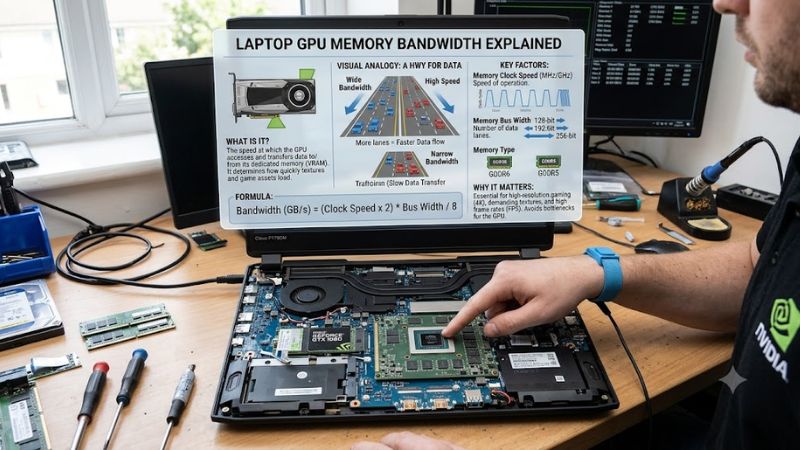
Laptop GPU memory bandwidth explained starts with one key distinction: bandwidth measures how quickly a graphics processor can move data to and from video memory, while VRAM capacity measures how much data it can hold. Understanding both helps you compare laptop GPUs, interpret specifications, and identify potential limits at higher resolutions and graphics settings.
1. What Laptop GPU Memory Bandwidth Really Means
Memory bandwidth describes the theoretical rate at which a GPU can transfer data between its graphics memory and processing units. Manufacturers typically express it in gigabytes per second (GB/s). During gaming, this capacity helps supply the data required for rendering frames, processing textures, and handling other graphics workloads. Actual performance also depends on GPU architecture, power limits, and the game itself.
Memory bandwidth versus VRAM capacity
VRAM capacity tells you how much graphics data can reside in dedicated video memory. Bandwidth tells you how quickly that data can move. A laptop GPU with more VRAM can accommodate larger graphics workloads, but additional capacity does not automatically provide faster transfers or higher frame rates.
For example, a game may fit comfortably within a GPU’s available VRAM but still benefit from greater bandwidth when rendering complex scenes. Conversely, a GPU may have ample bandwidth but struggle when a game’s textures and rendering data exceed available memory. These are different constraints and require different solutions.
What the GB/s specification tells you
A bandwidth rating of 384 GB/s represents a theoretical transfer rate of 384 billion bytes per second under the specification’s stated conditions. It is not a promise that every game will continuously transfer that volume, nor does it mean a GPU with twice the bandwidth will deliver twice the frame rate.
Bandwidth is most useful as one part of a GPU comparison. Check the architecture, memory type, interface width, power configuration, and independent gaming results alongside it. Two GPUs with similar bandwidth can perform differently because their processing resources and memory systems are not identical.
Memory bus width and memory speed
Memory bus width describes how much data can be transferred in parallel during each transfer opportunity. It is commonly expressed in bits, such as 128-bit, 192-bit, or 256-bit. Memory data rate and bus width together help determine the theoretical bandwidth of a graphics memory subsystem.
A wider bus does not automatically make one GPU faster than another. Faster memory data rates, compression techniques, cache design, and GPU architecture also influence the result. This is why laptop GPU memory bandwidth explained solely through bus width can be misleading: the width is a useful specification, not a complete performance ranking.
How bandwidth is calculated
For conventional GDDR memory specifications, theoretical bandwidth can be calculated from the effective memory data rate and interface width:
Memory bandwidth (GB/s) = effective data rate (Gb/s) × bus width (bits) ÷ 8
For example, a hypothetical GPU with a 16 Gb/s effective memory data rate and a 128-bit interface has a theoretical bandwidth of 256 GB/s. The division by eight converts bits to bytes. Use the effective data rate rather than mistakenly substituting a physical memory clock without accounting for the memory technology’s transfer behavior.
2. How Memory Bandwidth Affects Laptop Gaming
The practical value of bandwidth depends on how a game uses the GPU’s memory subsystem. Resolution, texture settings, ray tracing, and rendering techniques can change memory traffic, but they do not affect every game equally. Use bandwidth as a clue when comparing specifications, then consider VRAM capacity and GPU power before drawing conclusions about expected frame rates.
Resolution, textures, and ray tracing
Higher resolutions require the GPU to process more pixels, increasing work on shaders, render targets, and other graphics resources. Some of that work increases memory traffic, so bandwidth can matter more when rendering demanding scenes. However, resolution does not affect every component of performance equally, and a higher resolution does not automatically make memory bandwidth the limiting factor.
Texture quality is related but different. High-resolution textures primarily increase memory capacity requirements, although transferring and sampling texture data also involves bandwidth. Ray tracing adds further graphics workloads and memory traffic, depending on the implementation. Lowering a demanding setting can help, but first determine whether the problem comes from bandwidth, insufficient VRAM, or the GPU’s processing capacity.
Why two GPUs with similar bandwidth can perform differently
Memory bandwidth is only one part of a GPU’s design. Shader resources, cache architecture, compression, ray-tracing hardware, clock behavior, and power limits can all affect gaming performance. A GPU with lower bandwidth can outperform one with a wider memory interface if its overall architecture and processing capabilities are better suited to the workload.
Laptop power configuration adds another variable. Manufacturers can configure the same GPU family at different power levels, affecting sustained clock speeds and performance. Cooling, chassis design, and the laptop’s operating mode can also influence results. Compare complete laptop GPU specifications rather than assuming bandwidth alone determines which machine delivers the higher frame rate.
Laptop GPU bandwidth examples
NVIDIA’s official GeForce RTX 50 Series laptop specifications illustrate why bandwidth should be considered alongside memory capacity and interface width. The listed configurations below are manufacturer specifications, not independent gaming benchmark results.
| Laptop GPU | VRAM | Memory interface | Listed bandwidth |
| GeForce RTX 5090 Laptop GPU | 24 GB GDDR7 | 256-bit | 896 GB/s |
| GeForce RTX 5080 Laptop GPU | 16 GB GDDR7 | 256-bit | 896 GB/s |
| GeForce RTX 5070 Ti Laptop GPU | 12 GB GDDR7 | 192-bit | 672 GB/s |
| GeForce RTX 5070 Laptop GPU | 8 GB GDDR7 | 128-bit | 384 GB/s |
| GeForce RTX 5060 Laptop GPU | 8 GB GDDR7 | 128-bit | 384 GB/s |
These figures show that the RTX 5090 and RTX 5080 Laptop GPUs have the same listed bandwidth despite different VRAM capacities and processing specifications. Likewise, the RTX 5070 and RTX 5060 Laptop GPUs share the listed bandwidth figure, but that does not establish equal gaming performance.
How to use bandwidth when choosing a laptop
Start with the games you play and the resolution you intend to use. For competitive games at 1080p, CPU performance and the GPU’s overall processing capability may matter more than a large bandwidth difference. Demanding games at 1440p or higher can place greater pressure on the graphics subsystem, making bandwidth, VRAM capacity, and rendering performance increasingly relevant.
Do not choose a laptop solely because it advertises the highest GB/s figure. Compare the complete GPU model, VRAM capacity, graphics power range, cooling design, and independent results from comparable games and settings. If two laptops are close in price, consistent performance evidence is more useful than a single specification viewed in isolation.
3. How to Compare Bandwidth and Diagnose Limits
Understanding laptop GPU memory bandwidth explained in a specification sheet is only the first step. The next is determining whether memory bandwidth, VRAM capacity, or another component is limiting a particular game. Start with the laptop’s exact hardware configuration, monitor performance under repeatable conditions, and change one graphics setting at a time.
Step 1: Confirm the exact GPU configuration
Open Task Manager with Ctrl + Shift + Esc, select Performance, and choose GPU. Windows can help identify the graphics processor, although a laptop with integrated and discrete graphics may display more than one GPU. Confirm the exact model through the manufacturer’s specifications or the system’s official configuration page.
Then look up the memory capacity, memory type, interface width, and bandwidth for that exact laptop GPU. Avoid substituting desktop GPU specifications for laptop specifications. Names can look similar across product families, but power limits and hardware configurations can differ substantially.
Step 2: Monitor VRAM usage and frame times
Use the game’s own performance overlay or a suitable monitoring utility to observe dedicated GPU memory usage, GPU utilization, frame rate, and frame-time consistency. Record the results during the same gameplay sequence rather than comparing unrelated scenes. Repeat the observation after changing one setting, such as texture quality or resolution.
High reported VRAM allocation alone does not prove that the GPU has run out of usable memory. Some games reserve available memory for assets they may need later. Look for corroborating signs such as stuttering, asset-loading problems, deteriorating frame times, or an improvement after reducing a memory-intensive setting.
Step 3: Change the setting that matches the symptom
Use the following table as a diagnostic guide rather than a guarantee that one adjustment will solve every performance issue.
| Setting or Step | Where | Effect | Risk |
| Lower texture quality | In-game graphics settings | Can reduce VRAM demand and texture-related traffic | Reduced texture detail |
| Reduce resolution or render scale | In-game display or graphics settings | Reduces pixel workload and may lower memory traffic | Less image detail |
| Disable or reduce ray tracing | In-game graphics settings | Reduces ray-tracing workload and related memory traffic | Less realistic lighting and reflections |
| Compare frame times and GPU utilization | Game overlay or monitoring utility | Helps distinguish a graphics bottleneck from other limits | Readings vary by tool and scene |
After each change, replay the same section of the game and compare average frame rate, frame-time consistency, and visual quality. If lowering textures resolves stuttering while other settings have little effect, memory capacity may have been a factor. If lowering resolution helps substantially, the GPU’s rendering workload may have been the bigger constraint. Neither observation proves a bandwidth bottleneck by itself.
Step 4: Know what bandwidth cannot fix
System RAM and VRAM serve different roles. Adding system RAM does not increase a discrete GPU’s dedicated VRAM capacity or its memory bandwidth. Some integrated GPUs use shared system memory, but their memory performance depends on the platform and memory configuration rather than a dedicated GDDR interface.
Similarly, a software setting cannot change the physical memory bus width. If performance remains limited after reasonable graphics adjustments, investigate GPU power behavior, temperatures, CPU limitations, driver issues, and game-specific optimization. Laptop GPU memory bandwidth is a hardware characteristic, so meaningful improvements depend on identifying the actual bottleneck rather than chasing a single number.
What Doesn’t Help
Do not assume that closing background apps, installing a RAM-cleaning utility, or changing unrelated Windows settings will increase the GPU’s physical bandwidth. Such actions cannot widen the memory interface or upgrade the memory chips. Closing unnecessary applications may free system resources, but that is a different benefit.
Likewise, avoid judging performance from a single VRAM usage reading or comparing benchmark figures gathered at different resolutions and graphics presets. A reliable diagnosis requires repeatable conditions and more than one metric. If your laptop performs well in most games but struggles in one title, game-specific settings or software behavior may be more relevant than its bandwidth specification.
FAQ
Is higher laptop GPU memory bandwidth always better for gaming?
Higher bandwidth can help when a game is limited by memory transfers, but it does not automatically produce higher frame rates. GPU architecture, processing resources, power limits, VRAM capacity, and the game workload also influence performance. Compare independent results from equivalent settings before deciding which laptop is faster.
Is VRAM capacity more important than memory bandwidth?
Neither is universally more important because they solve different problems. VRAM capacity determines how much graphics data can be held locally, while bandwidth determines how quickly data can move. A game that exceeds available memory can behave poorly even with high bandwidth, while a bandwidth-sensitive workload may benefit from faster memory transfers.
Does more system RAM increase laptop GPU bandwidth?
No, adding system RAM does not increase the dedicated memory bandwidth of a discrete laptop GPU. System RAM upgrades can help when the computer lacks sufficient main memory, and shared-memory integrated GPUs have different constraints. Check whether your laptop uses dedicated or shared graphics memory before deciding which memory upgrade is relevant.
What is a good memory bandwidth for a gaming laptop?
There is no single GB/s threshold that defines a good gaming laptop for every resolution and game. Start by selecting a GPU class that meets your performance needs, then compare its memory specifications, power configuration, and independent gaming results. Match the entire laptop to your budget and target graphics settings.
Final Thoughts
Laptop GPU memory bandwidth explained in practical terms comes down to transfer speed, memory capacity, and the rest of the graphics architecture working together. GB/s is useful for comparing specifications, but it cannot predict frame rates by itself. Check your target games, exact laptop GPU, VRAM, power configuration, and comparable benchmarks before making a buying decision.