The best budget gaming monitor 27 inch under $200 is a 1440p 144Hz to 180Hz IPS panel if you want sharpness, or a 1080p 165Hz to 240Hz IPS panel if you want the cheapest route to smooth motion. Both ship in this range from several brands. What you give up is mostly stand quality, HDR and color accuracy.
Our Top Picks
 Acer Nitro 27in QHD 2560x1440 IPS 180Hz Gaming27-inch8.28 x 24.2 x 18.14 inches12.1 poundsCheck on Amazon
 Sceptre 27-inch Gaming Monitor 165Hz 144Hz 1ms AMD24.13 x 17.78 x 7.4 inches14.1 poundsCheck on Amazon
 Acer Nitro 27in FHD 1920x1080 IPS 144Hz Gaming27-inch8.28 x 24.1 x 18.25 inches8.36 poundsCheck on Amazon


Top 3 picks at a glance
What a Sub-$200 27-Inch Gaming Monitor Compromises On
Instead of a plain ranking, start with the trade-offs. Every monitor in this price class cuts somewhere, and knowing where tells you which model fits your desk. The table shows what is usually missing and how much it matters for games.
| Corner cut | What it looks like | Does it matter for gaming? |
|---|---|---|
| Tilt-only stand | No height or swivel adjustment | Matters for comfort; a VESA arm fixes it |
| Nominal HDR | HDR10 or “HDR Ready” with low peak brightness | Rarely; HDR looks dim at this tier |
| Basic speakers | Thin 2W built-in speakers | Use headphones or desk speakers |
| Limited ports | One DisplayPort and one or two HDMI | Fine for one PC and one console |
| Average color accuracy | Decent sRGB, weaker wide gamut | Matters for design work, not for play |
| Aggressive overdrive | Fast settings can leave halos behind objects | Use a medium overdrive mode |
Picks at a Glance
- Best 1440p value: Acer Nitro KG271U (QHD, 180Hz, IPS).
- Best budget 1440p alternative: KTC H27T27S (QHD, 144Hz, FreeSync and G-Sync support).
- Best lowest-cost 144Hz-plus: Sceptre E275B-FWD168 (FHD, 165Hz).
- Best high refresh at 1080p: Dell SE2726HG (FHD IPS, 240Hz).
- Best for shooters on a budget: Samsung Odyssey G30D (FHD, 180Hz).
| Monitor | Resolution | Refresh | Panel | Sync |
|---|---|---|---|---|
| Acer Nitro KG271U | 2560×1440 | 180Hz | IPS | FreeSync |
| KTC H27T27S | 2560×1440 | 144Hz | Not listed | FreeSync, G-Sync |
| Sceptre E275B-FWD168 | 1920×1080 | 165Hz (144Hz mode) | Not listed | FreeSync Premium |
| Dell SE2726HG | 1920×1080 | 240Hz | IPS | FreeSync Premium |
| Samsung Odyssey G30D | 1920×1080 | 180Hz | Not listed | FreeSync |
| Acer Nitro KG271 | 1920×1080 | 144Hz | IPS | FreeSync |
| ASUS TUF VG277Q1A | 1920×1080 | 165Hz (144Hz supported) | Not listed | FreeSync Premium |
| SANSUI 27-inch curved | 1920×1080 | 160Hz | Not listed | FreeSync |
The 8 Best Budget 27-Inch Gaming Monitors
Acer Nitro KG271U: Best 1440p Under $200
As an Amazon Associate we earn from qualifying purchases at no extra cost to you.
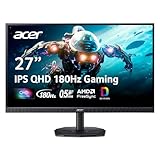
The Acer Nitro KG271U is a 27-inch QHD (2560×1440) IPS monitor at 180Hz with a 0.5ms response rating, AMD FreeSync, 95% DCI-P3 coverage, two HDMI ports, DisplayPort and built-in speakers. It also lists a bluelight filter, flickerless technology and VESA mounting. This is the pick if you want the sharpest 27-inch image the budget allows.
- 27 inch, 2560×1440 IPS, 180Hz
- 2x HDMI, 1x DisplayPort, speakers
- 95% DCI-P3 and VESA mount per the listing
Best for: players who want 1440p and a graphics card that can drive it. Skip if: your GPU is an entry-level card that struggles at 1440p, in which case a 1080p screen yields smoother play.
Pros: sharp 27-inch image; wide color; two HDMI ports; 180Hz headroom. Cons: basic stand; FreeSync labeling only. Check the maker page for G-Sync Compatible status.
KTC H27T27S: Best Budget 144Hz 1440p With G-Sync Support

The KTC H27T27S is a 27-inch QHD 144Hz gaming monitor (2K 1440P) listed with FreeSync and G-Sync support, HDR10, an eye-care mode, HDMI and DisplayPort inputs, a tilt-adjustable stand and VESA mounting. It is a lower-profile alternative to the big brands, aimed at gamers who also use the monitor for office work.
- 27 inch, 2560×1440, 144Hz
- FreeSync and G-Sync per the listing
- HDMI and DisplayPort, tilt stand, VESA
Best for: mixed work and play at 1440p on a tight budget. Skip if: you want a name-brand warranty and support network.
Pros: 1440p at a low cost tier; sync support for both GPU brands; eye-care features. Cons: less-established brand; basic stand; HDR10 is nominal.
Sceptre E275B-FWD168: Best Lowest-Cost 165Hz Screen

The Sceptre 27-inch gaming monitor (E275B-FWD168) runs at 165Hz with a 144Hz mode, 1ms response, AMD FreeSync Premium, HDMI and DisplayPort inputs, built-in speakers and 99% sRGB coverage. It is a 1080p panel, so it is easy on a modest graphics card, and it sits at the very bottom of the 27-inch gaming tier.
- 27 inch, 1080p, 165Hz / 144Hz
- FreeSync Premium, 1ms
- HDMI, DisplayPort, speakers, 99% sRGB
Best for: a first gaming monitor or a second screen on a strict budget. Skip if: you want 1440p sharpness or a premium stand.
Pros: very low cost; 99% sRGB; easy to run. Cons: 1080p at 27 inches is soft; stand is basic.
Dell SE2726HG: Best 240Hz at 1080p

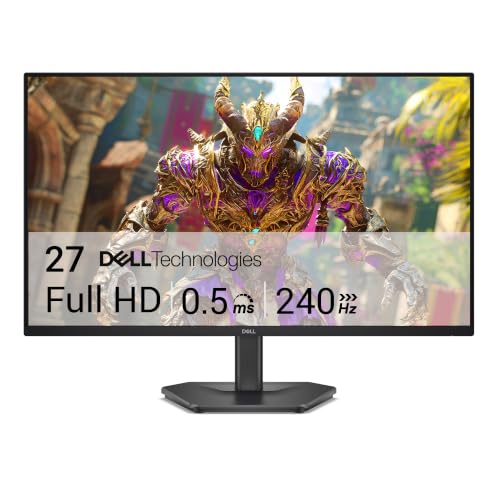
The Dell 27 240Hz Gaming Monitor (SE2726HG) is a 27-inch FHD (1920×1080) IPS panel with AMD FreeSync Premium, a TUV 3-Star certification, two HDMI ports and DisplayPort 1.4 with a tilt stand. The 240Hz ceiling is well suited to esports titles where your graphics card can push very high frame rates at 1080p.
- 27 inch, 1920×1080 IPS, 240Hz
- FreeSync Premium, TUV 3-Star
- 2x HDMI, DisplayPort 1.4, tilt stand
Best for: competitive players with a GPU that can hit 200+ fps. Skip if: you play mostly single-player games at settings where 240 fps is out of reach.
Pros: very high refresh rate; IPS panel; two HDMI ports. Cons: 1080p on a 27-inch screen; tilt-only stand.
Samsung Odyssey G30D: Best Brand-Name 180Hz Option

The Samsung 27-inch Odyssey G3 (G30D) is an FHD gaming monitor at 180Hz with 1ms response, AMD FreeSync, an adjustable stand, Black Equalizer, Virtual Aim Point, Eye Saver Mode and flicker-free operation. It is the easiest recommendation for someone who wants a recognizable brand with a height-adjustable stand in this tier.
- 27 inch, FHD, 180Hz, 1ms
- Adjustable stand
- Black Equalizer, Virtual Aim Point, Eye Saver Mode
Best for: shooter players who want an adjustable stand and gaming overlays. Skip if: you want higher resolution.
Pros: adjustable stand; strong brand support; flicker-free. Cons: 1080p; panel type is not listed, so check the maker page.
Acer Nitro KG271: Best Budget IPS at 144Hz

The Acer Nitro KG271 is a 27-inch FHD (1920×1080) IPS gaming-office monitor at 144Hz with a 1ms response rating, AMD FreeSync, 99% sRGB, HDMI, DisplayPort, VESA mounting, a bluelight filter and flickerless technology. It balances gaming and everyday use well.
- 27 inch, 1920×1080 IPS, 144Hz
- 99% sRGB, FreeSync
- HDMI, DisplayPort, VESA mount
Best for: an IPS-quality office and gaming screen on a modest budget. Skip if: you want 165Hz or more.
Pros: IPS colors; 99% sRGB; low cost. Cons: basic stand; 1080p at 27 inches.
ASUS TUF VG277Q1A: Best for Motion Blur Control

The ASUS TUF Gaming 27-inch VG277Q1A is a Full HD monitor at 165Hz (supports 144Hz) with a 1ms response rating, Extreme Low Motion Blur, FreeSync Premium, Shadow Boost, an eye-care mode, HDMI, DisplayPort and a tilt-adjustable stand. It suits players who value motion clarity and a respected brand.
- 27 inch, 1080p, 165Hz
- ELMB, Shadow Boost, FreeSync Premium
- HDMI, DisplayPort, tilt stand
Best for: fast shooters and racing games where motion clarity matters. Skip if: you want a wide-gamut screen.
Pros: motion blur reduction; trusted brand; FreeSync Premium. Cons: tilt-only stand; 1080p resolution.
SANSUI 27-Inch Curved 160Hz: Best Curved Budget Pick

The SANSUI 27-inch curved gaming monitor is a 1080p panel at 160Hz (144Hz mode) with a 1500R curve, MPRT 1ms, FreeSync, HDR, a 4000:1 contrast ratio, 110% sRGB, low blue light and HDMI and DisplayPort inputs. The curve and contrast suit immersive single-player games.
- 27 inch, 1080p, 160Hz / 144Hz
- 1500R curve, 4000:1 contrast
- 110% sRGB, FreeSync, HDMI, DisplayPort
Best for: single-player games where contrast and immersion matter. Skip if: you play fast shooters; VA-type contrast panels can smear in dark scenes (panel type is not listed, so check the maker).
Pros: curved screen; strong contrast ratio; low cost. Cons: lesser-known brand; 1080p only.
Best 24-Inch Monitor for Graphic Design on a Budget
If your goal is graphic design rather than gaming, a 24-inch IPS monitor with good sRGB coverage and a flicker-free backlight is a better choice than a gaming model. Design work needs color accuracy and wide viewing angles more than refresh rate, and a 24-inch 1080p panel is sharp enough for most layout work. Look for 99% sRGB, an IPS panel and a height-adjustable stand. For color-critical work such as photography or print, check for factory calibration reports and consider a calibration tool.
BenQ GW2490: Eye-Care 24-Inch IPS
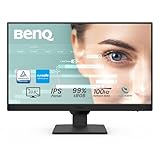
The BenQ GW2490 is a 24-inch Full HD (1920×1080) IPS monitor at 100Hz with low blue light and adaptive brightness technology, a thin bezel and VESA mounting. It is designed around long working sessions rather than gaming, which makes it a sensible choice for design, office work and light gaming.
- 24 inch, 1920×1080 IPS, 100Hz
- Eye-care technology, thin bezel
- VESA mountable
Best for: design, editing and office work. Skip if: you want a 144Hz gaming panel.
Pros: comfortable for long sessions; IPS viewing angles; clean design. Cons: 100Hz only; wide gamut coverage is not listed.
LG 24U411A-B: 120Hz IPS for Work and Play
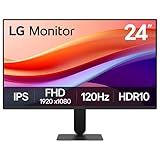
The LG 24U411A-B is a 24-inch Full HD IPS computer monitor at 120Hz with HDR10 support, Reader Mode, flicker-safe technology, HDMI and a slim stand. It gives a bit more refresh than a typical office screen, which helps scrolling and light gaming.
- 24 inch, 1920×1080 IPS, 120Hz
- HDR10, Reader Mode, flicker-safe
- HDMI, slim stand
Best for: a low-cost design or office monitor with some gaming ability. Skip if: you need DisplayPort or height adjustment.
Pros: IPS panel; 120Hz; flicker-safe backlight. Cons: basic stand; HDMI-only per the listing.
Portable Monitor Options (Including AOC)
People searching for a budget portable monitor, including AOC models, usually want a second screen for a laptop or a screen for a console in another room. Portable monitors trade brightness and refresh rate for size and weight, and most are 15.6 or 16 inches at 1080p and 60Hz, so they are a different category from a 27-inch gaming monitor. Match the connection (USB-C with video output, or mini HDMI) to your device before buying.
AOC 16T20 Portable Monitor
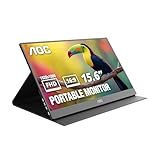
The AOC 16-inch portable monitor (16T20) is a Full HD (1920×1080) IPS panel at 60Hz with USB-C, mini HDMI and a smart cover that doubles as a stand. It is a lightweight second screen for a laptop, not a gaming display.
- 16 inch, 1920×1080 IPS, 60Hz
- USB-C and mini HDMI
- Smart cover stand
Best for: laptop users who need a second screen on the go. Skip if: you want high refresh gaming.
Pros: light and slim; IPS panel; USB-C connection. Cons: 60Hz only; no height adjustment.
ARZOPA Z1FC 16.1-Inch 144Hz Portable

The ARZOPA Z1FC is a 16.1-inch 144Hz portable gaming monitor with 106% sRGB, a 1080p FHD panel, HDR, a kickstand, an ultra-slim body and an eye-care mode. It works with laptops, PCs, PS5, Mac and Xbox, and it is the pick if you want a portable screen with a real refresh rate.
- 16.1 inch, 1080p, 144Hz
- 106% sRGB, HDR
- Kickstand, eye-care mode
Best for: portable gaming and console travel setups. Skip if: you want a full-size desk monitor.
Pros: 144Hz in a portable body; console compatible; kickstand. Cons: small screen; HDR is nominal.
Also Consider
- Z-Edge 27-inch 180Hz FHD IPS: a 1080p IPS option with 300 nits and 120% sRGB for those who want more color from a budget panel.
- Sceptre E275B-FPT165: a 27-inch 1080p screen at up to 180Hz with three HDMI ports, helpful if you connect several consoles.
- LG 27G414B-B: a 27-inch IPS 1080p 144Hz UltraGear monitor with a height-adjustable stand, though it tends to sit near the top of the budget range.
Matching a Budget 27-Inch Monitor to Your Graphics Card
A monitor under this limit is only as good as the card behind it. The table gives a rough pairing guide based on resolution and refresh rate, and it is an estimate, not a promise of frame rates in any specific game.
| Graphics card class | Sensible monitor | Why |
|---|---|---|
| Integrated graphics or older entry-level card | 1080p 144Hz to 165Hz | Esports titles run smoothly at 1080p; 1440p is too demanding |
| Recent entry-level card | 1080p 165Hz to 240Hz, or 1440p in lighter games | Plenty of frames at 1080p; 1440p with lowered settings |
| Mid-range card | 1440p 144Hz to 180Hz | Best balance of sharpness and frame rate |
| High-end card | 1440p 180Hz or higher | Can use the refresh headroom; consider spending beyond this budget for 4K |
Setting Up a Budget Monitor Properly
Many budget gaming monitors ship with settings that hide their strengths. A few minutes in the on-screen menu and the operating system make a clear difference, and none of it costs anything.
- Set the refresh rate in Windows. Open display settings, choose advanced display, and pick the highest refresh rate. A new monitor often defaults to 60Hz until you change it.
- Use the right cable. DisplayPort is usually the safest route to the top refresh rate. If you use HDMI, check which HDMI version the monitor supports.
- Enable variable refresh. Turn on FreeSync or Adaptive Sync in the monitor menu, then enable G-Sync Compatible in the Nvidia control panel if you have an Nvidia card.
- Choose a moderate overdrive setting. The fastest overdrive mode can create bright halos behind moving objects. The middle setting is usually the best balance.
- Turn off dynamic contrast and extra sharpening. These features can crush detail in dark scenes and add edge halos.
- Calibrate by eye. Adjust brightness so a white page is comfortable in your room, and keep color temperature on the neutral or warm preset if the default looks blue.
Common Mistakes With Budget Gaming Monitors
- Chasing refresh rate over resolution. Going from 144Hz to 240Hz is a smaller improvement than going from 1080p to 1440p for most people, unless you play competitive shooters.
- Ignoring the stand. If the monitor sits too low, you will hunch. A stack of books or a VESA arm solves it cheaply.
- Trusting HDR labels. HDR10 on a budget panel means it accepts the signal, not that it displays bright highlights. Turn HDR off if the image looks washed out.
- Buying curved without checking game type. A 1500R curve suits immersive single-player games, and some players find it distracting in competitive titles.
- Assuming FreeSync works with every card. FreeSync monitors generally work with recent Nvidia cards through G-Sync Compatible mode, but only models on the certified list are certified as flicker-free. Check the maker page.
- Skipping the return window. Budget panels vary between units. Inspect yours for dead pixels and backlight bleed in the first few days, and use the return window if there is a problem.
Dead Pixels, Backlight Bleed and the Panel Lottery
At this tier, panel quality varies from unit to unit. Backlight bleed (light leaking around the edges on a black screen) and a few stuck pixels are more common than on premium models. To check, display a fully black image in a dark room and a series of solid colors, then look for bright spots or uneven edges. Mild bleed that only shows in a dark room is usually not worth a return; a stuck pixel in the middle of the screen is. Warranty policies differ between brands, so read the maker’s pixel policy before you buy.
When to Spend Above This Budget
If you play a lot of competitive games, want better HDR or color accuracy, or care about a fully adjustable stand, stepping up one tier brings real gains: faster panels with better overdrive tuning, higher brightness and better stands. For most players, however, a good 1440p IPS monitor in this range gives the largest improvement per dollar, and upgrading the graphics card is often a better use of extra money than a pricier monitor.
How We Chose
This is a research-based guide. We did not use these monitors ourselves. We worked from the maker and store listing specifications for each model, compared resolution, refresh rate, panel type, sync support, ports and stand features, and favored models that listed at least 144Hz and a 1ms response rating. We kept each brand to two picks at most and skipped renewed or unavailable listings. Where a listing did not state the panel type or another spec, we said so and suggest you check the maker’s page before buying. The exact price of each monitor changes often, so we describe tiers instead of numbers.
Buying Guide: Getting the Most From a Budget
1440p or 1080p at 27 inches?
At 27 inches, 1440p is noticeably sharper than 1080p for text and fine detail, and it is the better pick if your graphics card is mid-range or better. A 1080p panel makes sense if your GPU is entry-level, you play esports titles and want the highest frame rates, or the monitor is a second screen.
Refresh rate thresholds
- Under 120Hz: fine for office work, a step down for gaming.
- 144Hz to 165Hz: the practical minimum for gaming and a big upgrade over 60Hz.
- 180Hz to 240Hz: useful only if your PC can reach those frame rates in your games.
Panel type
IPS gives the best colors and angles, VA gives deeper contrast, and TN is rare now. A budget IPS panel is the safest choice for mixed use. Treat the 0.5ms and 1ms response claims as marketing figures, since they apply to the most aggressive overdrive mode.
Ports and sync
Look for at least one DisplayPort and one HDMI. Nvidia owners should look for G-Sync Compatible or FreeSync Premium labeling. For a console, check the HDMI version and refresh limits on the maker page.
Stand and ergonomics
Budget monitors often ship with a tilt-only stand. If you sit close to the screen, a VESA arm is a worthwhile add-on, and every monitor in this guide lists VESA mounting or is expected to; confirm the mount pattern on the maker page.
What About a 32-Inch Acer Monitor?
Many shoppers who ask how much an Acer 32-inch monitor costs are comparing it to a 27-inch screen. Acer sells 32-inch QHD and 4K models, and they generally cost more than the 27-inch picks above. A 32-inch 1440p panel has a lower pixel density than a 27-inch 1440p panel, so text looks softer, which is why we focus this guide on 27 inches. If you want a bigger screen, look at 32-inch 1440p models at 144Hz or higher, and sit slightly further back.
FAQ
What is the best 27 inch gaming monitor under 200?
For sharpness, the Acer Nitro KG271U is the best 27-inch gaming monitor in this tier. For the lowest cost, the Sceptre E275B-FWD168 is the pick, and for the highest refresh rate, the Dell SE2726HG.
Is a 27-inch 1440p monitor under $200 worth it?
Yes, if you have a mid-range graphics card or better. It gives a clearly sharper image than 1080p at 27 inches without needing a flagship GPU.
What is a good cheap 144Hz monitor in 27 inches?
The Acer Nitro KG271 (1080p IPS) and KTC H27T27S (1440p) are both 144Hz options at the low end of this price tier.
What is the best 24-inch monitor for graphic design?
Choose a 24-inch IPS monitor with 99% sRGB coverage and a flicker-free backlight, such as the BenQ GW2490 or LG 24U411A-B, and calibrate it if color accuracy matters.
Is an AOC portable monitor good for gaming?
Not really. The AOC 16T20 is a 60Hz portable screen meant for work. For portable gaming, choose a 144Hz portable such as the ARZOPA Z1FC.
How much does an Acer 32-inch monitor cost?
It varies by resolution and refresh rate. Acer 32-inch models generally sit above 27-inch screens in cost, so check the current listing on the retailer.
Do budget monitors support G-Sync?
Many list G-Sync Compatible or FreeSync Premium support. Check the maker page to confirm, since FreeSync-only listings may still work with Nvidia cards but are not certified.
Which One Should You Buy?
- Sharpest image: Acer Nitro KG271U.
- Cheapest 1440p option: KTC H27T27S.
- Cheapest high-refresh option: Sceptre E275B-FWD168.
- Esports at 1080p: Dell SE2726HG.
- Brand-name stand and tools: Samsung Odyssey G30D.
- Design on a budget: BenQ GW2490.
- Portable gaming: ARZOPA Z1FC.
Sources
- Acer, ASUS, Dell, Samsung, Sceptre, KTC, SANSUI, BenQ, LG, AOC and ARZOPA product specification pages
- VESA AdaptiveSync and NVIDIA G-Sync Compatible program documentation
- Manufacturer retail listings for each model
Last updated: November 2026
Related guides
More from Amazon
Programs that pair well with the guide above. Offers and eligibility are set by Amazon and may change.
Free shipping on eligible items, Prime Video and more. Eligible new members can start with a free trial.
Start a Prime free trialAd-free music streaming. Eligible new subscribers can start with a free trial.
Try Music Unlimited freeA Prime membership for ages 18-24 with a trial period. Eligibility is set by Amazon.
See Prime for Young AdultsAudiobooks and podcasts to listen to on the go. Eligible new members can start with a free trial.
Try Audible freeAs an Amazon Associate we earn from qualifying purchases.