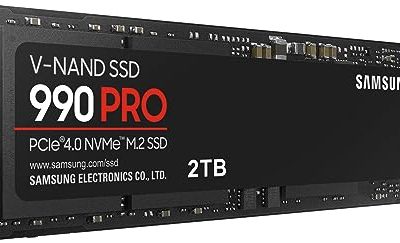
Calling a PCIe 4.0 drive “high performance” hides a wide spread. The same Gen4 x4 interface carries drives rated near 3,300 MB/s on one end and 7,450 MB/s on the other, and the interface itself tops out near 8,000 MB/s in theory. A buyer building a fast desktop therefore faces a quiet question: how much of that gap will ever show up in daily use, and how much is a number on a box? The answer depends on the job, because game loading, large file copies, video scratch disks and ordinary boot times each reward a different part of the drive.
This guide goes through six Gen4 NVMe M.2 drives from the listings, from a budget 256GB OEM boot drive to a 2TB model that advertises 7,450 MB/s. Every judgment comes from the title text, so quoted speeds are the maker’s “up to” figures and not measured results. Four near-duplicates were left out: a 4TB WD_Black SN7100 and a 2TB Kingston NV3, which are capacity variants of drives reviewed here, and two tiny 2242 and 2230 drives that do not suit a standard desktop M.2 2280 slot. Read on for the shortlist, then the rules for 2026 buyers.
Our Top Picks


Top 3 picks at a glance
Quick Picks
As an Amazon Associate we earn from qualifying purchases at no extra cost to you.


| Product | Best for | Key spec from the title |
|---|---|---|
| Kingston NV3 1TB | Value Gen4 upgrade | PCIe 4.0 x4, up to 6000 MB/s, M.2 2280 |
| WD_Black SN7100 1TB | Gaming and general speed | Up to 7,250 MB/s read, 6,900 MB/s write, TLC 3D NAND |
| BIWIN Black Opal NV7400 2TB | Capacity plus speed | Up to 7450MB/s read, Gen4x4, PS5 compatible |
| WD Green SN3000 2TB | Big, calm storage drive | 2TB, up to 5000MB/s, OEM New |
| Samsung PM9B1 256GB | Small OEM boot drive | PCIe Gen4 x4, up to 3300MB/s read, OEM New |
| Ediloca EN705 500GB | PS5 or entry gaming PC | 500GB, up to 4300MB/s, dynamic SLC cache |
The 6 Best Options
Kingston NV3 1TB (SNV3S/1000G)
The NV3 is the drive for someone moving from a SATA SSD or an older Gen3 NVMe stick who wants a noticeable jump without paying flagship money. The title lists an M.2 2280 NVMe drive on PCIe 4.0 Gen 4×4 with speeds up to 6000 MB/s and the model number SNV3S/1000G. The same line is also listed in a 2TB version, so the choice between them is simply about capacity.
- PCIe 4.0 x4 interface with a stated 6000 MB/s ceiling, well above any SATA drive.
- Standard M.2 2280 length fits nearly every desktop motherboard slot.
- 1TB suits an operating system plus a respectable game library.
- The title does not say whether the drive has a DRAM cache, which affects sustained writes.
- A 6000 MB/s ceiling sits well below the 7,000-plus figures on pricier drives.
Skip it if you move large video files or write hundreds of gigabytes in one sitting, because sustained speed matters more than the headline number there. Compared with the WD_Black SN7100 that follows, the NV3 gives up about a thousand megabytes per second of stated read speed for a simpler, more budget-minded profile. For many desktops that trade is invisible during games and installs, and the lower stated ceiling can even mean less heat in a cramped case.
In practice the NV3 tier is where a cautious upgrader should look first. A person who copies a few gigabytes at a time, installs games and boots daily will sense the jump from SATA immediately, whereas a person who moves hundred-gigabyte project folders will begin to feel the limits. Pairing it with a motherboard heatsink keeps the stated speed available for longer.
WD_Black SN7100 1TB
The SN7100 is the all-rounder for gamers and enthusiasts. The title gives Gen4 PCIe, M.2 2280, up to 7,250 MB/s read and up to 6,900 MB/s write, with next-generation TLC 3D NAND, and mentions use in laptops and handheld devices as well as desktops. A write figure near 6,900 MB/s is high for the interface, and that is what separates it from drives that advertise fast reads and slow writes.
- Both read and write speeds are stated close to the limit of Gen4 x4.
- TLC 3D NAND is named, a type generally preferred for endurance and consistent speed.
- The listing positions it for desktops, laptops and handhelds, so it is flexible across devices.
- It carries a premium over entry Gen4 drives, which matters if you only browse and game lightly.
- The title does not tell you about heatsink inclusion, so check your board’s cooling.
Skip it if your needs are modest and a cheaper drive would feel the same in daily use, or if your board lacks a PCIe 4.0 slot that could use its speed. Next to the BIWIN NV7400, the SN7100 states a high write speed, while the BIWIN doubles the capacity in this listing and claims a slightly higher read figure. If you want a published write number from the title itself, the WD_Black is the clearer one to read.
A drive like this suits a desktop that serves as both a games console and a workstation. The mention of laptops and handhelds in the title also makes it a flexible choice if you swap hardware between devices, although a handheld needs the right slot length, so confirm that before purchase.
BIWIN Black Opal NV7400 2TB
The NV7400 aims at buyers who want speed and space in a single slot. The title lists a 2TB Gen4x4 drive with read speeds up to 7450MB/s, NVMe M.2 2280, PCIe 4.0, and compatibility with laptops, desktops and the PS5. Its read figure is the highest of the six, close to the practical ceiling of the interface, and 2TB is a comfortable size for a modern game library plus project files.
- Up to 7450MB/s read is the highest figure among these six drives.
- 2TB capacity reduces the need for a second drive.
- The title lists PS5 compatibility, useful if you might move the drive between devices.
- The title gives no write speed or endurance rating, so sustained performance is unverified.
- BIWIN is less familiar to many buyers than Western brands, so warranty terms deserve a close look.
Skip it if brand reputation and published endurance figures are your priority, or if you want to see a stated write speed before paying. Compared with the WD Green SN3000, it focuses on speed, while the Green focuses on capacity at a calmer pace. Which matters more depends on whether your files are big and frequent or merely numerous.
Because the title gives a 2TB capacity and a high read ceiling at the same time, it works well as the main drive of a creative desktop where the project folder, scratch space and archive share one device. It is worth confirming the warranty and return path with the seller, especially for a high-capacity drive that will hold irreplaceable files. Keep a backup either way.
WD Green SN3000 2TB (OEM)
The SN3000 is the quiet one. The title lists a 2TB NVMe drive in M.2 2280, PCIe Gen4 x4, M-Key, sold OEM new, with speeds up to 5000MB/s and a promise of fast boot and reliable performance. The “Green” family name and OEM packaging point to an everyday storage drive rather than a performance showpiece, which suits a second drive for games, photos and projects.
- 2TB of capacity on a Gen4 x4 interface suits large libraries.
- A stated 5000MB/s ceiling is still far above SATA and above most Gen3 drives.
- OEM packaging often means a straightforward product aimed at system builders.
- Speeds sit below the Black and BIWIN drives, so it is a weaker pick for heavy file work.
- OEM sales may not include retail extras, so check the warranty path.
Skip it if you need peak write speed or a boot drive for an editing rig. Against the Samsung PM9B1, it is far larger, while the Samsung is smaller and slower but from a name that appears often in prebuilt systems. Many builders buy a drive like this as a clean, no-frills boot disk and put games on a second, larger one.
Treat it as a long-term, low-drama storage device for files you cannot afford to lose. Not every drive has to chase top speed, and for many families a quiet 2TB unit that boots reliably and holds a lot of files is exactly right. Its stated speed is still several times that of a good SATA drive and is likely to feel instant in everyday work.
Samsung PM9B1 256GB (OEM)
This is the small, sensible boot drive. The title lists a 256GB M.2 2280 drive on PCIe Gen4 x4, M-Key, OEM new, with up to 3300MB/s read, fast boot and high performance. By Gen4 standards the speed is modest, but it is still well above a SATA SSD, and for an operating system and a few programs, 256GB can be enough.
- Samsung OEM drives are common in prebuilt systems, which makes the format familiar to repair shops and builders.
- Gen4 x4 interface leaves room for a faster drive if you later swap it out.
- The small capacity keeps the cost of a boot drive low.
- 256GB fills up quickly with games, so it works best as a dedicated boot drive.
- Up to 3300MB/s read is the slowest rating in this guide.
Skip it if you want a single drive for everything. Compared with the Ediloca 500GB that follows, the Samsung has half the capacity but a more established name. The extra 244GB of the Ediloca is useful for a few more games, while the Samsung leaves more room to replace it later without regret.
One honest use for a drive this small is a clean install of the operating system, with applications on the drive and bulk files elsewhere. Keeping the boot drive separate also makes reinstalling easier. Buyers should plan on a larger second drive as soon as the library grows.
Ediloca EN705 500GB
Ediloca pitches its drive at the PS5 crowd and entry gaming PCs. The title lists a 500GB M.2 2280 NVMe PCIe Gen4 x4 drive for PS5, gaming PC and laptop, with speeds up to 4300MB/s and a dynamic SLC cache. That cache is a small fast zone that absorbs bursts of writing, which helps everyday loads while leaving heavy sustained work to bigger drives.
- 500GB gives more room than a 256GB boot drive for a fair number of games.
- A dynamic SLC cache is named, helping short bursts of writing.
- Marketed for PS5 use, it suggests broad compatibility with M.2 slots.
- The brand is lesser known, so check the warranty terms.
- Up to 4300MB/s sits well under the faster drives here.
Skip it if you want a trusted brand name or high sustained write speed. It closes the list as the budget-minded entry for casual use and as a candidate for a PS5 expansion slot where console compatibility matters. The title is explicit about the PS5, which is more than many generic drives bother to say.
The Ediloca also suits owners who want a quick console expansion slot without buying a premium device, though the console’s heatsink rule still applies. As with every OEM or lesser-known brand, read the seller’s support terms before relying on it for valuable data.
Whichever role it fills, keep the original packaging and receipt until the drive has passed a few weeks of ordinary use, since early failures show up soon after installation.
Who Needs a Gen4 Drive Today
Gen4 is no longer a luxury, but it is not necessary for everyone either. A buyer whose current drive is SATA will feel a clear difference in boot, install and copy times, while a buyer with a decent Gen3 drive will notice less. Matching the drive to the job is what makes the spend worthwhile. Capacity is a second filter, because a fast 256GB drive and a slower 2TB drive solve different problems, and many buyers pair one of each.
The mix of buyers is wide. Some arrive from a hard drive and want a modern system, some already own a Gen3 drive and wonder if Gen4 is worth the swap, and some are building new and simply want the sensible default. In each case, the benefits come from the same few traits: capacity, sustained speed, cooling and support.
Gamers Chasing Load Times
Games benefit from fast storage, though load times flatten out above a certain point because the processor and game engine become the limit. A 1TB drive like the NV3 or SN7100 covers most libraries. Console-style loading features that stream data straight from the drive reward fast storage a little more, but the benefit remains modest compared with the jump from a hard disk.
Creators Moving Large Files
Video editors and photographers copy huge files and use scratch space. High sustained write speed and 2TB capacity, as with the NV7400, matter more than boot time. Scratch disks and cache folders produce constant small writes, so a drive with a named cache design deserves extra attention.
Upgraders Replacing a SATA Drive
If a desktop still boots from SATA, any drive on this list is a visible upgrade. The Samsung PM9B1 is the lowest-cost route to Gen4 for a boot drive. It also leaves the old drive free for use as a backup disk.
How to Choose a Gen4 NVMe SSD
Interface and Form Factor
Begin with the motherboard manual and the case, not the product page. Confirm that your motherboard has an M.2 slot with PCIe 4.0 x4 and that it takes 2280 length. All six drives here are 2280, M-Key. A Gen4 drive also works in a Gen3 slot at reduced speed, which is fine if you plan to upgrade your board later. Check whether the slot connects to the processor or the chipset, since processor-attached slots usually give the best performance.
Capacity
1TB is the sensible entry point for a main drive today, because modern games can reach well over 100GB each. 2TB is comfortable for libraries and creative work. 256GB suits only a dedicated boot drive. Leave at least ten to twenty percent of any SSD empty, because performance and endurance both hold up better with free space.
Read Speed Versus Write Speed
Makers lead with read speed, but writes decide how long large copies take. The SN7100 states both, while others list only the read number. Treat any “up to” figure as a ceiling reached under ideal conditions and not as a guarantee. Real copies also depend on the source drive, the file type and the number of files, which is why many small files copy slower than one large file.
NAND Type, Cache and Endurance
TLC NAND is the common choice for balanced cost and endurance. A DRAM cache or a large SLC cache keeps speeds steady during long writes. Look for a stated terabytes-written rating and a warranty of at least three years where the listing gives it. These details are often missing from retail titles, so open the full specification page before you decide.
Heat and Thermal Throttling
Fast drives get warm, and a hot drive slows itself to protect the chip. Most desktop boards include an M.2 heatsink, and for tight spaces, a slim heatsink helps. Check the clearance between the drive and any graphics card. A drive that sits right under a hot graphics card will run warmer than one on a slot near the processor, so slot choice affects speed too.
Brand, Warranty and Where Budget Models Cut Corners
OEM labeled drives and lesser-known brands can be excellent value, but warranty handling may be harder. Budget models may drop the DRAM cache, use lower-endurance NAND or throttle sooner. What to ignore is a high peak read number on its own; sustained speed and a clear warranty count more. Colorful packaging and gaming labels add cost without adding performance.
A short checklist ties these six points together. Confirm the slot, pick a capacity that leaves free space, read for write speed and cache, make sure the drive can stay cool, and check the warranty path. A drive that passes all five will outperform one that merely advertises a larger headline number.
Gen4 vs Gen3 vs Gen5: Which Interface Fits
Gen4 sits in the middle of the market, and buyers deciding on a drive often wonder whether to step down or up. The table compares the three generations by theoretical and typical ceilings.
| Factor | Gen3 | Gen4 | Gen5 |
|---|---|---|---|
| Typical ceiling | About 3,500 MB/s | About 7,000 MB/s | 10,000 MB/s and above |
| Heat | Low | Moderate | High, often needs a heatsink |
| Board support | Nearly all | Most modern boards | Newer boards only |
| Everyday benefit | Baseline | Clear over SATA | Small for most users |
The figures in the table are rounded general ceilings and are not claims about any single drive in this list. The drives reviewed here state their own maker figures, from 3300 MB/s to 7450 MB/s, which all sit inside the Gen4 envelope.
Why Gen4 Is the Sweet Spot
Gen4 delivers most of the real-world benefit at moderate heat, and almost every recent board supports it. For games and general use, the extra speed of Gen5 rarely changes how the computer feels. Gen4 drives have also dropped in cost over time, which is why they dominate the shelves.
Cost deserves one more sentence. Gen4 drives have a wide range of tiers, and the premium for the last thousand megabytes per second is usually larger than the premium for doubling capacity. For most buyers, a larger Gen4 drive is the better use of the same budget than a faster, smaller one.
When to Step Down or Up
Step down to a drive like the Samsung PM9B1 or the Ediloca if cost matters most. Step up to Gen5 only for heavy workloads that move enormous files and if your board supports it and your case has the airflow to keep a hot controller within limits. Most buyers who read this guide will be happier with a 2TB Gen4 drive than a 1TB Gen5 drive.
Setup, Compatibility and Upgrade Tips
What to Check Before Buying
Write down the board model, the slot you intend to use and the drive length it supports. Check the motherboard manual for M.2 slot type, the length supported, and whether using one slot disables a SATA port. Confirm that the slot is PCIe 4.0 if you want the full speed, and note that some boards share lanes. Installing is simple: power off, remove the heatsink cover, insert the drive at an angle, press it flat and secure it with the standoff screw.
Before you open the case, ground yourself by touching bare metal, and have a small screwdriver ready, because M.2 screws are tiny and easy to lose. Keep the original standoff position for the 2280 length, and avoid over-tightening, which can bend the drive.
What to Upgrade First
If your boot drive is SATA, replace it first. Next, add a second NVMe drive for games. Keep the older drive as a backup or archive if the bays allow it. Update the motherboard firmware before cloning, because newer versions improve drive compatibility and stability.
Common Compatibility Traps
Some slots are Gen3 only, some laptops and handhelds accept only 2230 or 2242 drives (which is why two short-format drives were left out of this guide), and a few boards need a firmware update for the latest models. For the PS5, a heatsink is required, and not every drive in this list is sold with one. Cloning the old drive needs a USB adapter or a second slot. Finally, after installation, check in the disk management tool that the drive is initialized and, in the system information, that the link runs at PCIe 4.0 x4.
Which One Fits Your Situation
A Gamer With a Mid-Range Build
The Kingston NV3 1TB gives a Gen4 jump at a sensible tier for most game libraries and installs quickly in any board with a free 2280 slot.
An Enthusiast Who Wants the Fastest Writes
The WD_Black SN7100 1TB states both high read and write speeds and uses TLC NAND, making it a balanced pick for a high-end gaming build.
A Creator Who Needs Capacity and Speed
The BIWIN NV7400 2TB offers the largest capacity with the highest read speed in this guide, which suits video projects and large libraries in one slot.
A Budget Boot Drive Upgrade
The Samsung PM9B1 256GB is a modest replacement for a SATA boot drive, with the Ediloca as a larger alternative at 500GB, and either one frees an older SATA drive for backup duty. Families sharing one PC can also consider the WD Green SN3000 2TB as a calm, large second drive for photos, school files and games.
Common Mistakes
- Buying on peak read speed alone and ignoring write behavior and sustained performance.
- Putting a Gen4 drive in a Gen3 slot and expecting full speed, or sharing lanes with other devices without reading the manual.
- Choosing 256GB as the only drive for a gaming PC, where a single large game can consume a third of it.
- Forgetting a heatsink on a drive that runs warm, then wondering why speeds fall during long copies.
- Ignoring warranty terms on OEM or lesser-known brands, then discovering that support goes through the seller instead of the maker.
- Paying for Gen5 when a Gen4 drive would feel identical.
Related guides
- Gaming Laptop Battery Draining While Plugged In Fix
- Graphics Cards For Low Wattage Power Supplies
- How To Stop Laptop Thermal Throttling In Software
Frequently Asked Questions
Is a Gen4 SSD worth it over a SATA drive?
Yes, for boot, installs and large copies the difference is clear. For simple web browsing the gap is small, so match the spend to your workload.
Will a Gen4 drive work in a Gen3 slot?
Yes, but it runs at Gen3 speeds, and the BIWIN and Ediloca titles that mention the PS5 are a reminder that console slots need a heatsink and the right length. You can move the drive to a faster slot or board later without reformatting it.
Do I need a heatsink?
Fast drives benefit from one, and many motherboards include it. The PS5 requires a heatsink, so check the drive’s packaging.
What does OEM New mean?
OEM drives, like the WD Green SN3000 and the Samsung PM9B1 here, are sold without retail packaging and extras, often for system builders. Warranty handling can differ, so read the seller’s terms.
Is 1TB enough for gaming?
For most libraries yes, though modern titles are large. Choose 2TB if you keep many games installed, since uninstalling and downloading again takes time.
Are up-to speeds guaranteed?
No, they are maker ceilings reached under ideal conditions. Sustained performance depends on cache, heat depends on cache, heat and the rest of the system. Treat them as a ceiling and plan around typical behavior instead.
Final Words
For a fast desktop, Gen4 is the interface where cost, heat and speed balance best. The Kingston NV3 is the economical step up, the WD_Black SN7100 states both read and write strength, the BIWIN NV7400 adds capacity and the highest read figure, and the WD Green, Samsung and Ediloca drives cover storage, boot and console needs. Match capacity and brand support to your use, check your slot, and the faster drive will pay back with every load screen and file copy. If you are torn between two models, pick the one with the clearer warranty and the capacity you will still need in a couple of years.