Gaming laptop performance mode vs turbo mode comes down to balancing gaming performance, cooling, and fan noise. Performance mode targets a more balanced operating profile, while Turbo mode typically prioritizes higher power limits and more aggressive cooling. However, the actual difference depends on your laptop manufacturer, hardware, and power adapter.
What Gaming Laptop Performance Mode vs Turbo Mode Really Comes Down To
Performance and Turbo modes are manufacturer-defined operating profiles that influence how a gaming laptop manages CPU power, GPU power, cooling, and acoustics. Neither mode represents a universal performance standard. Understanding these differences helps you choose the appropriate setting without unnecessarily increasing noise, heat, or power consumption.

1. How Performance Mode Works
Performance mode is generally designed to balance processing power, cooling capacity, and acoustic comfort. On ASUS ROG laptops, for example, Armoury Crate describes Performance mode as a balance between performance, temperature, and acoustics. This makes it a practical starting point for everyday gaming.
The exact behavior depends on the laptop’s firmware and cooling system. Some manufacturers adjust fan curves and processor power limits, while others also modify GPU operating conditions. Consequently, two laptops running Performance mode can produce different temperatures, fan speeds, and frame rates.
2. How Turbo Mode Changes Laptop Behavior
Turbo mode generally prioritizes maximum available performance by allowing more aggressive cooling and, on supported models, higher CPU and GPU power allocation. ASUS explains that its ROG Turbo profile can increase component wattage and enable its factory GPU overclocking behavior.
However, Turbo does not automatically mean every laptop receives the same power increase. Some implementations primarily change fan behavior, while others adjust power limits or performance parameters. Check your manufacturer’s documentation rather than assuming the label represents a specific wattage increase.
3. CPU and GPU Power Allocation
CPU and GPU power allocation is one of the most important differences between operating profiles. A gaming laptop has a shared thermal and electrical budget, meaning the processor and graphics chip must operate within the system’s available cooling and power capabilities.
When Turbo mode allows higher power consumption, the CPU or GPU may maintain higher operating frequencies under demanding workloads. However, the actual result depends on temperature, workload, adapter capacity, firmware limits, and Dynamic Boost behavior where supported. Higher power availability does not guarantee higher FPS in every game.
4. Fan Noise and Thermal Management
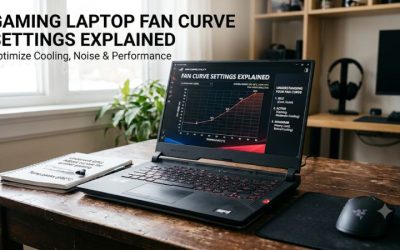
Cooling behavior can make Turbo mode noticeably louder than Performance mode. Higher fan speeds help move heat away from the CPU and GPU, allowing the laptop to sustain demanding workloads within its thermal design limits.
Temperature readings also need context. A Turbo profile may produce higher temperatures because it allows the hardware to consume more power, even while its fans operate faster. A higher temperature alone does not establish that the cooling system is malfunctioning. Consider component utilization, clock speeds, and thermal throttling together.
How to Choose Between Performance Mode and Turbo Mode
Choosing between these settings depends on the game, your environment, and whether the laptop is connected to its original power adapter. Instead of automatically selecting the highest-performance profile, consider how much additional performance you actually need and whether the associated noise and power consumption are acceptable.
1. Choose Performance Mode for Everyday Gaming
Performance mode is a sensible default for gaming sessions where you want a balance between frame rates, fan noise, and cooling. It can be appropriate for esports titles, general gaming, and longer sessions where maximum hardware power is not essential.
For example, if your game already maintains a frame rate that matches your display’s refresh rate, switching to Turbo may provide little practical benefit. Your laptop may simply consume more power and generate additional noise without noticeably improving the experience.
2. Choose Turbo Mode for Demanding Games
Turbo mode is worth considering when playing graphically demanding games, running GPU-intensive applications, or trying to obtain the maximum performance supported by your laptop. This is particularly relevant when your manufacturer’s performance profile restricts available CPU or GPU power.
However, the difference should be measured rather than assumed. A GPU-limited game may benefit more from increased graphics power than a CPU-limited esports title. Your results will also depend on the laptop’s GPU wattage, cooling capacity, and game settings.
3. Compare Both Modes Under Consistent Conditions
A useful comparison requires the same game, resolution, graphics preset, power adapter, and background applications. Run the same gameplay sequence in each mode and record average FPS, 1% lows when available, CPU temperature, GPU temperature, clock speeds, and fan noise.
Avoid comparing results from different game versions or changing multiple settings simultaneously. If Turbo produces higher average FPS but substantially more noise, you can decide whether the additional performance justifies the trade-off. Repeat the comparison if results vary significantly between runs.
| Comparison | Performance Mode | Turbo Mode |
| Performance priority | Balanced performance | Maximum available performance |
| CPU power | Manufacturer-defined balanced limits | Potentially higher limits |
| GPU power | Manufacturer-defined profile | Potentially higher allocation |
| Fan behavior | Balanced cooling | More aggressive cooling |
| Fan noise | Generally lower | Generally higher |
| Temperature | Depends on workload and cooling | May increase with higher power |
| Power consumption | Generally lower | Generally higher |
| Battery suitability | Depends on model | Often restricted |
| Recommended use | Everyday gaming | Demanding workloads |
These are general tendencies, not universal specifications. ASUS, MSI, Lenovo, and Acer implement their operating profiles differently. For example, MSI Center uses Extreme Performance terminology, while Lenovo Legion systems offer Performance, Balance, and Quiet modes.
ASUS USA+3
4. Understand Manufacturer-Specific Differences
Do not assume that a Turbo setting on one gaming laptop behaves identically to Turbo on another. ASUS ROG, for instance, documents additional power allocation and GPU performance behavior in its Turbo profile. Other manufacturers may use different combinations of fan control and processor power management.
MSI Center provides an Extreme Performance scenario, with additional overclocking options available on certain supported configurations. Lenovo uses its own system operation modes, with available performance depending on the power adapter and operating conditions. Always consult the manual for your exact model.
@ROG+2
How to Switch and Optimize Gaming Laptop Performance Modes
You can usually change operating profiles through your laptop manufacturer’s control software or a dedicated keyboard shortcut. Before switching, connect the appropriate power adapter, ensure ventilation openings are unobstructed, and close unnecessary background applications. The following steps help you compare profiles without introducing unrelated changes.
1. Connect the Original Power Adapter
Connect your laptop to its supplied AC adapter before selecting a high-performance profile. Gaming laptops may restrict CPU and GPU power when running on battery because the battery cannot necessarily support the same sustained power levels as the original adapter.
Some ASUS ROG and TUF laptops restrict Turbo mode to charging operation. Other manufacturers also impose adapter-related restrictions. If the mode is unavailable, check adapter recognition, charging status, and model-specific requirements instead of trying to bypass the restriction.
ASUS USA+1
2. Open Your Manufacturer’s Control Software
Locate the application responsible for managing your laptop’s operating profiles. The interface and available settings depend on the manufacturer and model.
Common examples include:
- ASUS: Open Armoury Crate and locate Operating Mode.
- MSI: Open MSI Center, select Features, then User Scenario.
- Lenovo: Open Lenovo Vantage or Legion Zone and locate the operating mode settings.
- Acer: Open NitroSense and locate the System Mode or Scenario settings.
Select Performance or its equivalent first. Confirm that the profile changes successfully before launching a game.
ASUS USA+3
3. Select Turbo for a Performance Comparison
Switch to Turbo or the equivalent maximum-performance profile when your laptop supports it. Allow the fans and hardware to adjust before starting your comparison.
Do not manually increase CPU or GPU clock speeds simply because you have enabled Turbo. Factory operating profiles already account for the manufacturer’s supported power and cooling configurations. Additional overclocking introduces separate stability and thermal considerations and is not necessary for a basic mode comparison.
4. Monitor Performance and Restore Your Preferred Profile
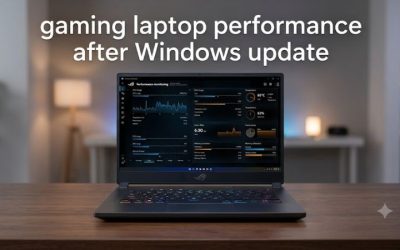
Use a monitoring utility such as HWiNFO to observe CPU and GPU temperatures, utilization, clock speeds, and power consumption. Use the same monitoring approach in both operating profiles so the results remain comparable.
After your comparison, return to Performance mode if Turbo provides insufficient improvement for its additional noise and power consumption. You can also use Windows power settings independently, but remember that they do not necessarily replace the manufacturer’s CPU and GPU control profiles.
| Setting or Step | Where | Effect | Risk |
| Connect AC adapter | Laptop charging port | Provides supported external power | Use the correct adapter |
| Select Performance | Manufacturer control software | Balances power and cooling | Higher consumption than quiet profiles |
| Select Turbo | Manufacturer control software | Prioritizes available performance | More noise, heat, and power consumption |
| Monitor and compare | HWiNFO or equivalent | Shows actual hardware behavior | Monitoring adds some overhead |
Windows also has a separate power-mode setting. In Windows 11, navigate to Settings > System > Power & battery > Power mode. Selecting Best performance can prioritize responsiveness and performance, but it does not necessarily activate the laptop manufacturer’s Turbo profile. Microsoft notes that this setting can increase power consumption and heat.
Microsoft Support+1
FAQ
Is Turbo Mode Better Than Performance Mode for Gaming?
Turbo mode can provide higher gaming performance when it allows additional CPU or GPU power, but the improvement depends on the laptop and game. Performance mode may offer a better balance when the difference in frame rates is small.
Does Turbo Mode Damage a Gaming Laptop?
No, using a manufacturer’s supported Turbo profile does not inherently damage a gaming laptop. The profile operates within manufacturer-defined controls, although higher power consumption and temperatures are expected possibilities. Avoid combining it with unsupported manual overclocking.
Does Performance Mode Improve Gaming Laptop Battery Life?
Performance mode may consume less power than Turbo mode, but it is not necessarily a battery-saving profile. For longer unplugged sessions, choose a dedicated Silent, Quiet, or battery-saving profile when available.
Should I Always Use Turbo Mode While Gaming?
No, Turbo mode is not necessary for every gaming session. Use it when additional performance matters and your cooling and power conditions support it. Otherwise, Performance mode is a practical default for balancing gaming performance, fan noise, and power consumption.
Final Thoughts
Choosing between gaming laptop performance mode vs turbo mode depends on your priorities rather than the name of the setting. Performance mode suits balanced gaming, while Turbo is useful when maximum available hardware performance matters. Start with Performance, compare actual gaming results, and switch to Turbo when the improvement justifies the additional noise and power consumption.