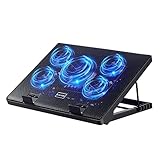
Choosing between a gaming laptop cooling pad vs laptop stand depends on whether your priority is lower operating temperatures, better airflow, or a more comfortable gaming position. Both accessories elevate your laptop, but only a cooling pad adds powered airflow. This comparison explains their differences, limitations, and which option makes sense for your setup.
Gaming Laptop Cooling Pad vs Laptop Stand: Key Differences
A cooling pad and a laptop stand solve overlapping problems, but they approach airflow differently. A passive stand creates additional clearance beneath the chassis, while an active cooling pad uses external fans to move air toward the laptop’s intake vents. Understanding this distinction helps determine whether extra cooling hardware is worth the additional cost, noise, and desk space.

1. Cooling Performance and Temperature Reduction
A cooling pad has an advantage when a gaming laptop needs additional airflow through its bottom intake vents. Its fans push room-temperature air toward the underside, potentially helping the internal cooling system maintain lower CPU and GPU temperatures during demanding games.
However, the improvement depends on the laptop’s ventilation design. A laptop with large bottom intake grilles may benefit more than one with restricted openings or side-facing intakes. A passive stand can also improve airflow by creating additional clearance without requiring powered fans.
Published measurements illustrate why results vary. Notebookcheck reported that a Havit HV-F2056 cooling pad reduced average CPU temperature from 92°C to 80°C and GPU temperature from 76°C to 70°C on an MSI GP65 during a Witcher 3 workload. These figures describe one particular setup, not a universal improvement.
iTechGuides+1
2. Airflow Design and Vent Placement
The most important factor when comparing these accessories is where your laptop draws air. Many gaming laptops use bottom ventilation grilles for intake and rear or side openings for exhaust. An accessory should support this existing airflow path rather than obstruct it.
A passive stand provides an open space underneath the chassis. This can help when the original desk clearance is limited, especially on laptops with large underside ventilation areas.
An active cooling pad adds external fans, but fan placement matters more than fan count. If the fans sit beneath solid sections of the laptop instead of its intake grilles, their airflow may provide little additional benefit.
Some specialized cooling pads use concentrated or pressure-directed airflow rather than conventional open fan designs. These can offer different results, but their compatibility requirements are more restrictive. Check the manufacturer’s specifications and your laptop’s ventilation layout before choosing one.
3. Noise, Power Consumption, and Convenience
A passive laptop stand operates without electricity or additional moving components. It produces no accessory fan noise and does not need a USB connection, making it suitable for quiet gaming environments, studying, and everyday productivity.
An active cooling pad introduces another source of noise. Depending on its fan design and operating speed, the additional sound may become noticeable when playing games with lower headset volume or using speakers.
Most conventional USB-powered cooling pads connect to a laptop’s USB port. This introduces another cable and uses an available connection, although some designs provide USB passthrough.
For convenience, a passive stand is generally simpler to transport and maintain. A cooling pad requires occasional cleaning of its external fans and ventilation surfaces to prevent dust accumulation.
4. Ergonomics and Desk Setup
A laptop stand often has an advantage when screen positioning is the main concern. Many models provide adjustable height and viewing angles, allowing users to raise the display and improve their working posture.
A cooling pad can also elevate the screen, but its design may prioritize airflow and fan placement over ergonomic adjustment. Some models offer several angle settings, while others have a relatively fixed platform.
For extended gaming sessions, consider how the accessory affects keyboard position. Raising the laptop too high can make its built-in keyboard less comfortable to use.
If you use an external keyboard and mouse, a taller stand may provide a more convenient arrangement. If you prefer gaming directly on the laptop, a lower-angle cooling pad may be easier to accommodate.
How to Choose Between a Cooling Pad and Laptop Stand
The right choice depends on your laptop’s thermal behavior, ventilation layout, gaming habits, and desk configuration. Rather than assuming that an accessory with more fans automatically performs better, compare the practical benefits of passive elevation against additional powered airflow. The following criteria help narrow down the decision without paying for features your laptop may not need.
1. Check Your Laptop’s Bottom Intake Vents
Start by inspecting the underside of your gaming laptop. Look for ventilation grilles, mesh openings, and the locations of the internal cooling fans. Your laptop’s official maintenance documentation can help distinguish intake openings from exhaust areas.
If most intake ventilation is concentrated underneath the chassis, both accessories may improve clearance. However, an active pad becomes more attractive when its fan positions align with those openings.
If your laptop primarily draws air through other areas, a conventional cooling pad may offer limited additional cooling. Avoid choosing an accessory based solely on advertised compatibility with a particular screen size.
2. Consider Your Gaming Temperatures and Workload
A cooling accessory makes more sense when your laptop experiences sustained thermal limitations during gaming. Monitor CPU and GPU temperatures, clock speeds, and performance under a consistent workload before deciding.
High temperatures alone do not automatically indicate overheating. Modern gaming laptops manage power and thermal behavior according to their hardware specifications and manufacturer-defined limits.
If your laptop maintains expected clock speeds without thermal throttling, a passive stand may provide sufficient airflow. If performance decreases during sustained workloads, additional cooling may be worth investigating.
Remember that lower temperatures do not necessarily translate into higher FPS. A cooling accessory may reduce thermal readings without producing a noticeable improvement in gaming performance.
3. Compare the Actual Accessory Features
The following table summarizes the practical differences between the two accessory categories.
| Comparison Factor | Cooling Pad | Laptop Stand |
| Cooling method | Passive elevation and active airflow | Passive elevation |
| Built-in fans | Usually included in active models | Generally absent |
| Temperature improvement | Depends on fan placement and laptop design | Depends on additional clearance |
| Noise | Additional fan noise possible | Silent |
| Power connection | Usually USB for active models | Not required |
| Portability | Often bulkier | Often lighter and simpler |
| Height adjustment | Depends on design | Commonly available |
| Maintenance | External fans require cleaning | Minimal maintenance |
| Best application | Additional airflow during demanding workloads | Desk positioning and basic ventilation |
A conventional cooling pad combines two functions: raising the chassis and adding airflow. A passive stand provides the first function without the second.
Consequently, comparing an active cooling pad against a laptop placed directly on a desk may exaggerate the benefit of its fans. A fair comparison should include a passive stand at a similar height.
4. Evaluate Budget and Long-Term Value
A passive stand is generally the more straightforward purchase when your laptop already has adequate thermal performance. You are primarily paying for construction quality, stability, adjustability, and materials rather than powered cooling components.
An active cooling pad introduces additional features, including fans, speed controls, lighting, and sometimes USB passthrough. These features may be useful, but they do not automatically improve thermal performance.
Consider how frequently you play demanding games and whether your laptop actually benefits from additional airflow. Paying extra for multiple fans is difficult to justify when the laptop’s intake vents cannot use their airflow effectively.
For a high-performance gaming laptop that experiences sustained thermal limitations, an appropriately matched cooling pad may justify the additional expense.
Which Option Should You Choose for Gaming?
There is no universal winner in the gaming laptop cooling pad vs laptop stand comparison. The better option depends on whether your laptop needs additional airflow or simply more space beneath its chassis. Your gaming environment, thermal behavior, and preferred desk arrangement should determine the final decision.
Choose a Cooling Pad for Sustained Gaming
An active cooling pad is the more suitable choice when your laptop has substantial bottom intake ventilation and experiences thermal limitations during extended gaming sessions.
Look for a design that matches your laptop’s dimensions and places its fans beneath the intake areas. Adjustable fan speeds can also help balance airflow and noise.
A conventional fan mat and a specialized pressure-directed cooler are not interchangeable. Check whether a specialized model supports your exact laptop chassis before purchasing.
Choose a Laptop Stand for Everyday Use
A passive stand is a sensible option if your primary goal is improving desk ergonomics and providing additional clearance underneath the laptop.
It works particularly well when your gaming laptop already maintains appropriate operating temperatures and does not show signs of thermal throttling.
A stand also makes sense for users who frequently switch between gaming, studying, and general productivity. Its simple design avoids additional cables, fan noise, and powered components.
Consider a Cooling Pad When Temperatures Remain High
If your laptop continues experiencing thermal limitations after being elevated, an active cooling pad is worth considering.
Before purchasing, check for dust accumulation, blocked ventilation, and abnormal fan behavior. An external accessory cannot repair a malfunctioning internal fan or restore degraded thermal paste.
For persistent overheating, consult the laptop manufacturer’s maintenance guidance or support service. Additional airflow should complement a functioning internal cooling system rather than replace necessary maintenance.
Test Passive Elevation Before Spending More
One practical way to make the decision is to compare your laptop’s behavior at different elevations.
Use the same game, graphics settings, power mode, and approximate room conditions for each comparison. Record CPU and GPU temperatures, clock speeds, and any thermal-throttling indicators.
First, establish a baseline on a hard, flat desk. Next, raise the rear of the laptop using a stable stand. Finally, compare those results with an active cooling pad at a similar height.
This approach helps distinguish the benefit of improved clearance from the additional airflow provided by external fans. If the cooling pad produces little improvement over the stand, its extra noise and power requirements may not be worthwhile.
Frequently Asked Questions
1. Is a cooling pad better than a laptop stand for gaming?
A cooling pad can be better for gaming when its fans deliver additional airflow to the laptop’s intake vents. However, a passive stand may provide sufficient cooling if elevation alone improves ventilation.
2. Does a laptop stand reduce gaming laptop temperatures?
Yes, a laptop stand can help reduce temperatures by increasing the space beneath the chassis and preventing restricted airflow. The actual improvement depends on the laptop’s ventilation design and existing cooling conditions.
3. Can a cooling pad increase gaming FPS?
A cooling pad can indirectly help maintain performance if thermal throttling is limiting CPU or GPU clock speeds. However, lower temperatures do not automatically produce higher FPS when the laptop is already operating within its intended thermal and power limits.
4. Should I use a cooling pad with an external keyboard?
Yes, you can use a cooling pad with an external keyboard and mouse. This setup allows you to position the laptop at a more comfortable viewing height while keeping your hands at a suitable desk level.
Final Thoughts
The gaming laptop cooling pad vs laptop stand decision comes down to your actual cooling needs. Choose a passive stand for quiet operation, better positioning, and basic airflow improvement. Choose an active cooling pad when additional airflow is useful for your laptop’s ventilation design. Compare both before spending more on cooling hardware.