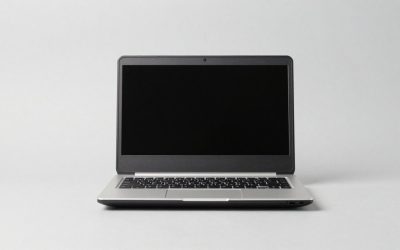
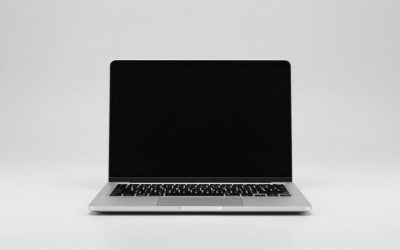
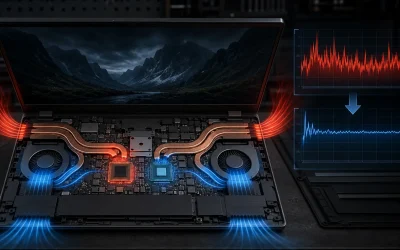
The best laptops for film students are the 14- or 16-inch MacBook Pro with an M4 Pro chip, a creator laptop such as the ASUS ProArt P16, or a performance laptop such as the Lenovo Legion Pro 5i, depending on whether portability, color accuracy, or GPU rendering matters most.
Film-school workloads are more demanding than ordinary college work: you may be cutting multicamera footage, creating proxies, grading log or HDR material, recording voice-over, managing large project folders, and exporting while away from a desk. The right choice balances editing performance with a trustworthy display, enough memory and storage, useful ports, battery life, and a weight you can carry every day.
As an Amazon Associate we earn from qualifying purchases at no extra cost to you.


Top 3 picks at a glance
Quick recommendations
| Student situation | Best fit | Recommended configuration | Why it works |
|---|---|---|---|
| Mostly editing and writing on campus | MacBook Pro 14-inch | M4 Pro, 24GB or more RAM, 1TB SSD | Excellent battery life, accurate display, quiet operation, and strong video encoding |
| Color grading and HDR work | MacBook Pro 16-inch | M4 Pro or M4 Max, 36GB or more RAM, 1TB–2TB SSD | Larger high-contrast display and sustained performance |
| Premiere Pro, After Effects, and GPU effects | ASUS ProArt P16 | Ryzen AI 9 HX 370, RTX 4060 or RTX 4070, 32GB RAM, 1TB SSD | Creator-focused screen with CUDA-capable graphics performance |
| Maximum performance per dollar | Lenovo Legion Pro 5i | Core i7 or Core Ultra 7, RTX 4060 or RTX 4070, 32GB RAM, 1TB SSD | Strong rendering performance and upgrade-friendly memory or storage on some configurations |
| Professional workstation requirements | HP ZBook Studio | Core Ultra 7, RTX professional or high-end RTX graphics, 32GB–64GB RAM | Business support options, workstation drivers, and durable construction |
What film students should prioritize
1. Editing performance comes before headline clock speed
For 4K editing, prioritize a modern 8-core-or-better processor, hardware decoding for H.264, HEVC, and ideally ProRes, and a dedicated GPU if you use heavy effects, noise reduction, 3D layers, or advanced color tools. Apple silicon MacBook Pro models are particularly efficient for ProRes workflows. Windows laptops with NVIDIA RTX graphics are often the better choice when your course relies on CUDA-accelerated effects in Premiere Pro, DaVinci Resolve, or After Effects.
Do not judge performance only by export time. Timeline responsiveness, scrubbing, audio playback, and the ability to keep a browser, production notes, and editing software open at once are just as important during a deadline.
2. Buy enough RAM at the start
- 16GB: workable for 1080p editing and light 4K projects, but restrictive for multicamera timelines and After Effects.
- 24GB–32GB: the practical target for most film students editing 4K footage.
- 64GB: worthwhile for frequent After Effects work, 6K or 8K media, large Resolve projects, or several demanding applications at once.
RAM is especially important on laptops where it cannot be upgraded. A fast processor with 16GB may feel worse in a complex project than a slightly slower processor with 32GB, because the operating system starts moving data to the SSD when memory fills.
3. Treat storage as a working-space requirement
A 512GB SSD is usually too small for film school unless you already own fast external storage. The operating system, applications, cache files, proxies, project files, and source media can consume space quickly. A 1TB internal SSD is the sensible minimum; 2TB is more comfortable for students who regularly carry active projects.
Use the internal drive for applications, current projects, and cache files, then keep completed footage on an external SSD or school server. Do not fill an SSD to capacity: leaving roughly 15–20% free helps maintain consistent performance and gives cache files room to work.
Display accuracy matters more than display size
A bright, high-resolution display does not automatically show accurate color. Look for a screen that covers close to 100% of sRGB at minimum; wide-gamut DCI-P3 coverage is preferable for modern video work. A factory-calibrated creator display is more useful than a vivid but inaccurate gaming panel.
For editing, a 16:10 14-inch screen is a good portability compromise. A 16-inch panel gives more room for a timeline, bins, scopes, and preview window, but the laptop is heavier. OLED screens can provide excellent contrast and black levels, while mini-LED displays can deliver high brightness and strong HDR performance. Either type still benefits from calibration and a controlled viewing environment.
When possible, calibrate the display with a colorimeter. For SDR work, begin around 100–120 cd/m² in a normal indoor editing room and use the correct sRGB or Rec.709 profile. A screen set permanently to maximum brightness can make you grade footage too dark for other viewers.
Ports and the real storage bandwidth problem
Film students should prefer laptops with at least two fast USB-C ports, one USB-A port, HDMI, and a headphone jack. Thunderbolt 4 or USB4 is valuable for a high-speed external SSD, dock, audio interface, and display. An SD or microSD card reader saves time when importing camera footage, although a separate UHS-II reader is often faster and more reliable.
Here is a useful bandwidth calculation. A portable SSD rated at 1,000 MB/s has roughly 8 gigabits per second of raw throughput because 1 byte equals 8 bits. A 4K ProRes 422 HQ stream at 24 frames per second is commonly around 700–800 Mb/s, so one stream uses less than 10% of the drive’s raw rate. However, three multicamera streams, audio, waveform generation, cache activity, file-system overhead, and simultaneous copying can reduce the margin substantially. This is why a fast external SSD and a direct USB4 or Thunderbolt connection are preferable to a slow flash drive or crowded hub.
| Workflow | Internal SSD | RAM | GPU guidance | Display target |
|---|---|---|---|---|
| 1080p documentary or short film | 512GB–1TB | 16GB–24GB | Integrated graphics or entry RTX | 100% sRGB, 300 nits or more |
| 4K single-camera editing | 1TB | 24GB–32GB | Integrated high-end graphics or RTX 4060 class | Wide-gamut, factory-calibrated |
| 4K multicamera and effects | 1TB–2TB | 32GB–64GB | RTX 4060/4070 class or better | DCI-P3-capable, accurate contrast |
| 6K, 8K, HDR, or heavy Resolve work | 2TB or external SSD system | 64GB preferred | RTX 4070 class or better, or M4 Max class | High-brightness HDR-capable display |
MacBook Pro versus Windows creator laptops
Choose a MacBook Pro when efficiency is the priority
The 14-inch MacBook Pro is an excellent all-round film-school laptop when you value low noise, long unplugged sessions, and a high-quality built-in display. The 16-inch version is preferable when you spend hours editing directly on the laptop and can accept extra weight. M4 Pro configurations with at least 24GB of unified memory suit most 4K workflows; M4 Max and 36GB–64GB configurations are better for intensive effects and high-resolution footage.
MacBook Pro models have useful HDMI, SDXC, headphone, and USB-C connectivity, but they are not ideal if your classes require Windows-only software or a broad selection of upgradeable internal components. Memory and storage should be chosen carefully because they are not normally user-upgradable.
Choose Windows when software flexibility or GPU effects matter
The ASUS ProArt P16 is aimed directly at creators and can combine a high-quality OLED display with an NVIDIA RTX GPU. It is a strong option for Premiere Pro, Resolve, and After Effects users who want CUDA acceleration in a relatively portable body.
The Lenovo Legion Pro 5i is less subtle and usually heavier, but its RTX graphics and cooling system make it attractive for students who render frequently. Its main drawbacks are fan noise, a large power adapter, and shorter battery life away from an outlet. The HP ZBook Studio is worth considering when institutional support, professional certifications, or workstation-oriented service matters more than the lowest price.
Battery life and portability: calculate your actual day
Manufacturer battery ratings are not editing guarantees. A simple estimate is:
Runtime ≈ usable battery energy in watt-hours ÷ average power draw in watts.
For example, a laptop with a 70Wh battery averaging 14W during note-taking and light editing could theoretically run for 5 hours after allowing for conversion losses and reserve capacity. The same laptop averaging 45W during an export would last closer to 1.4 hours. A gaming laptop may have excellent plugged-in performance but become much less attractive on a campus day when its GPU, high-refresh display, and fans consume power.
For regular commuting, target roughly 1.3–2.0 kg for a 14-inch laptop and accept 2.0–2.5 kg for a 16-inch performance model. Add the charger, external SSD, card reader, and headphones when judging the real load.
Buying checklist
- Choose 24GB–32GB RAM for a new 4K editing laptop; choose 64GB for heavy compositing.
- Prefer a 1TB SSD, or budget for a fast external SSD from the beginning.
- Check measured color coverage and calibration, not just “4K” or “OLED” on the specification list.
- Confirm that the laptop has enough USB-C bandwidth for your external drive and display setup.
- Check whether your required editing software supports the operating system and GPU.
- Look for a removable or replaceable battery only if long-term repairability is important; otherwise prioritize battery efficiency and warranty support.
- Expect creator laptops to cost roughly $1,200–$2,500, with higher-memory professional models often exceeding that range.
For most students, the safest purchase is a 14-inch MacBook Pro with a Pro-class chip, at least 24GB of memory, and a 1TB SSD. Choose an ASUS ProArt P16 or Lenovo Legion Pro 5i instead when Windows compatibility, NVIDIA GPU acceleration, or upgrade flexibility is more important than quiet operation and battery life.