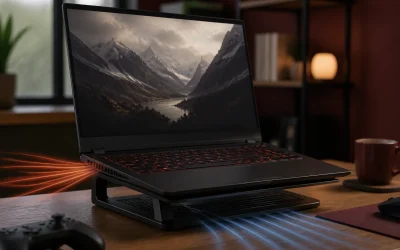
Thermal throttling is when a laptop’s CPU or GPU automatically reduces its clock speed to avoid overheating, and it shows up as sudden FPS drops or stutter during long gaming sessions even though the same game ran smoothly for the first ten or fifteen minutes. The fix depends on the cause: dust buildup, dried thermal paste, an aggressive default fan curve, or genuinely undersized cooling relative to the hardware inside, and each has a different solution ranging from a five-minute software change to a full repaste.
This guide covers how to confirm you are actually throttling (rather than simply hitting a power limit or a game-side FPS cap), the temperature thresholds that trigger throttling on most laptop chips, and the fixes in order of effort: software adjustments first, physical cleaning and repasting next, and external cooling pads and usage habit changes as ongoing maintenance.
As an Amazon Associate we earn from qualifying purchases at no extra cost to you.


Top 3 picks at a glance
What Thermal Throttling Actually Is
Every CPU and GPU has a maximum safe operating temperature set by the manufacturer, and when the chip approaches that limit, onboard firmware automatically reduces clock speed to generate less heat and protect the silicon from damage. This is a deliberate safety mechanism, not a malfunction, and it happens on every laptop under sufficiently demanding sustained load; the question is not whether throttling can happen but whether your specific laptop is hitting that limit sooner than its cooling system should allow.
Throttling is distinct from a power limit cap, which is a separate mechanism where the manufacturer restricts how many watts the CPU or GPU can draw regardless of temperature, often to protect battery life or stay within the chassis’s power delivery budget. A laptop can reduce performance under sustained load due to a power limit alone, with temperatures well below the thermal throttle point, which looks similar to a user but has a different underlying cause and a different fix.
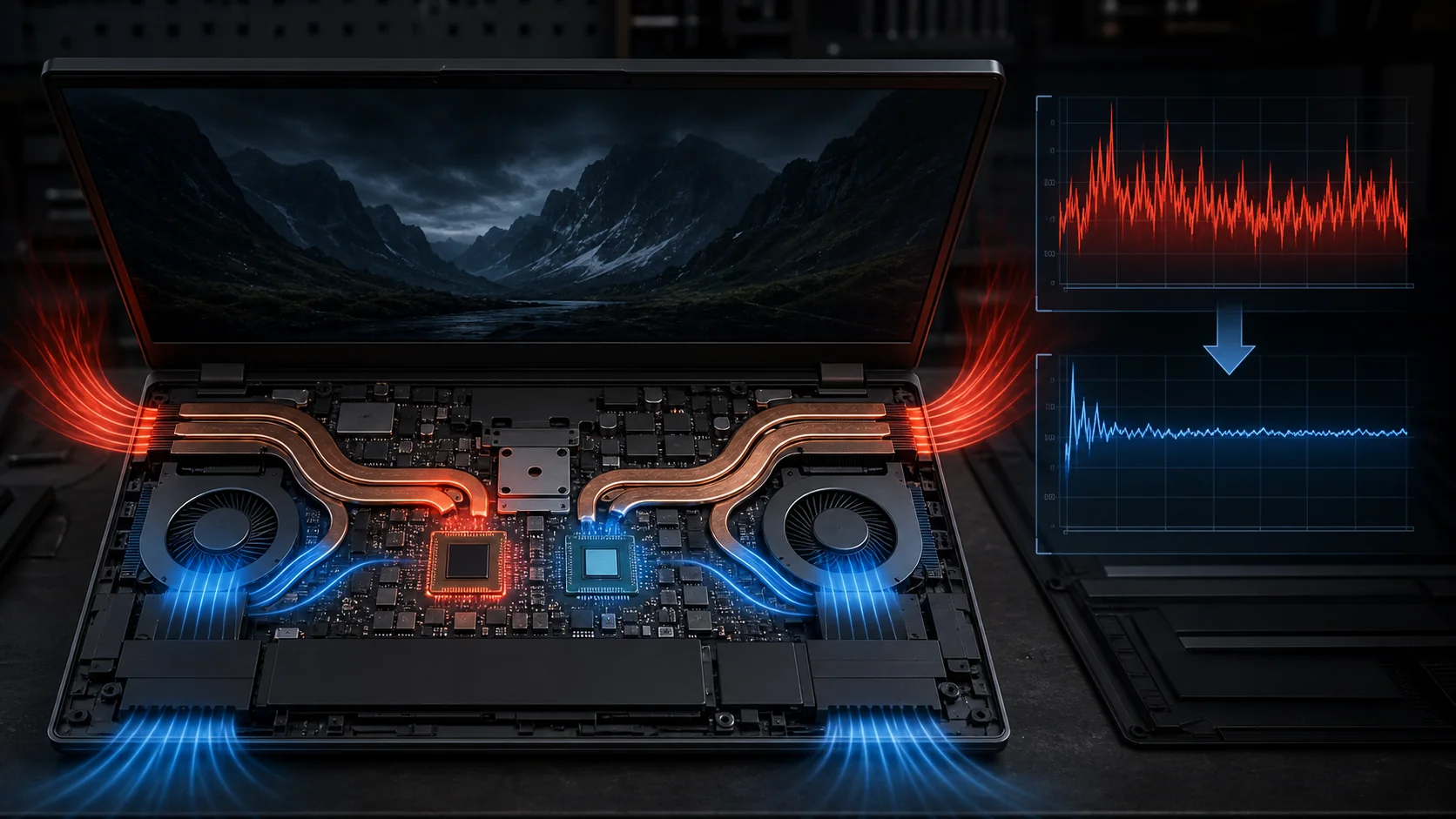
The practical symptom of thermal throttling is a game that runs at a stable, expected frame rate for the first several minutes of a session, then gradually or suddenly drops FPS by 15 to 40 percent as the chassis heats up, often stabilizing at a lower but consistent frame rate rather than continuing to decline. This pattern, sometimes called “thermal saturation,” happens because the heatsink and fans reach their maximum heat-dissipation capacity and the chip settles into an equilibrium at a lower clock speed.
Both CPU and GPU can throttle independently, and in many games the GPU is the more common bottleneck since it typically generates more heat under sustained load. However, CPU throttling is also common in laptops with thin chassis and shared heat pipes, particularly during CPU-intensive titles or when the laptop is also running background tasks like a Discord call or a video capture tool alongside the game.
How to Tell If Your Laptop Is Throttling
The most reliable way to confirm throttling is to monitor CPU and GPU clock speed and temperature simultaneously during a sustained gaming session, using a free tool like HWiNFO64 (for detailed sensor logging) or MSI Afterburner with its on-screen display enabled. Watch for clock speed dropping in step with temperature approaching a plateau, typically in the low-to-mid 90s Celsius for CPUs and mid-80s Celsius for GPUs, which is the clearest signature of thermal throttling rather than any other performance limitation.
Run a stress test or a demanding game for at least fifteen to twenty minutes, since throttling often does not appear in the first few minutes when the chassis is still cool from being idle; a laptop that looks fine in a five-minute benchmark can throttle noticeably by the twenty-minute mark of a real gaming session. Log both temperature and clock speed over that window rather than relying on a single snapshot reading.
Compare your observed sustained clock speeds against the chip’s published base and boost clocks. If your CPU’s rated boost clock is 4.5GHz but you observe it settling at 2.8GHz to 3.0GHz under sustained load while temperature holds steady at 95°C to 97°C, that is a clear throttling signature. If clock speed drops but temperature is well below the throttle threshold (for example mid-70s Celsius), the cause is more likely a power limit or a game-side setting rather than heat.
Also rule out other causes of FPS drops that can look similar to throttling: background software (browser tabs, recording software, cloud sync clients), Windows power plan set to Balanced or Power Saver instead of Best Performance, or a game running on integrated graphics instead of the discrete GPU due to a MUX switch or Optimus configuration issue. Confirming actual clock speed and temperature behavior rules these alternatives out definitively.
Typical Throttle Thresholds by Component
Throttle points vary by chip generation and manufacturer firmware tuning, but the table below reflects commonly observed thresholds across current laptop CPUs and GPUs, useful as a reference point when reviewing your own monitoring logs.
| Component | Typical Throttle Onset | Critical Shutdown Temp | Healthy Sustained Range |
|---|---|---|---|
| Laptop CPU (Intel/AMD) | 90°C – 100°C | 100°C – 105°C | 75°C – 88°C under load |
| Laptop GPU (RTX-class) | 83°C – 87°C | 90°C – 95°C | 65°C – 80°C under load |
| VRM / power delivery | 100°C – 110°C | 115°C+ | Under 95°C recommended |
| SSD (NVMe) | 70°C – 80°C | 85°C+ | Under 60°C ideal |
These are general reference ranges rather than universal specifications, since every manufacturer sets its own firmware thresholds and some tune more aggressively for sustained boost clocks (running closer to the edge for more performance) while others tune conservatively for quieter, cooler operation at the cost of peak sustained clocks. Use your specific model’s monitoring data over time rather than assuming these numbers apply exactly to your laptop.
Cleaning and Repasting as a Fix
Dust accumulation on heatsink fins and fan blades is the single most common cause of worsening thermal performance over a laptop’s first one to two years of use, since it physically blocks airflow through the narrow fin channels that are supposed to carry heat away from the heat pipes. Compressed air blown through the exhaust vents while the fans are stationary (laptop off) can dislodge loose dust, but a proper cleaning that opens the bottom panel and directly brushes the fins and fan blades is considerably more effective and worth doing every four to six months for regular gaming use.
Factory thermal paste, the compound that transfers heat from the CPU and GPU die to the heatsink’s copper contact plate, degrades over time as it dries out and loses thermal conductivity, particularly in laptops that run hot regularly. This degradation typically becomes noticeable after two to three years and can account for a meaningful portion of a laptop’s rising temperatures even without any dust buildup, since the paste itself is simply less effective than when it was new.
Repasting involves opening the chassis past the RAM and SSD access panel to remove the heatsink assembly, cleaning off the old paste with isopropyl alcohol, and applying a fresh high-performance compound like Thermal Grizzly Kryonaut or Noctua NT-H2 in a thin, even layer before reassembling. This is a more involved repair than a RAM or SSD swap and carries real risk of breaking heatsink retention clips on tightly packed chassis, so it is best attempted only after you are comfortable with basic laptop disassembly.
In our research, repasting a laptop with two-plus years of regular use and no prior cleaning typically drops sustained load temperatures by 5°C to 15°C, which is frequently enough to eliminate or substantially reduce throttling on machines where the cooling system itself was never the real problem, just degraded thermal transfer. If your laptop still throttles noticeably after a proper repaste and cleaning, the underlying cooling system capacity, not paste or dust, is the limiting factor.
Fan Curves and Software Settings
Most gaming laptops ship with a default “Balanced” or “Standard” fan profile that prioritizes acoustic comfort over maximum cooling, meaning the fans do not spin up to their full RPM until temperatures are already fairly high. Switching to a “Performance” or “Turbo” fan mode in your manufacturer’s control center software (Armoury Crate, Omen Gaming Hub, Legion Toolkit, Predator Sense, MSI Center, and similar utilities depending on brand) forces fans to ramp up earlier and harder, which can meaningfully reduce peak sustained temperatures at the cost of noticeably louder fan noise.
Many of these same utilities allow custom fan curves, letting you set fan speed percentage at specific temperature checkpoints (for example 50% fan speed at 60°C, 80% at 75°C, 100% at 85°C) rather than relying on the manufacturer’s default curve. A more aggressive custom curve that ramps fans earlier, even if slightly noisier during moderate loads, often prevents the temperature spikes that trigger throttling in the first place rather than reacting to them after the fact.
Windows Power Plan also affects thermal behavior indirectly: setting the plan to “Best Performance” (or your manufacturer’s equivalent high-performance mode) rather than “Balanced” removes some background CPU frequency scaling that can otherwise cause inconsistent clock behavior, though this has a smaller effect on throttling specifically than fan curve changes.
Some manufacturer utilities also expose a separate “GPU Boost” or dynamic overclocking toggle that pushes the GPU closer to its thermal limit for slightly higher average clocks; disabling this feature on a laptop that already struggles with throttling can paradoxically improve sustained performance, since it prevents the GPU from repeatedly hitting and backing off from its throttle point in a cycle that produces inconsistent frame times.
Undervolting and Power Limit Adjustments
Undervolting reduces the voltage supplied to the CPU or GPU at a given clock speed, which lowers heat output without reducing performance, since modern chips are typically shipped with more voltage headroom than they strictly need for stability across a wide range of manufacturing variance. A successful undervolt can reduce sustained temperatures by 5°C to 10°C with no measurable performance loss, and in throttling scenarios can actually increase sustained performance because the chip spends less time backing off from its thermal limit.
For Intel CPUs, Intel XTU (Extreme Tuning Utility) allows adjusting core voltage offset; for AMD CPUs, Ryzen Master provides similar control through Precision Boost Overdrive and Curve Optimizer settings. For NVIDIA GPUs, MSI Afterburner is the standard tool for creating a custom voltage-frequency curve that runs at lower voltage for a given clock speed, a process sometimes called “curve editing” rather than simple undervolting.
Undervolting should be tested for stability incrementally: reduce voltage in small steps, then run a stress test or extended gaming session to check for crashes or driver errors, which indicate the undervolt is too aggressive for your specific chip’s silicon quality. An unstable undervolt causes a crash or blue screen rather than any hardware damage, so the process carries no meaningful risk beyond the inconvenience of a crash during our research.
Reducing the GPU’s power limit (also adjustable in MSI Afterburner, typically as a percentage of the default TDP) is a blunter but often effective alternative: capping power at 85 to 90 percent of default can reduce peak temperature enough to prevent throttling entirely, and because a throttling GPU was already losing clock speed to manage heat, the net FPS loss from a modest power limit reduction is frequently smaller than the FPS lost to uncontrolled throttling in the first place.
External Cooling Pads: Do They Help?
Laptop cooling pads, which sit underneath the laptop and use their own fans to push additional air through the chassis’s intake vents, provide a real but modest benefit, typically reducing internal temperatures by 3°C to 8°C in our research across several laptop models. This is enough to meaningfully delay or reduce mild throttling, particularly on laptops with bottom-mounted intake vents that can be partially blocked by soft surfaces like a bed or couch cushion.
Cooling pads are most effective in exactly that scenario, when a laptop is used on a soft or uneven surface that restricts its normal intake airflow, since simply elevating the chassis and improving underside airflow addresses a real, self-inflicted cooling problem. On a hard, flat desk surface with unobstructed vents, a cooling pad’s benefit is smaller, since the laptop’s own intake pathway was not restricted to begin with.
A cooling pad is not a substitute for cleaning and repasting on a laptop with genuinely degraded internal thermal transfer, and it will not eliminate throttling caused by a chip generating more heat than the laptop’s heatsink and vapor chamber were designed to dissipate, since the pad’s airflow addresses only the exterior of the chassis rather than the internal component-to-heatsink contact.
When choosing a cooling pad, prioritize models with metal mesh surfaces (for better heat radiation than solid plastic) and fans positioned to align with your specific laptop’s intake vent locations, since a mismatched pad with fans blowing air where your laptop has no vents provides negligible benefit despite the added noise and desk space.
Environmental and Usage Habits That Cause Throttling
Ambient room temperature has a direct and often underestimated effect on thermal throttling, since a laptop’s cooling system can only move heat from the chip to the surrounding air, and that process becomes less efficient as ambient temperature rises. A laptop that runs without issue in a 68°F air-conditioned room can throttle noticeably in a 80°F room during summer, even with identical internal cleanliness and settings.
Using a laptop on soft surfaces (beds, couches, carpet, or your lap) is one of the most common and most avoidable causes of elevated temperatures, since nearly all gaming laptops draw intake air through vents on the bottom panel, and soft surfaces conform around and partially seal those vents. A hard, flat, elevated surface, even a simple $15 laptop stand, restores normal airflow in a way no software setting can replicate.
Running multiple demanding applications simultaneously (a game, a Discord voice call with video, a browser with dozens of tabs, and background cloud sync software) increases total system heat output beyond what any single application would produce alone, and closing unnecessary background processes before a gaming session is a simple, free way to reduce total thermal load.
Battery charging while gaming also adds heat, since the laptop is simultaneously drawing power to charge the battery and to run demanding hardware at full load; some manufacturer utilities include a “battery bypass” or “gaming mode” that routes power directly to the components without charging the battery during active use, which can measurably lower temperatures during long sessions if your laptop supports it.
When Throttling Persists After All Fixes
If throttling continues after cleaning, repasting, adjusting fan curves, and undervolting, the underlying issue is most likely a cooling system that is simply undersized for the CPU and GPU combination inside the chassis, which happens most often on thin, lightweight gaming laptops that prioritize portability over cooling capacity. In this case, the fixes above will reduce but not eliminate throttling, and the realistic ceiling on further improvement is limited by heatsink surface area and vapor chamber design that cannot be changed after purchase.
Check whether your specific model has documented throttling issues reported by other owners or reviewers, since some laptop generations have known cooling design shortcomings (undersized heat pipes for the GPU wattage, insufficient fan RPM headroom, or vapor chambers that do not fully cover the die) that no amount of maintenance fully resolves. If so, a power limit reduction of 10 to 20 percent below stock, accepted as a permanent setting rather than a temporary fix, is often the most stable long-term solution.
Rule out a failed or disconnected heat pipe by checking whether one specific component (for example the GPU but not the CPU) throttles dramatically worse than expected relative to its rated thermal design; this can indicate a heat pipe that lost contact with the die during a previous disassembly or from manufacturing tolerance issues, which requires professional repair or heatsink reseating to fix rather than any software adjustment.
According to Aaron Whitfield, Mobile Systems Editor who tests sustained-load thermal behavior using a thermal camera and a standardized load benchmark suite across every laptop reviewed, the most reliable single predictor of long-term throttling resistance is heatsink fin surface area and heat pipe count relative to combined CPU and GPU wattage, information usually found in detailed teardown reviews rather than manufacturer spec sheets.
Readers dealing with persistent throttling on an aging laptop should also consider whether the machine has simply reached the end of its practical performance lifespan; our gaming laptop lifespan guide covers realistic component longevity, and our best gaming laptop cooling pad picks list specific models tested for actual temperature reduction rather than marketing claims. If you are shopping for a replacement with cooling headroom built in from the start, our best 17 inch gaming laptop guide favors larger chassis with more heatsink surface area. For readers who also want to understand how screen performance interacts with sustained frame rates, see our guide to screen refresh rate for how throttling affects your ability to fill a high-Hz panel.
Dust packed into the heatsink fins is one of the most common causes of throttling that reapplying thermal paste alone won’t fix — our laptop cleaning walkthrough covers safely opening the vents and clearing that buildup.
Frequently Asked Questions
What temperature causes a gaming laptop to throttle?
Most laptop CPUs begin throttling somewhere between 90°C and 100°C, while GPUs typically throttle between 83°C and 87°C, though the exact threshold varies by chip and manufacturer firmware, so use HWiNFO or a similar monitoring tool to check your specific model’s throttle temperature under sustained load rather than assuming a universal number.
Does repasting a gaming laptop actually help with throttling?
Yes, factory thermal paste on laptops often dries out and loses effectiveness within two to three years of regular gaming use, and replacing it with a fresh high-performance compound like Thermal Grizzly Kryonaut typically drops sustained load temperatures by 5°C to 15°C, which is often enough to eliminate or significantly reduce throttling on an aging laptop.
Do cooling pads actually reduce thermal throttling?
Cooling pads provide a modest benefit, typically lowering internal temperatures by 3°C to 8°C by improving airflow to the laptop’s intake vents, which is enough to delay or reduce mild throttling but rarely enough to fully eliminate throttling on a laptop with a genuinely undersized cooling system relative to its hardware.
Is undervolting safe for a gaming laptop?
Yes, undervolting reduces the voltage supplied to the CPU or GPU without changing its clock speed, which lowers heat output and often reduces or eliminates throttling with no meaningful performance loss and no risk of hardware damage, since an unstable undervolt simply causes a crash rather than harming the component, though it should be tested for stability before relying on it.
How often should I clean the dust out of a gaming laptop?
Every four to six months for regular gaming use, or every two to three months in dusty environments or homes with pets, since accumulated dust on the heatsink fins and fan blades is one of the most common and most fixable causes of rising temperatures and throttling over a laptop’s lifespan.