Our Top Picks
 Razer Blade 18 Gaming -Laptop: NVIDIA GeForce RTX15.74 x 10.84 x 0.86 inches6.8 poundsCheck on Amazon
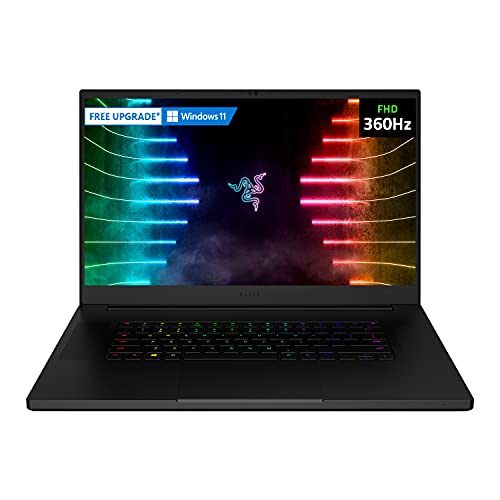 Razer Blade 17 Gaming Laptop: NVIDIA GeForce RTX17-30.99 inches7.8 x 6.06 x 10.23 inches6.06 poundsCheck on Amazon

Top 3 picks at a glance
Best Razer Laptops for Video Editing
The best Razer laptop for video editing is a Razer Blade 16 configured with a color-accurate OLED display, at least 32GB of memory, a 1TB SSD, and an RTX GPU with enough VRAM for your footage and effects. Choose a Blade 18 if you want more screen space and sustained cooling at a desk; choose a Blade 14 if portability matters more than upgrade headroom.
For editing, the GPU name alone doesn’t settle the decision. Screen coverage and calibration affect color work, processor performance shapes exports and responsiveness, and memory, storage, ports, and cooling determine whether a large project stays comfortable to use.
As an Amazon Associate we earn from qualifying purchases at no extra cost to you.


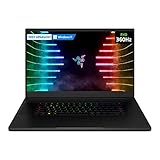
How the Blade lineup fits different editing workloads
| Razer laptop | Best fit | What to prioritize | Main trade-off |
|---|---|---|---|
| Blade 14 | Travel editing, 1080p and moderate 4K projects | 32GB memory, 1TB SSD, OLED option where available | Smaller screen and less room for sustained cooling than larger Blades |
| Blade 16 | One-laptop 4K editing, color work, effects | 32GB or more, 1–2TB SSD, RTX GPU suited to your effects workload | Performance configurations are heavier and demand more power |
| Blade 18 | Desk-based editing, large timelines, multicamera work | High-end CPU/GPU, 32GB or more, ample internal storage | Less convenient to carry; the built-in panel still benefits from external reference monitoring |
Razer updates configurations over time, and screen panels, memory, and graphics options can vary by model year and region. Check the exact configuration before buying rather than assuming every Blade 14, 16, or 18 has the same display or upgrade options.
Screen: prioritize coverage, not just resolution
A high-resolution, high-refresh display can make a timeline feel spacious, but color coverage and calibration matter more when grading. Look for stated coverage of at least 100% sRGB for general web video work; creators targeting wider-gamut delivery should check for strong DCI-P3 coverage. OLED Blade configurations can offer rich contrast and wide color, but verify the panel’s coverage and factory calibration for the specific model.
Coverage is not the same as accuracy: a panel can show a wide range of colors but still need calibration. For reliable color decisions, calibrate the display with a colorimeter and keep brightness consistent. An external calibrated monitor is preferable for final color-critical work. Also account for OLED burn-in risk: hide static interface elements when practical and use sensible screen-sleep settings during long sessions.
CPU, GPU, and memory: match them to your timeline
The processor handles tasks such as timeline operations, decoding, and parts of export, while the GPU accelerates supported effects, color processing, and playback. A strong RTX GPU is especially useful for GPU-accelerated effects and workflows that use NVIDIA’s hardware encoding. It will not fix every bottleneck: some codecs or effects remain CPU-heavy, and poorly optimized media can stutter even on a powerful machine.
- 1080p editing: A recent multi-core CPU, 32GB memory, and a midrange RTX GPU are a practical starting point.
- 4K editing: Favor 32GB as a minimum for complex timelines; 64GB is useful for multicamera work, large effects stacks, or keeping other creative apps open.
- 6K/8K, heavy effects, or AI tools: Choose a larger Blade with a higher-tier GPU and more memory. Check the exact GPU’s VRAM; large frames, noise reduction, and layered effects can exhaust it.
Memory may be soldered or otherwise difficult to upgrade, depending on the exact Blade configuration. Treat the installed amount as the amount you may have for the laptop’s entire life, and confirm upgradeability before purchase.
Storage and ports: plan for the footage, not just the laptop
A 1TB internal SSD is a reasonable starting point for apps, cache, and active projects, but camera originals can consume it quickly. A 2TB drive offers more working room. If your project is too large for internal storage, edit from a fast external SSD and keep a separate backup. Use a second drive for backup rather than treating a single external project drive as a safety copy.
Check the exact model’s port layout for USB-C/Thunderbolt, USB-A, HDMI, and an SD card reader. An SD reader can save time with camera media; HDMI or USB-C can connect a monitor; a dock can reduce cable changes at a desk. If the laptop lacks a built-in reader, a USB-C reader is a simple workaround. For external SSDs, confirm the port and drive support a fast connection—using a slower cable can bottleneck transfers.
Worked example: estimate storage for a 4K project
Suppose you shoot 60 minutes of 4K footage at 100 Mb/s. Divide by eight to convert megabits to megabytes: 100 ÷ 8 = 12.5 MB/s. Then multiply by 3,600 seconds: 12.5 × 3,600 = 45,000 MB, or roughly 45GB of camera footage. That is before proxies, audio, graphics, cache, renders, and backup copies.
For a project with three camera angles, the originals alone could approach 135GB at that bitrate. In practice, reserve several times the source-footage size for working space and cache, especially when keeping multiple versions or exporting intermediate files. This is why a 1TB internal SSD can feel tight even when the finished video is small.
Cooling and sustained performance
Video exports and effects can keep the CPU and GPU busy for much longer than a short benchmark. Thin laptops may reduce performance as heat builds, and fan noise can become noticeable in a quiet room. The Blade 16 and 18 have more physical room for cooling than the Blade 14, but actual sustained speed depends on configuration, power mode, workload, and ambient temperature.
For long exports, use the laptop on a hard, unobstructed surface, connect its power adapter, and select a performance mode appropriate to the workload. Avoid blocking vents or editing on soft bedding. If you record voice near the laptop, move the microphone away from the exhaust and consider rendering after recording.
Choose by project and footage size
| Your situation | Best starting choice | Reason |
|---|---|---|
| Frequent travel, short 1080p/4K edits | Blade 14 with 32GB and 1TB | More portable; external SSDs can handle larger media libraries |
| Regular 4K editing and color work | Blade 16 with 32GB or more and a color-accurate panel | Balances screen space, GPU options, and sustained workload capacity |
| Multicam, long exports, or desk-first use | Blade 18 with 32GB or more and a higher-tier GPU | Larger workspace and chassis suit longer, heavier sessions |
| Large 6K/8K projects or demanding effects | Blade 16 or 18 with 64GB where offered and ample GPU VRAM | More memory and graphics headroom reduce resource-related slowdowns |
Bottom line
For most editors, the Blade 16 is the most balanced Razer choice: it can pair a capable RTX GPU with a large, color-rich display without reaching the size of the Blade 18. Pick the Blade 14 when carrying weight matters most, and the Blade 18 when your workflow is demanding and the laptop will spend most of its time on a desk. Before buying, confirm the exact panel gamut, memory capacity and upgrade path, GPU VRAM, SSD size, and ports for that specific configuration.
Related guides
- ROG Zephyrus G14 vs Razer Blade 14: Which 14-Inch Gaming Laptop Fits You?
- MSI Titan 18 HX AI Review: Listings Compared, Specs Checked, Cases Sorted
- MSI Cyborg 17 Review: A 17-Inch RTX 5060 Laptop, and the Storage Detail to Check First
- ASUS ROG Strix SCAR 18 Review: RTX 5090 vs RTX 5080 Listings and Four Alternatives