Choosing the best Windows 11 settings for gaming laptop performance means balancing GPU usage, CPU power, display refresh rate, and background activity. The right configuration can help your laptop use its available hardware more effectively, reduce unnecessary interruptions, and deliver a smoother gaming experience without risky system modifications.
What the Best Windows 11 Gaming Settings Really Come Down To
Windows 11 includes several features that influence gaming performance, but not every option improves FPS. Gaming laptops also have manufacturer-specific power controls, hybrid graphics configurations, and thermal limits. Before changing anything, understand which settings affect GPU selection, power delivery, and display behavior.
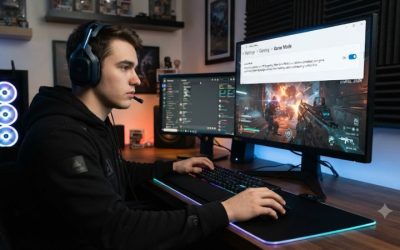
1. Enable Game Mode for a Better Gaming Environment
Game Mode is a useful starting point for most gaming laptops. It helps Windows prioritize gaming activity and manage background operations while a game runs. It does not increase GPU power or guarantee higher FPS, but enabling it establishes a sensible gaming configuration.
To enable it, open Settings > Gaming > Game Mode and switch Game Mode to On. Restart your game if necessary, then compare performance during similar gameplay sessions. Keep this setting enabled unless you identify a specific compatibility issue with a game or application.
2. Understand GPU Selection on Hybrid Graphics Laptops
Many gaming laptops contain an integrated GPU and a dedicated NVIDIA GeForce or AMD Radeon GPU. The integrated graphics processor generally handles lighter workloads, while the dedicated GPU is designed for demanding games. Windows can assign graphics preferences to individual applications.
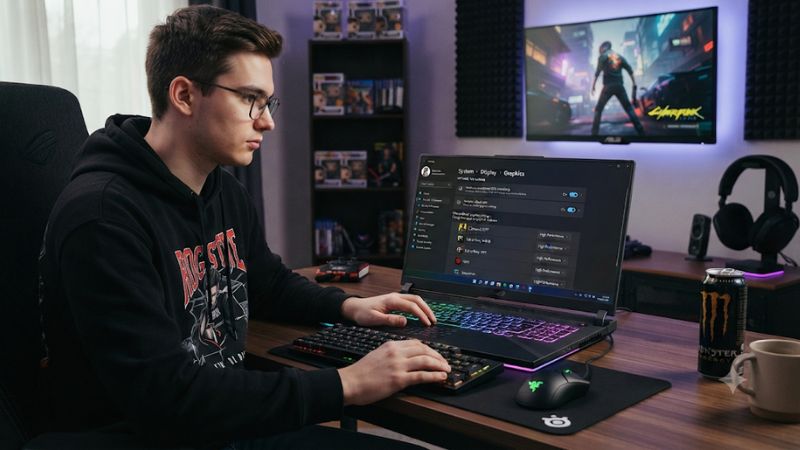
Open Settings > System > Display > Graphics, select your game, and choose Options. Select High performance when you want Windows to prefer the dedicated GPU. This is particularly useful when a game unexpectedly runs on integrated graphics, although the actual result depends on the laptop’s graphics architecture.
3. Balance Power Mode With Laptop Temperature
Windows 11 offers different power modes, including Best power efficiency, Balanced, and Best performance. The performance-oriented option can help the processor operate at higher performance when needed, but it also increases power consumption and can produce additional heat.
For demanding games, connect the laptop to its supported AC adapter and consider selecting Best performance. However, Windows power mode is only one part of the system’s power management. Your laptop manufacturer’s performance profile, cooling system, firmware, and GPU power limits also influence actual gaming performance.
4. Match Display Refresh Rate to Your Gaming Needs
A gaming laptop might include a 120Hz, 144Hz, 165Hz, 240Hz, or higher-refresh-rate display. However, Windows does not always select the highest available refresh rate automatically. Using a lower setting can make motion appear less responsive, even when the game produces sufficient frames.
Navigate to Settings > System > Display > Advanced display and check Choose a refresh rate. Select the highest appropriate rate supported at your current resolution. Remember that a high refresh rate does not automatically increase FPS; the GPU and game must generate frames to take advantage of it.
How to Configure the Best Windows 11 Settings for Gaming Laptop: Step by Step
The following configuration focuses on practical Windows options rather than aggressive system modifications. Start with the settings that affect game scheduling and GPU selection, then adjust power and display behavior. Change one option at a time so you can identify which adjustments actually improve your gaming experience.
Step 1. Configure Game Mode and Graphics Preferences
Start by enabling Game Mode through Settings > Gaming > Game Mode. Next, navigate to Settings > System > Display > Graphics and locate your installed games under Custom options for apps. Add a game manually if it does not appear in the list.
Select the game, open Options, and choose High performance if your laptop has switchable graphics. Check that Windows identifies the intended dedicated GPU before saving. Launch the game and verify GPU activity through Task Manager’s Performance tab or an appropriate monitoring utility.
Step 2. Adjust Windows Power Mode and Background Applications
Open Settings > System > Power & battery and locate Power mode. Choose Best performance while gaming on AC power if the option is available. Return to Balanced or a more efficient mode when performing everyday tasks to avoid unnecessary energy consumption.
Next, open Task Manager with Ctrl + Shift + Esc. Review the Processes and Startup apps sections to identify applications consuming significant resources. Close unnecessary applications and disable unwanted startup entries. Do not disable security software, graphics services, audio drivers, or essential manufacturer utilities simply to reduce background activity.
Step 3. Enable Windowed Game Optimizations and Check VRR
Windows 11 includes Optimizations for windowed games, which can improve presentation behavior for compatible DirectX 10 and DirectX 11 games running in windowed or borderless windowed modes. Microsoft explains that the feature can reduce frame latency and enable supported gaming technologies.
Navigate to Settings > System > Display > Graphics > Default settings and enable Optimizations for windowed games. Restart the game afterward. If your display supports Variable Refresh Rate (VRR), check its availability and relevant display settings. These features depend on the game, graphics driver, and display hardware.
Step 4. Check Display, Updates, and Graphics Drivers
Open Settings > System > Display > Advanced display and confirm that your laptop uses the intended refresh rate. If the display supports VRR, verify its status. Avoid selecting a refresh rate that forces an unwanted resolution change.
Then visit Settings > Windows Update and check for available updates. Also check your laptop manufacturer’s support application or official support website for compatible graphics drivers. NVIDIA and AMD users can use their respective official driver software. Avoid installing random third-party driver packages, particularly when the laptop uses manufacturer-customized graphics configurations.
Windows 11 Gaming Settings Comparison
The following table summarizes the most useful options, their locations, and the trade-offs to consider before applying them.
| Setting or Step | Where | Effect | Risk |
|---|---|---|---|
| Game Mode | Settings > Gaming > Game Mode | Prioritizes gaming activity | Limited benefits on some systems |
| GPU preference | Settings > System > Display > Graphics | Selects preferred GPU per game | Higher power consumption |
| Power mode | Settings > System > Power & battery | Prioritizes system performance | More heat and battery drain |
| Windowed optimizations | Settings > System > Display > Graphics | Improves compatible windowed game presentation | Game-specific compatibility |
| Refresh rate | Settings > System > Display > Advanced display | Uses the display’s supported refresh rate | Higher battery consumption |
| Startup apps | Task Manager > Startup apps | Reduces unnecessary background activity | Some useful applications may not launch automatically |
The most important distinction is that these options serve different purposes. GPU preference determines which processor Windows prefers for an application, while power mode changes the system’s power policy. Display settings affect presentation rather than the GPU’s raw rendering capability.
Additional Considerations for NVIDIA and AMD Gaming Laptops
Windows graphics preferences are not the only controls available on a gaming laptop. NVIDIA users may have additional options through NVIDIA Control Panel or the NVIDIA app, depending on their hardware and driver version. Laptops supporting Advanced Optimus can dynamically switch between integrated and dedicated graphics.
AMD users should check the available graphics and power options in their manufacturer’s software and AMD graphics software. Avoid forcing a dedicated GPU-only display mode unless your laptop supports it and you understand the battery-life implications. Some graphics switching features require manufacturer-specific support.
What Doesn’t Help Improve Gaming Performance
Not every popular Windows optimization is worth applying. Disabling Windows security features, running aggressive debloat scripts, deleting system services, or modifying registry values can introduce instability without delivering meaningful gaming improvements.
Similarly, reducing every visual effect or disabling all background applications is unnecessary on most modern gaming laptops. Windows visual effects mainly affect desktop responsiveness, not the GPU’s ability to render demanding games. Focus on settings that address an identifiable performance limitation instead of applying every optimization found online.
FAQ About Windows 11 Gaming Laptop Settings
These frequently asked questions cover common configuration concerns, including power consumption, graphics selection, gaming performance, and battery life. The most suitable configuration depends on your laptop specifications, cooling capabilities, display technology, and the games you play.
1. Does Windows 11 Game Mode Increase FPS on Gaming Laptops?
Windows 11 Game Mode can help prioritize gaming activity, but it does not guarantee an FPS increase. Its impact depends on background workloads, hardware resources, the game, and the overall system configuration.
For most gaming laptops, enabling Game Mode is a reasonable default. If you experience unexpected stuttering after changing settings, compare performance with Game Mode enabled and disabled before deciding whether to keep it.
2. Should I Always Use Best Performance Power Mode While Gaming?
No, Best performance is most appropriate when gaming on AC power and when additional heat and energy consumption are acceptable. It can help Windows prioritize performance, but it does not override every manufacturer-defined CPU or GPU power limit.
For everyday browsing and productivity, Balanced is generally a more practical choice. If your laptop becomes excessively hot or its fans become too loud, check the manufacturer’s thermal and performance profiles rather than assuming Windows power mode is the only cause.
3. Should I Disable Integrated Graphics for Better Gaming Performance?
No, disabling integrated graphics is generally unnecessary for gaming performance. Windows can assign demanding games to the dedicated GPU through per-application graphics preferences while allowing integrated graphics to handle lighter workloads.
Disabling integrated graphics can affect battery efficiency, display routing, or manufacturer-specific graphics switching. Use High performance in Windows Graphics settings first. Only change a dedicated-GPU-only mode through supported manufacturer controls when your laptop offers that feature.
4. Do Higher Refresh Rates Reduce Gaming Laptop Battery Life?
Yes, using a higher display refresh rate can increase power consumption, although the actual difference depends on the panel and laptop design. Higher refresh rates are useful for competitive games, while lower rates can be more practical for everyday battery-powered use.
Windows provides refresh-rate controls through Settings > System > Display > Advanced display. Some supported displays also offer Dynamic Refresh Rate, which can adjust refresh behavior according to activity. If DRR limits the refresh rate in a particular game, disabling it may resolve the issue.
Final Thoughts
The best Windows 11 settings for gaming laptop performance start with Game Mode, appropriate GPU selection, sensible power management, and the correct display refresh rate. Apply these changes individually and compare actual gameplay results. Keep your laptop plugged in, monitor temperatures, and prioritize stable performance over unnecessary Windows tweaks.
Related guides
More from Amazon
Programs that pair well with the guide above. Offers and eligibility are set by Amazon and may change.
Free shipping on eligible items, Prime Video and more. Eligible new members can start with a free trial.
Start a Prime free trialAd-free music streaming. Eligible new subscribers can start with a free trial.
Try Music Unlimited freeA Prime membership for ages 18-24 with a trial period. Eligibility is set by Amazon.
See Prime for Young AdultsAudiobooks and podcasts to listen to on the go. Eligible new members can start with a free trial.
Try Audible freeAs an Amazon Associate we earn from qualifying purchases.