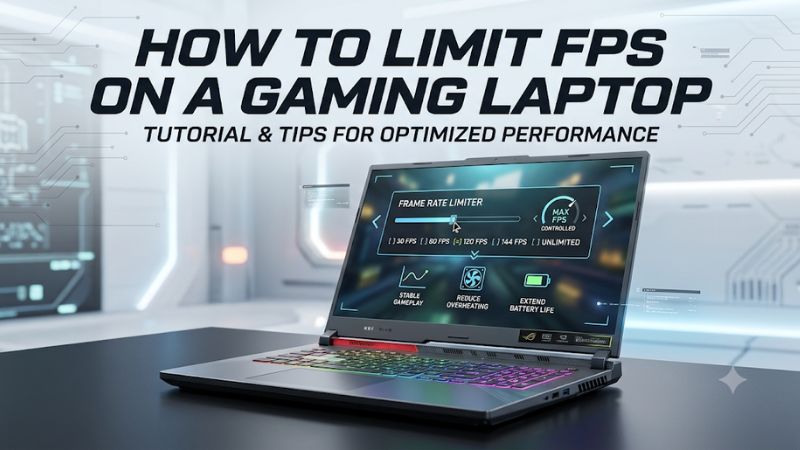
How to limit FPS on a gaming laptop is a useful skill when you want to reduce unnecessary GPU usage, lower fan noise, manage temperatures, or extend battery life. You can control frame rates through individual game settings, NVIDIA graphics software, AMD Adrenalin, or third-party utilities without replacing hardware or modifying BIOS settings.
What Limiting FPS on a Gaming Laptop Really Comes Down To
Limiting FPS means setting a maximum number of frames your laptop can render each second. Instead of allowing a game to produce as many frames as possible, you establish a ceiling that better matches your display, performance requirements, and power preferences. The right method depends on your GPU and the game.
1. Why You Should Limit Your Gaming Laptop’s FPS
A powerful gaming laptop can render considerably more frames than a particular game or display actually needs. When a game runs without a frame-rate limit, the GPU may continue working at high utilization even when additional frames provide little practical benefit.
Setting an FPS ceiling can reduce unnecessary GPU workload. Depending on the game, graphics settings, and laptop cooling system, this may also lower power consumption, temperatures, and fan noise. However, the improvement varies between systems.
Another reason is consistency. A reasonable frame-rate target can prevent unnecessary fluctuations when your hardware has sufficient performance headroom. This can make gameplay feel more predictable, particularly in games with relatively light graphics requirements.
2. Understand FPS Caps and Display Refresh Rates
Your display’s refresh rate determines how frequently it can update the image. A 60Hz screen refreshes 60 times per second, while a 144Hz display supports up to 144 refreshes per second.
Rendering more FPS than your display can refresh may still provide responsiveness benefits in certain circumstances, but it can also increase GPU workload. This is why some laptop owners prefer setting a frame-rate limit close to their display’s refresh rate.
Consider these general starting points:
-
60Hz display: Start with 60 FPS.
-
120Hz display: Start with 120 FPS.
-
144Hz display: Start with 120 or 144 FPS.
-
165Hz display: Start with 144 or 165 FPS.
-
240Hz display: Start with 180 or 240 FPS.
These are starting configurations rather than universal performance recommendations. Competitive players may prefer higher frame rates, while single-player gamers may prioritize lower temperatures and quieter operation.
If your laptop supports G-SYNC or AMD FreeSync, consider how the frame-rate cap interacts with variable refresh rate (VRR). Keeping FPS slightly below the display’s maximum refresh rate can help maintain operation within its VRR range.
3. Choose the Right FPS Limiting Method
There are several ways to control frame rates, and each has different advantages.
An in-game FPS limiter is generally the simplest option because it allows you to configure individual games without affecting unrelated applications. NVIDIA users can also configure maximum frame rates through supported driver settings.
AMD users have Radeon Chill, which dynamically adjusts frame rates according to gameplay activity. This is particularly useful when reducing power consumption is more important than maintaining a fixed frame rate.
Third-party applications offer another option when a game does not provide a suitable limiter. However, installing additional software is not necessary for most users.
What Doesn’t Help
Reducing FPS does not automatically solve every gaming laptop temperature or performance problem.
Several common adjustments are frequently confused with frame-rate limiting:
-
Lowering display brightness does not directly establish an FPS ceiling.
-
Changing Windows resolution does not impose a maximum frame rate.
-
Enabling V-Sync is not equivalent to choosing a custom FPS limit.
-
Switching Windows power modes does not provide a precise per-game frame-rate target.
-
Disabling background applications does not establish a frame-rate ceiling.
These adjustments may influence power consumption or gaming performance, but they serve different purposes. Use an actual FPS limiter when your objective is to control the maximum number of rendered frames.
How to Limit FPS on a Gaming Laptop: Step by Step
The easiest approach is to start with the game’s own graphics settings. If that option is unavailable or does not work correctly, use your GPU manufacturer’s software. Each method has different compatibility requirements, so check that your selected limiter applies to the game and graphics processor actually being used.
Step 1: Set an FPS Limit Inside the Game
Using the in-game limiter is usually the best starting point. Most modern PC games provide a graphics, video, or display settings menu containing an option called Max FPS, Frame Rate Limit, Maximum Frame Rate, or similar.
To configure it:
-
Launch the game.
-
Open Settings or Options.
-
Navigate to Graphics, Video, or Display.
-
Find the frame-rate limit option.
-
Select your preferred maximum FPS.
-
Apply the changes and return to gameplay.
For example, if your laptop consistently renders 180 FPS but you want quieter operation, try setting the maximum to 120 FPS.
Some games provide separate limits for gameplay, menus, and background applications. Configure these independently when available. A lower menu limit can prevent unnecessary GPU activity while navigating menus or leaving the game open.
After applying the setting, check the displayed FPS using the game’s performance counter or another monitoring tool. If the frame rate continues exceeding your target, verify that the correct setting was saved and that the game does not have another active limiter.
Step 2: Use NVIDIA Max Frame Rate
NVIDIA laptop owners can use the driver’s Max Frame Rate setting to establish a maximum rendering rate for supported 3D applications.
Depending on your driver and software version, the setting may be available through NVIDIA Control Panel or NVIDIA App.
For NVIDIA Control Panel:
-
Right-click the Windows desktop.
-
Open NVIDIA Control Panel.
-
Select Manage 3D Settings under 3D Settings.
-
Open the Program Settings tab.
-
Select the game you want to configure.
-
Find Max Frame Rate.
-
Enable the setting and choose your desired FPS.
-
Click Apply.
For NVIDIA App, open Graphics and select Program Settings if the relevant controls are available for your GPU and driver version.
Program-specific configuration is preferable when you only want to limit certain games. Global Settings can affect multiple applications, potentially restricting games that benefit from higher frame rates.
NVIDIA also provides Background Application Max Frame Rate, which controls the rendering rate when a supported application is running in the background. This is different from the normal foreground gaming limit.
If your laptop uses WhisperMode or Battery Boost, remember that these features may impose additional frame-rate restrictions. Multiple active limits can result in the lowest applicable ceiling being used.
Step 3: Configure AMD Radeon Chill
AMD Radeon Chill provides an alternative for compatible Radeon graphics configurations. Unlike a conventional fixed FPS limiter, Chill dynamically adjusts frame rates according to character and camera movement.
This makes it useful for laptop owners who want to reduce GPU activity during less demanding gameplay situations.
To configure it:
-
Open AMD Software: Adrenalin Edition.
-
Navigate to Gaming.
-
Select the game you want to configure.
-
Open its graphics settings.
-
Locate Radeon Chill.
-
Enable the feature.
-
Adjust the Min FPS and Max FPS values.
-
Launch the game and check the resulting frame rate.
The Min FPS value controls the lower target during less active gameplay, while Max FPS establishes the upper target during more active scenes.
For example, you might choose a 60 FPS minimum and a 120 FPS maximum for a game where responsiveness matters but unrestricted rendering is unnecessary.
Radeon Chill is not supported in every game or graphics configuration. AMD also documents that Chill does not operate together with Radeon Anti-Lag and Radeon Boost in the configurations covered by its support instructions.
If you need a fixed maximum rather than movement-dependent frame-rate adjustment, an in-game limiter may be more appropriate.
Step 4: Use RivaTuner Statistics Server When Necessary
RivaTuner Statistics Server (RTSS) is a third-party utility that provides frame-rate limiting and monitoring capabilities. It can be useful when a game lacks a suitable built-in limiter or when driver-level options do not provide the behavior you want.
After installing RTSS from a trusted distribution source:
-
Open RivaTuner Statistics Server.
-
Locate the application profile area.
-
Add the game’s executable if it is not detected automatically.
-
Select the appropriate game profile.
-
Find the Framerate limit field.
-
Enter your desired maximum FPS.
-
Launch the game and verify the result.
RTSS can apply limits through application-specific profiles, allowing different targets for different games.
However, compatibility is not universal. Certain games, anti-cheat systems, protected applications, or graphics configurations may restrict third-party monitoring and injection tools. Do not attempt to bypass anti-cheat protections to force a limiter to work.
If a game behaves unexpectedly after installing RTSS, disable its profile or remove the application-specific limit. You can also return to the game’s built-in frame-rate control.
Comparison of FPS Limiting Methods
| Setting or Step | Where | Effect | Risk |
|---|---|---|---|
| In-game FPS limit | Game graphics settings | Sets a game-specific FPS ceiling | May not be available in every game |
| NVIDIA Max Frame Rate | NVIDIA Control Panel or NVIDIA App | Limits rendering in supported applications | Global settings can affect other games |
| Radeon Chill | AMD Adrenalin | Dynamically adjusts FPS according to gameplay activity | Not compatible with every game or feature combination |
| RTSS Framerate Limit | RTSS application profiles | Applies configurable application-specific limits | Possible compatibility restrictions |
How to Verify Your FPS Limit Is Working
After configuring a limiter, verify the result rather than assuming the setting is active.
Start by enabling the game’s built-in FPS counter if available. Alternatively, use NVIDIA’s performance overlay or a compatible monitoring utility.
Play an actual gameplay section rather than relying exclusively on the main menu. Some games use different frame-rate limits for menus, loading screens, cutscenes, and active gameplay.
Check the following:
-
Whether FPS stays near or below your selected maximum.
-
Whether the limit remains active after restarting the game.
-
Whether the correct game profile is selected.
-
Whether another limiter is imposing a lower ceiling.
-
Whether the laptop switches between integrated and dedicated graphics.
A frame counter may fluctuate slightly around a target because frame delivery is not perfectly uniform. A limiter should generally prevent sustained rendering above its configured ceiling, but the exact behavior depends on the implementation.
Also remember that monitoring overlays can report different frame-rate measurements in games using frame generation. Generated frames and conventionally rendered frames are not identical performance measurements.
FAQ
1. What Is the Best FPS Limit for a Gaming Laptop?
The best FPS limit depends on your display refresh rate, game, and performance preferences. Start with a target matching your screen’s refresh rate, then lower it if quieter operation, reduced power consumption, or lower temperatures are more important. Competitive games may benefit from higher targets.
2. Does Limiting FPS Reduce Gaming Laptop Temperature?
Yes, limiting FPS can reduce GPU workload and heat generation when the GPU would otherwise render additional unnecessary frames. However, the temperature reduction depends on graphics settings, CPU workload, cooling, ambient temperature, and the selected frame-rate target.
3. Should I Use V-Sync or an FPS Limiter?
An FPS limiter is the more direct choice when you want to establish a specific maximum frame rate. V-Sync synchronizes frame presentation with the display’s refresh cycle to reduce screen tearing. They can be used together, but their interaction with input latency and VRR should be considered.
4. Can I Limit FPS When Gaming on Battery Power?
Yes, you can limit FPS while gaming on battery power through supported in-game, NVIDIA, or AMD settings. A lower frame-rate target can reduce graphics workload, but gaming laptops still consume considerable power under load. Battery life also depends on GPU selection, screen brightness, CPU activity, and power settings.
Final Thoughts
Learning how to limit FPS on a gaming laptop gives you better control over graphics performance, temperatures, fan noise, and power consumption. Start with the in-game limiter, then consider NVIDIA Max Frame Rate or AMD Radeon Chill when appropriate. Verify your results and adjust the target to match your gaming priorities.
Related guides
More from Amazon
Programs that pair well with the guide above. Offers and eligibility are set by Amazon and may change.
Free shipping on eligible items, Prime Video and more. Eligible new members can start with a free trial.
Start a Prime free trialAd-free music streaming. Eligible new subscribers can start with a free trial.
Try Music Unlimited freeA Prime membership for ages 18-24 with a trial period. Eligibility is set by Amazon.
See Prime for Young AdultsAudiobooks and podcasts to listen to on the go. Eligible new members can start with a free trial.
Try Audible freeAs an Amazon Associate we earn from qualifying purchases.