Windows Game Mode on or off for gaming is a common question for PC and laptop owners looking to improve performance without buying new hardware. For most systems, leaving Game Mode enabled is the sensible starting point. However, disabling it can be worth investigating when a particular game experiences stuttering or inconsistent performance.
What Windows Game Mode Really Comes Down To
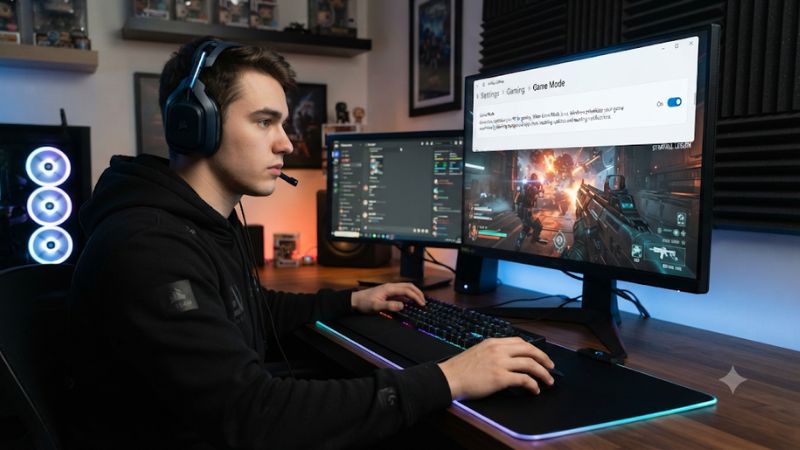
Windows Game Mode is a built-in feature designed to prioritize gaming activity and reduce interference from certain background tasks. It does not increase your GPU’s processing power or automatically raise clock speeds. Its practical value depends on your hardware, game, Windows version, and competing background workloads.
1. What Game Mode Actually Does
Game Mode is designed to give the active game priority when Windows manages system resources. Microsoft’s gaming guidance describes its purpose as improving consistency, particularly when other activities compete for available hardware resources.
It is not a universal background-process shutdown switch. Your antivirus, essential Windows services, and other applications do not simply disappear when a game starts. The feature also does not replace graphics drivers, CPU cooling, or laptop power management.
2. Does Game Mode Increase FPS?
Game Mode does not guarantee higher average FPS. A gaming PC with sufficient CPU resources and a GPU operating near full utilization may show little measurable difference because Windows has limited competing work to manage.
Systems with limited memory, busy background applications, or CPU-heavy games may have more reason to benefit. However, the outcome depends on the workload. Improvements in frame-time consistency can matter even when average FPS remains almost unchanged.
3. When Should You Consider Turning It Off?
If a specific game develops unusual stuttering, inconsistent frame delivery, or other problems after a Windows or driver update, temporarily disabling Game Mode is a reasonable diagnostic step. It is reversible and does not require registry modifications.
The important distinction is between a repeatable problem and a random FPS fluctuation. A single benchmark result is not enough to establish that Game Mode caused a performance change. Compare the same game and conditions before deciding.
4. Game Mode on Gaming Laptops
Gaming laptops can benefit from Game Mode when background workloads compete with the CPU, particularly when several applications are open. However, the feature does not override the laptop manufacturer’s thermal limits, GPU power limits, or battery-saving policies.
For laptop owners, remember that Windows power mode and Game Mode are separate controls. A laptop running on battery may reduce performance regardless of Game Mode. Connect the appropriate power adapter and check the manufacturer’s performance profile before attributing low FPS to Windows.
What Doesn’t Help
Disabling Game Mode is not a universal FPS optimization. It will not repair overheating, insufficient VRAM, outdated graphics drivers, or shader-compilation stutters. Likewise, repeatedly switching the setting without comparing identical workloads makes it difficult to identify the actual cause.
Avoid registry tweaks and third-party optimization scripts that promise dramatic improvements from changing Game Mode. The standard Windows Settings interface provides everything needed for this particular adjustment, without introducing unnecessary system risks.
How to Configure Windows Game Mode: Step by Step
Changing Game Mode is straightforward on Windows 11, and the process is reversible. Start with the default enabled configuration, then investigate whether a particular game behaves differently with the feature disabled. Avoid changing several Windows gaming settings simultaneously because that makes performance comparisons less reliable.
Step 1: Open the Game Mode Settings
Press Windows + I to open Settings. Select Gaming in the left sidebar, then choose Game Mode. You should see a switch that controls the feature globally.
On Windows 11, this is the standard location for the setting. If your Windows build uses different menu labels, enter Game Mode in the Settings search field. You do not need additional software or administrator-level registry modifications.
Step 2: Turn Game Mode On
Set the Game Mode switch to On if you want Windows to use its gaming-prioritization feature. This is the recommended starting configuration for most gaming PCs, especially systems that run background applications while playing.
Launch your preferred game and use the same gameplay scenario you normally experience. Pay attention to frame pacing, interruptions, and overall responsiveness rather than assuming that a higher average FPS reading is necessary for the setting to be useful.
Step 3: Compare Performance With Game Mode Off
If you suspect the feature is contributing to stuttering, return to Settings > Gaming > Game Mode and switch it to Off. Relaunch the same game and repeat the same gameplay sequence under comparable conditions.
Record average FPS, 1% lows when available, and frame-time behavior. Keep resolution, graphics settings, power mode, driver version, and background applications unchanged. Repeat the comparison to reduce the influence of random performance fluctuations.
Step 4: Choose the Better Configuration
If performance remains effectively identical, keeping Game Mode enabled is a reasonable choice. If disabling it repeatedly improves a particular game’s frame pacing, you can leave it off and investigate that title further.
Remember that this is a global Windows setting, not a separate switch for each individual game. If another title behaves differently, repeat your comparison rather than assuming one configuration will produce identical results across your entire library.
Game Mode Configuration Comparison
| Setting or Step | Where | Effect | Risk |
|---|---|---|---|
| Enable Game Mode | Settings > Gaming > Game Mode | Prioritizes gaming activity | May offer little measurable improvement |
| Disable Game Mode | Same settings page | Removes Game Mode prioritization | Background activity may compete more |
| Check performance | In-game benchmark or monitoring overlay | Reveals FPS and frame-time differences | Results can vary between runs |
| Restore preferred setting | Settings > Gaming > Game Mode | Returns to your preferred configuration | No significant configuration risk |
These changes are reversible and do not require reinstalling Windows or modifying the BIOS. If a performance problem persists with either configuration, investigate other possible causes instead of repeatedly toggling the same setting.
FAQ
1. Should Windows Game Mode Be On or Off for Gaming?
Windows Game Mode should generally be on for gaming because it provides a built-in way to prioritize gaming activity. Most users can leave the default configuration unchanged.
However, if a particular game repeatedly performs worse with the feature enabled, compare both configurations. Keep the one that provides more consistent gameplay on your system.
2. Does Windows Game Mode Improve FPS on Low-End PCs?
Game Mode may help low-end PCs when competing background workloads consume CPU or other system resources. However, it cannot compensate for an underpowered processor, insufficient RAM, or a GPU that cannot handle the selected graphics settings.
The actual improvement depends on the game and workload. Do not expect a guaranteed increase in average FPS simply by enabling the feature.
3. Does Game Mode Affect NVIDIA and AMD Graphics Cards?
Game Mode is a Windows feature rather than an NVIDIA or AMD graphics-card feature. It can be used with compatible gaming systems regardless of whether they use GeForce or Radeon GPUs.
However, it does not replace NVIDIA Control Panel settings, AMD Software settings, or graphics-driver optimizations. Treat these as separate configuration areas and change them only when you have a specific reason.
4. Should I Disable Game Mode to Fix Gaming Stuttering?
You can temporarily disable Game Mode to investigate stuttering, but doing so does not guarantee a fix. Compare the same game, settings, and gameplay conditions with the feature enabled and disabled.
If the stuttering remains, investigate GPU utilization, CPU temperatures, memory usage, driver problems, and shader compilation. These factors can cause performance issues independently of Game Mode.
Final Thoughts
For most PC gamers, Windows Game Mode on or off for gaming has a straightforward answer: start with it enabled and only disable it when a specific game shows repeatable problems. Compare performance under consistent conditions before deciding, and investigate other system bottlenecks if changing the setting makes little difference.
Related guides
More from Amazon
Programs that pair well with the guide above. Offers and eligibility are set by Amazon and may change.
Free shipping on eligible items, Prime Video and more. Eligible new members can start with a free trial.
Start a Prime free trialAd-free music streaming. Eligible new subscribers can start with a free trial.
Try Music Unlimited freeA Prime membership for ages 18-24 with a trial period. Eligibility is set by Amazon.
See Prime for Young AdultsAudiobooks and podcasts to listen to on the go. Eligible new members can start with a free trial.
Try Audible freeAs an Amazon Associate we earn from qualifying purchases.