For gaming laptop Ethernet vs Wi-Fi gaming latency, Ethernet is generally the better choice for consistent online play because it avoids wireless interference and usually reduces latency variation. Wi-Fi remains practical when cabling is inconvenient. This comparison explains ping, jitter, packet loss, connection limits, and how to choose the right setup.
How Ethernet and Wi-Fi Affect Gaming Latency
Ethernet and Wi-Fi can both support online gaming, but they deliver data to your router differently. Ethernet uses a physical cable, while Wi-Fi transmits data over radio waves. The practical difference is often consistency rather than download speed: a stable connection helps prevent sudden delays during competitive matches.
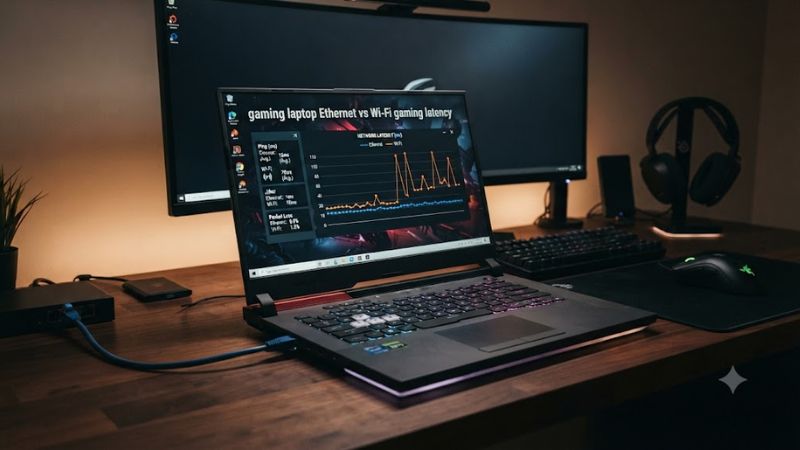
1. Ping Measures Delay, Not Download Speed
Ping, commonly displayed in milliseconds (ms), measures the round-trip time for data to travel between your laptop and a destination and return. Lower ping generally means less network delay, but the result depends on which destination you measure. A ping to your router is not the same as ping to a game server.
A fast internet plan does not automatically provide low gaming latency. Your ISP’s routing, the distance to the server, network congestion, and your home connection all influence the final result. Switching from Wi-Fi to Ethernet may improve the local connection without significantly changing the distance or routing between your home and the game server.
2. Jitter Can Matter More Than a Small Ping Difference
Jitter describes variation in latency over time. If your connection normally responds quickly but periodically experiences large delays, character movement and hit registration can feel inconsistent. This can happen even when a speed test reports excellent download performance.
Ethernet usually provides more consistent latency because it avoids wireless contention and radio interference between your laptop and router. Wi-Fi performance depends on signal quality, channel usage, obstructions, and other active devices. For gaming, a steady connection can be more useful than a higher advertised wireless throughput.
3. Packet Loss Causes Missing or Delayed Game Updates
Packet loss occurs when some network packets fail to reach their destination. Depending on the game and network protocol, this can cause rubber-banding, delayed actions, voice-chat interruptions, or temporary desynchronization. It is a different problem from high ping, although both can occur together.
A wired connection removes the wireless portion of the local network path, which can help when Wi-Fi interference or weak reception causes packet loss. However, Ethernet cannot fix every source of loss. A faulty cable, router problem, congested ISP connection, or unstable game server can still disrupt gameplay.
Ethernet vs. Wi-Fi: Which Connection Is Better for Gaming?
For competitive multiplayer, Ethernet is usually the stronger choice when your laptop can connect directly to the router. Wi-Fi is a reasonable alternative when the signal is strong and the wireless channel is not congested. The right decision depends on latency consistency, packet loss, your home layout, and whether the wired connection is actually faster and more reliable in your setup.
1. Ethernet: More Consistent Local Networking
Ethernet sends data through a physical network cable, avoiding radio interference and wireless contention on the laptop-to-router link. It is particularly useful for competitive shooters, fighting games, and other online games where intermittent delay can affect timing. Its main advantage is predictable local connectivity, not a guaranteed reduction in every game’s displayed ping.
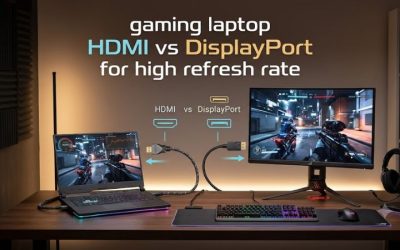
The cable and network ports still matter. A laptop with a built-in Ethernet port can connect directly to a compatible router LAN port. If your laptop lacks one, a USB-to-Ethernet adapter is an option, provided its connector and operating-system support match your device. The router’s LAN capability also determines the maximum negotiated link speed.
2. Wi-Fi: Convenient but Sensitive to Conditions
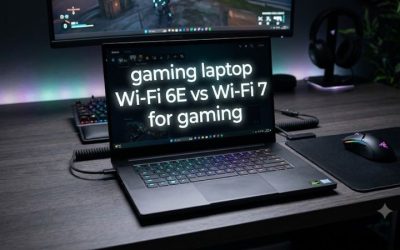
Wi-Fi lets you game without routing a cable across your room, and a modern wireless adapter can provide ample bandwidth for online play. Performance depends on the router, supported wireless standard, frequency band, signal strength, and surrounding radio traffic. A laptop close to the access point may perform much better than one behind several walls.
Wi-Fi can also experience sudden latency increases when other devices compete for airtime or the signal becomes unreliable. Moving closer to the router, reducing obstructions, and selecting a less congested supported band may help. Upgrading to a newer Wi-Fi standard is not automatically worthwhile if your existing connection already delivers stable ping and low packet loss.
3. Gaming Performance Depends on the Whole Network
The difference in gaming laptop Ethernet vs Wi-Fi gaming latency varies with your setup. Ethernet can reduce local wireless-related variation, but it cannot correct distant game servers, poor ISP routing, or congestion beyond your router. A wired connection may therefore feel more consistent without producing a dramatic change in the game’s average ping.
Independent router research from RTINGS found lower, more consistent latency with Ethernet in its controlled network setup than with Wi-Fi. Its findings illustrate the general advantage of wired networking, but they should not be treated as a fixed millisecond saving for every laptop or internet connection. Your own network conditions determine the actual difference.
How to Compare Ethernet and Wi-Fi on Your Laptop
The most useful comparison measures both connections on the same laptop and network. Avoid judging them solely by a speed-test score or one ping reading. Repeat measurements under similar conditions, including during the periods when lag normally occurs, so you can distinguish a consistent improvement from ordinary network variation.
1. Compare the Main Connection Metrics
| Metric | Ethernet | Wi-Fi |
| Average ping | Often lower on the local network path | Depends on signal and wireless conditions |
| Jitter | Usually lower and more consistent | More sensitive to interference and contention |
| Packet loss | Can occur due to cable, router, or ISP problems | Can also result from weak signals or interference |
| Download speed | Limited by the negotiated Ethernet link and network | Depends on wireless capabilities and conditions |
| Mobility | Requires a cable | Allows movement within wireless coverage |
| Setup | Cable and available LAN port, or suitable adapter | Compatible Wi-Fi adapter and access point |
These are general tendencies rather than guaranteed results. A congested or faulty wired connection may perform worse than a strong Wi-Fi link, and a faster connection does not necessarily have lower gaming latency.
2. Measure Ping to Your Router
First, connect through Wi-Fi and identify your router’s default gateway. In Windows, open Command Prompt and enter ipconfig. Find the Default Gateway entry for the active network adapter, then run ping followed by that gateway address. For example, use ping 192.168.1.1 only if that is the address shown on your laptop.
Repeat the measurement after switching to Ethernet, keeping the router and laptop in the same setup. Compare the average, minimum, maximum, and packet-loss summary. A wired connection with lower variation suggests that Wi-Fi contributes to the problem. However, a router may treat diagnostic traffic differently from game traffic, so this is a useful first check rather than a complete diagnosis.
3. Compare Performance During Real Gameplay
Next, use the game’s own network display, if available, to monitor ping and packet loss. Play on the same regional server with Ethernet and Wi-Fi in separate sessions, ideally at similar times. Note whether latency spikes, disconnects, or rubber-banding become less frequent rather than focusing on a single displayed value.
Keep downloads, streaming, VPN use, and other network activity consistent during the comparison. If Ethernet and Wi-Fi show similar in-game latency, the bottleneck may be elsewhere in the network path. Check the game’s server region, ISP congestion, and router behavior before spending money on new networking equipment.
4. Choose the Connection That Fits Your Setup
Use Ethernet if you play at a desk, have convenient access to the router, and want the most consistent local connection possible. It is particularly worthwhile when your Wi-Fi measurements show repeated spikes or packet loss. A basic cable and an available compatible LAN port may be all you need, without replacing the router or upgrading your internet plan.
Choose Wi-Fi if mobility and room layout matter more and your current connection remains stable during matches. If performance is inconsistent, try improving router placement or using a supported frequency band before buying hardware. For laptops without Ethernet ports, a suitable USB adapter can provide a wired alternative without requiring an internal hardware upgrade.
FAQ
Is Ethernet always faster than Wi-Fi for gaming?
No, Ethernet is not always faster in raw throughput, but it generally offers more consistent latency. Actual speed depends on the wired port, cable, Wi-Fi equipment, and network conditions. For gaming, prioritize stable ping and low packet loss rather than download speed alone.
Does Ethernet lower ping in every online game?
No, Ethernet does not lower ping in every game. It can reduce delays and variation on the local connection, but server distance, ISP routing, and congestion also affect latency. If your Wi-Fi is already stable, the difference in displayed ping may be small.
Is Wi-Fi 6 or Wi-Fi 7 good enough for competitive gaming?
Yes, either can support competitive gaming when the signal and network conditions are good. Compatibility depends on the laptop’s wireless adapter and the router’s capabilities. A newer standard may improve capacity or throughput, but it does not automatically outperform a properly configured Ethernet connection for latency consistency.
Should I buy a USB-to-Ethernet adapter for my gaming laptop?
A USB-to-Ethernet adapter is worth considering if your laptop lacks a built-in Ethernet port and Wi-Fi causes measurable instability. Check the adapter’s USB connector, operating-system support, and supported network speed. If your current Wi-Fi connection already performs consistently, an adapter may provide little practical benefit.
Final Thoughts
For gaming laptop Ethernet vs Wi-Fi gaming latency, Ethernet is the sensible first choice for a stationary competitive setup, while Wi-Fi offers greater convenience when its performance is stable. Compare both connections on your own laptop before upgrading anything. If wired networking reduces latency spikes or packet loss, keep it for gaming; otherwise, investigate the wider network path first.