Adding a second SSD can expand game storage without replacing your existing drive, but not every gaming laptop has an available slot. gaming laptop second SSD slot compatibility depends on the exact model, supported SSD interface, physical size, mounting hardware, and internal layout. This guide explains how to check each requirement before buying or installing a drive.
What Gaming Laptop Second SSD Slot Compatibility Really Comes Down To
The key is confirming that your specific laptop configuration supports a second drive, not simply assuming that a similar model does. Manufacturer specifications and service manuals identify supported storage interfaces, drive lengths, mounting requirements, and configuration limits. Check these details first to avoid buying an incompatible SSD.
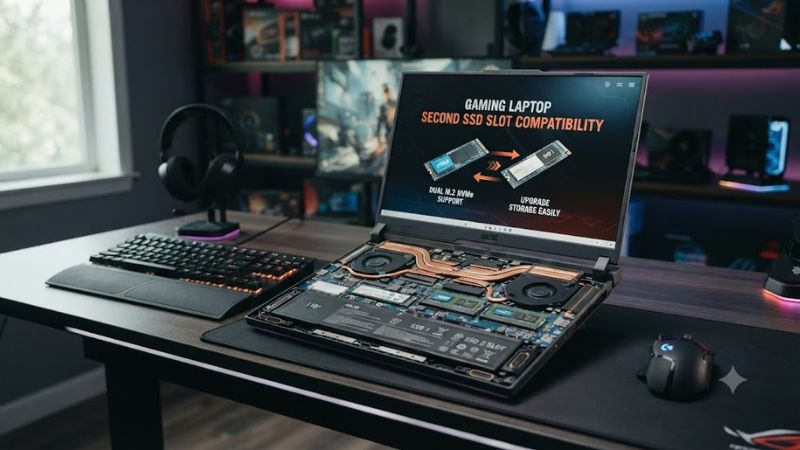
1. Confirm That a Second SSD Slot Exists
Start with the laptop’s complete model number and, if available, its configuration or product number. Visit the manufacturer’s support page and locate the storage specifications or service manual. Look for explicit references to two M.2 slots, SSD slot 2, or an additional supported storage device.
A laptop may share its chassis design with a model that has two slots while your configuration supports only one. Some machines also have different motherboard layouts or battery configurations. A spare-looking area inside the case is not sufficient evidence that a usable second slot exists.
2. Identify the Supported SSD Interface
M.2 describes a physical card format, not a guarantee that every drive will work. An M.2 slot may support PCIe NVMe, SATA, or a specific subset of these interfaces. A drive can fit physically yet remain incompatible if its communication protocol is unsupported by the slot.
Check the manual’s storage section for the second slot’s interface and PCIe generation. A PCIe Gen 4 NVMe drive may operate in a compatible older-generation slot at the lower supported speed, but this backward compatibility should not be assumed for every device. Confirm the manufacturer’s stated support before purchasing.
3. Match the SSD Length and Mounting Hardware
M.2 SSDs have different dimensions, commonly identified by four-digit numbers such as 2230, 2242, and 2280. These refer to widths and lengths in millimeters: 22 mm wide and 30, 42, or 80 mm long, respectively. The second slot must accommodate the drive’s length and mounting position.
Also check whether the laptop includes the necessary retaining screw, bracket, and thermal shield. Some configurations require an additional mounting bracket when installing a second drive. Never leave an SSD unsecured or force a drive into a mounting position that does not match the service manual.
4. Check Capacity and Configuration Limits
Maximum supported capacity is model-specific, so verify any stated limits in the official specifications. If the manufacturer does not publish a maximum, do not assume that every high-capacity drive is supported merely because its connector matches. Firmware support and the laptop’s documented configuration can affect compatibility.
Consider how you intend to use the additional storage. A second SSD can hold a game library, video projects, or other large files while the primary drive retains Windows and applications. It does not automatically increase gaming frame rates, and its practical benefit depends on available capacity, workload, and the drive’s supported performance.
How to Check and Install a Second SSD: Step by Step
Follow the manufacturer’s documentation before opening the laptop. The safest approach is to confirm the exact model, match the drive to the second slot, prepare the computer, and verify the new drive in Windows. The following steps separate essential compatibility checks from optional performance considerations.
Step 1: Find Your Exact Laptop Specifications
Identify the full model name and product number from the laptop’s label, system information, or manufacturer utility. Search the manufacturer’s support documentation for the storage specifications and service manual. Read the sections covering SSD slot count, supported interfaces, drive dimensions, and installation prerequisites.
Do not rely solely on a retailer’s specification sheet or another owner’s upgrade video. Different configurations within the same product family can have different storage layouts. Record the second slot’s supported drive type, length, PCIe generation, and any stated capacity limits before selecting a drive.
Step 2: Compare Your SSD With the Second Slot
Use this compatibility table to identify the specifications that matter before purchasing an additional drive.
| Setting or Step | Where | Effect | Risk |
| Confirm slot count | Official specifications and service manual | Establishes whether a second drive is supported | Assuming a shared chassis means identical internals |
| Match interface | Storage specifications | Confirms NVMe or SATA protocol compatibility | A physically fitting drive may not function |
| Match drive length | Manual and SSD specifications | Confirms 2230, 2242, or 2280 fitment as documented | Incorrect mounting or interference with components |
| Check mounting and thermal hardware | Service manual | Identifies required screws, brackets, and shields | Loose mounting or inadequate thermal contact |
An M.2 2280 NVMe drive is not automatically suitable for every gaming laptop. The second slot may support a different length, a different interface, or a different PCIe generation from the primary slot. Use the specifications for the exact laptop configuration rather than general assumptions about gaming hardware.
Step 3: Prepare the Laptop for Installation
Back up important files before opening the chassis, shut down Windows completely, disconnect the charger and all peripherals, and follow the manufacturer’s instructions for internal servicing. If the manual requires disconnecting the internal battery, do so before handling storage components. Avoid working on a powered laptop.
Use an appropriate screwdriver and an antistatic-safe work surface. Remove the base cover only as directed in the service manual, and never force clips or pry near the battery. If the battery is swollen, a connector is damaged, or the internal layout differs from the manual, stop and seek qualified service.
Step 4: Install and Verify the Drive
Locate the documented second M.2 slot and install the SSD using the manufacturer’s procedure. Typically, the drive enters the connector at a slight angle before being lowered and secured, but follow the specific instructions for your model. Refit any required thermal shield and ensure the base cover closes without pressure on the drive.
After reassembling the laptop, start Windows and open Disk Management by right-clicking Start and selecting Disk Management. If the new SSD appears as unallocated space, initialize it only after confirming that it is the new, empty drive. Choose the partition style requested by the system or specified for your setup, create a new volume, and format it. Do not initialize or format a disk that may contain data you need to preserve.
FAQ
Can every gaming laptop support a second SSD?
No, not every gaming laptop has an additional SSD slot. Check the exact model’s official storage specifications and service manual to determine whether a second drive is supported and whether additional mounting hardware is required.
Can I install a PCIe Gen 4 SSD in a Gen 3 slot?
A PCIe Gen 4 NVMe SSD can generally operate in a compatible PCIe Gen 3 NVMe slot at the lower interface speed. However, you must confirm that the laptop supports the drive’s NVMe protocol, physical dimensions, and other requirements.
Will adding a second SSD improve gaming FPS?
Adding a second SSD does not automatically increase average FPS or improve GPU performance. It primarily provides additional storage, and a suitable SSD may help with game loading or file transfers depending on the workload and the existing drive.
What if Windows does not detect the new SSD?
First, check Disk Management to see whether the drive appears without a usable partition or drive letter. If it is absent, shut down safely and consult the service manual to verify installation, slot support, and firmware settings. Do not format or initialize an unidentified disk containing important data.
Final Thoughts
Checking gaming laptop second SSD slot compatibility before purchasing a drive helps prevent wasted money and avoidable installation problems. Verify the exact model, interface, drive length, and mounting requirements in the service manual. If the documentation confirms support, prepare a backup and follow the manufacturer’s installation procedure before configuring the new storage in Windows.