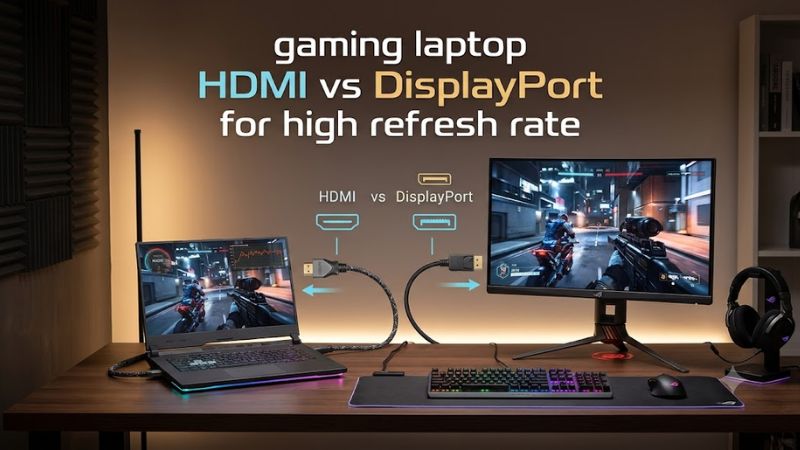
Choosing between gaming laptop HDMI vs DisplayPort for high refresh rate gaming depends on your laptop’s output capabilities, your monitor’s inputs, and the resolution you want to run. DisplayPort is often a practical choice for PC gaming monitors, but HDMI can deliver excellent results when both devices support the required bandwidth. This guide explains how to compare them and avoid connection bottlenecks.
What Matters When Choosing HDMI vs DisplayPort
Neither connector automatically delivers the highest refresh rate in every gaming setup. The actual result depends on the signal capabilities of the laptop, monitor, and cable, along with resolution, color depth, and display features. Before choosing a connection, establish the refresh rate you want and verify that the complete signal path supports it.
1. Resolution and Refresh Rate
Resolution determines how many pixels the connection must transmit, while refresh rate determines how often the monitor can display a new frame. A 1080p monitor at 240Hz places different demands on a connection than a 4K monitor at 144Hz, so comparing ports without considering both specifications can lead to the wrong decision.
For gaming laptop HDMI vs DisplayPort for high refresh rate use, check the monitor’s supported combinations rather than relying on its maximum advertised refresh rate alone. A monitor might support its highest refresh rate through one input but offer a lower limit through another, depending on its design and supported signal formats.
2. Bandwidth and Connection Versions
HDMI and DisplayPort have multiple generations with different bandwidth limits. HDMI 2.0 offers up to 18 Gbps of raw link bandwidth, while HDMI 2.1 supports up to 48 Gbps. DisplayPort 1.4 supports a maximum raw link rate of 32.4 Gbps, and DisplayPort 2.1 can support substantially higher rates depending on the implementation.
These figures describe link capabilities, not guaranteed refresh rates for every display. Encoding overhead, color depth, HDR, chroma format, and Display Stream Compression (DSC) affect the available signal combinations. Manufacturers may also implement different capabilities within products that advertise the same interface generation.
3. Variable Refresh Rate and Gaming Features
Variable refresh rate (VRR) synchronizes a monitor’s refresh cycle with supported frame-rate output to reduce tearing and improve perceived smoothness. DisplayPort supports Adaptive-Sync on compatible devices, while HDMI supports features such as HDMI Variable Refresh Rate on compatible HDMI 2.1 equipment.
Neither connector guarantees that every VRR feature will work. The laptop’s graphics hardware, display input, driver, and monitor settings all matter. If you use NVIDIA G-SYNC or AMD FreeSync, verify the specific monitor input and laptop output combination rather than assuming that a feature works through every port.
4. Laptop Port Routing and USB-C
A gaming laptop may have an HDMI output connected to one graphics processor and a USB-C DisplayPort output routed differently. This matters because some laptops use hybrid graphics, and the external display connection can determine which GPU drives the monitor. NVIDIA’s Advanced Optimus documentation explains how display routing affects access to certain display features on supported systems.
USB-C is not automatically a DisplayPort connection. The port must support DisplayPort Alternate Mode or a compatible video-capable technology such as Thunderbolt. Check the laptop manual for the supported output, maximum display mode, and whether a dock or adapter changes the available capabilities.
HDMI vs DisplayPort: Which Connection Should You Use?
For most gaming laptops, the best connection is the one that supports your monitor’s target resolution, refresh rate, and gaming features without unnecessary adapters. DisplayPort is common on PC gaming monitors, often through USB-C on laptops, while HDMI is convenient for monitors and televisions. Compare the actual specifications before deciding.
Comparison Table: HDMI vs DisplayPort
| Factor | HDMI | DisplayPort |
| Common laptop connection | Full-size HDMI output | USB-C with DisplayPort Alt Mode; some laptops have Mini DisplayPort |
| 1080p high refresh rate | Supported when both devices and the cable allow it | Supported when both devices and the cable allow it |
| 1440p high refresh rate | Depends on HDMI version and device implementation | Depends on DisplayPort version and device implementation |
| 4K high refresh rate | HDMI 2.1 can support demanding modes, including 4K at 120Hz, with suitable equipment | DisplayPort 1.4 and newer can support high-refresh-rate 4K modes depending on bandwidth and compression |
| Variable refresh rate | HDMI VRR on compatible equipment | Adaptive-Sync on compatible equipment |
| TV and console compatibility | Widely supported | Less common on televisions |
| Adapter considerations | Direct HDMI is preferable when available | USB-C video output requires a compatible port and cable or adapter |
| Main limitation | The HDMI output may have a lower capability than the monitor requires | The laptop’s DisplayPort output may have limitations despite the connector’s potential |
The table describes general interface capabilities, not guaranteed performance from every laptop. For example, DisplayPort 1.4 can support 4K at 144Hz in suitable configurations, but color depth, chroma settings, and DSC support can affect whether that mode is available. HDMI 2.1 also has implementation-dependent capabilities, so confirm the supported mode in both product manuals.
When HDMI Is the Better Choice
HDMI is usually the simplest option when your laptop and monitor both support the target refresh rate over their HDMI ports. It is particularly convenient if you already have a compatible cable or want to connect your laptop to a gaming television. A direct connection also avoids potential compatibility problems introduced by docks and adapters.
For gaming laptop HDMI vs DisplayPort for high refresh rate gaming, HDMI 2.1 is a capable option for demanding displays, including supported 4K high-refresh-rate setups. However, the HDMI label alone does not confirm that a particular port supports every HDMI 2.1 feature or maximum bandwidth mode. Check the laptop specifications and monitor input requirements before buying a cable.
When DisplayPort Is the Better Choice
DisplayPort is often the preferred connection for dedicated PC gaming monitors, particularly when you want high refresh rates, Adaptive-Sync, or a high-resolution desktop setup. Many monitors offer extensive PC-oriented display options through DisplayPort, although the exact capabilities depend on the model and its firmware.
If your gaming laptop lacks a full-size DisplayPort connector, USB-C may provide DisplayPort video output. Verify that the port supports DisplayPort Alternate Mode or an appropriate Thunderbolt connection, and use a cable or adapter rated for your target mode. A USB-C connector used only for data or charging cannot be assumed to output video.
How to Check Your Actual Refresh Rate
Before troubleshooting a connection, verify the display mode that Windows is using. In Windows 11, open Settings, select System, then Display, and open Advanced display. Select the external monitor if multiple displays are connected, then inspect its listed refresh rate and available options.
If your monitor supports 165Hz but Windows offers only 60Hz, do not immediately assume that the cable is defective. Check the selected resolution, the input used on the monitor, the laptop’s output specifications, and any adapter or dock in the signal path. A lower supported mode can result from any one of these limitations.
FAQ
Is HDMI or DisplayPort better for 144Hz gaming?
Both HDMI and DisplayPort can support 144Hz gaming when the laptop, monitor, and cable support the required resolution and signal format. HDMI 2.0 can handle many 144Hz configurations at lower resolutions, while DisplayPort 1.4 supports a wide range of high-refresh-rate PC monitor modes. Check the specific input limits before choosing.
Can a gaming laptop run a 240Hz monitor through HDMI?
Yes, a gaming laptop can run a 240Hz monitor through HDMI if the laptop output, monitor input, cable, resolution, and color settings support that mode. The result is not guaranteed by the HDMI version alone. Check the monitor’s input-specific specifications and the laptop manufacturer’s external display documentation.
Does DisplayPort increase FPS compared with HDMI?
No, switching from HDMI to DisplayPort does not inherently increase the frame rate rendered by your GPU. A different connection may allow a higher refresh rate or enable a display feature that was unavailable through the previous input. Actual game FPS depends on hardware, graphics settings, and the game, not simply the connector.
Does USB-C to DisplayPort work on every gaming laptop?
No, USB-C to DisplayPort works only when the laptop’s USB-C port supports video output through DisplayPort Alternate Mode or a compatible technology. The monitor, cable, and any adapter must also support the intended display mode. Consult the laptop manual and check the port specifications before purchasing an adapter.
Final Thoughts
Choosing gaming laptop HDMI vs DisplayPort for high refresh rate gaming comes down to supported display modes, not the connector’s name. DisplayPort is a strong choice for many PC gaming monitors, while HDMI is equally suitable when its supported mode meets your needs. Check both devices’ specifications and Windows display settings before purchasing a new cable.