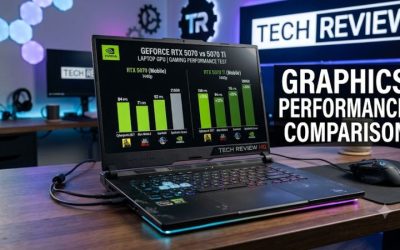
Choosing the right graphics memory depends on your resolution, games, and graphics settings. how much VRAM does a gaming laptop need is a question with no single answer, but 8GB is a reasonable starting point for 1080p, while 12GB or more offers greater flexibility for demanding games, higher resolutions, and future releases.
What Gaming Laptop VRAM Really Comes Down To
For most gamers, 8GB of video RAM (VRAM) is a practical baseline for 1080p gaming, while 12GB provides more headroom for demanding titles and 1440p displays. The right amount depends on texture quality, ray tracing, and the games you play. More VRAM helps when a game needs it, but it cannot compensate for a GPU that lacks sufficient processing power.

1. What VRAM Does in a Gaming Laptop
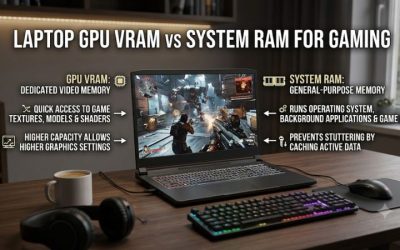
VRAM is dedicated memory on your graphics processor. It stores data the GPU needs to render a game, including textures, frame buffers, and certain lighting and geometry resources. Higher resolutions and detailed textures can increase memory use, especially in large open-world games.
When available VRAM becomes insufficient, a game may experience stuttering, inconsistent frame delivery, texture-quality reductions, or lower performance. The exact symptoms depend on the game, driver, and system memory behavior. High VRAM usage alone does not prove a memory shortage; some games allocate available memory without needing all of it.
2. Resolution Changes Your Memory Requirements
Rendering more pixels can increase the resources needed for frame buffers and other graphics data. Moving from 1920 × 1080 to 2560 × 1440 generally increases the pixel count by about 78%, although VRAM consumption does not rise by that same percentage because not every resource scales with resolution.
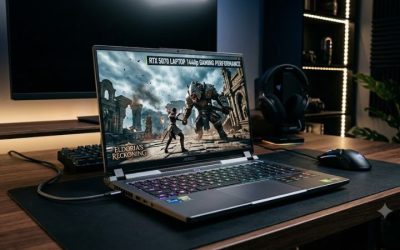
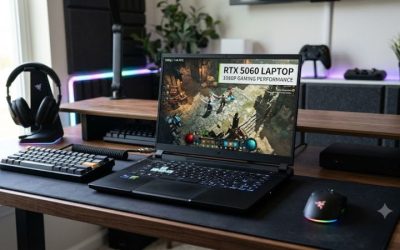
At 1080p, 8GB can be sufficient for many games. At 1440p, 12GB offers more flexibility for demanding titles and high texture settings. Gaming at 4K can require substantially more memory, particularly with high-resolution textures and ray tracing, making 16GB or more attractive when the laptop GPU and budget also support that target.
3. Texture Quality and Ray Tracing Matter
Texture quality is one of the settings that can meaningfully affect VRAM demand. Ultra textures may use considerably more memory than High or Medium textures, even when the difference in visual quality is small during normal gameplay. Lowering textures can help a memory-constrained GPU without requiring a resolution change.
Ray tracing adds further graphics workloads and can increase memory requirements, depending on the implementation and game. Upscaling technologies such as NVIDIA DLSS and AMD FSR may reduce rendering costs, but their effects on VRAM vary. Frame generation also has overhead, so enabling it does not make a limited memory capacity irrelevant.
4. VRAM Is Only One Part of GPU Performance
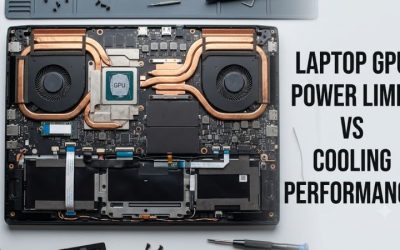
Two gaming laptops with the same VRAM capacity can deliver different frame rates. GPU architecture, processing resources, memory bandwidth, power limits, cooling, and the laptop manufacturer’s configuration all affect performance. A GPU with 12GB is not automatically faster than one with 8GB in games that fit comfortably within both memory capacities.
For laptop shopping, check the exact GPU model and laptop implementation rather than comparing memory capacity alone. Also consider the display resolution and refresh rate, because a powerful GPU with sufficient VRAM can still struggle to maintain high frame rates at demanding settings.
How to Choose the Right VRAM Capacity
When deciding how much VRAM a gaming laptop need, start with the resolution you actually play at, then account for texture settings, demanding games, and how long you plan to keep the laptop. The following recommendations are practical buying guidelines, not minimum requirements for every game. Individual titles can need more or less memory.
VRAM Recommendations by Resolution
| Gaming workload | Practical VRAM target | Main consideration |
| Esports at 1080p | 6–8GB or more | Many competitive games prioritize frame rate over extreme textures |
| AAA games at 1080p | 8GB baseline | Ultra textures and ray tracing can exceed comfortable memory limits |
| AAA games at 1440p | 12GB preferred | More room for detailed textures and demanding graphics settings |
| 4K gaming | 16GB or more preferred | High-resolution assets can increase memory pressure |
| Heavy ray tracing | 12–16GB or more preferred, depending on resolution | Memory capacity does not replace sufficient GPU processing power |
| Modded games | 8–16GB or more, depending on mods | High-resolution texture packs can increase memory use substantially |
These targets are starting points rather than guarantees. Some games run well with less VRAM, while particular titles or settings can exceed these guidelines. Laptop GPU tiers also differ in processing power, so choose a balanced GPU rather than paying extra for memory capacity alone.
1. Choose 8GB for Mainstream 1080p Gaming
An 8GB laptop GPU can be a sensible choice for esports, older games, and many modern games at 1080p. It can also suit buyers who prefer High rather than Ultra textures and are willing to adjust settings when a particularly demanding title needs more memory.
The trade-off is reduced flexibility in memory-intensive games. If you want to keep a laptop for several years, play new AAA releases, or install demanding texture mods, consider whether moving to a 12GB GPU is worth the extra cost. The decision should also account for the performance and price of the complete laptop.
2. Consider 12GB for Demanding Games and 1440p
For gamers who play newer AAA titles, 12GB provides a useful balance between memory capacity and realistic gaming needs. It offers more headroom for high-resolution textures and demanding settings than an 8GB configuration, especially when the game places a heavy load on graphics memory.
However, choosing 12GB does not automatically make a laptop suitable for every game at 1440p Ultra. The GPU still needs enough processing power, and ray tracing can be demanding even when memory capacity is adequate. Compare independent benchmarks from the exact GPU class and similar settings before making a purchase.
3. Choose 16GB or More for Specialized Workloads
A laptop GPU with 16GB or more can be attractive for 4K gaming, heavy texture modifications, demanding ray-traced games, and certain creative applications. The extra capacity can reduce memory constraints when a workload genuinely requires it, making this tier worth considering for users with specific high-end needs.
The limitation is cost and balance. High-memory laptop GPUs often appear in more expensive systems, and the memory capacity alone does not establish their frame rates. If you mainly play competitive games at 1080p, spending substantially more for 16GB may provide less practical value than investing in a stronger display, better overall GPU performance, or additional system RAM.
4. Account for Laptop GPU Limits and Upgrade Options
Unlike system RAM, dedicated VRAM on most gaming laptops is integrated into the GPU package or graphics card design and is not a normal user-upgradeable component. You generally cannot buy an 8GB laptop GPU and later expand it to 12GB by installing a memory module.
That makes the initial GPU choice particularly important. Check the manufacturer’s specifications for the exact laptop configuration, including the GPU, VRAM capacity, display resolution, and power configuration. If two models have similar prices, compare their actual gaming performance and cooling rather than choosing solely by the larger memory number.
How to Check Whether Your Gaming Laptop Needs More VRAM
Before replacing a laptop or paying for a higher-tier GPU, identify whether memory capacity is actually limiting your games. Compare behavior at the same resolution and settings, then reduce texture quality or ray tracing to see whether performance improves. A measured change is more useful than treating a high VRAM-usage reading as proof of a problem.
1. Check Your Existing VRAM Capacity
In Windows, open Settings > System > Display > Advanced display to review display information, then open Task Manager with Ctrl + Shift + Esc. Under Performance, select the GPU to view graphics-memory information where available. The dedicated GPU memory figure is more relevant to this decision than total system RAM.
You can also open Settings > System > Display > Advanced display > Display adapter properties and inspect the adapter information. On hybrid-graphics laptops, verify that you are checking the dedicated NVIDIA or AMD GPU rather than relying only on integrated graphics information. Menu labels may vary slightly by Windows version and driver.
2. Monitor Memory Use During a Demanding Game
Launch a game that represents your normal workload and play a demanding section, such as a busy city, a large battle, or an area with detailed textures. Use the game’s performance overlay or a suitable monitoring utility to observe dedicated GPU memory, frame rates, and stuttering while keeping the resolution and settings consistent.
Remember that allocated memory and actual memory pressure are different. A game may reserve memory without using all of it continuously. Look for a combination of high memory use, inconsistent frame delivery, texture problems, and a repeatable improvement after lowering texture quality rather than drawing a conclusion from one number.
3. Reduce Texture Quality Before Changing Resolution
If a game stutters or displays texture problems, lower texture quality by one step, such as Ultra to High, and repeat the same section. If the symptoms improve noticeably while other settings remain unchanged, memory pressure may be contributing to the issue. If performance barely changes, investigate other possible limits.
Resolution and ray tracing are also worth adjusting individually, but they affect more than VRAM. Lowering resolution can reduce GPU processing demand, while disabling ray tracing can improve performance for several reasons. Change one setting at a time so you can identify which adjustment makes the greatest difference.
4. Compare Results Before Buying Another Laptop
Repeat the same gameplay sequence with the original settings and the adjusted settings, noting average frame rate, stutters, and visual quality. Where available, compare frame-time graphs or 1% low results from the same test conditions. Avoid comparing unrelated online benchmark numbers that use different processors, laptop power limits, game versions, or graphics presets.
Use the results to establish a sensible buying target. If reducing textures resolves the issue and the image remains acceptable, you may not need a new laptop immediately. If your preferred settings consistently exceed the GPU’s practical capabilities, a laptop with more VRAM and stronger overall graphics performance may be a more appropriate long-term choice.
FAQ
Is 8GB of VRAM enough for a gaming laptop in 2026?
Yes, 8GB is enough for many 1080p gaming workloads, including esports and numerous mainstream titles. Some demanding games require lower texture settings to avoid memory pressure, particularly with ray tracing or high-resolution texture packs. If you mainly play new AAA games and want more flexibility, consider a 12GB configuration.
Is 12GB of VRAM better than 8GB for 1440p gaming?
Generally, 12GB offers more headroom for demanding 1440p games and high-quality textures. However, the performance difference depends on the game and GPU. If both GPUs have enough memory for a particular title, the faster GPU may deliver higher frame rates regardless of its capacity. Compare benchmarks using similar settings.
Does more VRAM increase FPS?
More VRAM can improve performance when a game exceeds the practical capacity of a smaller GPU memory pool, but it does not automatically increase FPS. When a game fits comfortably within available memory, GPU processing power, memory bandwidth, cooling, and power limits can matter more. Check performance evidence before paying extra for capacity alone.
Can you upgrade VRAM in a gaming laptop?
No, dedicated VRAM is generally not upgradeable in a conventional gaming laptop. It is tied to the GPU hardware rather than installed in standard system-memory slots. If you expect to need more graphics memory later, choose the appropriate GPU configuration when purchasing the laptop instead of planning a VRAM upgrade.
Final Thoughts
The answer to how much VRAM does a gaming laptop need depends on your games and target resolution: 8GB is a sensible baseline for 1080p, 12GB offers greater flexibility for demanding 1440p gaming, and 16GB or more suits selected high-end workloads. Before buying, compare GPU performance, VRAM capacity, and laptop cooling together.