Choosing between more graphics memory and more system memory depends on what limits your laptop. laptop GPU VRAM vs system RAM for gaming comes down to two different jobs: VRAM stores graphics data close to the GPU, while system RAM supports Windows, games, and background applications. Understanding both helps you identify bottlenecks and choose sensible upgrade priorities.
What Laptop GPU VRAM vs System RAM for Gaming Really Comes Down To
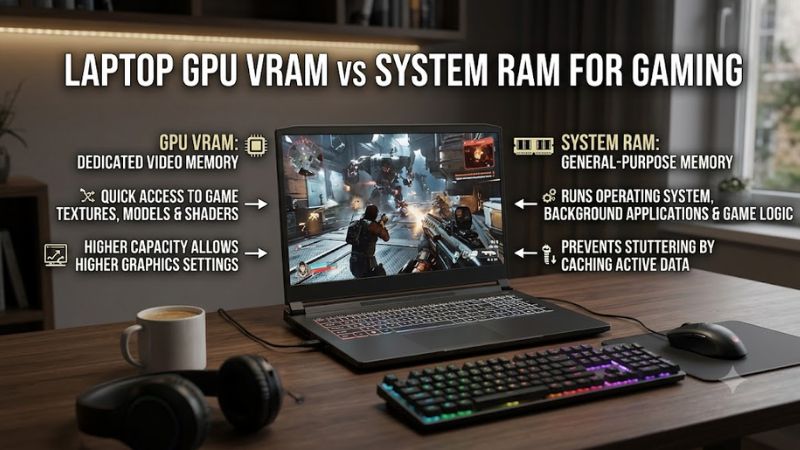
VRAM and system RAM are both important, but they are not interchangeable upgrades. VRAM primarily supports graphics workloads, including textures, render targets, and other GPU resources. System RAM holds active application data and supports the operating system. Your ideal balance depends on game requirements, resolution, settings, and the laptop’s upgrade options.
1. What GPU VRAM Actually Does
Video RAM, commonly called VRAM, is memory available to the graphics processor. A dedicated NVIDIA GeForce or AMD Radeon laptop GPU typically has its own physical memory, which helps it access graphics resources without relying on the system’s main memory for every operation.
When a game uses high-resolution textures, complex scenes, or demanding rendering features, its graphics-memory requirements can increase. If the workload exceeds the available VRAM, the game may need to move resources through other memory, reduce resource quality, or manage data less efficiently. The resulting symptoms depend on the game and the laptop.
2. What System RAM Does During Gaming
System RAM supports Windows, the game engine, background applications, voice chat, browsers, and other active processes. It also holds game data that the CPU needs while preparing instructions for the GPU. Having enough RAM helps prevent memory pressure from forcing Windows to rely more heavily on the storage drive.
This is why laptop GPU VRAM vs system RAM for gaming is not a simple choice between two capacities. A laptop can have plenty of VRAM but struggle when system memory is insufficient. It can also have abundant system RAM while a graphics-intensive game runs into a VRAM limit.
3. Why VRAM and RAM Cannot Simply Replace Each Other
Dedicated VRAM is designed for the GPU’s graphics workload, while system RAM serves the wider computer. Their bandwidth, access paths, and roles differ. Adding system RAM does not increase the physical VRAM installed on a dedicated laptop GPU, even if a monitoring tool reports shared GPU memory.
Integrated graphics work differently because the GPU uses system memory rather than relying on a separate pool of dedicated graphics memory in the same way. That makes system memory configuration especially relevant on laptops with integrated graphics, although shared memory still does not make system RAM equivalent to dedicated VRAM.
4. What Doesn’t Help
Installing more RAM does not automatically increase FPS if a game is already limited by GPU processing power, VRAM capacity, CPU performance, or cooling. Likewise, a larger VRAM specification does not automatically make one GPU faster than another; GPU architecture, power limits, memory bandwidth, and workload all influence performance.
Avoid interpreting a Windows shared-GPU-memory figure as extra physical VRAM. Shared memory is a system-managed resource, not a dedicated upgrade. Before buying a laptop or changing its configuration, identify whether the actual limitation is graphics memory, system memory, or another component.
How to Compare VRAM and System RAM on a Gaming Laptop
The practical way to compare laptop GPU VRAM vs system RAM for gaming is to match each memory pool to your workload, then check actual usage while playing. Capacity recommendations are starting points, not universal requirements. A game’s published system requirements and observed behavior matter more than a memory number considered in isolation.
1. Choose Capacity Based on Your Games
For many gaming laptops, 16GB of system RAM is a reasonable starting point, while 32GB offers more room for demanding games, multitasking, streaming, and content creation. Some games require more, so check the requirements of the titles you play rather than treating either capacity as a guarantee.
For dedicated graphics, consider VRAM alongside the GPU model and performance class. NVIDIA’s laptop GPU specifications show that memory capacity varies considerably across models and generations. A GPU with more VRAM may handle demanding texture settings more comfortably, but that alone does not establish its overall gaming performance.
2. Understand Resolution and Texture Quality
Higher resolutions require more graphics data, while high-resolution textures can consume substantial VRAM. Ray tracing and other advanced graphics features may increase memory pressure depending on the game and implementation. Lowering texture quality can help when graphics memory is the constraint, even if the GPU can otherwise render the game at your chosen resolution.
System RAM matters when the game, Windows, and background programs compete for memory. Closing unnecessary applications may help if system memory pressure is contributing to stuttering. However, if the GPU is fully occupied processing frames, adding RAM is unlikely to address that separate limitation.
3. Compare the Two Memory Types
| Factor | Dedicated GPU VRAM | System RAM |
| Primary role | Graphics resources and rendering data | Windows, games, CPU workloads, and applications |
| Common warning sign | Texture streaming problems or GPU-memory warnings | Memory pressure, paging, or stuttering during multitasking |
| Useful adjustment | Reduce texture quality or other memory-heavy graphics settings | Close unnecessary apps or upgrade compatible RAM |
| Upgrade options | Usually fixed on laptop GPUs | Depends on whether memory is socketed or soldered |
| Integrated graphics | May have no separate physical VRAM | Supplies memory used by the integrated GPU |
The key distinction in laptop GPU VRAM vs system RAM for gaming is that neither capacity tells the whole story. A laptop with 32GB of RAM and a modest GPU may still struggle with demanding graphics settings, while a powerful GPU can encounter system-memory limitations if too many applications are running.
4. Check Your Laptop Before Spending Money
On Windows, open Task Manager with Ctrl + Shift + Esc, select Performance, and inspect Memory and GPU. The GPU panel can show dedicated and shared GPU memory, depending on the hardware and driver. These figures help identify the installed configuration, but a single snapshot cannot establish the cause of a performance problem.
For a closer check, play the affected game and monitor memory usage, frame-time behavior, and GPU utilization. Compare the same scene before and after changing one setting. If reducing textures improves the issue, VRAM pressure becomes a plausible explanation; if closing applications helps, system-memory pressure may be involved. Neither result is conclusive on its own.
How to Improve Gaming Performance With the Memory You Have
Once you understand the difference between VRAM and RAM, make targeted changes rather than upgrading blindly. Start with free diagnostics and reversible graphics adjustments, then consider hardware upgrades only if the laptop supports them and the evidence points to a capacity limitation. This approach helps avoid spending money on memory that does not solve the actual bottleneck.
1. Adjust Graphics Settings First
If you suspect VRAM pressure, reduce Texture Quality by one level and retest the same game scene. If necessary, also reduce texture-pack settings, ray tracing, or resolution. Change one setting at a time so you can identify which adjustment affects performance rather than making several changes and guessing which one helped.
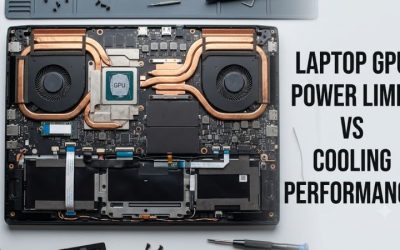
These adjustments can reduce image quality, and their effect varies by game. If the problem persists, check GPU temperature, power behavior, driver status, and CPU limitations before blaming memory. A laptop GPU can be limited by its power and cooling design even when its dedicated VRAM is not full.
2. Reduce Unnecessary System-Memory Use
Close applications you do not need during gaming, particularly memory-intensive browsers, editing software, virtual machines, and other background workloads. Check Task Manager’s Processes tab and sort by Memory to see which applications consume the most RAM. Do not end unfamiliar Windows processes simply because their memory usage looks high.
If the game runs better after you close a large application, insufficient available system memory may be contributing to the issue. If performance remains unchanged, the limitation may lie elsewhere. Avoid RAM-cleaning utilities that promise automatic FPS improvements; freeing memory without addressing the actual workload is not a reliable performance strategy.
3. Check Whether a RAM Upgrade Is Possible
Before buying memory, look up the exact laptop model’s service manual and supported memory configuration. Some gaming laptops have replaceable SO-DIMM modules, while others use soldered memory. Confirm the supported capacity, memory generation, module configuration, and whether an upgrade would require replacing existing modules rather than adding another one.
An upgrade from 16GB to 32GB can make sense when demanding games and other applications exhaust available memory. It will not increase the physical VRAM capacity of a dedicated GPU. If your laptop has soldered memory, plan around the installed capacity rather than assuming a future upgrade will be possible.
4. Verify Results Before Making Further Changes
Retest the same game, scene, resolution, graphics preset, and background workload after each adjustment. Compare average FPS when available, but also watch for inconsistent frame times and brief stutters. A higher average FPS does not necessarily mean the game feels smoother if occasional pauses remain.
For the most useful laptop GPU VRAM vs system RAM for gaming diagnosis, record memory usage alongside GPU utilization and temperatures. Check whether the issue occurs only in one game or across multiple titles. Consistent, repeatable changes provide better evidence than a single memory reading or a manufacturer’s maximum shared-memory figure.
FAQ
Is VRAM more important than RAM for gaming?
Neither is universally more important; the answer depends on the bottleneck. VRAM matters for graphics resources and texture settings, while system RAM supports the game, Windows, and other applications. A shortage of either can affect performance, so identify which resource is constrained before upgrading.
Is 16GB RAM enough for gaming laptops?
Yes, 16GB can be enough for many games, but demanding titles and multitasking may benefit from 32GB. Check the specific game’s requirements and your laptop’s actual memory usage. If memory pressure causes paging or stuttering, a compatible upgrade may help; if the GPU is the limit, additional RAM may change little.
Can I increase laptop GPU VRAM by adding system RAM?
No, adding system RAM does not increase the physical VRAM of a dedicated laptop GPU. Integrated graphics use system memory, and some supported systems offer configurable memory reservations. Those options vary by platform and do not turn shared system memory into equivalent dedicated graphics memory.
How do I know whether low FPS comes from VRAM or RAM?
Monitor dedicated GPU memory, system-memory use, GPU utilization, and frame-time behavior while reproducing the problem. Reduce texture quality to investigate graphics-memory pressure, then close unnecessary applications to investigate system-memory pressure. Because CPU limits, GPU power, temperatures, and game optimization can cause similar symptoms, confirm the pattern before buying hardware.
Final Thoughts
Understanding laptop GPU VRAM vs system RAM for gaming helps you choose settings and upgrades based on real limitations rather than headline specifications. Check your laptop’s memory configuration, monitor a demanding game, and change one setting at a time. Prioritize the resource that is actually constrained before spending money on an upgrade.