RTX 5070 Ti laptop gaming performance is strong enough for high-refresh 1080p gaming and demanding 1440p-class gaming, with ray tracing and DLSS helping in supported titles. Actual results depend on GPU power limits, cooling, the laptop’s CPU, and game settings. This guide explains realistic performance expectations, benchmark results, and the settings that matter most.
1. What RTX 5070 Ti Laptop Gaming Performance Really Comes Down To
The GeForce RTX 5070 Ti Laptop GPU is a high-performance mobile graphics processor built on NVIDIA’s Blackwell architecture. It has 5,888 CUDA cores, 12GB of GDDR7 memory, and a 192-bit memory interface. Those specifications provide a strong foundation for modern gaming, but they do not guarantee identical frame rates across different laptops.
1080p gaming: High frame rates for competitive games
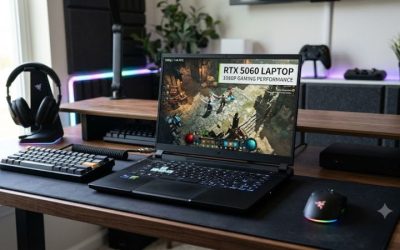
At 1920 × 1080, the RTX 5070 Ti Laptop GPU has substantial rendering capacity for competitive shooters, multiplayer games, and many demanding single-player titles. Games with lighter graphics workloads can make good use of high-refresh displays, although CPU performance and game-engine limitations can become important when frame rates rise.
For RTX 5070 Ti laptop gaming performance at 1080p, start with High settings and measure the actual frame rate in your preferred games. Competitive players may benefit from reducing shadows, reflections, and other demanding effects to improve responsiveness. Maximum graphics settings are not automatically the best choice for esports.
1440p and 1600p: A strong balance of detail and speed
Higher resolutions increase the number of pixels the GPU must render. A 2560 × 1440 display has more pixels than a 1920 × 1080 display, while a common 2560 × 1600 laptop panel adds vertical resolution as well. These displays can deliver sharper images, but demanding games may require lower settings or upscaling to maintain smooth performance.
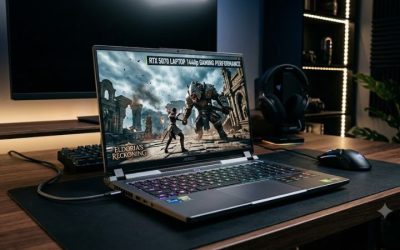
The RTX 5070 Ti Laptop GPU is particularly attractive for laptops with 1440p-class displays. Notebookcheck’s benchmark database includes results around 79 FPS in a QHD Quality-preset test on a Ryzen 9 9955HX laptop, illustrating the potential for demanding workloads. That figure applies to the listed test, not every game or laptop configuration.
Ray tracing and demanding visual effects
Ray tracing improves lighting, reflections, and shadows in supported games, but its performance cost varies considerably. Enabling high ray-tracing settings can reduce native frame rates enough to make a previously smooth game feel less responsive. The impact is especially noticeable when a title combines complex ray tracing with a high resolution.
Blackwell’s fourth-generation RT cores help accelerate ray-tracing workloads. Even so, RTX 5070 Ti laptop gaming performance with ray tracing enabled should be judged separately from conventional rasterized performance. Compare results at the same resolution and preset, and check whether DLSS or frame generation was active.
TGP, cooling, and the laptop design
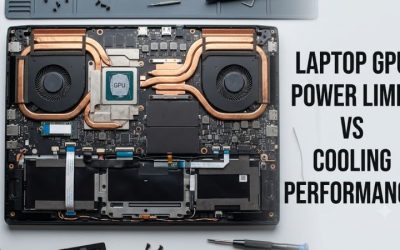
NVIDIA lists the RTX 5070 Ti Laptop GPU with a GPU subsystem power range of 60–115 watts. This is a meaningful difference between laptop implementations: the GPU in a compact chassis may operate under different power and thermal constraints than the same GPU in a larger gaming machine.
A higher advertised power limit does not guarantee proportionally higher FPS. Cooling capacity, CPU power allocation, firmware, fan profiles, and sustained operating temperatures also matter. Check the manufacturer’s exact configuration rather than assuming every laptop carrying the RTX 5070 Ti name delivers the same performance.
2. How to Assess RTX 5070 Ti Laptop Gaming Performance
Benchmark numbers are useful only when their conditions are understood. Different CPUs, GPU power limits, resolutions, graphics presets, and upscaling settings can produce very different results from the same GPU. Use the following comparison to set expectations, then measure your own laptop under repeatable conditions rather than relying on a single headline FPS figure.
Real benchmark results and what they tell you
Notebookcheck’s published results show that performance changes with the game and graphics preset. In its database, a Chuwi Gamebook with a Ryzen 9 9955HX and RTX 5070 Ti Laptop GPU averaged approximately 79 FPS in a QHD Quality-preset benchmark. In a separate QHD Very High-preset result, that configuration averaged approximately 57 FPS.
These figures are useful examples of demanding gaming performance, not universal averages. The database contains different laptop models and benchmark conditions, so combining individual results into one supposed overall FPS figure would be misleading. Check the exact game, resolution, preset, and laptop configuration before using a result to predict your own experience.
Expected performance by resolution and workload
The following table provides practical expectations without claiming a universal frame rate. Your results depend on the title, the laptop’s power configuration, and whether demanding visual features are enabled.
| Gaming workload | Practical expectation | What to check |
| Competitive games at 1080p | High frame rates are achievable in many titles | CPU limits, 1% lows, and display refresh rate |
| Demanding games at 1080p | High settings are a sensible starting point | Native FPS and graphics preset |
| AAA games at 1440p or 1600p | Strong performance, with settings adjustments sometimes necessary | VRAM use, GPU utilization, and frame rate |
| Ray tracing at 1440p | Playable results depend heavily on the game and effects | RT preset, DLSS mode, and native FPS |
| 4K gaming | More demanding; selective compromises are often needed | Upscaling quality, texture settings, and frame-time stability |
DLSS 4 and Multi Frame Generation
The RTX 5070 Ti Laptop GPU supports NVIDIA’s Blackwell-era DLSS features, including DLSS Super Resolution, Frame Generation, and Multi Frame Generation. Availability depends on the game and its implementation. Super Resolution renders internally at a lower resolution and reconstructs the output, while frame generation creates additional displayed frames using supported rendering techniques.
Multi Frame Generation can make supported games appear substantially smoother, particularly when the underlying frame rate is already reasonable. However, generated frames are not equivalent to frames rendered directly by the game simulation. Input latency, image artifacts, and motion quality still matter, so evaluate responsiveness alongside the displayed FPS counter.
For competitive games, prioritize responsive native rendering and consider NVIDIA Reflex where supported. For cinematic single-player games, DLSS and frame generation may provide a worthwhile visual-smoothness improvement. When comparing benchmarks, record whether these features were enabled; otherwise, the numbers may describe very different experiences.
Is 12GB of VRAM enough for modern games?
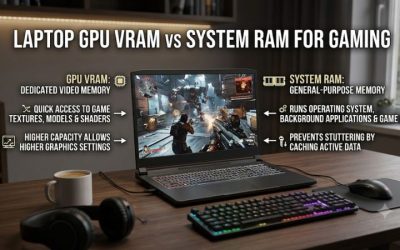
The RTX 5070 Ti Laptop GPU includes 12GB of GDDR7 VRAM. This capacity provides useful room for high-resolution textures and demanding graphics workloads, although actual memory requirements vary by game, resolution, texture quality, and ray-tracing configuration.
If a game stutters or performs poorly, do not assume VRAM is the cause simply because usage is high. Check dedicated GPU memory allocation, frame times, and whether lowering texture quality changes the result. System RAM, background applications, shader compilation, storage activity, and CPU limitations can also contribute to inconsistent performance.
Four steps to measure and improve performance
Use a repeatable process before changing several settings at once. These steps help distinguish a graphics limitation from a CPU bottleneck, power restriction, or software issue, making any adjustment easier to evaluate and reverse.
| Setting or Step | Where | Effect | Risk |
| 1. Select the performance power profile | Windows power settings and the laptop manufacturer’s control utility | May allow higher sustained CPU and GPU power | More fan noise, heat, and power consumption |
| 2. Record a baseline benchmark | The same game’s built-in benchmark or repeatable gameplay scene | Establishes FPS and frame-time consistency | Minimal; avoid comparing different scenes |
| 3. Adjust resolution and graphics settings | The game’s Video or Graphics menu | Reduces rendering load when GPU-limited | Lower image quality |
| 4. Test DLSS and frame generation | The game’s supported graphics options | Can improve perceived smoothness or rendering performance | Artifacts or added latency; support varies |
Begin with the laptop plugged into its supplied power adapter and use the same performance profile for each comparison. Record the resolution, preset, DLSS mode, and average FPS; record 1% lows if your benchmark tool provides them. Repeat the same scene after each adjustment to reduce the influence of random gameplay differences.
If performance declines during a longer session, monitor GPU temperature, power, clock speed, and utilization with an appropriate hardware-monitoring tool. A single temperature reading does not establish overheating. Compare sustained behavior with the laptop manufacturer’s operating guidance before changing firmware, applying an overclock, or attempting more invasive troubleshooting.
3. FAQ: RTX 5070 Ti Laptop Gaming Performance
Is the RTX 5070 Ti Laptop GPU good for 1440p gaming?
Yes, the RTX 5070 Ti Laptop GPU is a strong option for 1440p gaming, including many demanding modern titles. Some games run comfortably at high settings, while ray tracing or maximum-quality presets may require DLSS or reduced settings. Always compare benchmarks from the same game and resolution.
How much FPS can an RTX 5070 Ti laptop deliver?
Frame rates vary by game, laptop power limit, CPU, and graphics settings. Published Notebookcheck results include approximately 79 FPS in one QHD Quality-preset benchmark, but that result should not be treated as a universal average. Check game-specific results and 1% lows when assessing performance.
Is the RTX 5070 Ti Laptop GPU better than the RTX 5070 Laptop GPU?
Yes, benchmark comparisons generally favor the RTX 5070 Ti Laptop GPU, although the size of the advantage depends on the workload and laptop configuration. Notebookcheck’s broader comparison found an average gaming-performance advantage of about 15% over the standard RTX 5070 Laptop GPU. Compare the complete laptop configurations and prices before choosing.
Does the RTX 5070 Ti laptop get hot while gaming?
Gaming laptops can become hot under sustained GPU and CPU loads, but temperatures depend on chassis design, cooling, ambient conditions, and power settings. Warm exhaust alone does not indicate a fault. Monitor sustained temperatures and clock behavior, keep the cooling vents unobstructed, and consult the manufacturer’s guidance if thermal throttling or abnormal shutdowns occur.
Final Thoughts
The RTX 5070 Ti laptop gaming performance you can expect depends on more than the GPU name: power limits, cooling, CPU capability, and game settings all influence results. It is a compelling choice for high-refresh 1080p and demanding 1440p gaming. Before buying, compare independent benchmarks for the exact laptop configuration and your favorite games.