The RTX 5060 laptop 1080p gaming performance you can expect depends on the game, graphics settings, GPU power limit, and cooling system. NVIDIA’s 8GB GeForce RTX 5060 Laptop GPU is suited to Full HD gaming, but demanding games may require adjusted settings, upscaling, or reduced ray tracing to maintain smooth frame rates.
What RTX 5060 Laptop 1080p Gaming Performance Really Comes Down To
The RTX 5060 Laptop GPU is a capable option for gaming at 1920 × 1080, particularly when paired with a suitable processor and a well-cooled chassis. However, the GPU name alone cannot predict exact frame rates. Its power configuration, the game’s workload, available VRAM, and whether advanced rendering features are enabled all affect the result.
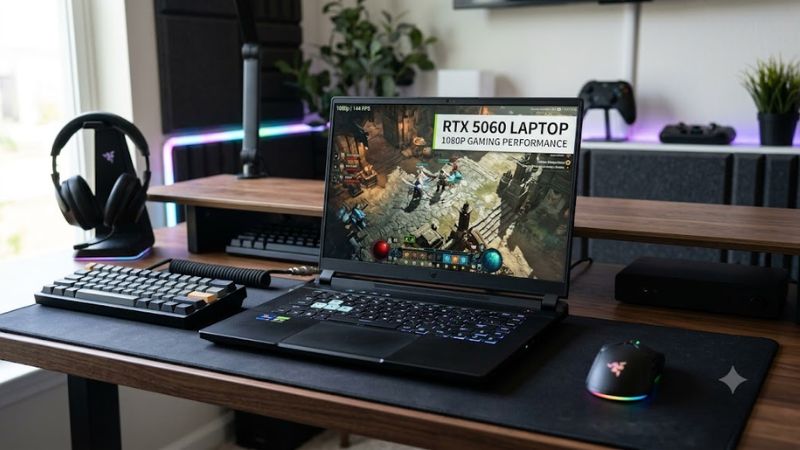
1. Native 1080p performance and realistic FPS expectations
At 1080p, the RTX 5060 Laptop GPU can deliver high frame rates in many competitive games and a smooth experience in numerous demanding single-player titles. Older games and well-optimized releases generally leave more performance available than graphically intensive games with complex lighting, detailed environments, and heavy effects.
As a reference point, NanoReview’s published game-performance table reports approximately 95 FPS for Cyberpunk 2077 at 1080p High and 82 FPS at 1080p Ultra. These are source-reported figures, not a guarantee for every laptop. Results can differ with GPU power, CPU, game version, and test configuration.
2. GPU power limits and laptop cooling
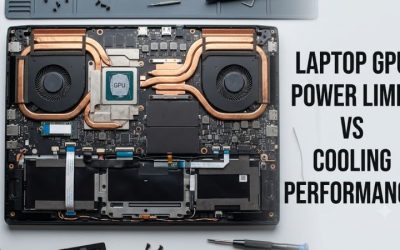
NVIDIA lists the RTX 5060 Laptop GPU with a GPU subsystem power range of 45–100W. That range matters because laptops using the same GPU name can have different power budgets, cooling capacity, and sustained operating behavior. A thin laptop and a larger gaming chassis may therefore deliver different results under comparable workloads.
Check the manufacturer’s specifications for the exact laptop configuration, including its maximum graphics power and whether the listed figure includes Dynamic Boost. Do not confuse GPU subsystem power with the laptop’s power-adapter rating. Cooling also matters: restricted airflow, high temperatures, or aggressive quiet-mode settings can reduce sustained performance.
3. Eight gigabytes of VRAM and graphics quality
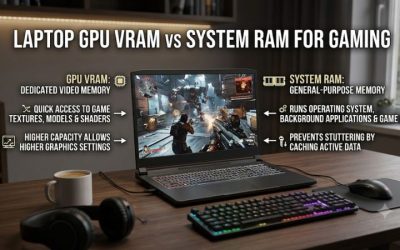
The RTX 5060 Laptop GPU has 8GB of GDDR7 graphics memory and a 128-bit memory interface. That capacity is suitable for many 1080p games, but it can become restrictive when a game combines high-resolution textures, ray tracing, large environments, and other memory-intensive effects.
When a game stutters despite reasonable average FPS, check its VRAM usage and frame-time consistency before assuming the GPU is too slow. Lowering texture quality, ray tracing, or other memory-heavy options may improve consistency. System RAM is separate from dedicated VRAM, and adding more system memory does not increase the GPU’s physical VRAM capacity.
4. DLSS, ray tracing, and frame generation
NVIDIA’s RTX 50-series laptop GPUs support DLSS technologies, including AI upscaling and frame generation in compatible games. DLSS can improve the balance between image quality and rendering performance, making it useful when native rendering falls short of a desired frame rate.
These features are not interchangeable. Upscaling reduces the rendering workload by reconstructing an output image from a lower internal resolution, while frame generation creates additional displayed frames. Generated frames can improve perceived smoothness, but they do not replace the responsiveness of a high native frame rate. Ray tracing can also increase GPU demands, so its visual benefits should be weighed against performance.
How to Get Better RTX 5060 Laptop Gaming Performance at 1080p
The best approach is to establish a reliable baseline before changing settings. Start with the laptop connected to its original power adapter, confirm that the game uses the NVIDIA GPU, and record performance at a consistent resolution and preset. Then adjust power mode, graphics quality, and DLSS individually so you can identify which changes actually help.
Step 1: Set the correct performance mode
Connect the laptop to power and select its performance profile in the manufacturer’s control software. Depending on the model, options may include Balanced, Performance, Turbo, or similar modes. Windows also provides power settings under Settings > System > Power & battery, although available options vary by device.
Run the same game scene before and after changing the profile. Compare average FPS, frame-time consistency, fan noise, and temperatures. A more aggressive profile may improve sustained performance but increase noise, heat, and power consumption. Return to the original profile if the improvement is negligible or the extra noise is not worthwhile.
Step 2: Choose graphics settings for your target frame rate
Begin at 1920 × 1080 with a High preset, then adjust individual settings according to the game. Shadows, volumetric effects, reflections, and ray tracing can impose substantial graphics workloads. Texture quality should be adjusted separately when VRAM usage is high, because its impact differs from settings that primarily affect rendering speed.
For a 60 FPS target, prioritize stable frame delivery over maximum settings everywhere. Competitive players seeking higher refresh rates may benefit from reducing expensive visual effects and keeping latency-sensitive features in mind. Test changes in the same scene and avoid lowering every setting automatically when only one or two options are responsible for the performance shortfall.
Step 3: Configure DLSS and frame generation selectively
In supported games, open the graphics or display menu and look for NVIDIA DLSS options. Start with native rendering to establish a baseline, then try DLSS Quality if additional performance is needed. Performance mode can offer a larger rendering reduction, although image detail may suffer more noticeably at 1080p.
Enable frame generation only when the game supports it and the underlying frame rate is already reasonably responsive. Compare input feel as well as displayed FPS, especially in competitive shooters. If artifacts, latency, or inconsistent motion outweigh the smoother presentation, turn frame generation off and retain the settings that provide the best balance.
Step 4: Verify performance, temperatures, and frame-time stability
Use a consistent in-game benchmark or repeatable scene, and record average FPS alongside 1% lows when your benchmark tool provides them. Monitoring software such as HWiNFO or MSI Afterburner can help show GPU utilization, temperature, clock behavior, and power draw. Sensor availability and reporting accuracy vary by laptop.
| Setting or Step | Where | Effect | Risk |
| Performance profile | Manufacturer control software | May increase sustained GPU and CPU performance | More heat, fan noise, and power use |
| Graphics preset | In-game graphics menu | Balances visual quality and frame rate | Lower image quality when reduced |
| DLSS upscaling | Supported game’s graphics menu | Can improve FPS by reducing rendering workload | Softer image or reconstruction artifacts |
| Frame generation | Supported game’s graphics menu | Can increase displayed frame rate | Added latency or visual artifacts |
| Temperature and FPS monitoring | HWiNFO or MSI Afterburner | Helps identify power, thermal, or utilization limits | Background monitoring adds some overhead |
Change one variable at a time and repeat the same workload. If performance falls over a longer session, investigate temperatures, power behavior, background tasks, and airflow before changing firmware or applying unofficial tweaks. Keep the laptop on a firm surface with unobstructed vents, and restore previous settings if a change causes instability.
FAQ
Is the RTX 5060 Laptop GPU good for 1080p gaming?
Yes, the RTX 5060 Laptop GPU is a strong candidate for 1080p gaming across competitive and many demanding games. Its 8GB of GDDR7 memory and DLSS support provide useful capabilities, but maximum settings with ray tracing may require compromises. Check benchmarks from the exact laptop model before expecting a particular frame rate.
How much FPS can an RTX 5060 laptop deliver at 1080p?
Frame rates vary by game and configuration, so there is no single FPS figure that applies to every RTX 5060 laptop. Competitive titles can run at high frame rates, while demanding games may require High or Medium settings. Independent benchmark results should identify the CPU, GPU power configuration, resolution, preset, and upscaling settings to make comparisons meaningful.
Is 8GB VRAM enough for 1080p gaming in 2026?
Eight gigabytes is sufficient for many 1080p games, but it can limit some demanding titles at maximum textures or with ray tracing enabled. If you experience stuttering or inconsistent frame times, lower texture quality and memory-intensive effects first. Check actual VRAM usage before concluding that capacity is the cause.
Should I use DLSS or native 1080p on an RTX 5060 laptop?
Use native 1080p when performance is already satisfactory and you prefer its direct image presentation. Try DLSS Quality when you need more FPS without reducing several graphics settings. Frame generation is optional and works best when the underlying frame rate is responsive enough for your game and preferences.
Final Thoughts
RTX 5060 laptop 1080p gaming performance is best judged by sustained frame rates, frame-time consistency, and image quality rather than the GPU name alone. Start with High settings, monitor your laptop’s behavior, and adjust DLSS or demanding effects as needed. Compare exact laptop configurations before making a purchase.