Best MacBook Air for Photo Editing: the short answer
The best MacBook Air for photo editing in 2026 is a 15-inch MacBook Air with an M4 chip, 24GB of unified memory and a 512GB SSD for most photographers. It gives Lightroom and Photoshop more room for large catalogs and layered files than an entry-level configuration, while its larger display is more comfortable for reviewing images. Choose a 13-inch model if portability matters more, or look for a newer-generation Air only if its price and memory configuration make it a clear upgrade.
There is an important trade-off: every MacBook Air uses a built-in display that is bright and sharp but not a substitute for a calibrated, wide-gamut editing monitor. For color-critical work, budget for an external display and verify the exact model’s display and monitor-support specifications before buying.
As an Amazon Associate we earn from qualifying purchases at no extra cost to you.
Choose by workload, not just chip generation
| Your photo-editing workload | Good configuration | Why it fits |
|---|---|---|
| Occasional edits, JPEGs, small RAW files | 13-inch Air, current-generation chip, 16GB memory, 256GB or larger SSD | Enough for basic adjustments and modest catalogs; use external storage for originals. |
| Regular Lightroom work and Photoshop layers | 15-inch Air, M4, 24GB memory, 512GB SSD | More working space for multitasking, previews and layered documents, with a larger screen. |
| Large RAW batches, panoramas or frequent AI masking | Air with the newest chip available, 24GB or more memory, 1TB SSD if catalogs stay local | Extra memory helps avoid slowdowns when several demanding tasks are open; the Air can still slow under sustained heavy workloads. |
| Color-critical client work or long, intensive sessions | Air plus a calibrated wide-gamut monitor—or consider a MacBook Pro | The external display improves color confidence; active cooling in a Pro model is better suited to sustained workloads. |
Chip generations: what changes in Lightroom and Photoshop?
Apple’s M-series chips are capable of photo editing, and an Air with an M4 is already fast enough for typical Lightroom adjustments, cropping, retouching and Photoshop compositing. Newer generations may improve processing speed and supported features, but the practical difference depends on the operation: opening a catalog, moving sliders and exporting a huge RAW batch do not place the same demands on a laptop.
For a purchase, compare the specific chip generation and memory in the exact configuration, rather than assuming the newest chip is automatically the best value. A newer base model with less memory can be a worse fit for a photographer than an M4 configuration with 24GB. If you already own a recent Air, upgrading only for routine edits may deliver less benefit than adding a calibrated monitor or improving your storage workflow.
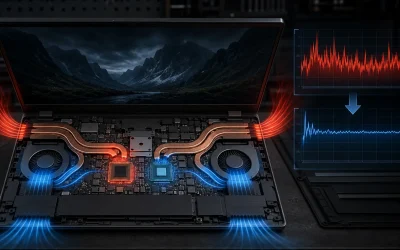
The Air is fanless. That keeps it quiet, but a long export or repeated AI-heavy operation can sustain high processor use and reduce performance as the system manages heat. For occasional batches this is usually a reasonable compromise; for hours of continuous processing, a MacBook Pro is the more suitable class of machine.
Memory and storage: the decisions that are hard to change later
Unified memory
Unified memory is shared by the processor and graphics hardware, so Lightroom, Photoshop, the operating system and open images all draw from the same pool. 16GB is workable for casual editing, but 24GB is the safer target for a machine you plan to keep, especially if you use large RAW files, Photoshop layers or several apps at once. Choose more than 24GB if your intended Air configuration offers it and your workload regularly involves very large composites or extensive multitasking.
Memory in a MacBook Air is not a later user-upgrade. Decide before purchase: closing other applications can help a constrained system, but it cannot provide the headroom that a larger memory configuration would.
SSD capacity
A 512GB SSD is a sensible starting point for most editing setups. The operating system, applications, previews and active projects all consume space, so a 256GB drive can become cramped even when photo originals live elsewhere. Choose 1TB if you keep several active shoots or a substantial catalog on the laptop. An external SSD is usually a more economical place for an archive; keep a separate backup rather than treating one portable drive as the only copy.
Display and monitor support: check before relying on the built-in screen
The MacBook Air’s built-in Liquid Retina display is sharp and useful for general editing, but it is not a wide-gamut reference monitor. Apple specifies P3 wide color for recent Air displays; P3 is broader than standard sRGB, yet it does not guarantee that a screen is calibrated or that every displayed color is accurate. For web images, a dependable workflow is to soft-proof for sRGB and inspect exported files on other devices. For print or paid color-critical work, use a calibrated external display with appropriate gamut coverage.
External-monitor support varies by chip generation and exact model. Recent Air generations support multiple external displays, but the number, maximum resolution and refresh rate can differ, and some configurations require the laptop lid to be closed. Check Apple’s technical specifications for the exact model and the monitor’s connection requirements before buying; do not infer support from the USB-C port count alone.
Bandwidth can also constrain a high-resolution setup. For example, an uncompressed 3840 × 2160 display at 60Hz and 24 bits per pixel requires roughly 11.9 gigabits per second for active image data alone: 3840 × 2160 × 60 × 24. Display transport adds overhead, so the connection, adapter and monitor must support a compatible display mode. This is why a USB-C connector by itself does not guarantee 4K at 60Hz or a particular multi-monitor arrangement.
Lightroom and Photoshop: what to expect
Lightroom Classic and Lightroom can both handle everyday library management and edits on a well-configured Air. Adjustments to exposure, color and cropping are generally a lighter workload than generating many previews, stitching panoramas or applying computational features to a large batch. Keep the catalog and current work on the internal SSD when practical, and store completed projects on external storage to maintain working space.
Photoshop benefits more noticeably from memory when you work with large files, many layers, smart objects or several documents at once. If the application begins using its scratch disk heavily, close unused documents and applications, ensure the internal SSD has free space, and reduce unnecessary history states. These steps can ease pressure, but they are not a replacement for adequate memory when large layered files are routine.
For a smoother setup, connect the charger during long exports, keep macOS and Adobe apps current, and avoid filling the internal drive close to capacity. If performance drops mainly during prolonged processing rather than ordinary editing, heat management—not necessarily a defective machine—may be the limiting factor.
Which MacBook Air should you buy?
- Pick a 13-inch Air if travel weight and compactness matter most. For regular editing, favor 24GB of memory and at least a 512GB SSD when your budget allows.
- Pick a 15-inch Air if you edit away from a desk and want more room for the image and editing panels. The M4, 24GB and 512GB combination is the balanced choice for most photographers.
- Pick a newer-generation Air if its verified specifications and price are better for your needs, particularly if it offers more memory or storage at a comparable cost. Check display and external-monitor details for that exact model.
- Consider a MacBook Pro instead if sustained exports, extensive AI processing, demanding multi-monitor work or color-critical editing are central to your job. The Air remains a portable option, but it is not the ideal tool for every professional workload.
In short, prioritize memory and a comfortable storage plan before paying a premium solely for the newest chip. For most people seeking the best MacBook Air for photo editing, a 15-inch M4 model with 24GB of unified memory and a 512GB SSD strikes the strongest balance; pair it with a calibrated external display when accurate color matters.
Frequently asked questions
Can I upgrade the memory or SSD in a MacBook Air later?
You cannot upgrade the MacBook Air’s memory later, so choose enough before purchase. The article does not state whether its SSD can be upgraded, but recommends choosing capacity based on your workflow: 512GB is a sensible starting point, while 1TB may suit people keeping several active shoots or a substantial catalog on the laptop.
Is a MacBook Air suitable for editing photos for print?
It can be part of a print-editing setup, but the article recommends a calibrated external display for print or paid color-critical work. The built-in screen is useful for general editing but is not a wide-gamut reference monitor, and P3 support does not guarantee calibration or accurate color.
Where should I store my photo catalog and original files?
Keep the catalog and current work on the internal SSD when practical, and store completed projects or archives on external storage. The article advises keeping enough internal space for the operating system, apps, previews and active projects, and maintaining a separate backup rather than relying on one portable drive as the only copy.
What can I do if Photoshop starts using its scratch disk heavily?
Close unused documents and applications, make sure the internal SSD has free space, and reduce unnecessary history states. These steps can ease pressure, but they do not replace adequate memory when large layered files are routine. The article also recommends avoiding filling the internal drive close to capacity.
Should I replace my recent MacBook Air just to get a newer chip?
Not necessarily: routine photo edits may benefit less from an upgrade than from improving your monitor or storage workflow. Compare the chip generation and memory in the exact configuration, since a newer base model with less memory may be a worse fit than an M4 configuration with 24GB.