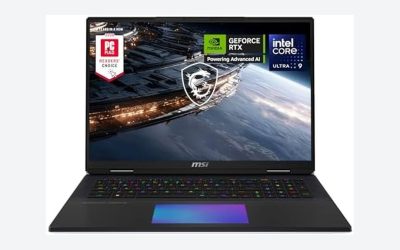
Two laptops can both say “RTX 5070” on the box and still deliver noticeably different frame rates, because the name covers a wide power range rather than one fixed part. NVIDIA lists the RTX 5070 Laptop GPU at 50 to 100 W of graphics subsystem power, and each manufacturer picks its own target inside (and sometimes slightly above) that window, then builds a cooling system to match. The number that matters is the laptop’s total graphics power (TGP, which Acer also calls MGP), together with how well the chassis can shed that heat for an hour rather than a minute. This guide explains TGP, Dynamic Boost and cooling in plain terms, shows how to read a spec sheet, and then matches three real RTX 5070 laptops to different buyers.
Our Top Picks


Top 3 picks at a glance

Quick Verdict
| Your situation | Our verdict |
|---|---|
| You want the most sustained GPU power in this group and can accept a thicker, heavier laptop | Look at the ROG Strix G16 class: the manufacturer lists 100 W plus 15 W Dynamic Boost for its RTX 5070 models, the top of the three examples below. |
| You want a balance of portability and a sharper screen | The Nitro V 16S class suits you: slimmer body, 2560 x 1600 panel, and a lower listed power of 85 W including boost. |
| You are comparing two listings that both say “RTX 5070” | Ignore the GPU name and find the model number, then look up the TGP in the maker’s power table. The same family can span 75 W to 95 W. |
| You mostly play esports titles on a high-refresh panel | A lower TGP is rarely the limiting factor here, so weight, noise and battery behavior can matter more than the last few watts. |
| You plan long sessions at maximum settings | Favor a higher TGP and a thicker chassis; short bursts hide the difference, long sessions expose it. |
What Actually Separates Two RTX 5070 Laptops
TGP is a dial the manufacturer sets
On a desktop graphics card, the model name usually implies one power target. On a laptop it does not. NVIDIA supplies the silicon and a permitted power window, and the laptop maker decides how many watts the GPU may draw continuously. A thin machine with modest cooling is set low; a thicker machine with large fans is set high. Both are legitimately sold as RTX 5070 laptops.
The windows NVIDIA publishes for neighboring tiers show how wide the dial is. On its laptop comparison page the RTX 5070 Laptop GPU is listed at 50 to 100 W, and launch coverage reports the RTX 5060 at 45 to 100 W and the RTX 5070 Ti at 60 to 115 W. A 50 W part and a 100 W part share a name, a CUDA core count of 4,608 and the same architecture, but they will not hold the same clock speeds under load. Exactly how much that costs in frames depends on the game and the resolution, which is why we do not quote a single percentage here.
Dynamic Boost is extra, and it is not always there
Dynamic Boost lets firmware shift spare power from the processor to the graphics chip when a game is GPU-heavy. Manufacturers often write the sum on the spec sheet, such as 80 W plus 15 W for a total of 95 W. The sum is useful, but it carries two caveats. First, the boost is opportunistic: it depends on the processor not needing that power at the same moment. Second, the boost is not the same as the sustained base figure, so a laptop listed at “70 W + 15 W” and one listed at “100 W + 15 W” are far apart even though both carry the same 15 W bonus.
Acer publishes a GPU power table for its Nitro and Predator lines that separates the base wattage from the Dynamic Boost wattage, which is the clearest format a buyer can ask for. ASUS lists the same split on its ROG spec pages. If a retailer listing gives no wattage at all, that is a reason to check the manufacturer’s own page before buying.
Cooling decides how long the wattage lasts
A power limit is only a ceiling. Whether the GPU can stay near that ceiling depends on how much heat the chassis can move out continuously. The main variables are fan size and count, heatsink area, heat pipe layout, vent size and the thickness of the body. Larger fans and more fin area let a laptop remove more heat per second at a tolerable noise level. A vapor chamber, which is a flat sealed copper plate that spreads heat, and liquid-metal thermal compound, which improves heat transfer between the chip and the heatsink, both help a design use its cooling more effectively. Neither adds cooling capacity by itself: the fans and heatsink still have to exhaust the heat.
The practical result is that a thin laptop can match a thick one in a short burst, then settle at lower clocks as heat builds up. A thicker laptop usually holds higher clocks across a long session. This is general thermal behavior that laptop reviewers widely report, but how much any given model throttles depends on the individual design, so judge by sustained results from independent reviews of the exact model rather than by chassis thickness alone.
The rest of the system shapes the result
The GPU is only one part of the picture. Resolution changes how hard the GPU has to work for each frame: a 2560 x 1600 panel has 4,096,000 pixels, against 2,304,000 for a 1920 x 1200 panel, which is roughly 1.8 times as many. The processor matters in games that lean on the CPU, and memory capacity matters for modern titles. A MUX switch, which lets the GPU drive the screen directly, appears in Acer’s power table for the Nitro V 16 and 16S models discussed here and can reduce overhead; confirm it on the exact listing. Finally, the power adapter and the laptop’s performance modes (quiet, balanced, turbo) change real-world behavior, so the same laptop can act like two different machines depending on its mode.
The three examples side by side
| Laptop (listing name) | Listed power, per manufacturer | Display from listing | Chassis from listing |
|---|---|---|---|
| Acer Nitro V 16 (RTX 5070, 180 Hz) | Varies by model number: Acer’s table shows 75 W to 95 W totals across the Nitro V 16 family. Confirm the exact model number. | 180 Hz | Not stated in the cached listing |
| Acer Nitro V 16S AI (ANV16S-61-R3Z0) | 70 W plus 15 W Dynamic Boost, 85 W total, per Acer | 16 in, 2560 x 1600, IPS, 180 Hz | About 0.79 in thick, 4.63 lb |
| ASUS ROG Strix G16 (G614FP-OS94) | ASUS spec page lists 100 W plus 15 W Dynamic Boost, 115 W total, for its RTX 5070 entries; confirm this exact SKU | 16 in, 16:10 FHD+, 165 Hz, 3 ms | About 0.9 in thick, 5.51 lb |
How to Decide
Use this checklist before you commit to any RTX 5070 laptop. The wattage-related rules below are rules of thumb, not guarantees.
- Find the exact model number. The Nitro V 16 family alone appears in Acer’s table at several different totals, and the same chassis is sold with other GPUs. A listing title is not enough.
- Write down base watts and boost watts separately. Compare the base figure first. As a rule of thumb, treat a gap of 20 W or more in base power as a meaningful tier difference and a gap of 5 W as noise.
- Match the screen to the GPU. If you want to push 2560 x 1600, the GPU needs more headroom than at 1920 x 1200. A high-resolution screen on a lower-power laptop means you will probably lean on upscaling or lower settings more often. A lower-resolution screen on a high-power laptop gives you frame-rate headroom to spare.
- Check chassis thickness and weight. As a loose rule, the thicker and heavier laptop of two otherwise similar machines has more room for cooling. The Acer 16S and ASUS listings above differ by about 0.1 in in thickness and about 0.9 lb in weight, which is consistent with their different power targets.
- Check the power adapter. The charger has to cover the CPU, GPU and the rest of the machine at once. Confirm the adapter rating on the listing; if the listing omits it, check the manufacturer’s page.
- Look for sustained results. Search for independent reviews of the exact model number that run a game or stress loop for fifteen to thirty minutes, not just a short burst.
Worked example: you play on a 2560 x 1600 panel and expect sessions of two hours or more. A laptop listed at 85 W total will run, but the pixel count is about 1.8 times that of a 1920 x 1200 screen, so you will probably enable upscaling in demanding games. A laptop listed at 115 W total gives more headroom at the same resolution, at the cost of extra weight and fan noise. Neither choice is wrong; the question is whether you value portability or sustained power.
A safety note on heat: higher-wattage laptops exhaust more heat, so keep the vents clear. Use the laptop on a hard, flat surface rather than a bed or couch, leave at least a few centimeters behind the exhaust vents, and clean dust from the intake periodically. If the manufacturer’s manual gives a maximum ambient temperature, follow it.
Products That Fit
The products below are examples that fit the situations described above, not a ranking. Specs come from the listing fields and the manufacturers’ published power tables; anything not stated is marked “confirm on listing.”
Acer Nitro V 16 (RTX 5070, 180 Hz) – for shoppers comparing Nitro V models
As an Amazon Associate we earn from qualifying purchases at no extra cost to you.
This listing is a good example of why the model number matters. The title gives a 16-inch screen, RTX 5070 graphics, 16 GB of RAM, a 512 GB SSD and a 180 Hz display, but it does not state the power level. Acer’s published table lists RTX 5070 versions of the Nitro V 16 family at totals from 75 W to 95 W depending on model number, so two Nitro V 16 listings can behave differently. It suits a buyer who wants the larger Nitro chassis and is willing to confirm the exact model before buying.
- 16-inch display, 180 Hz refresh rate (per listing name)
- RTX 5070 laptop graphics (per listing name)
- 16 GB RAM and 512 GB SSD (per listing name)
- TGP, processor, resolution and weight: confirm on listing
Caveat: 512 GB of storage fills quickly with modern game installs, so plan for a second SSD or an upgrade if the model has a spare slot.
Acer Nitro V 16S AI – for portable, sharper-screen setups

The ANV16S-61-R3Z0 is the slimmer Nitro variant. Acer’s power page lists the ANV16S-61 with an RTX 5070 at 70 W plus 15 W of Dynamic Boost, 85 W in total, and notes a MUX switch. That makes it a fit for someone who carries a laptop often and wants a 2560 x 1600 screen, accepting a lower power ceiling than a thicker machine. The listing also calls out an AMD Ryzen AI 7 350 processor and Copilot+ PC branding, which matters mostly if you use on-device AI features.
- AMD Ryzen AI 7 350 processor, 8 cores (per listing)
- 16-inch WQXGA (2560 x 1600) IPS display, 180 Hz (per listing)
- 16 GB DDR5 and 1 TB Gen 4 SSD, Wi-Fi 6E (per listing)
- About 4.63 lb and 0.79 in thick (per listing dimensions)
Caveat: the high-resolution panel asks more of an 85 W GPU than a 1920 x 1200 screen would, so expect to use upscaling in the most demanding games.
ASUS ROG Strix G16 (2025) – for sustained power over portability

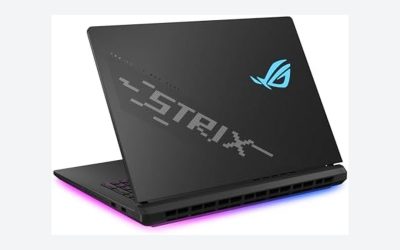
The G614FP-OS94 is the high-power example. ASUS lists its RTX 5070 versions of this family at 100 W plus 15 W of Dynamic Boost, for 115 W, and the listing describes a tri-fan design with a full-width heatsink and full-surround vents. It fits players who want the most GPU power of the three examples here and are fine with a heavier laptop. The Ryzen 9 9955HX is also a high-end laptop processor, which helps in CPU-heavy games.
- AMD Ryzen 9 9955HX processor (per listing)
- 16-inch 16:10 FHD+ display, 165 Hz, 3 ms (per listing)
- 16 GB DDR5-5600 and 1 TB PCIe Gen 4 SSD, Wi-Fi 6E (per listing)
- About 5.51 lb and 0.9 in thick (per listing dimensions)
Caveat: it is the heaviest of the three, and ASUS’s spec page lists several RTX 5070 entries, so confirm that the 115 W figure applies to this exact SKU.
Common Mistakes
- Treating the GPU name as the spec. “RTX 5070” tells you the silicon family, not the wattage. Always find the TGP.
- Adding base power and boost power and calling it the TGP. Dynamic Boost is conditional. Compare the base figure first, then the total.
- Judging by chassis thickness alone. Thin does not automatically mean throttled, and thick does not automatically mean cool. Read sustained results for the exact model.
- Ignoring resolution. A higher-resolution panel raises GPU load, so a lower-power laptop can feel tighter on a sharper screen.
- Skipping the model number. Families such as the Nitro V 16 are sold in many configurations with different power targets.
- Blocking the vents. Gaming on soft surfaces cuts airflow and makes any laptop run hotter and louder.
Questions
Is a higher TGP always better?
A higher TGP gives the GPU more power to work with, but it also produces more heat, noise and battery drain. A well-cooled 95 W design can beat a poorly cooled 115 W design in sustained use. Use TGP as one input alongside the cooling design and the screen resolution.
Where do I find a laptop’s real TGP?
The best source is the manufacturer’s own spec or power table, which for some brands lists base watts and Dynamic Boost watts separately. If a retailer listing omits it, search for the exact model number plus “TGP” or look up independent reviews that report it. Treat figures from unlabeled aggregator sites with caution, because some mix up configurations.
What does Max-Q mean on RTX 50 laptops?
Max-Q began as a label for lower-power, thinner GPU variants. In recent generations it describes a set of efficiency technologies that can apply at any power level, so the label alone no longer marks a separate low-power model. ASUS, for example, lists Max-Q technologies alongside DLSS 4 on a laptop whose RTX 5070 it rates at 100 W plus boost.
Does Dynamic Boost work all the time?
No. It shifts power from the CPU to the GPU only when the system has spare power and the game is GPU-bound. In a game that also stresses the processor, the available boost may be smaller. The advertised total is the maximum, not a guarantee.
Can I raise a laptop’s TGP myself?
Generally no. The limit is set in firmware and the cooling is built for it. Some manufacturers offer performance modes that move within the designed range, which is the safe route. Unofficial changes risk overheating and can void warranty coverage.
Will a lower-TGP laptop still run modern games well?
Often yes, especially with upscaling and sensible settings, but the margin is smaller at high resolutions and maximum detail. If you mainly play lighter or competitive titles, the difference may matter less than screen quality, weight and noise.
Update History
- October 14, 2026 – Initial publication.
- Check the product page for current specifications and availability before buying.
Sources and Methodology
We compiled this guide from manufacturer specification pages and power tables, NVIDIA’s published product information and launch coverage, and the retailer listing fields for each example product. Where sources disagreed, we left the figure out or told you to confirm it on the exact model. We did not run our own performance measurements, so we cite no frame rates.
- NVIDIA GeForce RTX 50 Series laptop announcement and laptop comparison page
- Acer GPU power specification page for Predator and Nitro laptops
- ASUS ROG Strix G16 (2025) specification page
- Press coverage by Notebookcheck, PC Gamer and Tom’s Hardware
- Retailer listing fields (title, dimensions, weight, feature bullets) for each example product