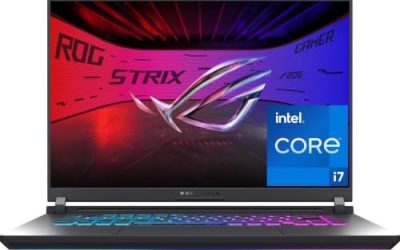
The Sceptre E225W-FW144 is the best overall pick for a gaming laptop because it combines up to 144 Hz with both HDMI and DisplayPort inputs at a desk-friendly 22 inches. An external monitor for a gaming laptop is a second, larger screen that gives you more room, a higher refresh rate or a cleaner picture than the laptop panel, connected over HDMI, DisplayPort or USB-C. If you travel with your laptop, the ARZOPA 16.1-inch 144 Hz portable monitor is the one to look at, while the Acer 27-inch suits a permanent desk.
Our Top Picks
 Acer 27in FHD 1920x1080 IPS 120Hz Gaming Monitor27-inch8.27 x 24.07 x 17.44 inches11 PoundsCheck on Amazon
 Sceptre Curved 24-inch Gaming Monitor 1080p R1500 98%24-Inches16.04 x 21.61 x 9.06 inches6 poundsCheck on Amazon
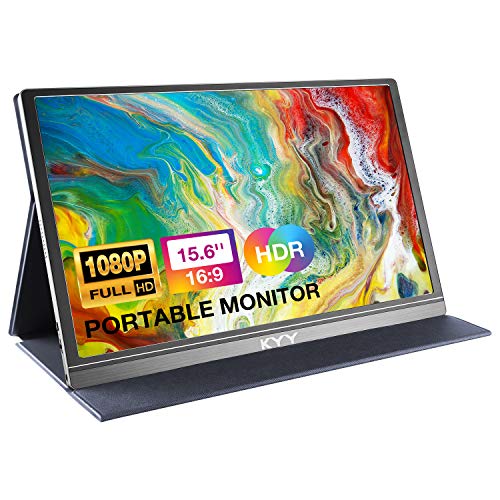 KYY Portable Monitor 15.6" 1080P Computer Monitor Screen15.6-inch8.85 x 14.48 x 0.35 Inches1.7 PoundsCheck on Amazon


Top 3 picks at a glance
Quick List
- Acer 27-inch KB272 G0bi – best for a big IPS desk monitor at 120 Hz
- InnoView 15.6-inch Portable Monitor – best for a simple travel second screen with HDMI and USB-C
- Sceptre 24-inch Curved Monitor – best for an immersive curved panel with two HDMI ports
- KYY 15.6-inch Portable Monitor – best for a thin, light screen with a smart cover and two USB-C ports
- ARZOPA 16.1-inch 144 Hz Portable Monitor – best for portable gaming at a higher refresh rate
- Sceptre 22-inch E225W-FW144 – best overall for a fast, simple desk setup with DisplayPort
Which One Is Right for You?
| If you… | Choose |
|---|---|
| want a fixed desk monitor with the fastest stated refresh rate | Sceptre 22-inch E225W-FW144 |
| game on the road and want a portable monitor with 144 Hz | ARZOPA 16.1-inch 144 Hz |
| want a large 27-inch panel for work and play | Acer 27-inch KB272 G0bi |
| want the lightest, thinnest portable screen with a cover | KYY 15.6-inch |
| need a basic travel monitor for emails, spreadsheets and consoles | InnoView 15.6-inch |
| like a curved panel and have a console plus a laptop to switch between | Sceptre 24-inch Curved |
Decide between desk and portable first. A desk monitor offers a larger panel, fixed power and the most stable connection, while a portable monitor trades size for the ability to pack into a backpack. After that, think about the cable your laptop can use: HDMI is nearly universal, DisplayPort is common on gaming laptops, and USB-C with DisplayPort Alt Mode lets a portable monitor run from a single cable.
All 6 Picks in Detail
1. Acer 27-inch KB272 G0bi – Best for a Big IPS Desk Monitor
As an Amazon Associate we earn from qualifying purchases at no extra cost to you.

The Acer KB272 G0bi is a straightforward 27-inch 1080p IPS monitor that leans toward office-and-play use. The listing names a 1920 by 1080 IPS panel, 120 Hz, 1 ms response, AdaptiveSync, 99% sRGB, HDMI and VGA inputs, VESA mounting and a blue-light filter. Two points stand out for gaming laptops: there is no DisplayPort in the listing, and the 27-inch size at 1080p yields a lower pixel density, around 82 pixels per inch, so text looks softer than on a smaller or higher-resolution panel.
For a gaming laptop, the practical connection is HDMI, which supports 1080p at 120 Hz on most modern laptops. Check that your laptop’s HDMI output runs at that refresh rate, and enable the higher refresh in the operating system, since many monitors default to 60 Hz. The built-in blue-light filter is a comfort setting for evening sessions, not a substitute for taking breaks. IPS panels offer wide viewing angles and good color for the price, which suits a mixed workday and game night.
- 27-inch IPS, 1920 by 1080
- 120 Hz and 1 ms response per the listing
- AdaptiveSync support
- HDMI and VGA inputs
- VESA mountable, blue-light filter, 99% sRGB
Pros:
- Large, color-accurate IPS panel
- VESA mount supports arms and stands
Cons:
- No DisplayPort listed
- Lower pixel density at 27 inches and 1080p
Next to the Sceptre E225W, it is bigger and has better color but offers a lower refresh rate and fewer modern ports.
2. InnoView 15.6-inch Portable Monitor – Best for a Simple Travel Second Screen

The InnoView is a 15.6-inch portable monitor aimed at people who want a second screen that is easy to carry. The listing names a 1080p FHD display with HDMI and USB-C, compatibility with laptops, desktops, MacBooks, phones, tablets, a PS5, Xbox and Switch, a built-in speaker and a protective case. It does not state a refresh rate, so treat it as a 60 Hz-class display unless the product page says otherwise.
At 15.6 inches and 1080p, the pixel density is about 141 pixels per inch, which makes text crisp for the size. Its role next to a gaming laptop is the second-screen role: chat, a browser, a stream dashboard or a game guide while the main game runs on the laptop. It is less suited to competitive play on its own, because the refresh rate is not advertised as high.
- 15.6-inch FHD 1080p
- HDMI and USB-C inputs
- Built-in speaker
- Protective case included
- Refresh rate, brightness and panel type: confirm on listing
Pros:
- Wide device compatibility
- Portable with a case
Cons:
- Refresh rate not stated
- Speaker is typically weak
Compared with the KYY, it offers a similar size and feature set with a more generic description, and the KYY lists its ports in more detail.
3. Sceptre 24-inch Curved Gaming Monitor – Best for an Immersive Curved Panel

The Sceptre C248W-1920RN is a 24-inch curved monitor. The listing names a 1080p resolution, an R1500 curve, 98% sRGB coverage, two HDMI ports plus VGA, built-in speakers and a VESA wall mount option. The refresh rate is not in the listing name, so check the product page, so confirm it before you plan around high-refresh play.
The curve is a preference. At R1500, the curve is gentle, and on a 24-inch screen it mostly softens the edges of your field of view rather than wrapping around you. Two HDMI ports are useful if you plug in both a gaming laptop and a console, and the monitor’s menu lets you switch between them without unplugging anything, but the absence of DisplayPort in the listing means HDMI is the connection to use. The 1080p panel on 24 inches gives about 92 pixels per inch, a reasonable balance.
- 24-inch curved, R1500
- 1920 by 1080 resolution
- 98% sRGB per the listing
- 2 HDMI inputs and a VGA input
- Built-in speakers; refresh rate: confirm on listing
Pros:
- Two HDMI inputs for switching devices
- Gentle curve for immersion
Cons:
- No DisplayPort in the listing
- Refresh rate must be verified
It sits between the Acer and the E225W in size, and it is a better fit than either if you like the curved look.
4. KYY 15.6-inch Portable Monitor – Best for a Thin Screen with a Smart Cover

The KYY is a 15.6-inch portable monitor that focuses on being thin and light. The listing describes a 1080p IPS panel with a 178 degree viewing angle, HDR support, two full-function USB-C ports and a Mini HDMI port, a thickness of about 0.3 inches, a weight of about 1.7 pounds, built-in speakers, and a PU leather cover that doubles as a stand. It also says it works in landscape and portrait.
The two USB-C ports matter because they let you connect with one cable when your laptop’s USB-C supports DisplayPort Alt Mode, with a second port for power. The Mini HDMI port gives a fallback for laptops without a suitable USB-C port. As with other bus-powered portable monitors, running it from a laptop’s USB-C port draws battery, so bring the laptop’s charger for long sessions. The listing does not state a refresh rate, so assume a standard 60 Hz-class screen.
- 15.6-inch IPS, 1920 by 1080
- 2 USB-C ports and Mini HDMI
- About 0.3 inches thick, about 1.7 pounds
- Smart cover that works as a stand
- Refresh rate: confirm on listing
Pros:
- Very thin and light
- One-cable USB-C connection when supported
Cons:
- Not a high-refresh gaming panel
- Draws laptop battery when bus-powered
It is the lighter, more pocketable choice compared with the ARZOPA, which gives up some portability for a faster panel.
5. ARZOPA 16.1-inch 144 Hz Portable Gaming Monitor – Best for Portable Gaming

The ARZOPA Z1FC is the portable monitor in this list that actually advertises a gaming-grade refresh rate. The listing names a 16.1-inch 1080p display at 144 Hz with 106% sRGB, HDR, a kickstand, an ultra-slim body, and two USB-C ports plus a Mini HDMI port, compatible with laptops, Macs, an Xbox, a PS5 and a Steam Deck. The listing is also candid that it has no adaptive sync or FreeSync support, which is worth knowing before you plan around variable refresh.
The product page lists a weight of about 3.1 pounds, heavier than the KYY but reasonable for a 144 Hz panel with a built-in stand. A 144 Hz screen only helps if your laptop can output 144 Hz over the cable you use, so confirm your USB-C port supports the needed DisplayPort mode and that the laptop’s graphics can run the game at that frame rate.
- 16.1-inch, 1920 by 1080, 144 Hz
- 106% sRGB with HDR support per the listing
- 2 USB-C ports and Mini HDMI
- Kickstand included
- No adaptive sync per the listing
Pros:
- 144 Hz in a portable body
- Multiple console and laptop connections
Cons:
- No adaptive sync
- Heavier than ultra-slim 15.6-inch options
It is the portable counterpart to the Sceptre E225W: both aim at 144 Hz, but the ARZOPA gives up adaptive sync and ports for portability.
6. Sceptre 22-inch E225W-FW144 – Best Overall for a Fast Desk Setup

The Sceptre E225W-FW144 is the most useful all-rounder in this set for a gaming laptop on a desk. The listing names a 22-inch 1080p display with a refresh rate of up to 144 Hz, HDMI and DisplayPort inputs and built-in speakers, and identifies it as a 2026 model in the E225W-FW144 series. Having DisplayPort matters because gaming laptops often route their best output through it or through a USB-C-to-DisplayPort path.
At 22 inches and 1080p, the pixel density is about 100 pixels per inch, which looks sharp for the size. The smaller footprint leaves room for the laptop, a keyboard and a mouse on a modest desk. Panel type, adaptive sync support and brightness are not named in the listing, so check those details on the product page if variable refresh matters to you. Its modest 22-inch size also makes it a practical second monitor next to a larger one, with the laptop screen acting as a third display if your graphics hardware can drive all of them. The built-in speakers are a convenience for casual use; most players will still prefer a headset.
- 22-inch, 1920 by 1080
- Up to 144 Hz per the listing
- HDMI and DisplayPort inputs
- Built-in speakers
- Panel type and adaptive sync: confirm on listing
Pros:
- DisplayPort and HDMI both available
- High refresh in a compact size
Cons:
- Small screen for multitasking
- Panel details are not in the listing name
It is faster and has better connectivity than the Acer, while the Acer offers more screen area and a stated IPS panel.
Specs Compared
| Product | Size | Resolution | Refresh rate | Inputs | Type | Other features |
|---|---|---|---|---|---|---|
| Acer KB272 G0bi | 27 in | 1920 x 1080 IPS | 120 Hz | HDMI, VGA | Desk | AdaptiveSync, 99% sRGB, VESA |
| InnoView Portable | 15.6 in | 1920 x 1080 | Confirm on listing | HDMI, USB-C | Portable | Speaker, protective case |
| Sceptre C248W Curved | 24 in | 1920 x 1080 | Confirm on listing | 2 HDMI, VGA | Desk | R1500 curve, 98% sRGB, speakers, VESA |
| KYY Portable | 15.6 in | 1920 x 1080 IPS | Confirm on listing | 2 USB-C, Mini HDMI | Portable | About 0.3 in thick, 1.7 lb, smart cover, speakers |
| ARZOPA Z1FC | 16.1 in | 1920 x 1080 | 144 Hz | 2 USB-C, Mini HDMI | Portable | 106% sRGB, HDR, kickstand, no adaptive sync |
| Sceptre E225W-FW144 | 22 in | 1920 x 1080 | Up to 144 Hz | HDMI, DisplayPort | Desk | Built-in speakers |
How We Chose These
We began with the six monitors in this set and compared them on the specifications that matter when a gaming laptop is the source: refresh rate, resolution relative to size, the video inputs a laptop can actually use, and whether the monitor is a desk model or a portable. Listing names supplied most of the facts, and the product-page feature bullets on the KYY and ARZOPA supplied thickness, weight and adaptive-sync details. We did not run our own response-time or color measurements, so claims such as 1 ms response or sRGB coverage are the manufacturers’ figures as stated in listings. Where a refresh rate or panel type was not named, we left it as “confirm on listing”.
What to Look For
Refresh rate and what your laptop can feed it
A 144 Hz monitor only looks smoother if the laptop sends 144 frames per second. Many gaming laptops reach that in esports titles at 1080p, but demanding games may sit well below it, and in that case adaptive sync does more for smoothness than a higher refresh number. Before buying, open the laptop’s graphics control panel and confirm the external output supports the monitor’s refresh rate over the cable you plan to use. After connecting, set the refresh rate manually in the operating system, because the default is often 60 Hz.
Ports and cables: HDMI, DisplayPort and USB-C
HDMI 2.0 is a safe choice for 1080p at 144 Hz, while older HDMI versions may cap lower. DisplayPort 1.2 handles 1080p at 144 Hz comfortably. For USB-C, the port on the laptop must support DisplayPort Alt Mode (or Thunderbolt/USB4), and a USB-C connector alone does not guarantee video output. Some gaming laptops wire their HDMI or USB-C port to the integrated graphics instead of the dedicated GPU, which can reduce performance; check the laptop manual or the manufacturer’s page to see which port goes where.
Size, resolution and pixel density
Pixel density is resolution divided by size, and it drives how sharp text looks. A 1080p panel gives roughly 141 pixels per inch at 15.6 inches, about 100 at 22 inches, about 92 at 24 inches and about 82 at 27 inches. For a 27-inch screen viewed up close, 1080p can look soft, so if you read a lot of text, consider a smaller panel or a higher resolution. For gaming, 1080p is easy for most laptop GPUs to drive, which helps frame rate.
Portable monitor power and brightness
A portable monitor usually powers from the laptop’s USB-C port, which drains the laptop battery and may not provide enough power on lower-wattage ports. If the monitor dims or flickers, plug it into a separate USB-C charger or use a Y-cable with a second power input. Brightness for portables is often lower than desk monitors, so a window-lit room can wash them out. Check whether the listing states brightness and whether a power adapter is included.
Panel type, color and response time
IPS panels, like the ones named for the Acer, KYY and ARZOPA, keep colors consistent from wide angles and suit mixed work and play. VA panels, common on curved monitors, usually offer deeper blacks and higher contrast but can smear dark transitions in fast scenes. TN panels are the fastest and cheapest but have narrower viewing angles. Response time claims such as 1 ms are measured under favorable conditions, so treat them as a rough indicator rather than a promise. The sRGB percentage tells you how much of the standard color space the screen covers; 95% or more is fine for games and everyday work, and the 106% figure on the ARZOPA is a gamut volume figure, not a sign of better accuracy.
Stands, mounts and desk ergonomics
A monitor that only tilts will sit too low for comfort beside a laptop, which tends to leave your neck bent. VESA mounting, named for the Acer and Sceptre curved model, lets you fit an arm and set the top of the screen near eye level. Place the external monitor directly in front of you if it is your main screen, and put the laptop to the side as a secondary display for chat or monitoring. For portable monitors, a cover that folds into a stand is convenient, but check that it holds the angle you need on a small table or a lap.
A worked example
Imagine a laptop with one HDMI 2.1 port, one USB-C port with DisplayPort support, and a dedicated RTX-class GPU. At a desk, run the Sceptre E225W over DisplayPort via USB-C or HDMI at 144 Hz, and keep the laptop screen as a chat or monitoring display. On a trip, connect a portable monitor over a single USB-C cable, and keep a charger handy. The laptop’s output ports and your use case decide the best match more than any single spec.
Questions
Can I use a portable monitor for gaming on a laptop?
Yes, especially a 144 Hz model like the ARZOPA, but confirm that your laptop’s USB-C or Mini HDMI path supports the refresh rate. Standard 60 Hz portables are better for secondary tasks than competitive play.
Is 1080p enough on a 27-inch monitor?
It works, but text looks softer because pixel density is around 82 pixels per inch. It is fine for gaming and casual use, and a higher resolution is better if you read or edit a lot on screen.
Do I need DisplayPort for a gaming laptop?
No, HDMI 2.0 or newer handles 1080p at 144 Hz. DisplayPort is useful because it is common on gaming laptops and reliably supports high refresh rates and adaptive sync.
Will a second monitor lower my frame rate?
It can, slightly, if the second display runs on the same graphics processor and you have heavy video or a browser playing on it. Keep the second screen to light tasks during a game for the smoothest result.
Why does my external monitor run at 60 Hz?
The operating system often defaults to 60 Hz. Open the display settings, choose the monitor, and select the higher refresh rate, and confirm the cable and port support it.
Do I need a USB-C hub or dock?
Not if the monitor’s cable connects directly to a laptop port that supports video. A hub or dock helps when the laptop has few ports, but cheap hubs can limit refresh rate, so connect the monitor directly when you want 144 Hz.
Update History
- October 20, 2026 – Initial publication; product set drawn from current catalog listings.
- Check the product page for current specifications and availability before buying.
Sources
- Retailer listing titles and specification fields for each product
- Retailer product-page feature bullets and specification fields for the KYY and ARZOPA portable monitors