The RTX 5060 laptop gaming performance you can expect depends on the laptop’s power limits, cooling, processor, and game settings. NVIDIA’s Blackwell GPU targets modern gaming with 8GB of GDDR7 memory, but demanding games and ray tracing can require compromises. Here is how to judge its real-world capabilities.
What RTX 5060 Laptop Gaming Performance Really Means
The RTX 5060 Laptop GPU is a midrange graphics option designed for gaming laptops, with performance that varies by chassis and power configuration. It is best understood as a strong 1080p gaming GPU rather than a guarantee of maximum settings in every game. Resolution, graphics presets, memory use, and frame-generation support all influence the experience.
1. Core specifications and what they tell you
NVIDIA lists 3,328 CUDA cores, 8GB of GDDR7 memory, a 128-bit memory interface, and a GPU subsystem power range of 45–100W for the RTX 5060 Laptop GPU. These specifications describe the graphics hardware, but they do not predict a single frame rate across all laptops and games.
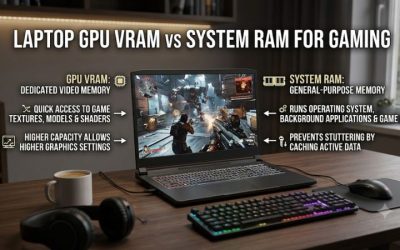
The 8GB memory capacity is particularly relevant when choosing settings. High-resolution textures, large game worlds, and ray tracing can increase video memory demand. If a game exceeds the available memory budget, performance may suffer from stuttering or texture compromises even when average FPS initially looks acceptable.
2. TGP and cooling change sustained performance
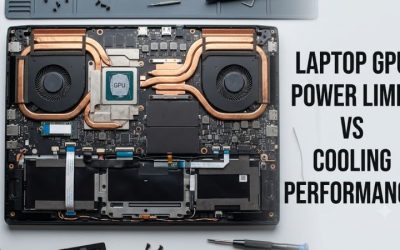
Total graphics power, commonly called TGP in laptop specifications, helps indicate how much power a GPU configuration can use. NVIDIA lists a 45–100W range for this model, so two laptops with the same GPU name can operate under substantially different power limits.
Higher power limits can help when the GPU is power-constrained, but the result depends on cooling, firmware, and the laptop’s overall design. A thinner chassis may prioritize portability and acoustics, while a larger gaming laptop may sustain higher power more consistently. Compare the exact laptop configuration, not just the GPU label.
3. Resolution determines how demanding a game feels
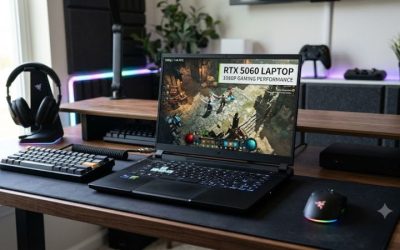
For most buyers, 1920 × 1080 is the sensible starting point. It gives the GPU fewer pixels to render than 2560 × 1440 or 2560 × 1600, leaving more performance available for demanding effects and higher frame rates. A 1080p display is therefore a natural match for this graphics tier.
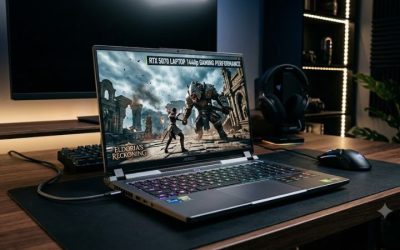
At higher resolutions, the RTX 5060 can still be useful, but demanding games may need reduced settings or DLSS upscaling. A laptop with a 1600p panel does not have to render every game at native resolution. Choose settings based on image quality, responsiveness, and the frame rate you want rather than treating the panel’s maximum resolution as mandatory.
4. DLSS 4, ray tracing, and frame generation
The RTX 5060 belongs to NVIDIA’s Blackwell laptop GPU generation and supports the RTX 50-series feature set, including DLSS 4 technologies and fourth-generation ray-tracing cores. Actual benefits depend on the game, driver, supported DLSS modes, and the settings enabled.
Upscaling can render a game internally at a lower resolution and reconstruct the output, helping balance visual quality and performance. Frame generation can increase displayed frame rates in supported titles, but generated frames are not equivalent to the same number of conventionally rendered frames. For competitive games, native rendering and input responsiveness remain important considerations.
How to Assess RTX 5060 Laptop Gaming Performance
The most useful way to judge this GPU is to combine independent benchmark results with the specifications of the laptop you plan to use. The figures below illustrate performance under specific conditions, not universal FPS targets. Use them to understand how resolution and graphics presets affect playability before adjusting your own settings.
1. Real-world benchmark results
Notebookcheck’s May 2025 preview examined an engineering sample of the MSI Stealth A16 with a Ryzen AI 7 350 and an RTX 5060 Laptop GPU configured for up to 95W. Its limited gaming results provide a useful reference for understanding the GPU’s capabilities.
| Game and test conditions | Average FPS | Interpretation |
| Cyberpunk 2077, 1920 × 1080, Ultra, FSR off | 89.9 | Playable, but demanding settings leave less headroom |
| Baldur’s Gate 3, 1920 × 1080, Ultra | 105.5 | Strong performance in this test |
| Cyberpunk 2077, 2560 × 1440, Ultra, FSR off | 55.5 | Native higher-resolution rendering is more demanding |
| Baldur’s Gate 3, 2560 × 1440, Ultra | 72.1 | Higher resolution remains practical in this title |
Source: Notebookcheck, May 2025. Results are from the specified MSI engineering sample and test conditions. They are not guaranteed results for retail laptops.
These results show why a single FPS estimate can mislead. Cyberpunk 2077 at Ultra settings places a substantially different workload on the GPU from Baldur’s Gate 3, and increasing resolution lowers performance in both examples. Other games may behave differently depending on their engines, updates, and graphics options.
2. Choose settings for your target frame rate
A useful starting point for RTX 5060 laptop gaming performance is to establish a target before adjusting individual settings. For story-driven games, consistent motion and image quality may matter more than reaching the highest possible FPS. Competitive players may instead prioritize responsiveness and a frame rate that takes advantage of their display.
Use these starting points as guidelines rather than fixed performance promises:
| Gaming goal | Suggested starting settings | Main trade-off |
| Competitive gaming | 1080p, low or medium settings | Reduced visual detail for higher potential FPS |
| Modern AAA games | 1080p, high settings | Balance between image quality and performance |
| Demanding ray-traced games | 1080p, medium settings and DLSS if supported | Better performance with some image-quality compromises |
| Higher-resolution gaming | 1440p or 1600p with adjusted settings | Sharper output but greater GPU and VRAM demand |
Start with the game’s native rendering and a sensible preset. If performance falls short, lower demanding effects such as ray tracing, volumetric lighting, or shadows before reducing every setting indiscriminately. Test one change at a time so you can identify which adjustment actually improves the experience.
3. Check frame times, not just average FPS
Average FPS describes overall rendering speed, but it cannot show every hitch or slowdown. A game averaging 90 FPS may still feel inconsistent if frame times spike during shader compilation, asset loading, or busy scenes. The 1% low figure can provide additional context when a reliable benchmark source reports it.
For your own laptop, use a consistent in-game scene or built-in benchmark and monitor average FPS, frame-time behavior, GPU utilization, and temperatures. NVIDIA’s overlay or a reputable monitoring utility can help. Compare results using the same resolution, preset, power mode, and DLSS settings rather than mixing different configurations.
4. Understand the limitations of 8GB VRAM
The RTX 5060 Laptop GPU’s 8GB of GDDR7 is adequate for many 1080p gaming workloads, but it can restrict demanding combinations of high-resolution textures and ray tracing. Notebookcheck also identified video memory capacity as a concern in some QHD gaming scenarios.
When a game stutters or textures load slowly, do not automatically blame VRAM. Check whether the issue repeats, monitor memory usage, and lower texture quality or ray tracing temporarily. If the problem improves, the settings may have exceeded the practical memory budget. Other causes, including CPU limits, storage activity, and shader compilation, can produce similar symptoms.
How to Get the Best Performance From an RTX 5060 Laptop
Good configuration helps the GPU deliver consistent results, but software tweaks cannot overcome every hardware limit. Prioritize official drivers, adequate cooling, an appropriate power profile, and repeatable performance checks. These steps are useful for new laptops as well as systems that appear slower than expected.
1. Use the correct power mode
Connect the manufacturer’s supplied or appropriately rated charger when gaming, then select the laptop’s performance profile through its official control software or Windows power settings. Gaming on battery can reduce available power and change system behavior, so plugged-in and battery results should not be compared as though conditions were identical.
A higher-performance mode can increase fan noise and temperatures. If the laptop becomes uncomfortably loud, compare balanced and performance modes in the same game. Keep the profile that delivers an acceptable balance of noise, sustained performance, and responsiveness instead of assuming maximum fan speed is always necessary.
2. Keep graphics drivers current
Install NVIDIA graphics drivers from official NVIDIA sources or the laptop manufacturer’s support page when a manufacturer-specific package is required. A recent driver may address game compatibility, rendering issues, or performance regressions, but updates do not guarantee higher FPS in every title.
If a new driver introduces a problem, check the release notes and the laptop manufacturer’s guidance before rolling back. Avoid third-party driver packages and aggressive cleanup utilities unless there is a diagnosed reason to use them. For a stable system, routine driver maintenance is generally preferable to repeatedly changing versions in pursuit of small gains.
3. Maintain airflow and monitor temperatures
Use the laptop on a firm, unobstructed surface, with its intake and exhaust vents clear. Soft bedding, blocked vents, and accumulated dust can restrict airflow. If performance declines during longer sessions, compare GPU clocks, temperatures, and power readings at the beginning and after the slowdown.
A high temperature alone does not establish a fault because laptop cooling designs and thermal limits vary. Look for a sustained reduction in clocks or power alongside declining performance. Clean the device according to its service instructions, and seek professional help if overheating persists, fans malfunction, or the laptop shows signs of physical damage.
4. Reduce unnecessary graphics workload
If a game does not meet your target, lower ray tracing first when enabled, then adjust shadows, volumetric effects, and other demanding options. Enable DLSS upscaling when the title supports it and compare image quality at the same output resolution. Frame generation may help in supported single-player games, but it should not be treated as a substitute for responsive base performance.
Also check whether the game is running on the discrete NVIDIA GPU and whether background applications are consuming substantial CPU or GPU resources. Close unnecessary applications rather than using RAM cleaners or registry scripts. After each change, repeat the same scene or benchmark and keep only adjustments that deliver a measurable benefit.
FAQ
Is the RTX 5060 Laptop GPU good for gaming?
Yes, the RTX 5060 Laptop GPU is a capable option for modern 1080p gaming, with performance depending on laptop power limits and game requirements. Demanding titles may need reduced settings or DLSS, especially when ray tracing is enabled.
Can an RTX 5060 laptop run games at 1440p?
Yes, it can run many games at 1440p, but demanding titles may require lower graphics settings or DLSS upscaling. Its 8GB VRAM capacity can also limit some combinations of high-resolution textures and ray tracing.
Is a 100W RTX 5060 laptop faster than a 45W model?
A 100W configuration has more potential power headroom, but the wattage alone does not establish the performance difference. Cooling, GPU clocks, firmware, and the CPU also affect results, so compare independent benchmarks of the exact laptop models.
Does DLSS 4 improve RTX 5060 laptop gaming performance?
DLSS 4 can improve performance in supported games through applicable upscaling and frame-generation features. The actual benefit varies by title and settings, and generated frames do not provide the same responsiveness as an equivalent increase in conventionally rendered FPS.
Final Thoughts
The RTX 5060 laptop gaming performance profile makes this GPU a sensible choice for gamers who prioritize 1080p playability over maximum settings at higher resolutions. Its 8GB VRAM and variable power limits deserve attention when choosing a laptop. Compare exact configurations and independent benchmarks before deciding how much to spend.