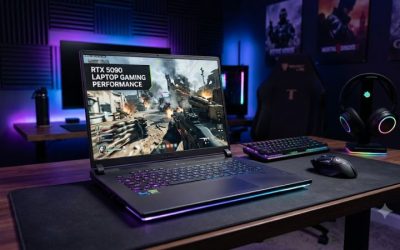
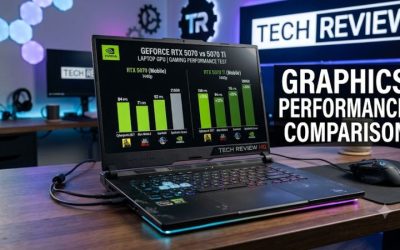
RTX 5080 laptop gaming performance is strong enough for demanding modern games, high-resolution gaming, and ray tracing, but results depend on GPU power limits, cooling, CPU performance, and game settings. This guide explains what the hardware can deliver, how to interpret benchmarks, and which settings help you get the most from your laptop.
What RTX 5080 Laptop Gaming Performance Really Comes Down To
The GeForce RTX 5080 Laptop GPU uses NVIDIA’s Blackwell architecture and combines 16GB of GDDR7 memory with 7,680 CUDA cores. NVIDIA lists a GPU subsystem power range of 80–150 watts, so two laptops carrying the same GPU name can deliver different sustained performance.
1. GPU power limits and cooling
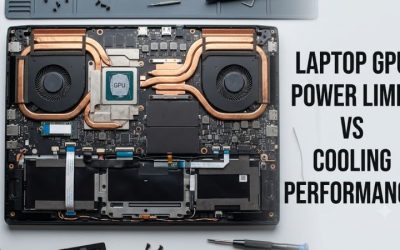
GPU power is one of the most important factors when comparing RTX 5080 gaming laptops. NVIDIA specifies a broad power range rather than one fixed operating level. The laptop manufacturer determines the configured power limits, cooling capacity, and firmware behavior, which influence sustained clock speeds under demanding workloads.
A higher power limit can help a GPU maintain stronger performance when cooling and available power support it. However, wattage alone does not determine frame rates. A well-cooled system with sensible power management can outperform expectations, while thermal or power constraints can prevent another system from maintaining its advertised boost clocks.
2. The CPU and the game itself
The GPU does not work in isolation. The processor handles game logic, physics, simulation, background tasks, and other operations that can limit frame delivery. CPU-heavy strategy games, competitive shooters, and large simulation environments may become processor-limited before the GPU reaches its full rendering potential.
This matters most when pursuing very high frame rates at 1080p or other relatively low resolutions. At higher resolutions and demanding graphics settings, the GPU generally carries more of the workload. RTX 5080 laptop gaming performance therefore depends on the complete laptop configuration, not just the graphics chip.
3. VRAM, resolution, and graphics quality
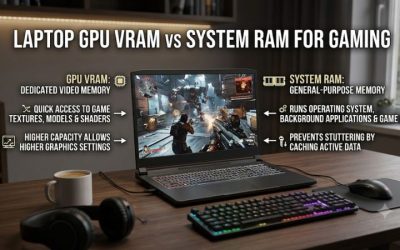
The RTX 5080 Laptop GPU has 16GB of GDDR7 memory and a 256-bit memory interface. That capacity gives demanding games room for high-resolution textures, complex scenes, and ray-tracing workloads, although actual memory use varies by game, resolution, and settings.
VRAM capacity is not a guarantee of a particular frame rate. Rendering performance also depends on GPU processing power, memory bandwidth, the game engine, and driver behavior. If a game exceeds the practical memory budget, reducing texture quality or other memory-intensive settings can help, but changing settings will not fix every GPU performance bottleneck.
4. DLSS, ray tracing, and frame generation
NVIDIA’s RTX 50-series laptops support Blackwell-generation graphics technologies, including DLSS features and hardware-accelerated ray tracing. DLSS Super Resolution reconstructs a higher-resolution image from a lower-resolution rendering workload, while supported frame-generation features can produce additional displayed frames.
These features have different effects. Upscaling can improve performance with a trade-off in image quality, while frame generation can increase displayed frame rates without providing an equivalent increase in the game’s underlying simulation rate. Check individual game support, latency, image quality, and available settings before deciding whether to enable them.
How to Get Better RTX 5080 Laptop Gaming Performance
The best approach is to establish a reliable baseline before changing settings. Use the laptop’s native power-management software, confirm that the dedicated GPU is active, and compare results under consistent conditions. The steps below prioritize free checks and reversible adjustments rather than unnecessary hardware changes.
Step 1: Establish a performance baseline
Choose a demanding game with a built-in benchmark or a repeatable gameplay sequence. Record the resolution, graphics preset, ray tracing, DLSS mode, frame generation, and laptop performance profile. Run the same sequence again after each change so you can distinguish a real improvement from normal variation.
For additional visibility, use an appropriate monitoring utility to observe GPU utilization, clock speeds, temperatures, power consumption, and CPU load. Monitoring values depend on the laptop and sensor availability. Look for repeatable patterns instead of treating one temperature or utilization reading as proof of a fault.
Step 2: Select the appropriate performance profile
Open the laptop manufacturer’s control application and locate its performance or thermal profile. Select the high-performance option when gaming while connected to the supplied power adapter, provided the laptop’s cooling and noise levels are acceptable. Profile names and available options differ by manufacturer and model.
After changing the profile, repeat the benchmark and compare the results. Higher fan speeds and noise are normal trade-offs for some performance modes. If temperatures or stability become concerning, return to the previous profile and investigate the cause rather than forcing higher power limits.
Step 3: Adjust resolution and graphics settings
Start with the game’s native resolution and a high-quality preset. If performance falls below your target, reduce expensive effects such as ray tracing or select a supported DLSS mode. Lowering a demanding setting can improve responsiveness while preserving more image quality than reducing every graphics option indiscriminately.
Change one setting at a time. Compare average FPS and, where available, 1% lows to understand both overall speed and frame-time consistency. Results should come from the same benchmark scene, game version, and configuration. Do not compare one run with frame generation enabled against another without it and attribute the entire difference to the GPU.
Step 4: Verify the GPU, drivers, and display connection
In Windows, open Task Manager with Ctrl + Shift + Esc and select Performance to identify the available GPU devices. The Processes tab can also display GPU-engine activity when the relevant column is enabled. Confirm that the game uses the intended GPU, especially on laptops with hybrid graphics.
Check the laptop manufacturer’s driver and firmware guidance before updating. NVIDIA’s official driver resources can help identify appropriate graphics drivers, but laptop-specific power management and display behavior may also depend on manufacturer software. If an update causes problems, follow the vendor’s supported rollback or reinstall procedure rather than making unrelated registry changes.
Quick diagnostic table
| Symptom | What to check first | Appropriate response |
| Low FPS at 1080p | CPU utilization and game engine limits | Check CPU load, background tasks, and game settings |
| Low FPS at 1440p or 1600p | GPU utilization, power, and graphics settings | Reduce demanding effects or use supported upscaling |
| Performance drops during long sessions | Clock speeds, temperatures, and power limits | Check airflow, fan profile, and cooling behavior |
| Stuttering despite high average FPS | 1% lows, frame times, VRAM use, and background activity | Isolate the cause before changing multiple settings |
| Lower performance on battery | Power profile and GPU power restrictions | Connect the supplied adapter for full gaming performance |
| High displayed FPS but noticeable latency | Frame generation, synchronization, and game settings | Compare responsiveness with frame generation disabled |
RTX 5080 Laptop Gaming Performance: What Benchmarks Show
Published results help establish what an RTX 5080 laptop can achieve, but individual numbers only make sense alongside their test conditions. Independent reviews use different processors, chassis, cooling systems, resolutions, and graphics settings. The following evidence illustrates why configuration-specific results matter more than a single universal FPS estimate.
1. Real-world gaming results
Tom’s Hardware’s review of the ASUS ROG Strix Scar 16 (2025) reported an average of 70–100 FPS in Indiana Jones and the Great Circle at 1440p with Ultra settings, depending on the action on screen. Its Shadow of the Tomb Raider Highest-preset benchmark produced 177 FPS at 1080p and 112 FPS at 1600p.
These figures describe that review’s specific laptop and test conditions, not every RTX 5080 machine. The results also illustrate how resolution affects rendering demand. The reported 1080p and 1600p figures should not be treated as a universal conversion ratio for other games, processors, or laptop power profiles.
2. Native rendering versus upscaling
Native rendering produces frames at the selected output resolution without relying on DLSS Super Resolution to reconstruct the image. Upscaling can reduce the initial rendering workload and improve performance, particularly when GPU rendering is the limiting factor. The benefit varies by game, quality mode, and resolution.
For a fair comparison, record native rendering and upscaled results separately. Keep ray tracing, frame generation, graphics presets, and power profiles consistent where possible. If frame generation is enabled, distinguish the displayed FPS from the underlying rendering and simulation performance when interpreting responsiveness.
3. RTX 5080 Laptop versus RTX 5090 Laptop
The RTX 5090 Laptop GPU has 24GB of GDDR7 memory and 10,496 CUDA cores, compared with 16GB and 7,680 CUDA cores on the RTX 5080 Laptop GPU. Both have a listed memory bandwidth of 896GB/s, but the RTX 5090 has more processing resources and memory capacity.
A direct comparison still requires matched laptops and benchmark conditions. A review of similarly configured systems may help estimate the performance gap, but it cannot establish that every RTX 5090 laptop will outperform every RTX 5080 laptop by the same percentage. Cooling, power limits, CPU selection, and game workload all matter.
4. How to judge performance for your needs
For high-refresh-rate gaming, look at both average FPS and 1% lows in the games you actually play. Average FPS describes overall throughput, while 1% lows can reveal recurring slowdowns that make gameplay feel less consistent. Neither metric alone captures every aspect of responsiveness, and benchmark methodology matters.
For demanding single-player games, consider image quality, ray tracing, VRAM use, and upscaling alongside frame rate. For competitive titles, input latency and stable frame delivery may matter more than maximum visual quality. The right configuration depends on your monitor, preferred games, and tolerance for fan noise.
FAQ
Is the RTX 5080 Laptop GPU good for 4K gaming?
Yes, the RTX 5080 Laptop GPU can handle many 4K gaming workloads, but demanding games may require reduced settings or DLSS upscaling. Performance depends on the laptop’s power configuration, cooling, and the game’s rendering demands. Check benchmarks for your specific game before expecting high frame rates at native 4K.
How much VRAM does the RTX 5080 Laptop GPU have?
The RTX 5080 Laptop GPU has 16GB of GDDR7 VRAM. This provides capacity for demanding textures and graphics workloads, but available memory alone does not determine FPS. Game optimization, resolution, ray tracing, and other graphics settings also affect performance.
Does a higher-wattage RTX 5080 laptop always perform better?
No, a higher GPU power limit does not automatically produce higher gaming performance. Cooling, sustained clock speeds, CPU limitations, and firmware can affect the outcome. Compare independent benchmarks from similar configurations and examine sustained performance rather than choosing a laptop solely by its advertised wattage.
Is the RTX 5080 Laptop GPU worth upgrading to from an RTX 4080 laptop?
It depends on the price difference and your existing laptop’s performance. Compare the exact configurations in the games and applications you use, including resolution, graphics settings, and power limits. If your RTX 4080 laptop already meets your frame-rate target, upgrading may offer less practical value than improving your display, storage, or overall setup.
Final Thoughts
RTX 5080 laptop gaming performance offers substantial graphics capability, particularly for demanding games, ray tracing, and high-resolution play. However, the GPU name alone cannot predict your FPS or value. Compare laptop-specific benchmarks, power limits, cooling, and display requirements before buying, then tune settings to match your preferred balance of image quality and responsiveness.