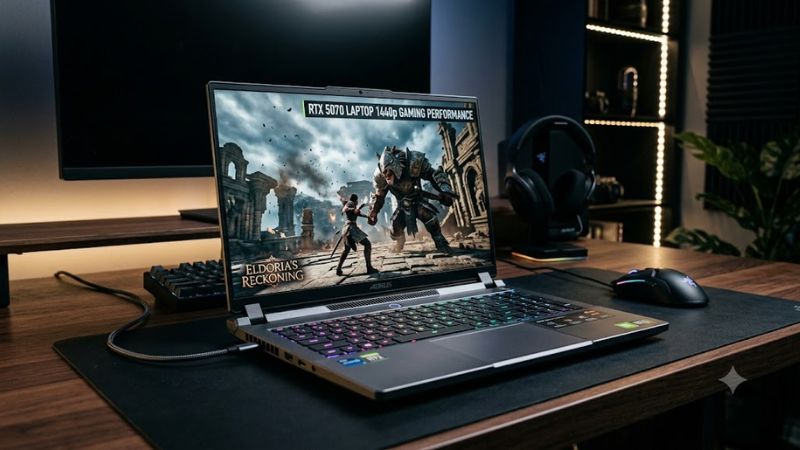
The RTX 5070 laptop 1440p gaming performance question comes down to graphics settings, GPU power limits, and the demands of each game. NVIDIA’s GeForce RTX 5070 Laptop GPU can handle 2560 × 1440 gaming, but demanding AAA titles may need adjusted settings or DLSS. This guide explains what to expect and how to configure your laptop.
What RTX 5070 Laptop 1440p Gaming Performance Really Depends On
The RTX 5070 Laptop GPU is a capable option for gaming at 1440p, but its performance varies substantially between laptops and games. Native resolution, ray tracing, available video memory, cooling, and power allocation all influence frame rates. Understanding these factors helps you choose appropriate settings instead of relying on a single average FPS figure.
1. GPU specifications and power limits
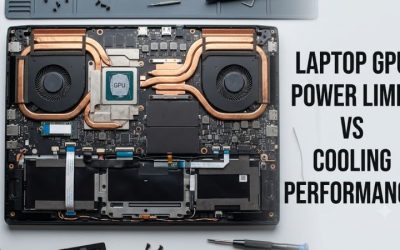
NVIDIA lists the RTX 5070 Laptop GPU with 4,608 CUDA cores, 8GB of GDDR7 memory, and a 128-bit memory interface. Its specified GPU subsystem power range is 50–100 watts, depending on the laptop implementation. These specifications describe the GPU, not a guarantee of identical gaming performance across every machine.
NVIDIA
+1
A laptop configured near the upper end of its supported power range may sustain higher performance than a thinner model with a lower power limit, provided cooling and other system constraints allow it. Compare the manufacturer’s maximum graphics power specification, including Dynamic Boost where applicable, rather than judging two laptops by the RTX 5070 name alone.
2. Native 1440p versus 1600p
Standard 1440p resolution is 2560 × 1440, while many 16-inch gaming laptops use 2560 × 1600 displays. The latter renders approximately 11% more pixels per frame, which increases the graphics workload when other settings remain equal.
That distinction matters when reading benchmarks. A result measured at 2560 × 1600 is useful evidence for a high-resolution gaming laptop, but it is not directly interchangeable with a 2560 × 1440 result. Display resolution, graphics preset, ray tracing, and upscaling must all be considered before comparing results.
3. The limits of 8GB VRAM
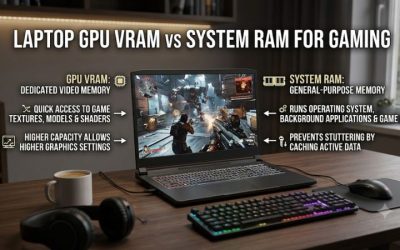
The RTX 5070 Laptop GPU’s 8GB of GDDR7 can be sufficient for many 1440p games, but demanding texture settings and ray tracing can put pressure on that capacity. When a game exceeds available graphics memory, performance may suffer through stuttering, texture streaming problems, or the need to reduce settings.
The important distinction is that VRAM capacity is not the same as processing speed. A game can run well at high settings until its memory demands become excessive, while another may remain GPU-limited even with memory available. Start by adjusting texture quality and ray tracing when a demanding title behaves poorly.
4. Cooling, CPU performance, and laptop design
The graphics chip does not operate in isolation. A laptop’s cooling system, CPU, memory configuration, firmware power profile, and background workload can all influence gaming results. Sustained performance may also differ from short benchmark runs if the laptop becomes thermally or power constrained.
For meaningful comparisons, look for reviews that identify the complete laptop model and report game settings, resolution, and GPU power configuration. A benchmark from one RTX 5070 laptop should be treated as an example of that system, not a universal FPS promise for every laptop carrying the same GPU.
How to Improve RTX 5070 Laptop 1440p Gaming Performance
The most practical approach is to establish a stable baseline before lowering image quality. Start with the laptop plugged into its charger, select the manufacturer’s performance profile, and measure a repeatable section of gameplay. Then adjust resolution, upscaling, ray tracing, and texture quality according to the actual bottleneck rather than changing every setting at once.
1. Start with High settings and a realistic FPS target
For many games, High settings are a sensible starting point for the RTX 5070 Laptop GPU at 1440p. A 60 FPS target is more realistic for demanding AAA games than assuming every title can sustain 120 FPS or more at maximum settings. Competitive games and lighter titles may achieve higher frame rates.
If performance falls short, reduce expensive effects before sacrificing every visual detail. Shadows, volumetric lighting, reflections, and ray tracing can impose substantial graphics workloads. Change one setting at a time and repeat the same gameplay sequence so you can identify which adjustment provides a meaningful improvement.
2. Configure DLSS and frame generation appropriately
DLSS Super Resolution can render a game internally below its output resolution and reconstruct the image, reducing GPU workload. Start with the Quality mode when image clarity matters, then consider Balanced if performance remains insufficient. The visual result varies by game, implementation, and movement on screen.
Frame generation is a separate feature that creates additional displayed frames. Supported RTX 50-series laptop GPUs can use DLSS Multi Frame Generation in compatible games, but generated frames should not be confused with the underlying rendered frame rate. For competitive gaming, prioritize responsiveness and a strong base frame rate rather than the highest displayed FPS number.
3. Reduce ray tracing before lowering every texture
Ray tracing can make reflections, lighting, and shadows more realistic, but demanding implementations may significantly reduce frame rates. If a game struggles at native 1440p, try lowering or disabling ray tracing first. You can then enable DLSS to recover performance while retaining more of the game’s visual detail.
Texture quality requires a different approach. On an 8GB configuration, reducing textures from Ultra to High can help when memory pressure is the problem. It will not necessarily improve performance in every game, especially when the GPU’s processing capacity is the primary limitation. Watch for stuttering and texture-loading issues instead of assuming that all low FPS comes from insufficient VRAM.
4. Check power, temperatures, and sustained performance
Connect the laptop to its supplied charger and select the manufacturer’s performance mode before comparing results. Some models have separate Silent, Balanced, and Performance profiles, and their power limits and fan behavior can differ. Use the laptop manufacturer’s software or documentation to identify the correct controls for your specific model.
If frame rates decline during longer sessions, investigate temperatures, GPU utilization, CPU utilization, and power behavior before changing firmware or applying an overclock. A short benchmark may not reflect performance after the laptop heats up. Keep ventilation unobstructed, use a firm surface, and avoid changing voltage or BIOS settings without a specific diagnosis.
Recommended settings and expected trade-offs
| Setting or step | Where | Expected effect | Risk or trade-off |
| Select High preset | In-game graphics menu | Balanced image quality and performance | Some games may still fall below 60 FPS |
| Enable DLSS Quality | In-game upscaling options | Can improve FPS with relatively good image detail | Image reconstruction artifacts may occur |
| Reduce ray tracing | In-game graphics menu | Can substantially reduce GPU workload | Less realistic lighting and reflections |
| Lower texture quality if memory-limited | In-game graphics menu | May reduce VRAM pressure and related stuttering | Reduced texture detail |
| Select Performance mode | Laptop manufacturer’s control software | Allows a higher-performance power profile where supported | More fan noise, heat, and power consumption |
| Monitor sustained gameplay | Game overlay or hardware monitoring software | Helps identify thermal, power, or utilization limits | Monitoring alone does not fix a bottleneck |
FAQ
Is the RTX 5070 Laptop GPU good enough for 1440p gaming?
Yes, the RTX 5070 Laptop GPU is suitable for 1440p gaming, particularly when you use sensible graphics settings. Lighter games can run at high frame rates, while demanding AAA games may need High or Medium settings, DLSS, or reduced ray tracing. Results depend on the specific laptop and game.
Can an RTX 5070 laptop run modern games at 1440p and 60 FPS?
Yes, many games can reach a 60 FPS target at 1440p, but it is not guaranteed in every title or at every preset. Heavy ray tracing and maximum graphics settings can push performance below that target. Use a repeatable gameplay benchmark to establish the appropriate settings for each game.
Is 8GB VRAM enough for 1440p gaming?
Eight gigabytes can be enough for many games at 1440p, but demanding titles may require lower texture settings or reduced ray tracing. Check the exact laptop configuration, because the GPU name alone does not establish its memory capacity. Consider 12GB alternatives if high-resolution textures and demanding graphics settings are priorities.
Should I use DLSS or lower the resolution for better FPS?
Start with DLSS Quality if the game supports it and native performance is insufficient. It can improve performance while retaining much of the detail of the output resolution. Lowering the render resolution is another option, but it may make the image softer. Compare both approaches in the same gameplay scene.
Final Thoughts
The RTX 5070 laptop 1440p gaming performance outlook is encouraging for gamers who balance visual quality with frame-rate targets. Its capabilities are sufficient for many 1440p gaming workloads, but power limits, VRAM capacity, and demanding effects matter. Before buying, compare independent benchmarks for the exact laptop model and prioritize sustained performance over headline FPS claims.