Gaming laptop performance depends on both the GPU’s available power and its ability to dissipate heat. laptop GPU power limit vs cooling performance is not simply a choice between higher wattage and lower temperatures: power limits determine how much energy the GPU can use, while cooling influences how consistently it can sustain that power. Understanding both helps you interpret specifications, diagnose performance drops, and compare laptops more accurately.
What Laptop GPU Power Limits and Cooling Really Mean
A laptop GPU needs electrical power to perform graphics calculations, but the laptop’s firmware, power delivery system, and thermal design constrain how much it can consume. Cooling removes the resulting heat. These systems interact, yet they serve different purposes: a higher power limit creates more performance potential, while stronger cooling helps the GPU operate within its permitted limits for longer.
1. Understanding the GPU Power Limit
The GPU power limit is the amount of power the graphics processor is permitted to draw under defined operating conditions. Laptop manufacturers configure limits according to the GPU, chassis, cooling system, power adapter, and firmware. Two laptops with the same NVIDIA GeForce GPU model can therefore have different performance characteristics.
For laptop GPU power limit vs cooling performance, distinguish the configured limit from actual power consumption. A GPU rated for a higher maximum graphics power does not continuously draw that amount. Workload, temperature, voltage, performance targets, and system policies can all keep actual consumption below the limit.
2. How Cooling Affects Sustained Performance
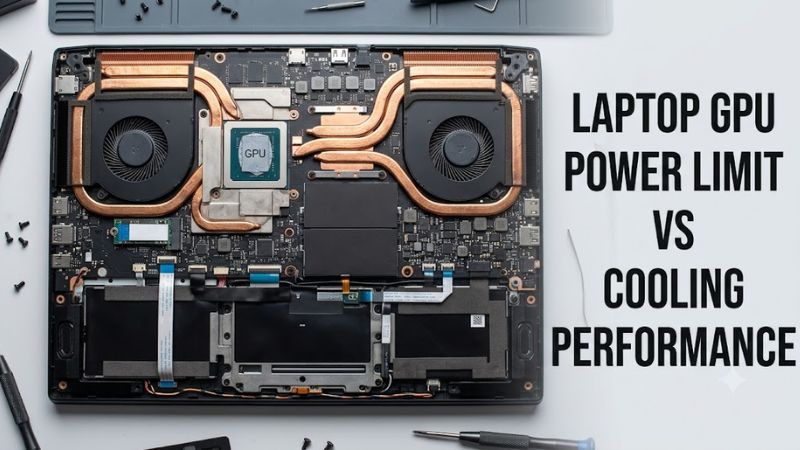
Laptop cooling typically uses heat pipes or vapor chambers, heatsinks, fans, and airflow paths to transfer heat away from the CPU and GPU. The effectiveness of the complete design depends on more than fan speed: heatsink capacity, contact quality, chassis airflow, ambient temperature, and shared CPU-GPU cooling all matter.
A GPU can reach its configured power limit while remaining within its operating temperature range. That is not necessarily a problem; it may indicate that the GPU is using the power available to it. Cooling becomes a more likely constraint when thermal limits or temperature-related control mechanisms reduce clock speeds or power to maintain safe operation.
3. Power-Limited vs. Thermally Limited Operation
A power-limited GPU cannot draw more power under its current configuration, even if its temperature is acceptable. A thermally limited GPU, by contrast, reduces its operating behavior because it approaches a temperature or thermal-control threshold. These conditions can occur at different times or overlap during the same gaming session.
This distinction matters when comparing laptop GPU power limit vs cooling performance. Lower GPU wattage does not automatically mean poor cooling, and a high reported temperature does not automatically prove thermal throttling. Check the GPU’s reported performance-limit reasons alongside power, temperature, clock speed, and frame rate before deciding what is holding performance back.
How to Compare Power Limits and Cooling Performance
The most useful comparison combines the laptop’s published GPU power specification with independent reviews that report sustained gaming behavior, temperatures, fan noise, and performance over time. No single specification captures the entire cooling system. Use the following checks to distinguish a GPU that is power-limited by design from one that may be losing performance because of thermal constraints.
1. Verify Maximum Graphics Power
Start with the exact laptop configuration, not just the GPU family name. NVIDIA’s laptop specifications and manufacturer product pages can help establish the supported graphics power range or maximum graphics power for a particular configuration. ASUS also explains how GPU power targets affect laptop performance and design trade-offs.
Check whether the advertised figure includes NVIDIA Dynamic Boost, and whether it describes a maximum target rather than power sustained in every game. Maximum graphics power is not a promise of a constant draw. For laptop GPU power limit vs cooling performance, this distinction prevents you from assuming that a higher advertised wattage automatically produces higher frame rates.
2. Monitor Temperature, Wattage, and Clock Speed
Use a monitoring utility such as HWiNFO or GPU-Z to observe GPU temperature, reported power, clock speed, utilization, and available performance-limit indicators. Run a demanding game with the laptop connected to its appropriate AC adapter, using the same graphics settings throughout the comparison.
Record readings after the laptop has warmed up, rather than relying on the first minute of gameplay. A high temperature alone does not establish thermal throttling, and a power-limit indicator is not necessarily a fault. Look for a consistent relationship between temperature, clock behavior, power consumption, and any sustained drop in performance.
3. Compare Sustained Gaming Performance
Independent laptop reviews are especially useful when they report performance after a sustained workload. Look for repeated game benchmarks, temperature readings, fan noise, and the reviewer’s stated performance profile. Results from the same test system and settings are more useful than isolated numbers gathered from different laptops.
A laptop with a higher GPU power limit may lead in a short benchmark but offer a smaller advantage during longer sessions. Conversely, a cooler-running laptop is not automatically faster. The useful question is whether it maintains the performance you need at an acceptable noise level and temperature.
4. Check Shared CPU and GPU Cooling
Many gaming laptops share some cooling capacity between the CPU and GPU. A CPU-heavy game, background workload, or demanding multitasking session can affect the power and thermal budget available to the graphics processor. Firmware may also redistribute power between components, depending on the laptop’s design.
This is why laptop GPU power limit vs cooling performance should be assessed under realistic workloads. A GPU-only benchmark may not reflect what happens when a game places heavy demands on both the processor and graphics hardware. When possible, compare both GPU-focused and mixed CPU-GPU workloads from the same review.
Diagnostic Table: What Your Readings May Mean
| Observed behavior | Likely interpretation | What to check next |
| High GPU utilization, power near its configured limit, stable clocks | The GPU may be power-limited during a demanding workload | Compare actual FPS and the laptop’s published power configuration |
| High temperature with a thermal-limit indicator and falling clocks | Thermal constraints may be reducing performance | Check airflow, fan operation, ambient temperature, and performance mode |
| Low GPU power and low GPU utilization | The game may be CPU-limited, frame-capped, or insufficiently demanding | Check CPU utilization, FPS limits, V-Sync, and graphics settings |
| GPU power fluctuates while CPU demand rises | Shared power allocation may be affecting GPU consumption | Compare a GPU-heavy workload with a mixed CPU-GPU workload |
| Temperatures rise but clocks and FPS remain stable | The system may be operating normally within its thermal design | Check the manufacturer’s temperature specifications and sustained performance |
These patterns are diagnostic clues, not definitive proof. Sensor names, reporting accuracy, and performance-limit behavior vary by GPU generation, laptop firmware, and monitoring software.
Practical Steps to Improve Sustained GPU Performance
If your gaming laptop runs hotter than expected or loses frame rate during longer sessions, begin with reversible checks before considering repairs or hardware changes. The goal is to identify whether the limitation comes from the configured power budget, thermal conditions, background workloads, or a performance profile. Do not raise temperature limits simply to chase higher wattage.
1. Confirm the Performance Mode
Open the laptop manufacturer’s control application and check the selected thermal or performance profile. Depending on the model, options may include Quiet, Balanced, Performance, or Turbo modes. These profiles can change fan behavior and power allocation, so compare them using the same game, settings, and power-adapter connection.
If a higher-performance mode is available, observe whether it improves sustained frame rates and how much additional noise or heat it produces. Return to the previous profile if the change offers little benefit. Avoid assuming that every laptop uses the same menu names or offers the same controls.
2. Improve Airflow Before Changing Settings
Place the laptop on a hard, flat surface and keep its intake and exhaust vents unobstructed. Soft bedding, fabric, dust buildup, or a blocked rear exhaust can interfere with airflow. A cooling pad may help certain designs, but its benefit depends on the laptop’s intake layout and the pad’s airflow.
If the laptop has persistently abnormal temperatures, loud fans, or sudden performance declines, inspect the manufacturer’s maintenance guidance before opening the chassis. Internal cleaning or thermal-interface replacement may require specialized tools and can affect warranty coverage. Stop using the system and seek qualified service if you notice fan failure, unusual burning smells, or signs of battery swelling.
3. Check Power and Graphics Settings
Verify that the correct AC adapter is connected and that Windows and the manufacturer’s utility are using the intended performance profile. Check whether the game is using the discrete GPU when appropriate. Also review frame-rate caps, V-Sync, and any in-game power-saving settings before attributing low FPS to cooling.
Avoid changing firmware limits or applying an overclock before identifying the actual constraint. On many laptops, GPU power controls are intentionally restricted by the manufacturer. Raising a limit without sufficient cooling and power-delivery capacity can increase heat and instability without delivering meaningful performance gains.
4. Repeat the Same Workload
After each adjustment, repeat the same game or benchmark at the same resolution, graphics preset, and frame-rate settings. Compare sustained FPS, frame-time consistency, GPU utilization, power draw, temperature, and fan noise. Change one variable at a time so that the result remains interpretable.
This repeatable approach makes laptop GPU power limit vs cooling performance easier to diagnose. If temperatures improve but frame rates remain unchanged, cooling may not have been the primary bottleneck. If clocks and frame rates recover alongside reduced thermal-limit activity, the evidence more strongly supports a thermal constraint.
FAQ
Is a higher laptop GPU power limit always better?
No, a higher power limit does not always produce better gaming performance. The GPU must be able to use the additional power effectively, and the laptop must dissipate the resulting heat. Compare sustained gaming results, temperatures, noise, and the exact GPU configuration rather than ranking laptops by wattage alone.
Does a cooler GPU mean a better cooling system?
Not necessarily, because a GPU can run cooler simply by consuming less power. Compare temperature alongside actual GPU wattage, clock speeds, performance, and ambient conditions. A laptop sustaining strong performance at moderate temperatures and acceptable fan noise may have a better overall balance than one that runs cool only because its GPU is restricted.
Can I increase my laptop GPU power limit?
Only if your laptop and its supported software explicitly provide a suitable control. Many models lock this setting through firmware or manufacturer power policies. Do not bypass those restrictions or modify thermal protections. Use supported performance modes first, and return to the default configuration if a permitted adjustment causes instability or excessive heat.
What matters more for gaming: GPU wattage or cooling?
Neither matters in isolation; the best choice depends on how much GPU performance the laptop can sustain during your games. Maximum graphics power helps establish performance potential, while cooling and power management influence real-world operation. Compare independent reviews of the exact configurations, particularly sustained results rather than short benchmark runs.
Final Thoughts
Laptop GPU power limit vs cooling performance is best understood as a balance between available electrical power, heat dissipation, and sustained gaming results. A higher wattage rating is useful only when the GPU can translate it into meaningful performance. Compare exact configurations, monitor long-session behavior, and address airflow or power-profile issues before considering more invasive changes.