Choosing memory for a gaming laptop involves more than matching the DDR5 label. gaming laptop DDR5 RAM speed compatibility depends on the processor, motherboard design, supported module format, memory capacity, and firmware. This guide explains how to check those limits, choose a suitable upgrade, and avoid paying for speed your laptop cannot use.
What Gaming Laptop DDR5 RAM Compatibility Really Comes Down To
The right DDR5 memory must match your laptop’s physical design and supported specifications. A faster module is not automatically incompatible, but the system may run it below its advertised speed. Before purchasing anything, identify the exact laptop model, determine whether its memory is upgradeable, and check the maximum supported data rate and capacity.
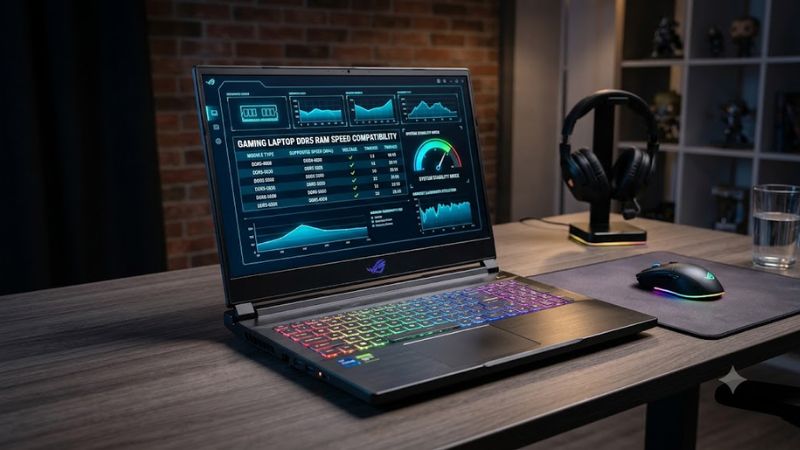
1. Understand DDR5 Speed Ratings
DDR5 memory is commonly advertised using data rates such as DDR5-4800, DDR5-5200, DDR5-5600, and DDR5-6400. These numbers represent millions of transfers per second, expressed as MT/s, rather than the memory’s physical clock frequency in MHz. Retail packaging and software may use different labels for the same underlying specification.
The maximum usable speed depends on the processor and the laptop manufacturer’s implementation. For example, Intel’s 13th-generation Core i5 mobile processors support DDR5 rates up to 5,200 MT/s in applicable configurations, while some Core i7 and Core i9 models support up to 5,600 MT/s. The exact processor SKU and laptop design still matter.
2. Match the Physical Memory Format
Most gaming laptops with replaceable DDR5 memory use 262-pin DDR5 SO-DIMMs. These compact modules differ physically and electrically from full-size desktop DDR5 UDIMMs, so a desktop memory kit is not a suitable substitute. Confirm that the laptop actually has removable SO-DIMM slots before ordering an upgrade.
Some thin gaming laptops use soldered LPDDR5 or LPDDR5X memory instead. Although LPDDR5X and DDR5 share related technology, they are not interchangeable module formats. Soldered memory generally cannot be upgraded by replacing a stick, making the original configuration and capacity especially important when choosing a laptop.
3. Check Processor and Laptop Limits Together
Processor specifications provide a useful starting point for checking supported memory type, capacity, and maximum data rate. However, the processor’s theoretical limit does not establish what every laptop built around it can support. The laptop manufacturer’s specifications and service documentation determine the practical upgrade options for that particular design.
Search for the complete laptop model number rather than relying on a family name such as a gaming series. Two configurations from the same product family may use different processors, motherboards, or memory arrangements. Check the number of slots, factory-installed capacity, supported module sizes, and maximum total memory before buying a kit.
4. Consider Capacity and Channel Configuration
Memory capacity affects how comfortably a laptop handles games, launchers, voice chat, browsers, and background applications simultaneously. A laptop with insufficient RAM may experience stuttering or increased paging to storage, but additional memory will not automatically improve performance when the existing capacity is already adequate.
The number and arrangement of installed modules also matter. Two compatible modules can enable broader memory-channel bandwidth than a single module on systems designed for that configuration. DDR5’s internal subchannels do not mean that one physical module is equivalent to installing two separate modules across the laptop’s available memory channels.
How to Check Gaming Laptop DDR5 RAM Speed Compatibility
Use the following checks before purchasing memory. The goal is to find the fastest supported configuration that fits the laptop, rather than selecting the highest advertised speed. Official laptop specifications should take priority over generic memory recommendations, especially when a manufacturer limits supported capacities or validates only particular module configurations.
Step 1: Identify Your Exact Laptop Model
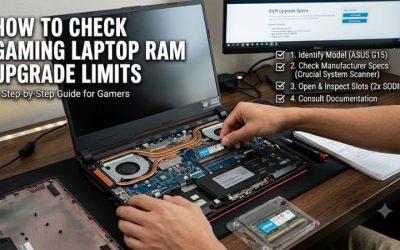
In Windows, open Settings, select System, then About to review your device information. You can also press Win + R, enter msinfo32, and examine System Manufacturer, System Model, and Processor. Record the full model or machine-type identifier because a product name alone may cover several hardware revisions.
Use that identifier to find the manufacturer’s specifications and maintenance manual. Look for supported DDR generation, memory slots, maximum capacity, and approved module configurations. If the documentation does not list a maximum speed, check the processor’s official specifications as a secondary source, then confirm any remaining uncertainty with the laptop manufacturer.
Step 2: Compare the Supported Speed and Module Type
The following examples illustrate how processor generations can differ. They are processor-level reference points, not universal guarantees for every gaming laptop using those chips.
| Memory or processor example | Advertised or supported data rate | Compatibility consideration |
| DDR5-4800 SO-DIMM | 4,800 MT/s | Requires a laptop supporting DDR5 SO-DIMMs |
| DDR5-5200 SO-DIMM | 5,200 MT/s | May run slower on a platform with a lower limit |
| DDR5-5600 SO-DIMM | 5,600 MT/s | Confirm processor SKU and laptop specifications |
| Intel 13th-gen Core i5 mobile | Up to 5,200 MT/s on applicable models | Exact SKU and laptop implementation determine support |
| Intel 13th-gen Core i7/i9 mobile | Up to 5,600 MT/s on applicable models | Some configurations may have lower limits |
| LPDDR5/LPDDR5X | Platform-dependent | Commonly soldered; not a replacement for DDR5 SO-DIMMs |
When a laptop supports a lower data rate than the module advertises, compatible memory may operate at the lower supported rate. However, backward operation should not be treated as a substitute for checking module density, organization, firmware support, and the manufacturer’s approved configurations.
Step 3: Check the Installed Memory in Windows
Open Task Manager with Ctrl + Shift + Esc, select Performance, and choose Memory. Windows may display the current memory speed, installed capacity, and number of populated slots. These details help establish a baseline, but the displayed speed does not necessarily reveal the laptop’s maximum supported speed or all module specifications.
For more detailed identification, use a reputable system-information utility to inspect the memory module’s manufacturer, part number, capacity, and reported operating parameters. Some laptops do not expose complete information through software, particularly when memory is soldered. Consult the service manual if the slot count or module type remains unclear.
Step 4: Choose a Compatible Upgrade and Verify It
Once you have confirmed the laptop’s supported format, maximum capacity, and speed, select a module or matched kit that meets those requirements. If replacing two existing modules, a matched pair with compatible specifications can simplify configuration. Do not assume that identical capacity and advertised speed alone guarantee compatibility across every module revision.
After installation, enter Windows and check the detected capacity and operating speed. If the laptop fails to boot, displays less memory than expected, or becomes unstable, shut it down and follow the manufacturer’s service instructions before reseating or replacing the module. Avoid forcing a stick into its slot or attempting unsupported firmware changes to obtain a higher data rate.
What Doesn’t Help
Buying the highest-rated DDR5 kit available does not override the processor’s memory controller or the laptop’s firmware limits. Nor does changing Windows power settings increase the maximum supported memory data rate. Memory speed is a hardware-platform constraint, not a graphics setting that can be adjusted through ordinary Windows controls.
Likewise, don’t assume that enabling XMP will make a faster kit work at its advertised rating. Many gaming laptops provide limited memory-tuning options, and support varies by manufacturer and model. If the BIOS does not offer an applicable memory profile, choose a configuration supported at standard operating settings instead of attempting an unsupported workaround.
FAQ: Gaming Laptop DDR5 RAM Speed Compatibility
Does faster DDR5 RAM work in a gaming laptop?
Faster DDR5 RAM can work in a gaming laptop if its module format and other specifications are compatible, but it may operate at a lower supported data rate. Check the laptop’s official memory specifications before buying, and do not assume that a faster rating means faster real-world gaming performance.
Can I mix DDR5-4800 and DDR5-5600 memory?
You may be able to mix DDR5-4800 and DDR5-5600 modules, but compatibility depends on the laptop and both modules. When supported, the system commonly selects a shared operating speed that accommodates the configuration. Mixing modules can also introduce compatibility issues, so a matched kit is often the simpler upgrade.
Does faster DDR5 RAM improve gaming FPS?
Faster DDR5 RAM can improve gaming performance in some situations, but the benefit depends on the game, processor, graphics hardware, memory configuration, and existing system bottlenecks. Games limited primarily by a discrete GPU may gain little from a memory-speed increase, while CPU-limited workloads can respond differently.
Can I upgrade soldered DDR5 or LPDDR5 memory?
You generally cannot upgrade soldered DDR5 or LPDDR5 memory by replacing a removable module because the memory chips are attached to the motherboard. Check the manufacturer’s service documentation to confirm the design. If memory is soldered, choose a suitable factory capacity or consider a different laptop if more RAM is necessary.
Final Thoughts
gaming laptop DDR5 RAM speed compatibility comes down to matching the memory format, processor limits, laptop specifications, and upgradeable capacity. Start with the manufacturer’s service manual, verify the installed configuration, and choose supported memory before comparing advertised speeds. This approach helps avoid incompatible purchases and unnecessary spending.