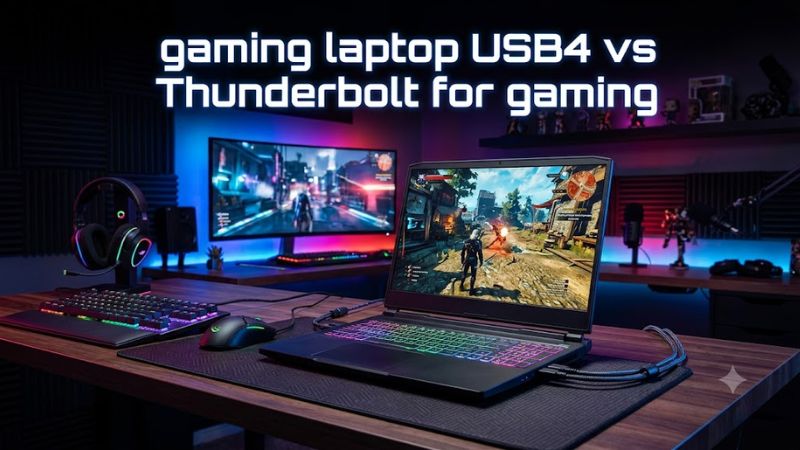
Choosing between gaming laptop USB4 vs Thunderbolt for gaming depends on your peripherals, external GPU plans, and monitor setup. Both use USB-C connectors, but their capabilities vary by implementation and generation. This guide explains the practical differences, compatibility requirements, and features worth prioritizing when buying a gaming laptop.
How to Choose Between USB4 and Thunderbolt
USB4 and Thunderbolt are connectivity technologies, not graphics processors. Neither automatically increases your laptop’s native gaming performance. The meaningful differences involve bandwidth, support for external PCIe devices, display connectivity, and the consistency of features across laptops. Identify your intended setup before paying extra for a particular port specification.
1. Understand Bandwidth and Port Generations
USB4 is a connectivity standard with different supported performance levels. USB4 systems can offer 20 Gbps or 40 Gbps operation, while USB4 Version 2.0 supports configurations reaching 80 Gbps with suitable hardware and cables. The USB-C connector alone does not reveal which version or speed a laptop supports.
Thunderbolt 4 provides 40 Gbps of bidirectional bandwidth, with defined minimum requirements for supported features. Thunderbolt 5 raises the standard to 80 Gbps bidirectional bandwidth and can increase outbound bandwidth to 120 Gbps for supported display-intensive workloads. These are interface capabilities, not guaranteed real-world file-transfer speeds or gaming frame rates.
2. Check External GPU Compatibility
An external GPU enclosure connects a desktop graphics card to a compatible laptop through a high-speed interface. It can help a user with a lightweight laptop build a more capable home gaming setup, but the laptop, connection, enclosure, power supply, and operating system must support the intended configuration.
PCI Express tunneling is particularly important for external graphics. Thunderbolt 4 specifies PCIe connectivity requirements, while USB4 implementations can differ in their supported capabilities and device compatibility. Before buying an enclosure, verify the exact laptop model’s external GPU support rather than assuming that every USB-C or USB4 port can run one.
3. Match the Port to Your Monitor and Dock
For ordinary gaming peripherals, such as a mouse, keyboard, headset, or controller, either connection can be sufficient when the port supports the device. More demanding setups involving multiple displays, high-refresh-rate monitors, external storage, and network adapters require closer attention to the port’s display capabilities and available bandwidth.
Display output depends on the laptop’s implementation, supported DisplayPort features, display configuration, and dock or adapter. A USB4 port may support the monitor arrangement you need, but the USB4 label alone does not specify every resolution and refresh-rate combination. Thunderbolt’s defined requirements make feature planning more predictable, although the exact display configuration still matters.
4. Consider Price, Charging, and Future Upgrades
Thunderbolt can be worthwhile if you regularly use certified docks, high-speed external storage, multiple monitors, or compatible external PCIe devices. Thunderbolt 5 is especially relevant to bandwidth-intensive setups, but its higher headline bandwidth is unnecessary for many gaming laptops used with a single monitor and standard peripherals.
Charging is another separate consideration. A USB-C port’s data standard does not establish how much power it can deliver to your laptop. Check the manufacturer’s charging specifications, the included power adapter, and the dock’s power delivery rating. Gaming laptops with power-hungry processors and discrete GPUs may still require their dedicated charger during demanding gameplay.
USB4 vs Thunderbolt for Gaming: Practical Comparison
The right choice becomes clearer when you compare the actual features rather than relying on the connector shape or branding. For gaming, prioritize native GPU performance first, external GPU compatibility second if you need it, and dock or display capabilities according to your setup. The following table summarizes the most important distinctions between USB4, Thunderbolt 4, and Thunderbolt 5.
| Feature | USB4 | Thunderbolt 4 | Thunderbolt 5 |
| Maximum headline bandwidth | Up to 40 Gbps for original USB4; higher with USB4 Version 2.0 | 40 Gbps | 80 Gbps bidirectional; up to 120 Gbps in one direction for supported display traffic |
| External GPU support | Depends on implementation and compatibility | PCIe connectivity requirements defined by the standard | PCIe connectivity with higher bandwidth capability |
| External monitors | Depends on laptop, display protocol, and dock | Defined minimum dual-4K display capability | Supports more demanding multi-display configurations |
| External SSDs | Speed depends on port, drive, enclosure, and protocol | Supports compatible high-speed Thunderbolt storage | Offers greater bandwidth for compatible devices |
| Feature consistency | Varies by implementation | More standardized minimum capabilities | More standardized higher-bandwidth capabilities |
| Best gaming use | General peripherals, storage, and compatible docks | Established docking and eGPU setups | Bandwidth-intensive docks, storage, and eGPU setups |
| Main limitation | The USB4 label does not specify every optional feature | Lower maximum bandwidth than Thunderbolt 5 | Compatible hardware and cables can cost more |
Does USB4 or Thunderbolt Improve Gaming FPS?
For gaming on the laptop’s built-in screen using its internal GPU, neither port standard directly increases FPS. The processor, graphics chip, cooling system, power limits, memory configuration, and game settings have much greater influence on native gaming performance than the choice between these external connectivity technologies.
The difference becomes more relevant when you connect an external GPU or move game data through external storage. An external GPU has to communicate with the laptop over the available connection, which introduces a different performance constraint from an internal graphics card. Faster connectivity can improve available bandwidth, but actual frame rates still depend on the GPU, game, enclosure, and connection overhead.
Is USB4 Good Enough for an External Gaming GPU?
USB4 can be suitable for an external GPU when the laptop implements the required PCIe tunneling and the enclosure supports the connection. However, the presence of a USB-C port or a USB4 label should not be treated as sufficient evidence. Review the laptop manufacturer’s technical specifications and compatibility documentation before purchasing expensive graphics hardware.
Thunderbolt 4 is a more predictable option for compatible external PCIe devices because its requirements define a baseline for PCIe connectivity. Thunderbolt 5 offers more bandwidth for supported hardware, but that does not mean every game will run proportionally faster. A CPU-limited game, an enclosure limitation, or a graphics card bottleneck can reduce the practical benefit.
Which Connection Is Better for Gaming Monitors and Docks?
USB4 can be enough for a single external gaming monitor, keyboard, mouse, and storage drive if the laptop and dock support the necessary video and data functions. For a high-refresh-rate display, check the supported resolution and refresh rate together. A claim such as 4K support does not automatically mean 4K at 144 Hz.
Thunderbolt 4 offers a more clearly defined baseline for multi-display docking, while Thunderbolt 5 provides greater bandwidth for demanding configurations. Even then, the laptop’s display output capabilities, dock specifications, cable quality, and monitor inputs determine the final result. A direct HDMI or DisplayPort connection may be preferable when it provides the required refresh rate with fewer compatibility variables.
What Should You Check Before Buying?
For a gaming laptop, the port’s complete specification matters more than the connector’s appearance. Read the model-specific I/O section and look for the exact USB4 or Thunderbolt generation, supported display output, PCIe tunneling or external GPU support, and charging capability. If these details are missing, request confirmation from the manufacturer before spending money on an enclosure or dock.
Also check the peripherals you already own. A Thunderbolt dock may connect to a USB4 laptop for some functions without providing every Thunderbolt-specific capability. The same principle applies to cables: the cable, dock, host port, and attached device must all support the intended mode. Buying the most expensive accessory does not upgrade a laptop’s underlying port.
FAQ
Is USB4 better than Thunderbolt for gaming?
USB4 can be sufficient for everyday gaming peripherals, compatible monitors, and storage, while Thunderbolt offers more predictable feature requirements. Thunderbolt 5 provides higher bandwidth for demanding setups. For native laptop gaming, neither connection automatically improves FPS, so prioritize the laptop’s CPU, GPU, cooling, and display before comparing ports.
Can I use an eGPU with any USB4 gaming laptop?
No, an external GPU requires compatible PCIe connectivity, an appropriate enclosure, and software support. Check the exact laptop model’s documentation for external GPU compatibility before purchasing. USB4 branding alone is not a substitute for confirmation that the intended enclosure and graphics card will work.
Is Thunderbolt 5 worth paying more for?
Thunderbolt 5 is worth considering when you need higher-bandwidth external storage, a demanding dock setup, or a compatible external GPU enclosure. For a laptop connected to a single monitor and ordinary gaming peripherals, Thunderbolt 4 or a suitably equipped USB4 port may already meet your needs. Compare the actual supported features before paying a premium.
Can a USB4 port charge a gaming laptop?
A USB4 port does not automatically support enough power to charge a gaming laptop during gameplay. USB-C charging depends on the laptop’s power-delivery implementation and requirements. Check the manufacturer’s specified input wattage and supported charging method; continue using the dedicated power adapter when USB-C charging is unsupported or insufficient under gaming loads.
Final Thoughts
The best choice in the gaming laptop USB4 vs Thunderbolt for gaming comparison depends on your planned setup, not the port name alone. USB4 can handle many everyday gaming needs, Thunderbolt 4 offers a defined compatibility baseline, and Thunderbolt 5 suits higher-bandwidth setups. Verify your laptop’s specifications before buying a dock or external GPU.