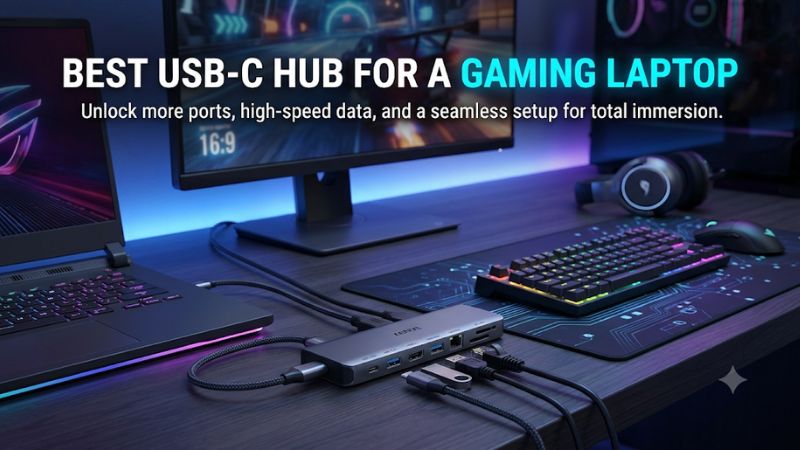
A best USB-C hub for a gaming laptop should expand connectivity without limiting your external display, wired networking, or gaming peripherals. The right choice depends on your laptop’s USB-C capabilities, monitor refresh rate, charging requirements, and the number of devices you connect.
How to Choose a USB-C Hub for Gaming
Gaming laptops often have a useful selection of built-in ports, but connecting an external monitor, wired Ethernet, keyboard, mouse, controller, and portable SSD can quickly use them all. A suitable hub adds convenience, but its display and power capabilities must match the laptop rather than simply its advertised port count.
1. Check USB-C DisplayPort Alt Mode and Thunderbolt Support
Start by checking whether your laptop’s USB-C port supports DisplayPort Alt Mode, Thunderbolt, or USB4 with video output. A USB-C connector alone does not guarantee monitor compatibility. Some laptops have USB-C ports limited to data transfer, so an HDMI-equipped hub may not produce a picture when connected to those ports.
Look up the specifications for your exact gaming laptop configuration before purchasing. Also check the supported DisplayPort version, because it can determine whether an adapter delivers 4K at 30Hz or 60Hz. If your laptop has a dedicated HDMI or DisplayPort connection, using that connection directly is often preferable for a high-refresh gaming monitor.
2. Match HDMI Output to Your Gaming Monitor
Display resolution and refresh rate matter more than the maximum resolution printed on a hub’s packaging. A 4K 60Hz HDMI output is useful for desktop work and compatible displays, but it does not automatically support 144Hz at 1440p or 240Hz at 1080p. Check the manufacturer’s supported resolution and refresh-rate combinations.
For competitive gaming, prioritize a direct laptop-to-monitor connection when the hub cannot document your required refresh rate. HDMI 2.0, HDMI 2.1, and DisplayPort have different bandwidth capabilities, while the laptop’s GPU output and USB-C implementation also affect the result. Never assume that a 4K label means high-refresh gaming support.
3. Prioritize USB Data Speed and Ethernet
A gaming setup may use several USB devices simultaneously. A keyboard and mouse need relatively little bandwidth, while an external SSD or capture device can benefit from faster USB connections. USB 3.2 Gen 1 generally supports up to 5Gbps, while USB 3.2 Gen 2 supports up to 10Gbps under suitable conditions.
Gigabit Ethernet is another useful feature for desktop gaming. It provides a wired networking option when Wi-Fi is inconsistent, although it cannot guarantee lower ping because routing, server distance, congestion, and your internet connection remain important. Check whether the hub includes a genuine Gigabit Ethernet port rather than assuming every multiport adapter has one.
4. Understand Power Delivery and Laptop Charging
Power Delivery passthrough can reduce cable clutter, but it is not a substitute for checking your gaming laptop’s charging requirements. A hub accepting a 100W USB-C charger may deliver only 85W or 90W to the connected laptop after accounting for its own power consumption.
Many gaming laptops require higher-wattage proprietary adapters to sustain full CPU and GPU performance. Even when USB-C charging works, it may be intended for light workloads rather than demanding gaming sessions. Keep the original power adapter connected whenever the laptop requires more power than the hub can supply.
Top USB-C Hubs for Gaming Laptops: Four Picks Compared
These four options cover different gaming desk requirements, from compact connectivity to multi-monitor workstation expansion. The recommendations are based on published manufacturer specifications, not firsthand performance claims. Pay particular attention to video compatibility and power passthrough before choosing a model.
1. Anker 555 USB-C Hub (8-in-1) – Best Overall
The Anker 555 is a balanced choice for gamers who need HDMI, wired networking, fast USB connections, and card readers in one compact adapter. Its HDMI output supports 4K at 60Hz, while its three USB data ports are rated for 10Gbps, making it useful for connecting external storage and gaming accessories.
Its other specifications include Gigabit Ethernet, SD and microSD card readers, and a USB-C Power Delivery input rated for up to 100W. However, the maximum charging output to the laptop is 85W. This is a limitation for gaming laptops that need their original high-wattage power adapter. The USB-C data port also does not support video output. Consider the UGREEN alternative if you need more port variety.
2. UGREEN Revodok Pro 109 (9-in-1) – Best Value
The UGREEN Revodok Pro 109 offers extensive connectivity without requiring a large desktop docking station. It combines HDMI 4K at 60Hz, Gigabit Ethernet, SD and TF card readers, and multiple USB connections. Its configuration is particularly useful for gamers who frequently switch between external storage, wired networking, and everyday peripherals.
UGREEN lists two 10Gbps USB-C data ports, one 10Gbps USB-A port, and one additional 5Gbps USB-A port. It also supports up to 100W USB-C PD input. The important distinction is that the 100W rating describes the charging input, not necessarily the power reaching the laptop. Its HDMI output requires DisplayPort Alt Mode with DP 1.4 support for 4K at 60Hz. If your laptop has a data-only USB-C port, choose a different connection solution.
3. Anker 553 USB-C Hub (8-in-1) – Best for Dual Monitors
The Anker 553 is worth considering when your gaming laptop doubles as a workstation with two external monitors. Unlike a conventional single-HDMI adapter, it includes two HDMI outputs, allowing compatible Windows systems to extend their desktop across two displays. This is useful for keeping a game, streaming dashboard, browser, or communication application visible on separate screens.
Its published specifications include Gigabit Ethernet, SD and microSD readers, three USB 3.0 data connections rated at 5Gbps, and up to 85W laptop charging. With a DP 1.4 host, the dual-display configuration supports up to 2K at 60Hz per display on Windows. However, this is not the right choice for two high-refresh gaming monitors. Consider the Anker 555 if faster USB data transfer matters more than dual HDMI.
4. CalDigit Thunderbolt Station 4 (TS4) – Best Premium Desktop Dock
The CalDigit TS4 is a more substantial option for gamers who maintain a permanent desktop setup around a Thunderbolt-compatible gaming laptop. Its 18-port configuration provides considerably more expansion than a conventional travel hub, including Thunderbolt 4, USB-C, USB-A, DisplayPort, card readers, audio connections, and 2.5GbE networking.
The manufacturer specifies up to 98W host charging and three downstream Thunderbolt 4 ports rated at 40Gbps. It also includes five USB-A ports rated at 10Gbps and a DisplayPort 1.4 output. However, this dock is considerably more expensive in positioning and physically larger than portable adapters. Its 98W charging capacity may also be insufficient for full-power gaming on demanding laptops. Choose it for an expanded workstation, not as a replacement for your gaming laptop’s dedicated charger.
Quick Comparison Table
| Product | Best For | Key Spec | Compatibility | Watch Out For |
| Anker 555 | Overall connectivity | 4K60, 10Gbps USB, 1GbE | DP Alt Mode and PD | 85W host charging |
| UGREEN Pro 109 | Value and port variety | 4K60, 10Gbps USB, 1GbE | DP 1.4 Alt Mode | Check charging output |
| Anker 553 | Dual monitors | Dual HDMI, 5Gbps USB | DP 1.4 for dual 2K60 on Windows | Not designed for high-refresh dual displays |
| CalDigit TS4 | Premium desk setup | 18 ports, 2.5GbE, 98W PD | Thunderbolt 4/compatible USB4 features | High cost and larger footprint |
Specifications reflect manufacturer-published configurations. Actual display output depends on the laptop, GPU, USB-C implementation, operating system, and connected monitors.
FAQ
1. Does a USB-C Hub Reduce Gaming Performance?
A conventional USB-C hub does not automatically reduce game FPS because it primarily expands connectivity rather than replacing the laptop’s CPU or GPU. However, bandwidth sharing, display limitations, and connected devices can affect specific workloads. For demanding gaming, connect your monitor directly to the laptop’s HDMI or DisplayPort output whenever possible.
2. Can I Connect a 144Hz Gaming Monitor Through a USB-C Hub?
Yes, but only if the hub and laptop explicitly support the required resolution and refresh rate. A hub advertised as 4K at 60Hz does not automatically support 144Hz at 1440p. Check the manufacturer’s display-mode specifications and the laptop’s DisplayPort or Thunderbolt capabilities before purchasing.
3. Can a USB-C Hub Charge a Gaming Laptop While Gaming?
Sometimes, but the available charging wattage must match the laptop’s requirements. Many gaming laptops need substantially more power under demanding CPU and GPU workloads than a compact hub can deliver. Keep the original AC adapter connected if USB-C charging cannot supply the required power.
4. Is Thunderbolt Better Than a Standard USB-C Hub for Gaming?
Thunderbolt is generally better for users who need greater connectivity bandwidth, multiple high-speed peripherals, or an expanded desktop docking setup. However, it is not automatically better for gaming FPS. A standard USB-C hub is sufficient for keyboards, mice, Ethernet, and compatible external displays. Choose Thunderbolt when your laptop supports it and your workstation actually needs its additional capabilities.
Final Thoughts
The best USB-C hub for a gaming laptop depends on your monitor, peripherals, and charging requirements. The Anker 555 is a sensible all-round choice, while UGREEN offers broader connectivity and CalDigit suits demanding desktop setups. Check your laptop’s port specifications before buying, and retain its original gaming charger.