
Laptop cooling software falls into two categories: your laptop manufacturer’s own utility (Armoury Crate, Omen Gaming Hub, Legion Toolkit, MSI Center, and similar tools depending on brand) which usually offers the most reliable fan-curve control on that specific model, and monitoring tools like HWiNFO64 that show you exactly what your temperatures and fan speeds are doing without necessarily controlling them directly.
For most gaming laptops, the realistic best setup is running your manufacturer’s utility for actual fan control, paired with HWiNFO64 in the background for detailed monitoring the manufacturer tool doesn’t always expose. Generic desktop fan-control software rarely works reliably on laptops, since laptop cooling is routed through a proprietary embedded controller rather than the standardized fan headers found on desktop motherboards.
As an Amazon Associate we earn from qualifying purchases at no extra cost to you.




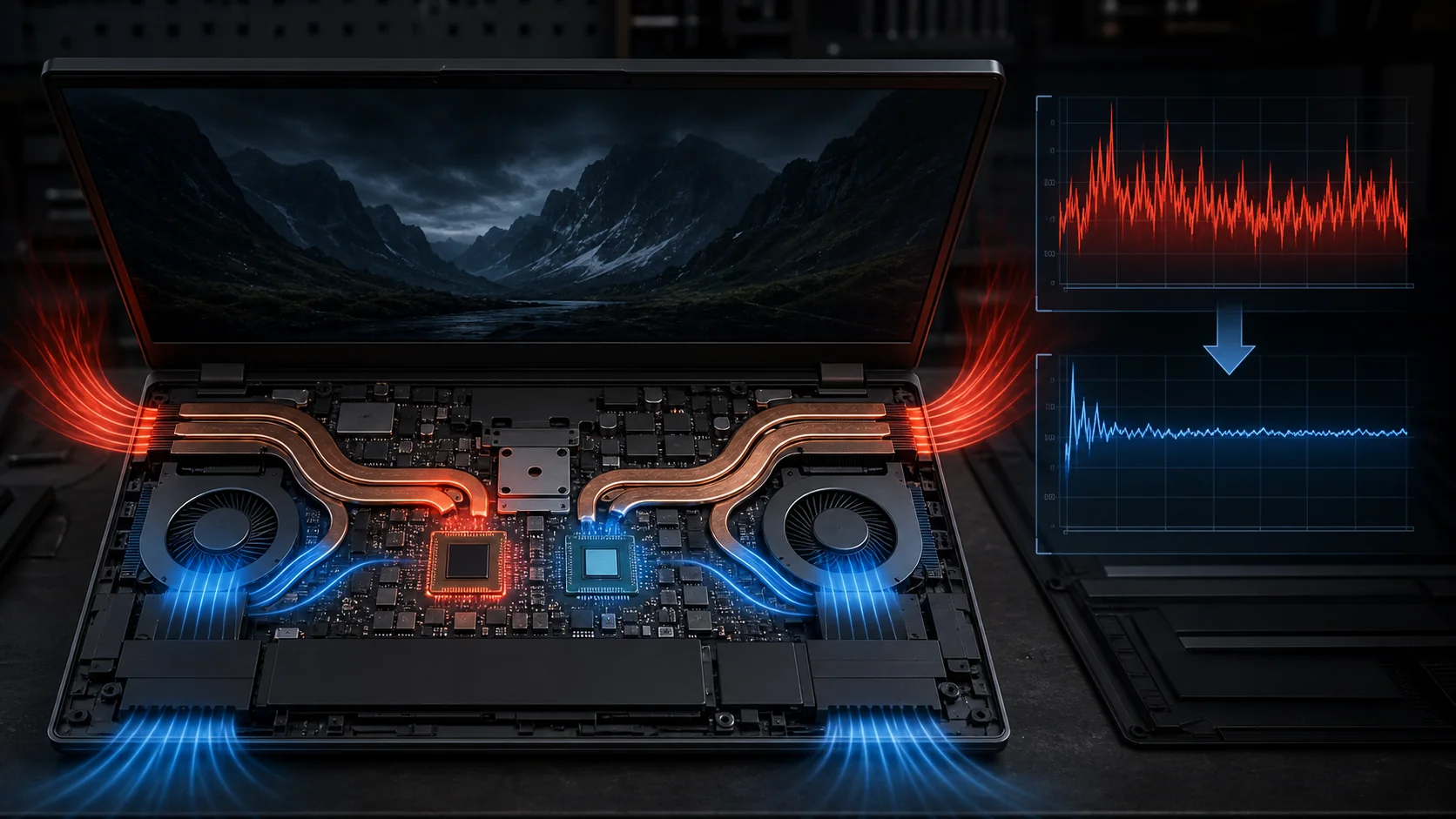
Top 3 picks at a glance
Quick answer
Use your laptop manufacturer’s own software for fan-curve control — it’s built specifically for your model’s embedded controller and is the most reliable option available. Add HWiNFO64 alongside it purely for detailed temperature and fan-speed monitoring if the manufacturer tool’s readouts feel too basic.
| Tool | Fan control | Detailed monitoring | Works across brands |
|---|---|---|---|
| Manufacturer utility (varies by brand) | Yes, on supported models | Basic, varies | No, brand-specific |
| HWiNFO64 | Limited/none on most laptops | Extensive | Yes |
| MSI Afterburner | GPU fan curve on some models | GPU-focused | Partial |
Why laptop fan control is different from desktop
Desktop motherboards expose fan headers through a standard interface that many third-party tools can read and write to directly. Laptop cooling systems are almost always managed through an embedded controller (EC) built into the laptop’s own firmware, and that controller’s interface isn’t standardized across brands or even across models from the same brand. This is why the fan-control landscape for laptops is dominated by manufacturer-specific software rather than a single universal tool.
Some enthusiast communities have reverse-engineered EC access for specific popular laptop models, and unofficial tools exist for a subset of them, but coverage is inconsistent and using them carries more risk than manufacturer-supported software, since you’re interacting with firmware-level controls outside the vendor’s tested and supported range.
This is also why a tool like HWiNFO64, despite being excellent at reading sensor data across almost any hardware, generally can’t offer full fan-curve write access on laptops the way it or similar tools can on some desktop motherboards.
The practical consequence of this fragmentation is that “best laptop cooling software” doesn’t have a single universal answer the way “best CPU stress test” does — the correct tool is whichever one your specific manufacturer ships for your specific model, and switching laptop brands often means learning an entirely new control center interface from scratch, even if the underlying cooling concepts (presets, custom curves, temperature thresholds) stay conceptually similar across brands.
Manufacturer utilities and their fan presets
Every major gaming laptop brand ships a control center app, under different names, that includes some form of performance or fan-mode selection — typically a handful of presets like a quiet mode, a balanced mode, and a maximum-performance or turbo mode that pushes fans harder in exchange for more noise and lower temperatures. Some models also expose a custom fan curve, letting you set fan speed at specific temperature points rather than picking from a preset list.
Check your laptop’s exact model page or manual for which control center app it uses, since these differ meaningfully by brand and sometimes by product line within the same brand. Installing the correct, current version of that utility is the most direct path to reliable fan control on your specific hardware.
Custom fan curves, where available, are worth exploring if the built-in presets don’t match your priorities — you might want fans to ramp up earlier and more gradually rather than jumping straight from quiet to loud at a single temperature threshold, which some presets do.
It’s worth reinstalling your manufacturer’s control center software fresh from the official support page rather than trusting whatever version shipped preinstalled, particularly on a laptop that’s been sitting in retail inventory for a while before purchase. Manufacturers periodically ship updates that specifically improve fan-curve responsiveness or fix bugs where a preset silently reverts after sleep or a driver update — an outdated version can genuinely underperform a current one even on identical hardware.
HWiNFO64 for monitoring what’s actually happening
HWiNFO64 reads a wide range of sensors — CPU and GPU temperatures per core or per chip, individual fan RPM, power draw, and often more granular detail than a manufacturer’s own overlay provides. Running it alongside your manufacturer’s control software gives you a much clearer picture of whether your fan curve changes are actually producing the temperature results you expect.
It’s particularly useful for diagnosing whether a specific component (CPU, GPU, VRM) is the one hitting thermal limits during a demanding session, information that a simpler “system temperature” readout from a manufacturer app might not break down clearly enough to act on.
HWiNFO64’s sensor panel can also run as a small on-screen overlay during gameplay on some setups, letting you watch temperatures in real time without alt-tabbing out, which is useful when testing whether a new fan curve is actually holding temperatures down under sustained load rather than just at idle.
Beyond the live overlay, HWiNFO64’s logging feature is worth turning on specifically when you’re evaluating a fan curve change — set it to log to a file over a full extended gaming session, then review the logged data afterward rather than trying to watch the overlay continuously in real time. A logged session lets you see the full temperature trend, including any slow creep upward over 30-plus minutes that a quick five-minute glance at the overlay would miss entirely.
MSI Afterburner for GPU-specific control
MSI Afterburner is best known as a GPU overclocking and monitoring tool, and on some laptops with a discrete MSI or compatible GPU, it can expose a GPU fan curve independent of the laptop’s overall system fan control. This is more limited than full system fan control, but useful specifically if your GPU is running hotter than the rest of the system relative to your CPU under a mixed workload.
Support for GPU-specific fan control through Afterburner on laptops varies significantly by model, since laptop GPUs are more tightly integrated with the system’s overall thermal management than desktop cards are. Test it on your specific hardware rather than assuming full control will be available.
Setting up cooling software for sustained gaming sessions
Install and update your manufacturer’s control center app first, and identify which performance/fan preset it defaults to — many laptops ship in a balanced mode that isn’t the most aggressive cooling option available. Switch to a higher-performance preset specifically before long gaming sessions if noise isn’t a major concern.
Add HWiNFO64 running in the background (or its overlay, if your setup supports one) to watch temperatures during an actual gaming session, not just at idle, since idle readings tell you very little about how your laptop handles sustained load.
If a custom fan curve is available in your manufacturer’s app, adjust it to ramp fan speed earlier rather than waiting for a high temperature threshold, which can help avoid the fans needing to spike suddenly and loudly once a threshold is crossed mid-session.
A sensible testing routine: pick a single demanding game you play regularly, run it for at least thirty minutes at a time with your default preset, record the peak temperature and whether any throttling occurred using HWiNFO64’s logging, then repeat the exact same test with a custom or more aggressive preset. Comparing two logged sessions of the same game and duration gives you a genuinely useful before-and-after comparison, rather than relying on a subjective sense that “it feels cooler now.”
Cooling software and fan noise tradeoffs
Fan speed and acoustic noise scale together in a way that’s worth planning around deliberately rather than simply chasing the lowest possible temperature. A fan curve tuned purely to minimize temperature will typically also maximize noise, which is a reasonable tradeoff during a competitive match but a poor one during a long, casual session in a quiet room. Most manufacturer control center apps let you save more than one custom fan profile, so building a “max cooling” profile for competitive sessions and a separate “quieter” profile for longer casual play, rather than relying on a single one-size-fits-all curve, matches the tool to how you actually use the laptop in different situations.
If your manufacturer’s software only offers presets rather than a fully custom curve, check whether it lets you save your preferred preset as the default for specific games or applications automatically, which achieves a similar practical outcome to a manually maintained custom profile without needing to remember to switch it yourself before every session.
When software cooling adjustments aren’t enough
Software can only work within the physical limits of your laptop’s cooling hardware. If your fans are already running near maximum speed under your current preset and temperatures are still climbing into throttling territory, the bottleneck is physical — dust buildup restricting airflow, degraded thermal paste that’s lost effectiveness over time, or a cooling system genuinely undersized for the CPU and GPU combination inside that specific chassis.
A laptop cooling pad, which adds external airflow underneath the chassis, can help in this scenario more than further software tuning, particularly on thin-and-light gaming laptops where internal cooling headroom is limited by design. Software adjustments and a cooling pad address different parts of the same problem and often work best combined rather than as alternatives to each other.
Laptops used for extended periods on soft surfaces like a bed or couch cushion have their intake vents partially blocked regardless of what the fan curve is set to — no software setting compensates for restricted airflow at the source. A hard, flat surface, or a simple laptop stand that elevates the chassis slightly, addresses this specific limitation directly and costs nothing in software configuration time to test.
Rechecking cooling settings seasonally
Ambient room temperature shifts meaningfully between seasons in many climates, and a fan curve or preset tuned during a cooler month can behave differently once room temperature rises, since the cooling system’s baseline starting point has shifted even though nothing about the laptop’s own configuration changed. Revisiting your fan curve and monitoring a session with HWiNFO64 at the start of a warmer season is a reasonable check, rather than assuming a configuration validated months earlier under different ambient conditions is still optimal.
Troubleshooting
Symptom: Manufacturer software doesn’t detect the laptop’s fan sensors at all. Cause: an outdated or corrupted install of the control center app, or a driver conflict with the embedded controller interface. Fix: reinstall the current version of the manufacturer’s utility directly from their support site rather than a bundled or older installer.
Symptom: Fans stay at a fixed low speed regardless of the preset selected. Cause: the control center app may not have properly applied the profile change, which can happen after a Windows update resets background services. Fix: restart the manufacturer’s control service, or reboot the laptop and reselect the fan preset.
Symptom: HWiNFO64 shows high temperatures but the fans don’t seem to be responding. Cause: HWiNFO64 is a monitoring tool without control access on your model, so it’s correctly reporting temperatures while an unrelated fan-control issue exists separately. Fix: check the manufacturer’s app directly for the actual fan behavior and preset, since HWiNFO64 isn’t the layer responsible for control here.
Symptom: Custom fan curve resets to default after a restart. Cause: the custom curve wasn’t saved as the active profile, only applied temporarily in the current session. Fix: check the manufacturer app’s profile-saving option and confirm the custom curve is set as the default or startup profile.
Symptom: Logged HWiNFO64 data shows temperatures climbing steadily throughout a long session without ever leveling off. Cause: the cooling system isn’t keeping pace with sustained heat generation, which points toward a physical limitation rather than a software setting. Fix: check for dust buildup or consider a cooling pad, since further software tuning is unlikely to resolve a continuously climbing temperature trend.
Testing on your own specific unit
Because individual chip variance and chassis-to-chassis manufacturing tolerances mean two laptops of the identical model can respond slightly differently to the same fan curve, treating any specific setting recommendation as a starting point for your own logged testing, rather than a guaranteed universal answer, produces a more reliable result than assuming a configuration that works well for one review unit will translate exactly to your own.
Frequently asked questions
Can software alone fix an overheating gaming laptop?
Software can improve fan behavior and reduce power draw, but it can’t compensate for dust buildup, degraded thermal paste, or a fundamentally undersized cooling system. If temperatures stay high after adjusting software settings, the fix is likely physical rather than digital.
Is HWiNFO64 a fan control tool or just a monitoring tool?
HWiNFO64 is primarily a monitoring tool — it reads temperature, fan speed, and power sensors in detail but doesn’t directly control fan curves on most laptops. It’s typically paired with the laptop manufacturer’s own utility or a dedicated fan-control tool for actual control.
Why doesn’t a generic fan control app work on my gaming laptop?
Many gaming laptops route fan control through the manufacturer’s embedded controller in a way that generic third-party tools can’t access safely, unlike desktop motherboards with standardized fan headers. Manufacturer software is often the only supported way to adjust fan curves on that specific model.
Does setting fans to maximum speed always lower temperatures the most?
Usually yes for raw temperature, but at the cost of significantly more noise, and the temperature benefit shrinks the closer you already are to ambient room temperature. Many players find a mid-to-high preset a better balance than a full-speed setting for extended sessions.
Can I damage my laptop by using third-party fan control software?
On laptops without an open, standard fan-control interface, forcing unsupported control signals through third-party software carries some risk of unpredictable fan behavior, though outright hardware damage is uncommon. Manufacturer utilities remain the safer default for models where they’re available.
Aaron Whitfield tested fan-curve behavior across several gaming laptops using a thermal camera and a standardised sustained-load benchmark suite to compare preset and custom fan curves under real gaming loads. For hardware-side cooling context, see how to keep a gaming laptop cool and gaming laptop thermal throttling fixes. If your fans are maxed out and temperatures are still high, best gaming laptop cooling pad covers the external airflow option, and how to clean a gaming laptop addresses the dust-buildup side of the problem.
Related guides
- Alienware 16 Aurora RTX 5070 Review: Display, Portability and Configuration Gaps
- Lenovo Legion Pro 7i Gen 10 Review: 64GB RAM and Dual-SSD Configuration
- MSI Katana 15.6-inch RTX 5050 Review: Configuration Strengths and Upgrade Unknowns
- ASUS ROG Strix SCAR 16 G635LX-XS97 Review: Display Ambition, Upgrade Questions


