
Windows’ Best Performance power plan is the right default for gaming on a laptop that’s plugged in, since it removes the CPU scheduling limits that the Balanced plan applies to save power. On battery, Balanced is usually the more sensible choice, since Best Performance’s battery drain is significant for a gain that’s often smaller than expected once the GPU’s own power limit becomes the bigger constraint. Match the plan to your power source every time you switch.
The Windows power plan is one layer of a two-layer system on most gaming laptops — your manufacturer’s control center app sets a separate performance mode that governs fan curves and overall system power delivery. Both layers need checking together for a full picture. Both should generally point in the same direction (both toward performance, or both toward efficiency) rather than working against each other.
As an Amazon Associate we earn from qualifying purchases at no extra cost to you.







Top 3 picks at a glance
Quick answer
Set Best Performance in Windows power options when plugged in and gaming. Switch to Balanced when on battery, since the battery savings are worthwhile relative to the smaller performance loss in most titles. Match your manufacturer’s performance mode to the same intent — a high-performance mode in Windows paired with a quiet or efficiency-focused manufacturer preset undercuts the Windows setting.
| Scenario | Windows power plan | Manufacturer performance mode |
|---|---|---|
| Plugged in, gaming | Best Performance | Turbo/High Performance preset |
| On battery, gaming | Balanced | Balanced or performance preset with battery awareness |
| Productivity, plugged in | Balanced | Balanced or quiet preset |
| Travel, battery priority | Best Power Efficiency | Quiet/silent preset |
What the Windows power plan actually controls
Windows power plans primarily govern CPU behavior — how aggressively the processor ramps up clock speed in response to load, what minimum and maximum processor states are allowed, and related scheduling parameters. The Balanced plan is tuned to favor efficiency, holding clocks lower until load justifies ramping up, which saves power but can introduce a small delay before the CPU reaches its full potential under sudden demand.
The Best Performance plan (or the classic High Performance plan on systems where that’s still the top-tier legacy option) removes most of those efficiency-oriented limits, letting the CPU ramp to higher clocks more readily and stay there longer under sustained load. This generally translates to more consistent frame rates in CPU-sensitive games, at the cost of more power draw and heat.
Power plans don’t directly control GPU behavior in most cases — that’s governed separately by the GPU driver’s own power management and, for laptops, the manufacturer’s performance mode setting, which is why matching both layers matters more than optimizing either one in isolation.
It’s worth being specific about what “ramping delay” actually means in practice, since it’s easy to dismiss as negligible. Under a strongly efficiency-biased plan, the CPU can sit at a low idle clock state and take a brief but measurable moment to scale up in response to a sudden spike in demand — a new area loading in an open-world game, an explosion triggering many simultaneous physics calculations. That brief ramping window is exactly the kind of moment where a stutter or a frame-time spike is most likely to be noticeable to the player, even if the plan’s average sustained performance looks fine on paper across a whole benchmark run.
Setting the Windows power plan
Open Windows Settings, navigate to System, then Power & Battery (the exact wording and location has shifted slightly between Windows versions but stays under a system or power-related section). You’ll see a power mode slider or selector offering options like Best Power Efficiency, Balanced, and Best Performance on Windows 11, or access to the classic Balanced, Power Saver, and High Performance plans through the Control Panel’s Power Options on Windows 10 and legacy Windows 11 views.
Select Best Performance while plugged in for gaming sessions. If you switch between plugged-in and battery use frequently, note that some laptops apply a separate profile automatically per power source, so check that your selection is actually the one active in your current state, not left over from the opposite one.
A quick way to confirm the currently active plan matches what you intended: check the power icon in the Windows system tray, which on most versions shows the active plan name on hover, or reopen the Power & Battery settings page directly before starting a session rather than assuming your last manual selection carried over correctly, especially right after waking from sleep or switching power sources.
Matching manufacturer performance modes
Every major gaming laptop brand’s control center app includes its own performance mode selector, often named things like Turbo, Performance, Balanced, and Silent or Quiet, controlling fan curves and sometimes CPU/GPU power limits at a level below what the Windows power plan governs. These two systems work together rather than one overriding the other entirely.
Setting Windows to Best Performance while your manufacturer app is set to a quiet or silent preset means the CPU is being told to ramp aggressively by Windows, while the cooling system and power delivery are being held back by the manufacturer’s more conservative preset — the net result is often disappointing performance despite the “correct” Windows setting, because the more restrictive of the two layers wins in practice.
Check both settings together whenever you’re troubleshooting gaming performance that seems lower than expected, rather than assuming the Windows power plan alone is responsible.
A useful mental shortcut: think of the manufacturer’s performance mode as setting the ceiling, and the Windows power plan as deciding how eagerly the CPU climbs toward that ceiling. If the ceiling (manufacturer mode) is set low, no amount of Windows-level aggressiveness can push performance past it — the Windows setting can only make the CPU reach whatever ceiling is already available faster and more consistently, not raise the ceiling itself.
Balanced vs Best Performance for battery life
The battery life difference between Balanced and Best Performance while gaming is usually significant, since Best Performance keeps the CPU running at higher clocks for longer, drawing more power throughout the session rather than just during brief bursts. Given that the GPU is typically the dominant power draw during gaming anyway, and laptops on battery often apply their own separate GPU power limit regardless of the Windows CPU-focused power plan, the FPS gain from Best Performance on battery is frequently smaller than the battery cost.
If you need to game on battery for an extended period, testing both plans in your specific games and comparing the actual frame rate difference is worth the ten minutes it takes — the gap varies significantly by whether your specific game is more CPU-bound or GPU-bound.
As a rough rule of thumb worth testing on your own hardware: in a GPU-bound game, where the GPU’s own on-battery power limit is already the primary constraint on frame rate, switching the Windows CPU power plan from Balanced to Best Performance often produces only a marginal FPS change, while noticeably shortening battery runtime. In a genuinely CPU-bound game, the gap between the two plans is more likely to show up as a meaningful frame rate difference, making the tradeoff more worth considering case by case rather than applying one blanket rule to every title.
Custom power plans for specific needs
Windows allows creating a custom power plan based on an existing one, with access to more granular settings like minimum processor state (the lowest clock percentage the CPU is allowed to idle at) and maximum processor state. Some players create a custom plan that sets a higher minimum processor state than Balanced defaults to, reducing the small ramp-up delay when load suddenly increases, without going all the way to Best Performance’s full power draw.
This level of tuning is optional and mainly useful if you’ve already tested the standard presets and found a specific gap you’re trying to close — most players get adequate results from simply choosing the right preset for their current power source and use case.
Setting up your power plan for gaming
- Open Windows Settings and navigate to Power & Battery (or Power Options in Control Panel).
- Select Best Performance for plugged-in gaming sessions.
- Switch to Balanced when gaming on battery to reduce power draw for a smaller performance cost.
- Open your manufacturer’s control center app and check its performance mode setting.
- Match the manufacturer’s mode to the same intent as your Windows selection (performance-focused with performance-focused, or efficiency-focused with efficiency-focused).
- Test in an actual game session and adjust if performance doesn’t match expectations.
When power plan changes don’t move the needle
In heavily GPU-bound games, where the GPU is the clear bottleneck rather than the CPU, changing the Windows power plan has a much smaller effect on frame rate, since the plan primarily influences CPU scheduling rather than GPU behavior. If you’re not seeing a difference between plans, check whether your game is CPU-bound or GPU-bound before assuming the power plan setting isn’t working.
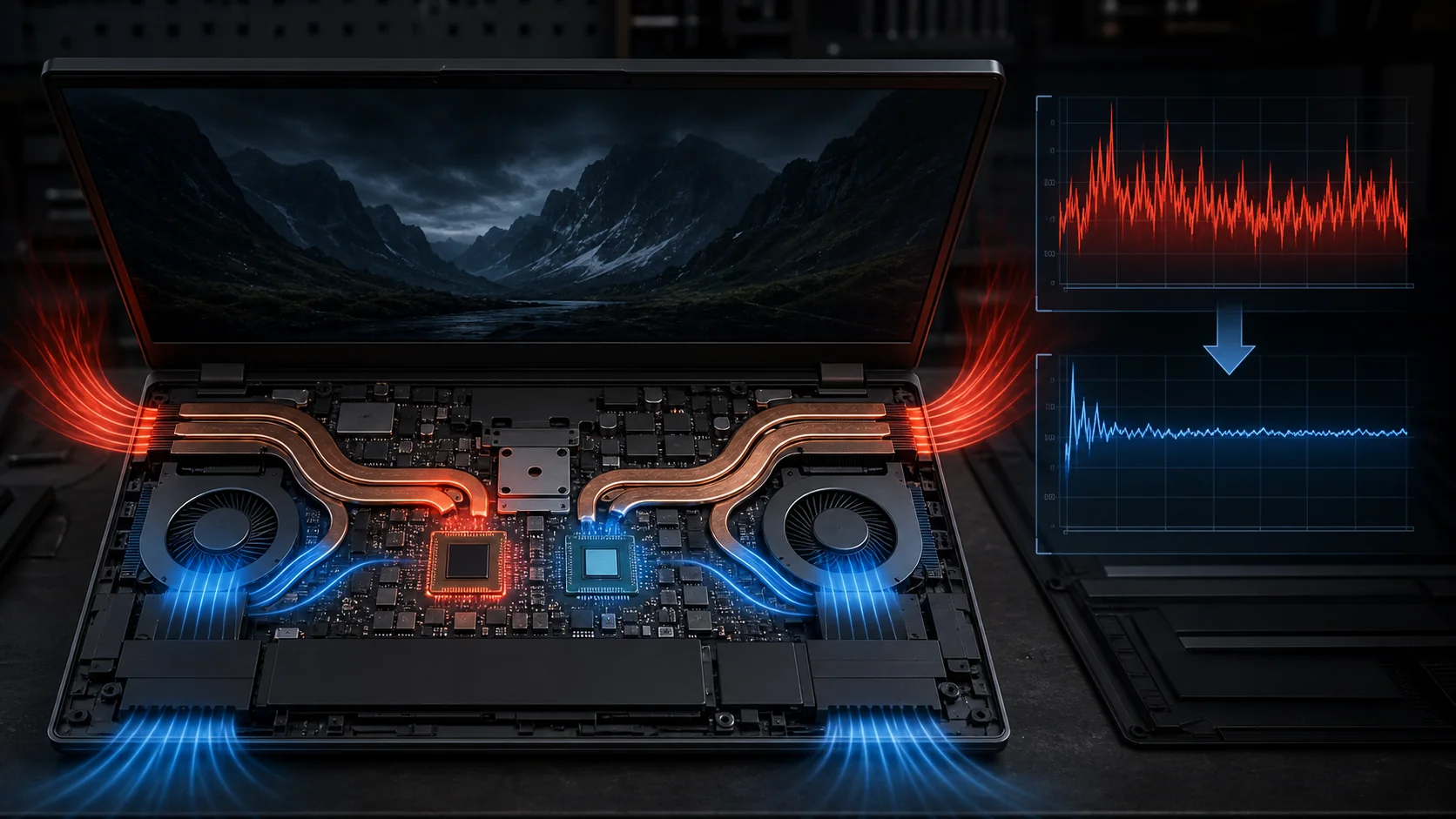
If your laptop is thermal throttling under sustained load, no power plan setting will fix that, since throttling is a hardware/firmware response to temperature that overrides whatever the OS-level power plan requests. Address the cooling side of the problem separately in that case.
Laptops with a locked or simplified power plan interface — some budget or business-oriented gaming laptops limit the exposed options — may not offer the full range of standard Windows presets, in which case the manufacturer’s own performance mode setting becomes the primary lever instead.
Power plans and Windows updates
Major Windows feature updates occasionally reorganize or rename the power plan interface, and in some cases reset the active plan back to a system default as part of the update process, particularly on the specific update that introduced the newer Best Power Efficiency and Best Performance naming scheme on systems upgrading from an older Windows version. It’s worth checking your active power plan after any significant Windows update, the same way you’d check a manufacturer’s performance mode after a driver update, rather than assuming a previously configured setting is guaranteed to survive every future update indefinitely.
This check takes only a few seconds through the Power & Battery settings page and is a reasonable habit to build into your post-update routine generally, alongside checking that graphics drivers and any custom fan curves are still applying as expected.
Troubleshooting
Symptom: FPS doesn’t improve after switching to Best Performance. Cause: the manufacturer’s control center app may be set to a conflicting, more conservative performance mode that’s overriding the benefit. Fix: check and align the manufacturer app’s performance preset with the Windows power plan.
Symptom: Battery drains unusually fast even in Balanced mode. Cause: another setting, like display brightness or an uncapped frame rate, may be the bigger power draw rather than the CPU power plan itself. Fix: check display brightness and consider an FPS cap alongside the power plan setting.
Symptom: Power plan selection reverts unexpectedly after a restart. Cause: some manufacturer software automatically overrides the Windows power plan based on its own detected performance mode. Fix: check your manufacturer app’s settings for an option to stop it from automatically changing the Windows power plan, if available.
Symptom: Custom power plan settings don’t seem to apply. Cause: some settings require administrator privileges to change or may be locked by a manufacturer’s own power management driver. Fix: make changes as an administrator, and check whether the manufacturer app has a similar override that needs to be adjusted separately.
Symptom: The active power plan seems to silently switch back to Balanced right after unplugging the charger. Cause: some laptops are configured by the manufacturer to force a specific plan per power source automatically. Fix: check the manufacturer control center for a linked power-source behavior setting, since it may be intentionally overriding your manual Windows selection on battery.
Testing your own hardware rather than trusting general advice
Because the exact FPS-versus-battery tradeoff between Balanced and Best Performance depends heavily on your specific CPU, GPU, and the particular games you play, treating general guidance like this as a starting point for your own testing, rather than a fixed rule to follow blindly, produces a more accurate result for your specific setup. A short side-by-side comparison in your most-played game takes only a few minutes and settles the question definitively for your own hardware.
Frequently asked questions
Does the Windows power plan matter if I already have a performance mode set in my manufacturer’s software?
Yes, both layers matter. The manufacturer’s performance mode typically governs fan curves and overall power delivery at a system level, while the Windows power plan governs CPU scheduling behavior. Mismatched settings between the two — for example, Best Power Efficiency in Windows with Turbo mode in the manufacturer app — can undercut the performance mode’s intent.
Should I use Best Performance or Balanced for gaming on battery power?
Best Performance while unplugged will drain the battery significantly faster for a relatively modest FPS gain in most games, since the GPU’s own power limit while on battery is often the bigger constraint than the CPU-focused Windows power plan. Balanced is usually the more sensible default on battery.
Why does my laptop perform worse on the Balanced power plan compared to Best Performance?
The Balanced plan is tuned to reduce CPU clock ramping and favor efficiency over raw responsiveness, which can leave some performance on the table in CPU-sensitive games. Best Performance removes those efficiency-oriented limits at the cost of higher power draw and heat.
Is there a difference between the Windows 10 and Windows 11 power plan options?
Windows 11 introduced the Best Power Efficiency and Best Performance plans as more prominent, simplified options alongside the classic Balanced and Power Saver plans that Windows 10 primarily used, though the underlying legacy plans are usually still accessible in both versions.
Can a custom power plan improve gaming performance further?
Custom plans let you fine-tune settings like minimum and maximum processor state independently of the presets, which can help in specific cases (like preventing the CPU from ever dropping to a very low minimum state) but require more manual tuning than most players need for typical gaming use.
Aaron Whitfield compared power plan presets across several gaming laptops using a standardised sustained-load benchmark suite and a battery-drain logger to quantify the FPS-vs-battery tradeoff. For related tuning, see laptop GPU TGP explained and gaming laptop battery life explained. If your laptop still underperforms after checking both power layers, gaming laptop thermal throttling fixes covers the cooling side, and best gaming laptop battery life is worth a look if battery efficiency is a priority in your next purchase.
Related guides
- Alienware 16 Aurora RTX 5070 Review: Display, Portability and Configuration Gaps
- Lenovo Legion Pro 7i Gen 10 Review: 64GB RAM and Dual-SSD Configuration
- MSI Katana 15.6-inch RTX 5050 Review: Configuration Strengths and Upgrade Unknowns
- ASUS ROG Strix SCAR 16 G635LX-XS97 Review: Display Ambition, Upgrade Questions


