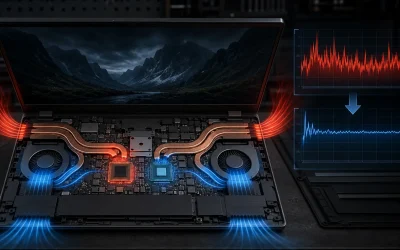
TGP, or total graphics power, is the wattage limit a laptop’s cooling and power delivery system allows its GPU to draw, and it explains why an RTX 5070 in one laptop can outperform the identical RTX 5070 in another laptop by a meaningful margin. Manufacturers rarely put TGP on the front of the box, but it matters as much as the GPU model name itself when comparing laptops. This guide covers what TGP means in practice and how to find the real number before you buy.
What TGP actually means
Total graphics power is the maximum sustained wattage a laptop’s chassis and cooling system permit the GPU to consume during operation, set by the laptop manufacturer within a range that Nvidia specifies for each GPU model. A single GPU chip, such as the RTX 5070 mobile, can be configured anywhere within its allowed TGP range depending on how much power delivery and cooling capacity the specific laptop chassis provides.
This is fundamentally different from a desktop GPU, which ships from the factory at a fixed, standardized power rating that does not vary between different desktop cases or motherboards. A laptop GPU’s real-world performance is inseparable from the specific laptop it is installed in, which is why the same GPU model name does not guarantee the same performance across different laptops.
Higher TGP generally means higher sustained clock speeds, since more available wattage lets the GPU run faster before hitting its power limit, while a lower TGP configuration of the identical chip caps clock speeds lower to stay within the reduced power budget, directly translating to lower frame rates in the same games at the same settings.
Nvidia sets a TGP range for each mobile GPU tier, and laptop manufacturers choose where within that range to configure their specific models based on chassis size, cooling capability, and target price point, meaning a budget-oriented laptop and a premium laptop using the exact same GPU chip can genuinely represent two different performance products despite sharing a model name.
Because of this variability, comparing laptops purely by GPU model name, such as assuming “RTX 5070 is RTX 5070 everywhere,” is a common and costly mistake, since the actual TGP configuration can shift real-world gaming performance by a substantial margin between two laptops carrying the identical GPU badge.
Typical TGP ranges by GPU tier
Nvidia publishes an allowed TGP range for each mobile GPU tier, and laptop manufacturers select a specific wattage within that range for each model they release. The table below shows typical ranges based on current mobile GPU generations, useful as a reference when comparing specific laptop listings.
| GPU tier | Typical TGP range | Performance impact of low vs high end |
|---|---|---|
| RTX 5050/5060 | 60-100W | Noticeable but smaller absolute gap given lower baseline |
| RTX 5070 | 80-140W | Significant gap, can approach one tier of difference |
| RTX 5070 Ti/5080 | 100-175W | Large gap, high-TGP configs meaningfully faster |
| RTX 5090 | 150-200W+ | Requires substantial cooling to realize full potential |
A laptop configuring its RTX 5070 near the bottom of this range, around 80-90 watts, is a reasonable choice for a thin, portable chassis prioritizing weight and battery life, but buyers expecting flagship-tier frame rates from that configuration will be disappointed compared to a bulkier laptop running the same GPU near 140 watts.
The performance gap between the low and high end of a given GPU’s TGP range is not linear or small: estimates based on the wattage difference alone suggest the high end of an RTX 5070’s range can deliver meaningfully more frames per second than the low end, in some cases closing much of the gap toward the next GPU tier up, which is why TGP matters as much as the model name itself.
Dynamic Boost: temporary power beyond the base TGP
Dynamic Boost is Nvidia’s technology that shifts power between the CPU and GPU in real time based on which component the current workload demands more, allowing the GPU to briefly draw wattage above its base TGP when the CPU is not using its full allocated power budget, and vice versa during CPU-heavy moments.
This means the number listed as a laptop’s base TGP is not always the absolute ceiling: many laptops list both a base TGP and a higher Dynamic Boost maximum, with the boost figure representing the peak the GPU can reach for short periods when thermal and power conditions allow, rather than a sustained figure you should expect throughout a long session.
In practice, Dynamic Boost provides the most benefit in scenarios with fluctuating CPU and GPU demand, such as open-world games with variable scene complexity, while in GPU-bound, consistently demanding scenarios the GPU may already be at its power ceiling with little headroom for the CPU to donate additional wattage.
When comparing spec sheets, treat the base TGP figure as the more reliable indicator of sustained real-world performance, and view any Dynamic Boost maximum figure as a best-case scenario rather than what you should expect during an hour-long gaming session at consistently high GPU load.
MUX switches and Advanced Optimus
A MUX switch is a hardware component that lets the laptop’s display connect directly to the dedicated GPU rather than routing through the integrated GPU first, which removes a small but measurable performance overhead and reduces input latency, particularly beneficial for competitive gaming.
Without a MUX switch, or with it disabled, the integrated GPU handles final frame output even while the dedicated GPU does the actual rendering work, a setup called Optimus, which extends battery life during non-gaming use by allowing the power-hungry dedicated GPU to fully power down, but costs some performance during gaming compared to a direct MUX connection.
Advanced Optimus, a newer implementation, automatically switches between using the integrated GPU for battery savings and routing directly through the MUX switch for gaming performance, without requiring a manual restart or BIOS-level toggle that older MUX switch implementations often demanded.
Laptops without any MUX switch at all rely permanently on the integrated GPU for display output, which leaves a small amount of performance on the table in every gaming scenario, so checking for MUX switch or Advanced Optimus support is worth doing specifically if you want to extract the maximum available performance from a given TGP configuration.
This distinction is separate from TGP itself but compounds with it: a high-TGP GPU without MUX switch support still loses some performance to the routing overhead, meaning the two specs should both be checked together rather than assuming TGP alone tells the complete performance story.
Finding a laptop’s real TGP before you buy
Increasingly, manufacturers list TGP directly on detailed spec pages, often shown as a specific wattage number or a range under the GPU specification section, though it is sometimes buried deeper in the page than headline specs like GPU model name and RAM capacity, requiring you to click into full specifications rather than trusting the summary listing.
If TGP is not listed anywhere on the manufacturer’s page, independent laptop review sites that perform sustained benchmark testing almost always measure and report actual GPU power draw during gaming, which is a more trustworthy source than marketing copy, since it reflects real, tested behavior rather than a theoretical maximum.
Be cautious of marketing language using phrases like “up to” a certain GPU performance level without specifying wattage, since “up to” language often refers to the Dynamic Boost maximum rather than sustained base TGP, and the actual sustained gaming experience will more closely track the lower base figure.
Comparing a specific laptop model number, rather than just the GPU name, on review aggregator sites or benchmark databases is the most reliable way to find real tested performance data, since many of these sources catalog exact TGP configurations tested across dozens of specific laptop models from different manufacturers.
When in doubt between two similarly priced laptops with the same GPU model, checking each one’s specific TGP configuration, if available, is a faster and more reliable comparison method than reading general marketing descriptions or relying on GPU model name alone.
Matching TGP to your target resolution and settings
A lower-TGP configuration of a given GPU tier is a reasonable match for 1080p gaming at high settings, since the reduced resolution demands less raw GPU throughput to sustain smooth frame rates even with the GPU running below the top of its power range.
Targeting 1440p gaming, especially with ray tracing enabled, benefits more directly from a higher-TGP configuration of the same GPU tier, since the additional wattage translates to higher sustained clock speeds that matter more as rendering demands scale up with resolution and visual effects complexity.
If you are choosing between a lower-TGP configuration of a higher GPU tier and a higher-TGP configuration of the tier below it, for example a low-TGP RTX 5070 versus a high-TGP RTX 5060, real-world performance can end up closer than the model names suggest, making TGP research worthwhile specifically in this kind of cross-tier comparison scenario.
Display refresh rate should also factor into this matching: a high refresh rate display like 240Hz benefits most from a GPU configuration capable of consistently high frame rates, which points toward prioritizing higher TGP within your chosen GPU tier rather than a display spec upgrade alone.
Plugged-in versus battery performance modes
Nearly all gaming laptops reduce GPU power significantly when running on battery power rather than plugged in, often dropping well below even the base TGP figure to preserve battery life and manage heat without a wall outlet’s unlimited power supply available.
This means TGP figures printed on spec sheets and tested in reviews almost always reflect plugged-in performance, and gaming on battery power should be expected to deliver noticeably lower frame rates than the same laptop plugged in, sometimes reduced by half or more depending on the manufacturer’s specific power management configuration.
Performance mode software, included with most gaming laptops, typically offers a “performance” or “turbo” preset that unlocks the full rated TGP alongside more aggressive fan speeds, and a “balanced” or “quiet” preset that intentionally reduces TGP for lower noise and better thermals at the cost of frame rate, worth checking and adjusting depending on your priority for a given session.
Because plugged-in performance is so central to actually reaching a laptop’s rated TGP, treat any gaming laptop as functionally a plugged-in device for serious sessions, with battery operation reserved for lighter tasks or brief, less demanding gaming rather than an expectation of full performance untethered from a wall outlet.
Estimated real-world impact across TGP configurations
Based on the wattage differences within a typical GPU tier’s TGP range, the table below offers estimated relative frame rate impact, presented as an approximation tied to the power delta rather than a benchmark run on specific hardware, useful for setting realistic expectations when comparing laptop configurations.
| TGP position within tier | Estimated relative performance | Typical chassis type |
|---|---|---|
| Low end of range | Baseline | Thin, lightweight 14-15 inch designs |
| Mid-range of TGP | Estimated 10-20% higher | Standard 15-16 inch gaming laptops |
| High end of range | Estimated 20-35% higher | Larger 16-17 inch performance-focused chassis |
These figures are estimates based on the power scaling behavior typical of modern mobile GPUs and should be treated as directional guidance for comparing configurations rather than a guaranteed benchmark result for any specific laptop model, since cooling quality and clock behavior still introduce some variation even at identical TGP figures between manufacturers.
What to check when two laptops share the same GPU name
Start by looking up the specific TGP each manufacturer configured for their model, either from the spec page directly or from an independent review that measured sustained power draw during gaming, rather than assuming identical performance from identical GPU naming alone.
Check whether each laptop includes a MUX switch or Advanced Optimus support, since this affects realized performance independently of TGP and can meaningfully shift which of two similarly configured laptops actually performs better in practice.
Compare chassis size and weight as a rough proxy when exact TGP figures are not published, since larger, heavier laptops generally accommodate higher TGP configurations of the same GPU tier due to more available cooling capacity, while unusually thin and light laptops sharing the same GPU name are more likely configured toward the lower end of the power range.
Read independent sustained-load benchmark reviews specifically rather than relying on marketing-provided frame rate claims, since third-party testing captures real thermal throttling behavior and actual sustained clock speeds that a manufacturer’s best-case marketing numbers typically do not reflect.
What to do if your laptop underperforms its GPU’s rated specs
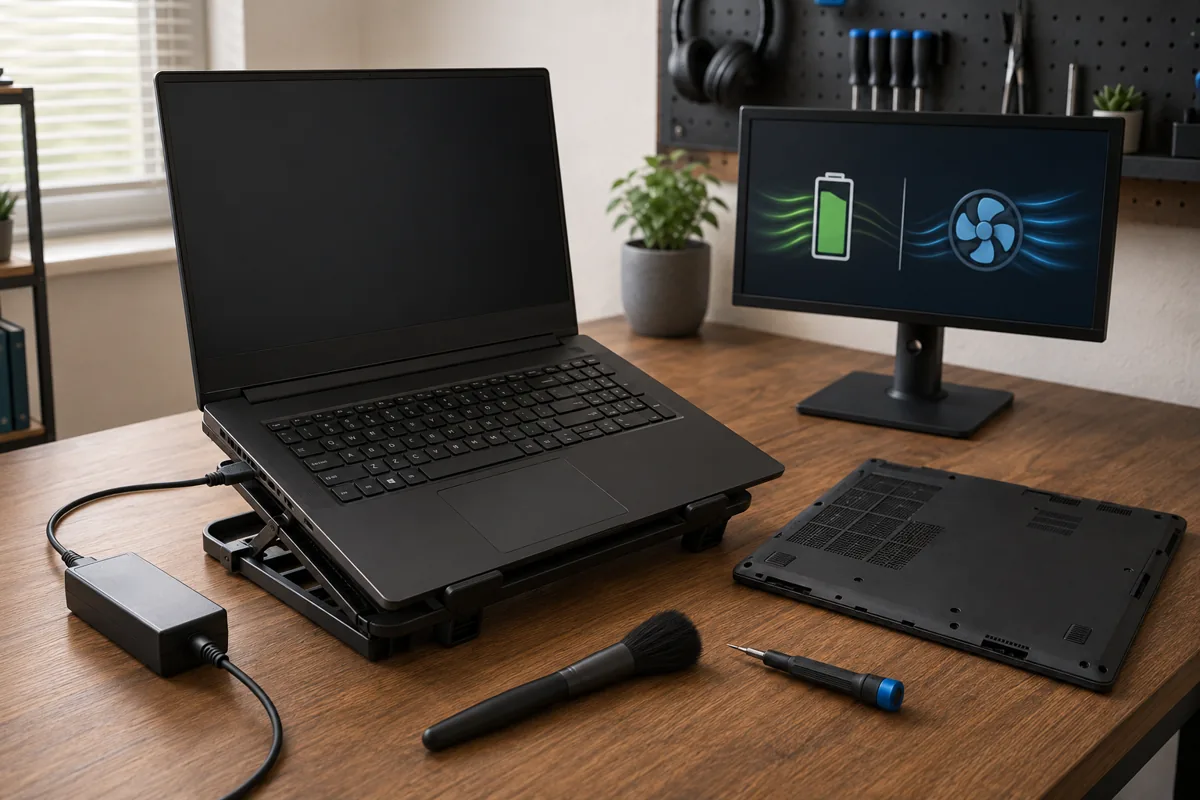
First, confirm the laptop is set to its highest performance mode in the manufacturer’s control software, since many laptops ship defaulting to a balanced or quiet mode that intentionally reduces TGP below the chassis’s maximum supported wattage for lower noise and heat during general use.
Next, confirm the laptop is plugged into its included power adapter rather than running on battery or a lower-wattage USB-C charger, since gaming performance drops substantially on battery power and some laptops will not reach full GPU power at all without the original higher-wattage adapter connected.
If performance still seems below expectations after confirming both settings, check whether the laptop includes a MUX switch and that it is enabled rather than routing through integrated graphics, which some laptops require toggling manually in a control panel or BIOS setting rather than enabling by default.
If none of these resolve the gap, compare your specific measured performance against independent reviews of the exact same laptop model, since this establishes whether the laptop is underperforming its own expected baseline, which would point to a driver, thermal paste, or hardware issue worth contacting support about, rather than simply reflecting a lower TGP configuration than you assumed.
Related guides
- Screen Refresh Rate For Laptops Explained
- Gaming Laptop For Content Creation
- Gaming Laptop Thermal Throttling Fixes
Frequently asked questions
What does TGP mean on a gaming laptop spec sheet?
TGP stands for total graphics power, the maximum wattage a laptop’s chassis and cooling system allow the GPU to draw, and it directly determines how much of that GPU model’s rated performance the laptop can actually deliver, since the same GPU chip running at 140 watts performs meaningfully better than the identical chip capped at 80 watts.
Why do two laptops with the same GPU model perform differently?
Manufacturers configure the same GPU chip at different TGP limits depending on chassis size and cooling capacity, so a thin 14-inch laptop might run an RTX 5070 at 80-100 watts while a bulkier 16-inch laptop runs the identical chip at 140-150 watts, producing a real, sometimes large, performance gap despite identical GPU model names.
Where can I find a laptop’s actual TGP before buying?
Manufacturer spec sheets increasingly list TGP directly, often shown as a wattage range or a specific number under GPU specifications, and if it is not listed, independent laptop review sites almost always measure and report actual sustained GPU wattage, which is more reliable than trusting marketing pages that sometimes omit or downplay this figure.
Does Dynamic Boost change a laptop’s TGP?
Dynamic Boost temporarily shifts power between the CPU and GPU based on real-time workload demand, allowing the GPU to briefly exceed its base TGP by a set amount when the CPU is not using its full power budget, which is a short-term boost on top of the base TGP rather than a change to the laptop’s fundamental cooling and power delivery limits.
Should I always pick the laptop with the highest TGP for a given GPU?
Generally yes if sustained gaming performance is your priority, since a higher TGP configuration of the same GPU model delivers more real-world frame rate for the identical chip, though this usually comes with a bulkier, heavier chassis and shorter battery life, so weigh it against how much portability matters to you.